
01Who this is for
- Content managers can add existing documentation without extra downloads, keeping the knowledge source up to date.
- Support teams can enrich their FAQ base with files stored in Drive, reducing manual entry work.
02Google Drive integrations, explained
The integration connects a Google account and allows supported files, PDF, Google Docs, DOC, and DOCX, to be imported directly into a Knowledge Base. Imported files sit alongside websites, FAQs, rich text entries, and other uploaded documents. When a file changes in Drive, a manual re sync pulls the latest version into the Knowledge Base.
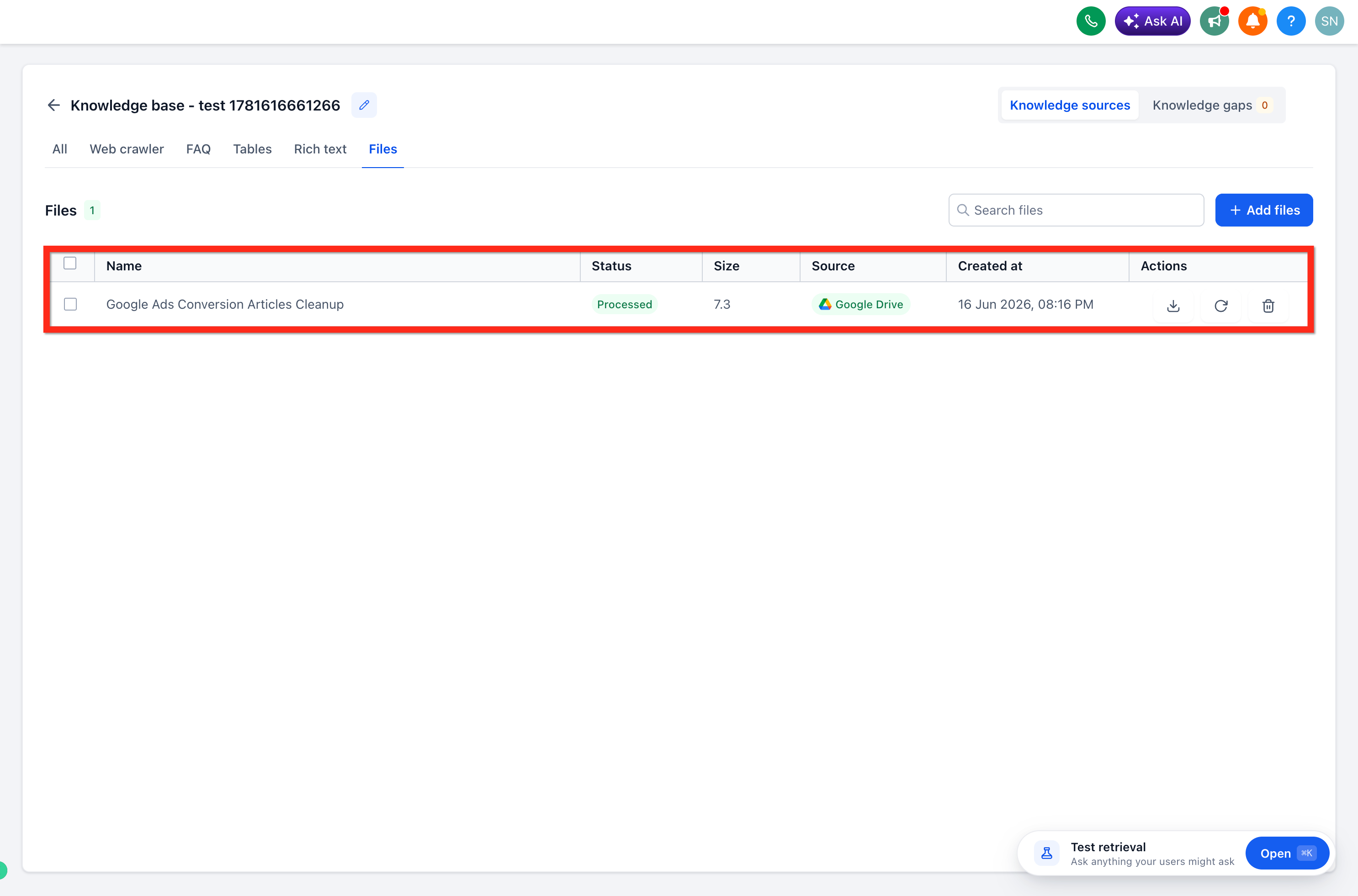
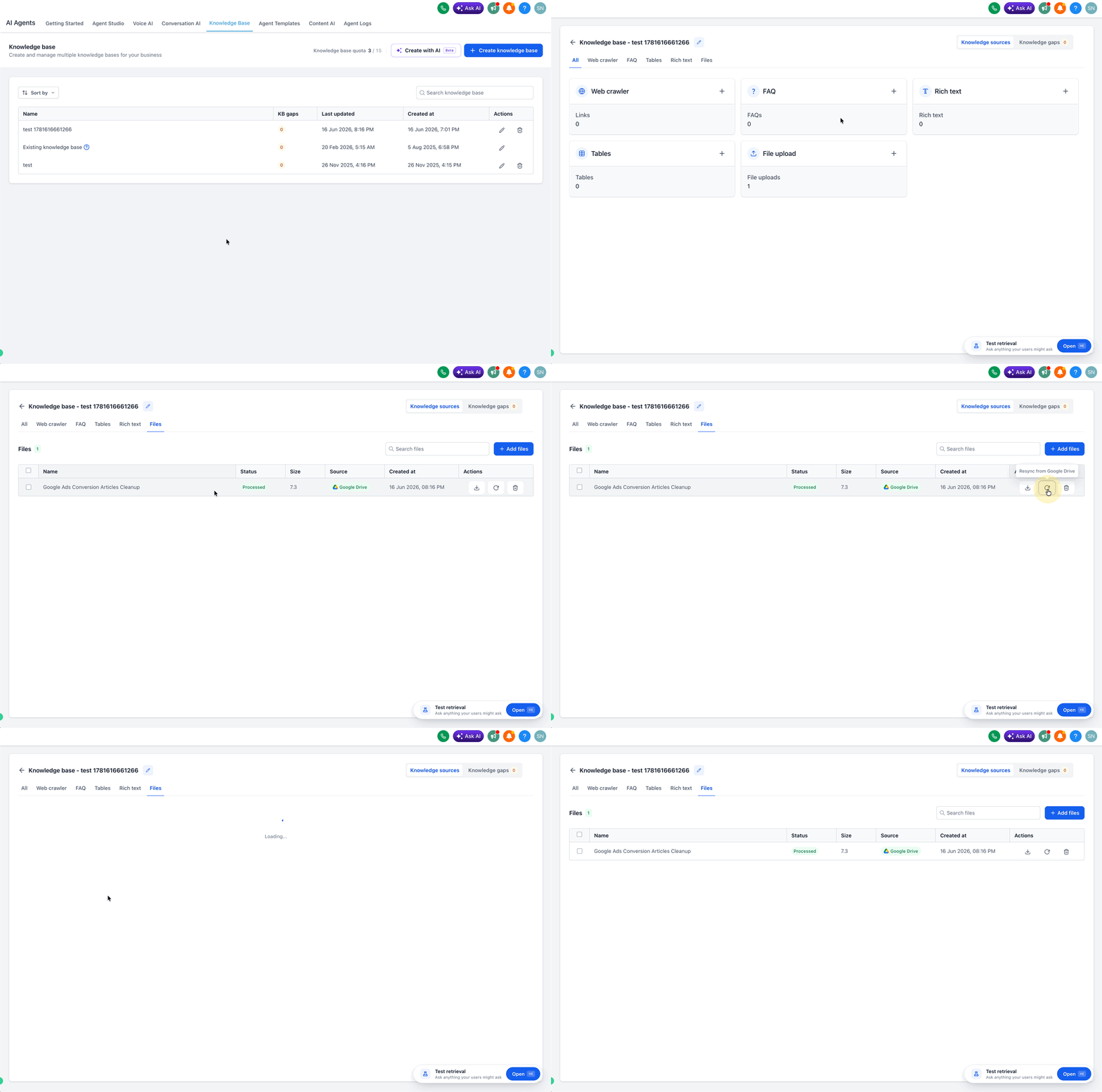
You find the feature inside the AI Agents > Knowledge Base area. From there you open a Knowledge Base, use the File Upload interface, and select the option to import from Google Drive. After an import completes, the file’s status shows as Processed. To update the content, you locate the file in the File Upload tab and click the re sync icon.
The process does not automatically track changes; a manual re sync is required each time the source document is edited in Drive.
03How businesses use Google Drive integration
- Marketing agency. The agency links its Google Drive folder of client proposals, imports the PDFs into the Knowledge Base, and later re syncs them after revisions so proposals stay current for the sales team.
- Healthcare clinic. The clinic imports policy Word documents from Drive into the Knowledge Base, then manually re syncs them when policies are updated to keep staff guidance accurate.
- Real estate firm. Agents import property fact sheets stored as Google Docs, making them searchable for chatbot answers, and re sync the files whenever a listing is updated.
04The numbers and rules that matter
- Supported file types: PDF, Google Docs, Microsoft Word (.doc), Microsoft Word (.docx).
05Before you start
- A Google account must be connected and authorized within HighLevel.
06How to set up and use Google Drive integration in HighLevel
Import files from Google Drive
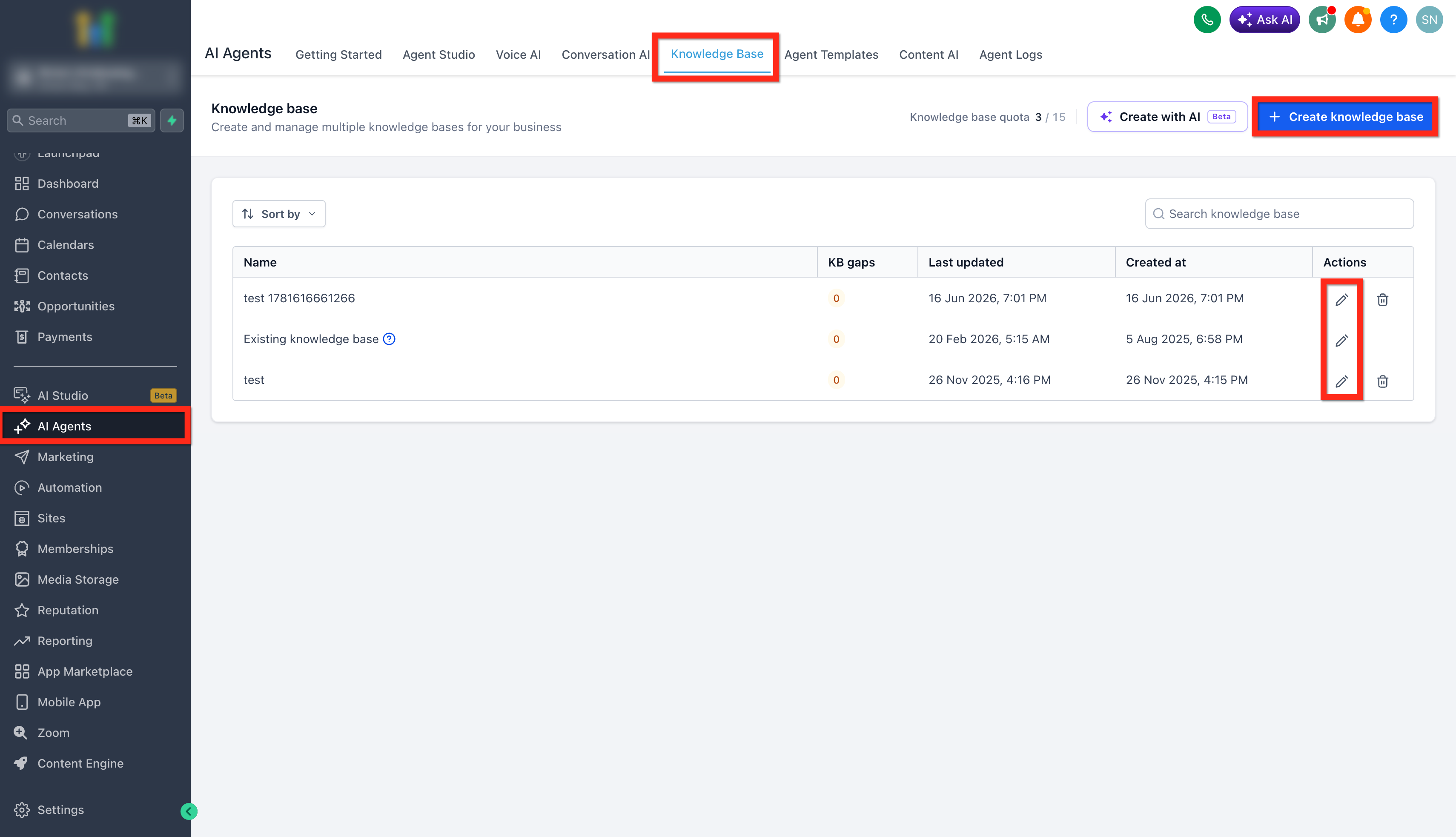
- Navigate to AI Agents > Knowledge Base.
- Create a new Knowledge Base or open an existing one.
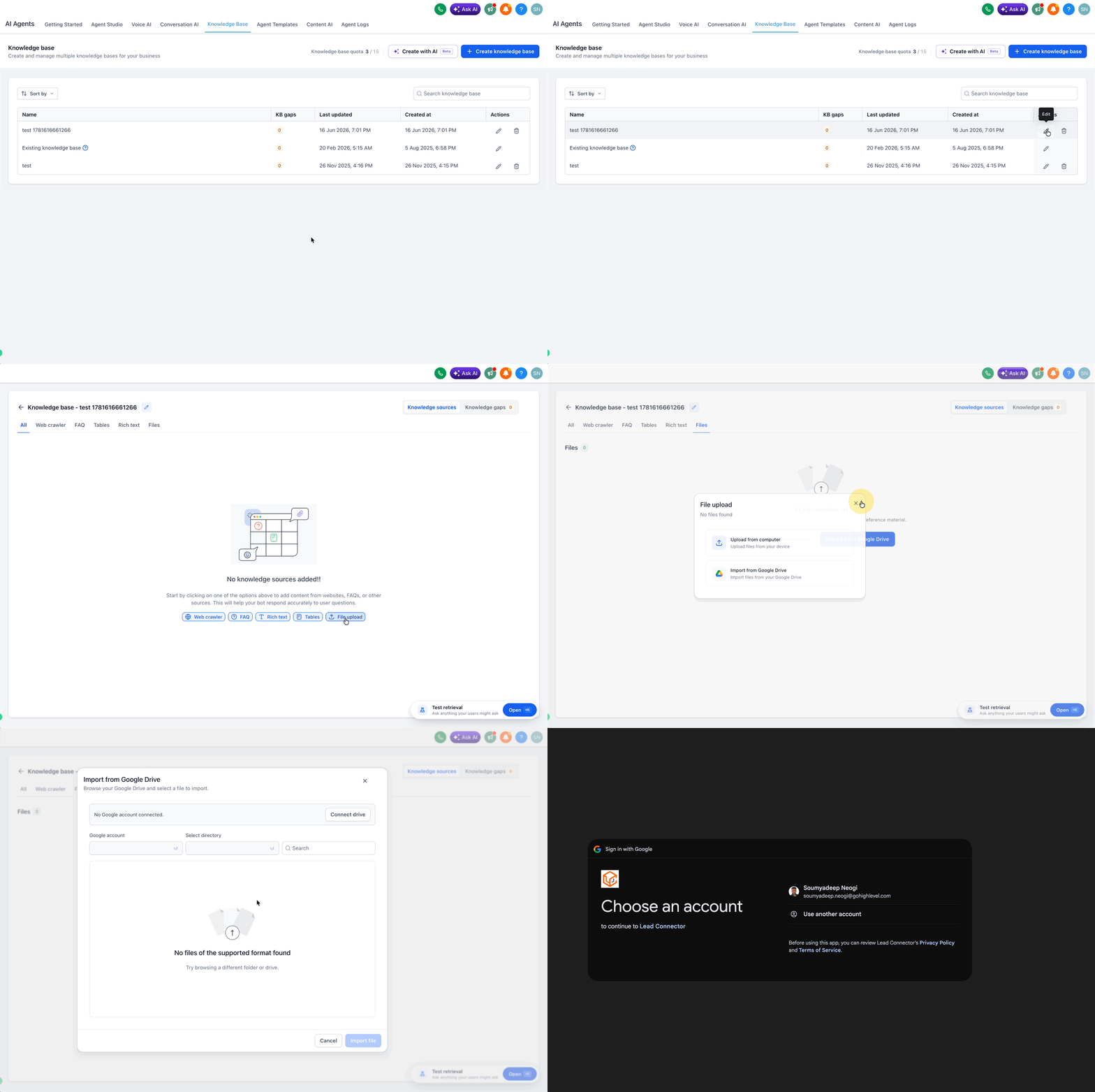
- Open the Knowledge view and select File Upload from the All tab or go to the File tab.
- Choose the Import from Google Drive option.
- If required, sign in to Google and grant permission for access.
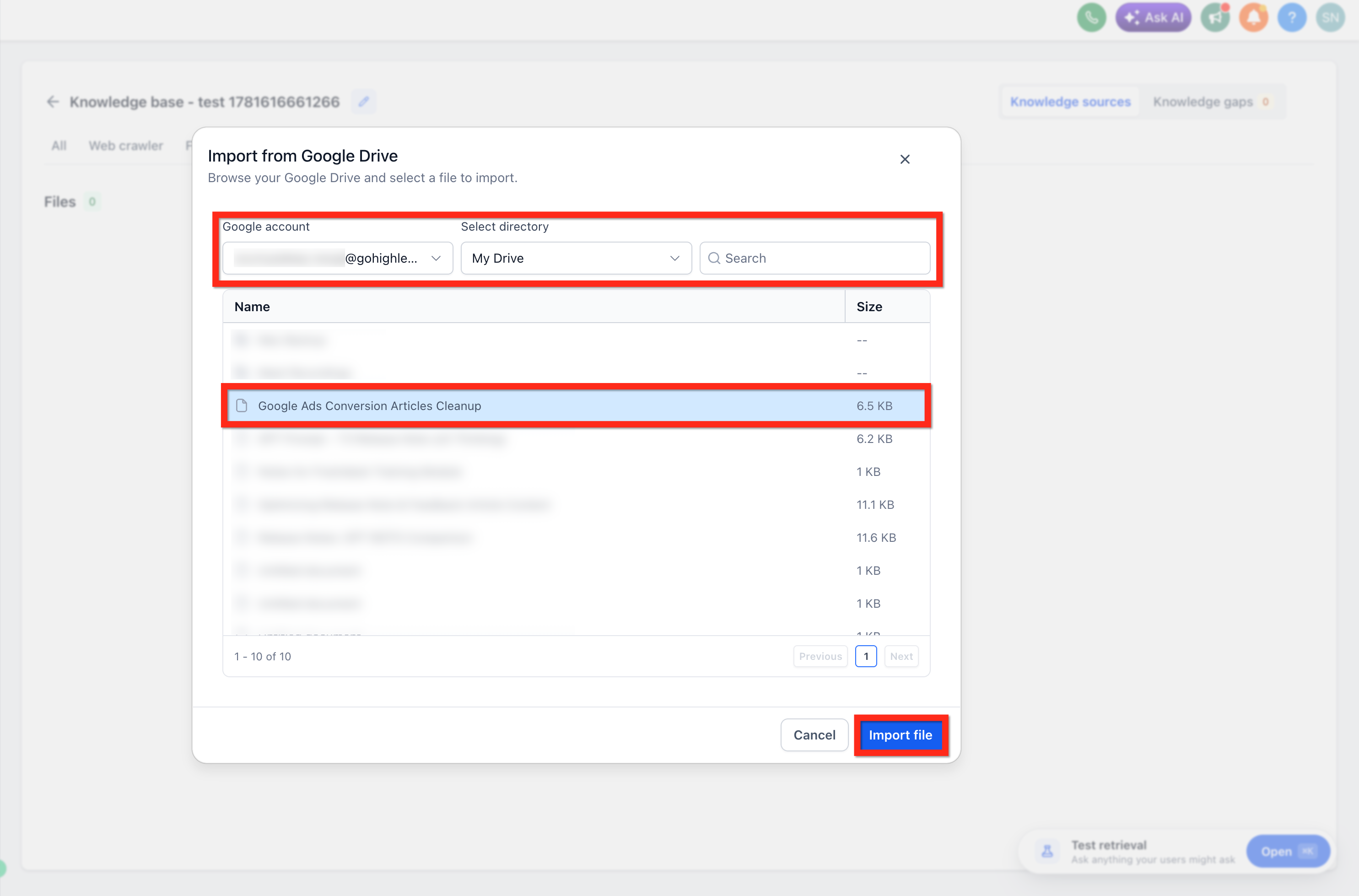
- Select the Google account and the folder that holds the document.
- Browse the folder hierarchy or use the search box to locate the desired file.
- Pick a file that uses a supported format.
- Click the Import File button.
- Wait until the file status changes to Processed.
Re sync an imported Google Drive file
- Open the Knowledge Base that contains the imported file.
- Go to the File Upload tab.
- Find the Google Drive file you want to refresh.
- Click the Re sync icon in the Actions column.
- Wait while the platform processes the updated content.
- After processing finishes, the Knowledge Base uses the latest version of the document.
07What it looks like in HighLevel
08Things to know before you rely on it
- Only PDF, Google Docs, DOC, and DOCX files are accepted.
- The integration does not automatically pull changes; a manual re sync is needed each time the source file is edited.
- Re sync must be started manually from the File Upload tab.
09How it connects to the rest of HighLevel
- Overview of HighLevel knowledge base Knowledge base overview
- Using document and rich text support in Knowledge Base Document & rich text support
- How to export Knowledge Base tables to CSV Export tables
Michael's take

When a business already has a library of PDFs and Word docs in Google Drive, the integration quickly turns those files into AI ready knowledge.
If a team’s documents are stored elsewhere or they rarely update their Knowledge Base, the feature adds little value. The manual resync step also means it isn’t a set and forget solution, so the benefit diminishes when updates are infrequent.