
01Who this is for
- Founders who maintain SOPs in Word files can upload them to keep AI assistants up to date.
- Customer support teams benefit by writing quick answers in rich text without leaving the platform.
- Marketing managers can reuse existing PDF brochures as searchable knowledge sources.
02Document & Rich Text Support, explained
The feature provides two ways to feed content into a Knowledge Base: uploading supported document formats and entering content via a rich text editor. When a file is uploaded, HighLevel reads the text, recognises heading levels and breaks the document into logical chunks. Those chunks are then indexed so AI tools can locate the most relevant passage.
The content lives inside the Knowledge Base tab of the AI Agents area. Each uploaded file appears as a separate source with a processing status. Rich text entries are stored alongside file sources, and both are searchable by the platform’s AI. Indexing usually completes within a minute, depending on file size.
03How businesses use document and rich text support
- SaaS startup. Upload the product’s user guide PDF to the Knowledge Base. The platform parses the headings, creates searchable sections, and the AI chatbot can pull exact answers for onboarding questions.
- Legal consulting firm. Create a new rich text entry for frequently asked contract clauses. Write or edit the text directly in HighLevel, save it, and the AI assistant can reference the clause when clients ask about terms.
- E learning provider. Add course outline documents (DOCX) to the Knowledge Base. HighLevel extracts the text, indexes it, and allows the AI tutor to retrieve specific lesson details on demand.
04The numbers and rules that matter
- Supported types: DOC, DOCX, PDF.
- Heading awareness: Hierarchy (H1, H4) improves chunking and retrieval relevance.
05Before you start
- Remove any sensitive information from the document.
- Make sure headings accurately reflect the structure you want.
06How to set up and use document and rich text support in HighLevel
Upload a document to a Knowledge Base
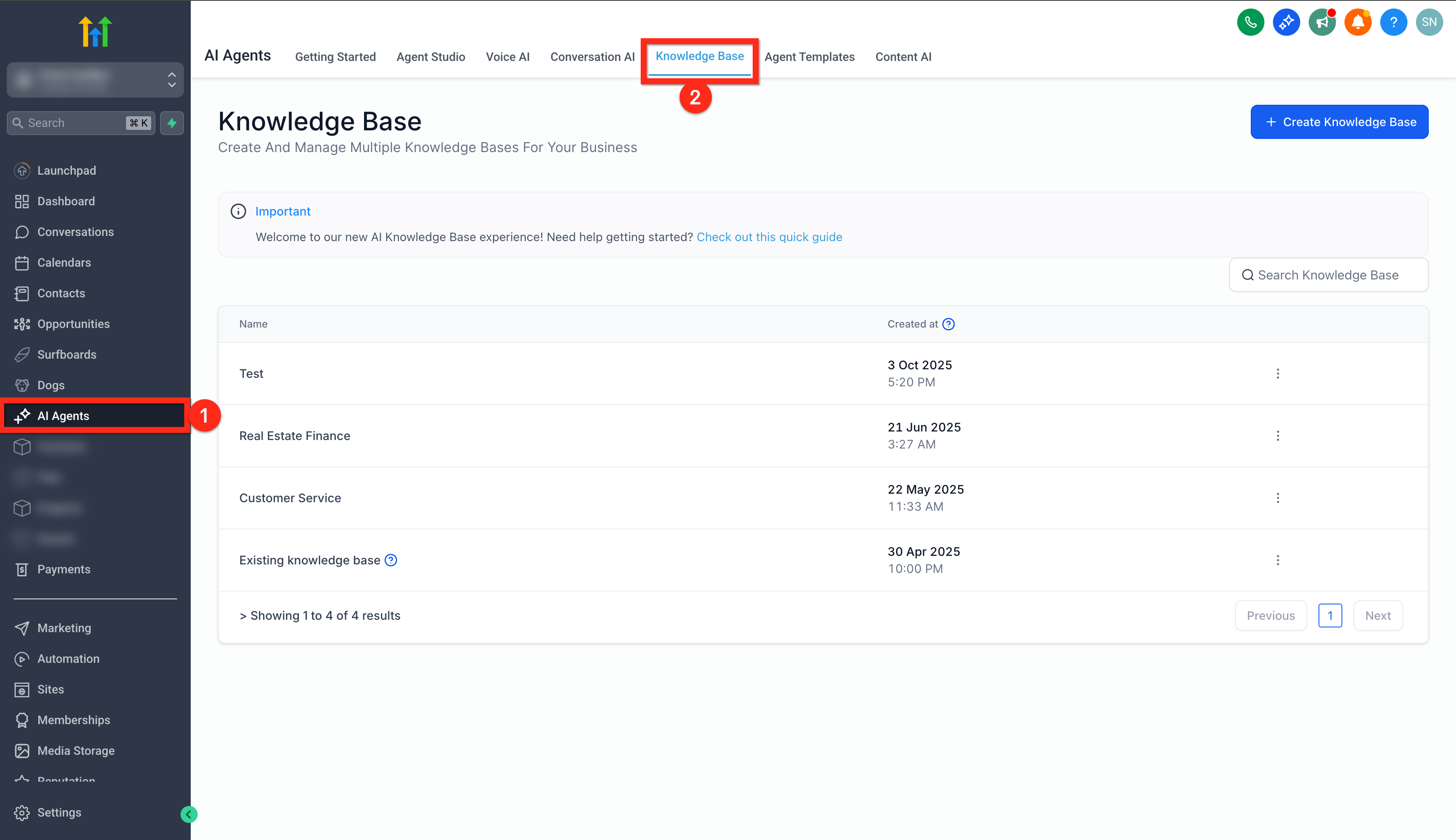
- Navigate to AI Agents in your subaccount.
- Select the Knowledge Base tab.
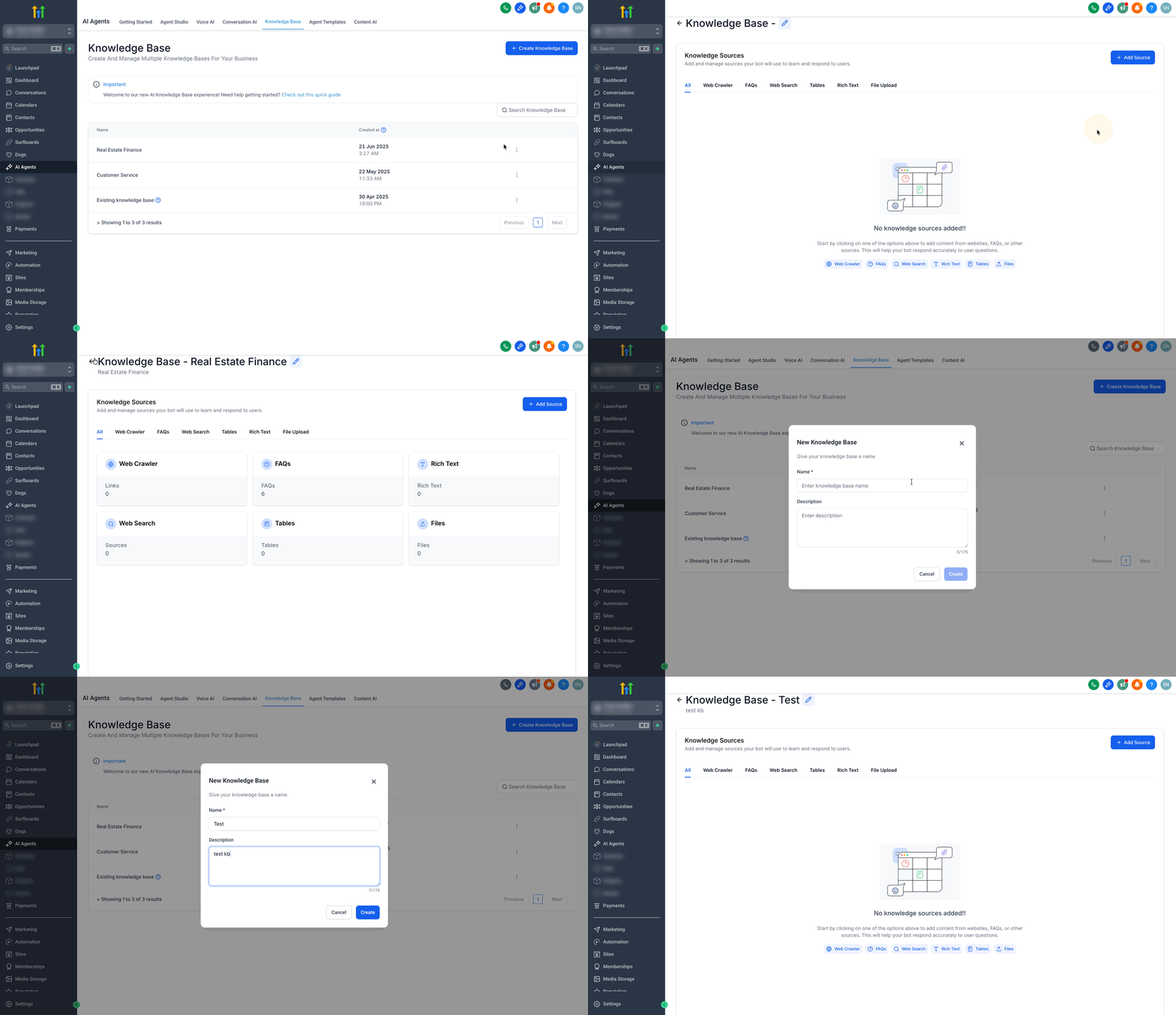
- Edit an existing Knowledge Base or click Create New and give it a name and description.
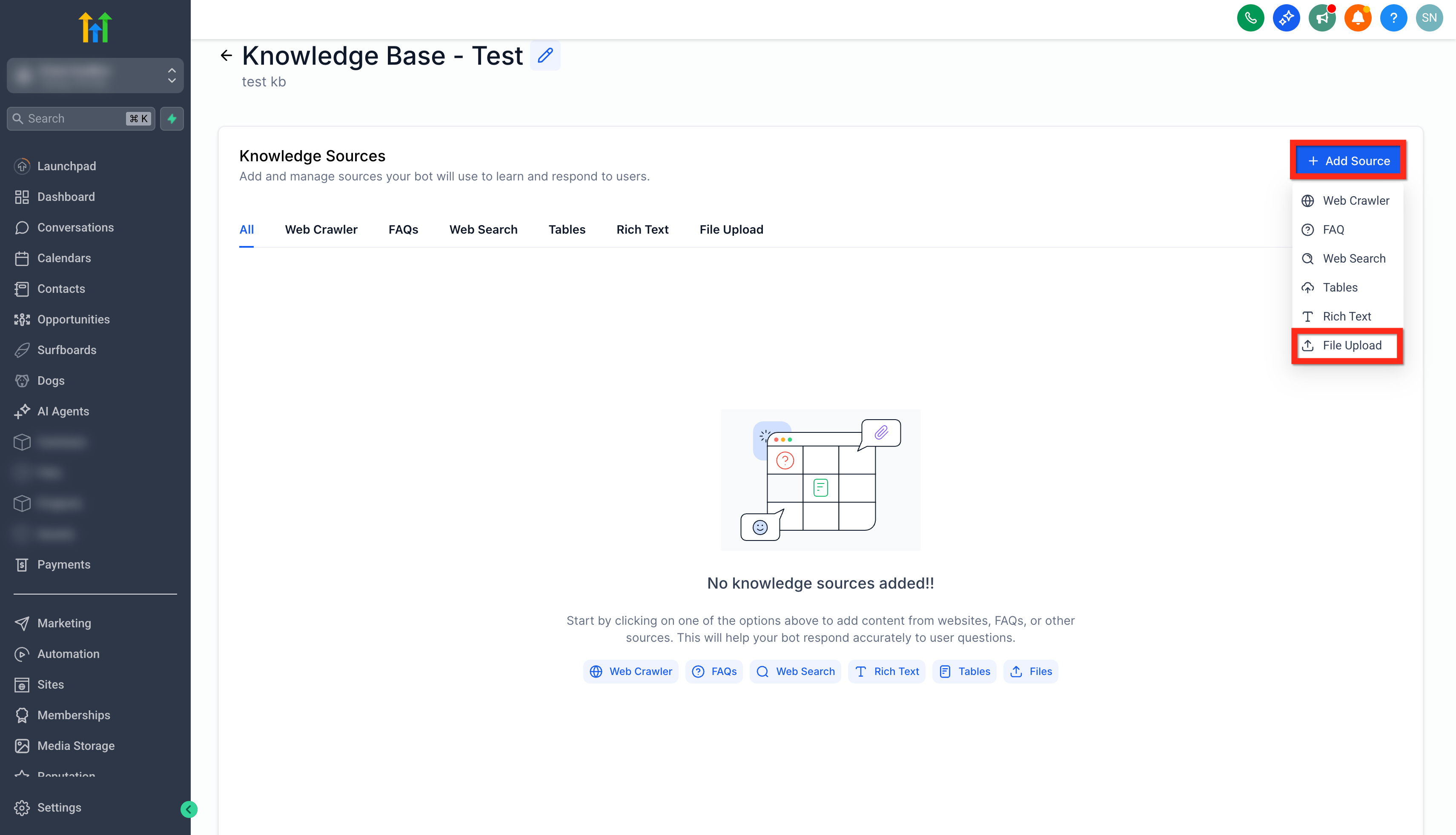
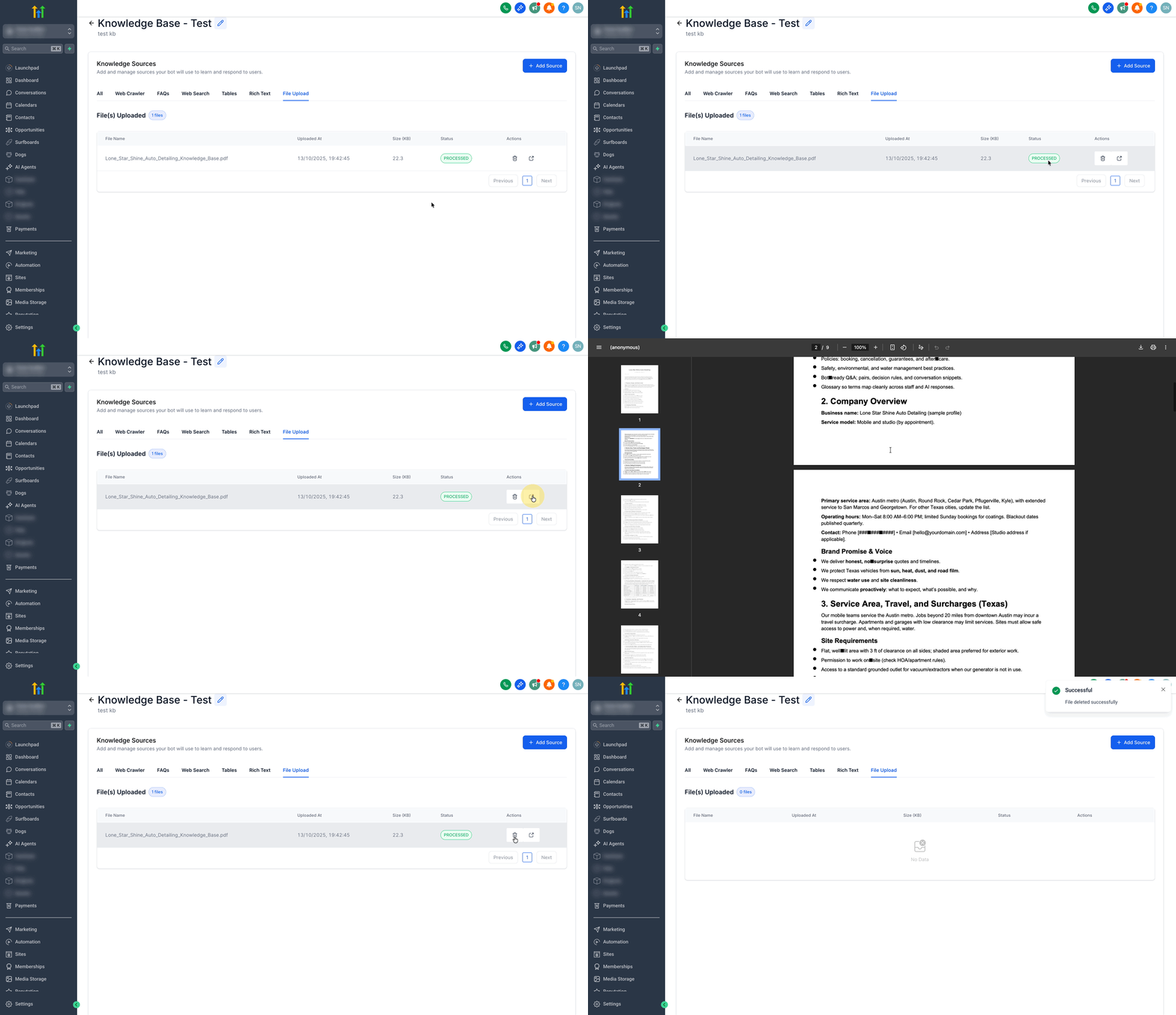
- Click Add Source > File Upload.
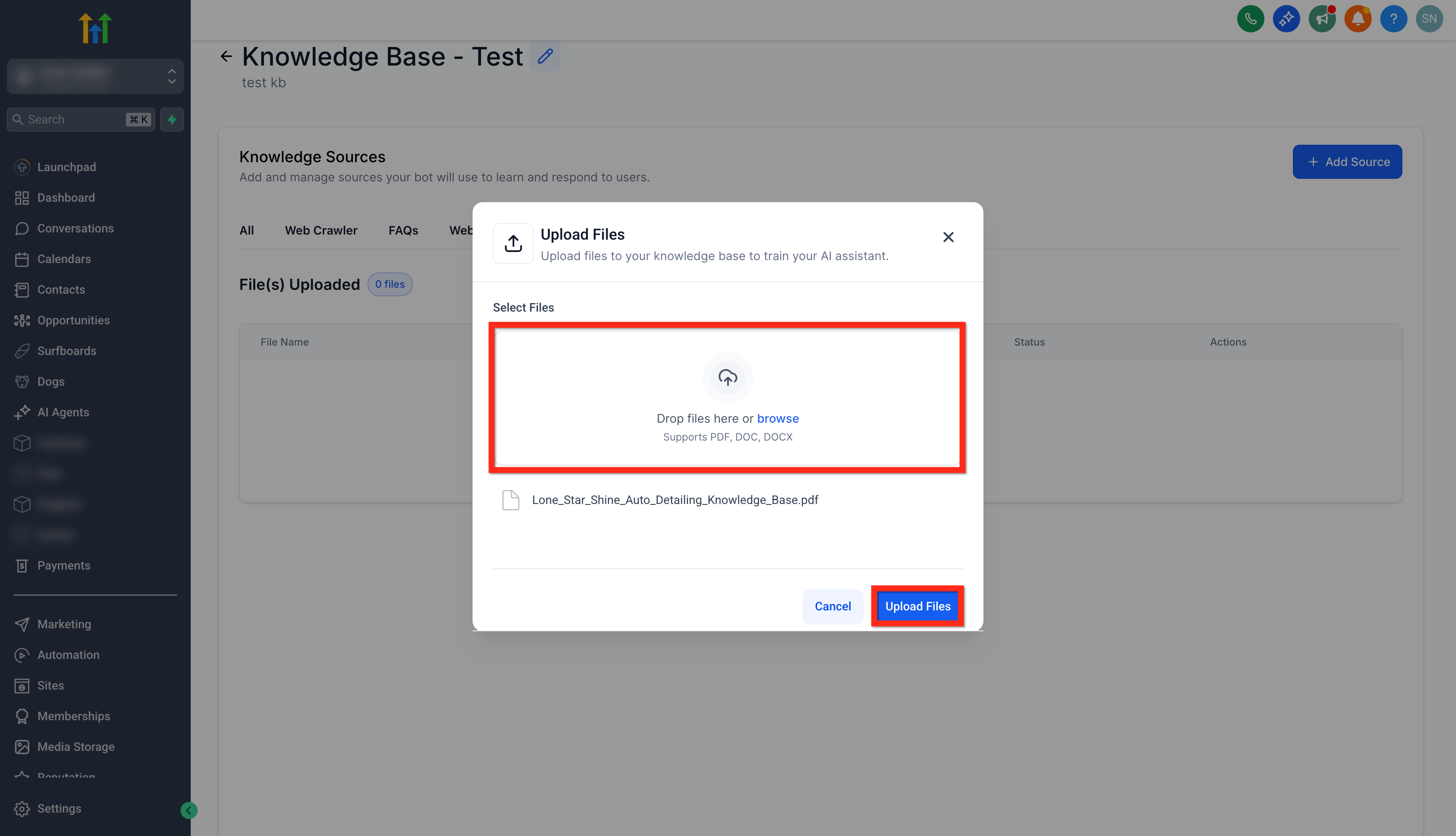
- Drag and drop or browse to choose a DOC, DOCX, or PDF file.
- Click Upload Files to start the ingestion process.
- Wait until the source status changes to Processed.
- Use the arrow icon to open the uploaded file in a new tab if needed.
- Click the bin icon to delete the source when it is no longer required.
Add or edit rich text content
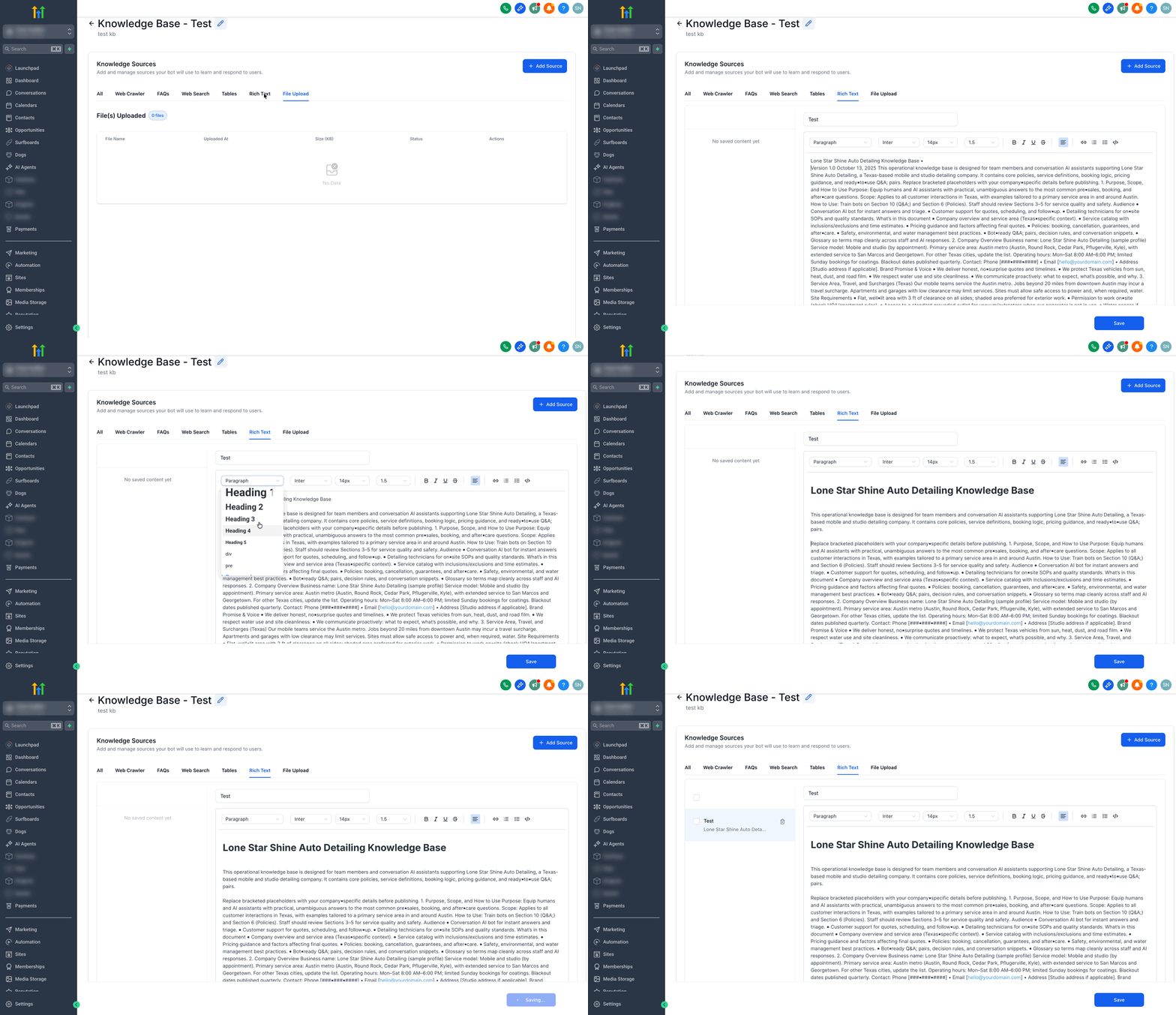
- Open the Knowledge Base you want to modify.
- Use the Rich Text editor to type or adjust the content.
- Click Save to store the rich text entry.
07What it looks like in HighLevel
08Settings that matter
- File Upload. Enables adding DOC, DOCX, or PDF files as searchable sources for the Knowledge Base.
- Rich, Text editor. Provides a space to write or edit Knowledge Base entries directly inside HighLevel.
09Things to know before you rely on it
- Only DOC, DOCX, and PDF file types are accepted.
- Embedded images are ignored during ingestion; only text is indexed.
- Processing time varies with file size but is usually completed within about a minute.
- Each upload creates a new source; it does not overwrite existing entries.
10If something goes wrong
- File upload fails. Confirm the file type is DOC, DOCX, or PDF, ensure it is not corrupted or password protected, then try uploading again.
- Uploaded file is stuck processing. Wait for processing and indexing to complete, refresh the Knowledge Base source tab, or re upload a smaller, cleaner version of the file.
- Document content is missing. Make sure the document contains selectable text, not a scanned image, and that headings are present; then re upload.
- Images inside the document are not available. This is expected; embedded images are skipped during ingestion. Add important image based information as written text or a rich text entry.
- Rich text edits do not update uploaded files. File uploads and rich text entries are stored separately. Update the rich text entry directly, or upload a revised document if the source file changed.
- AI retrieves the wrong source. Check for duplicate or conflicting content, remove outdated sources, and add clearer headings or direct answers. Use the Retrieval Tester to confirm which source is returned.
11How it connects to the rest of HighLevel
- Test retrieval of uploaded content with the Knowledge Base Retrieval Tester. Retrieval Tester
- See the overall Knowledge Base feature overview. Knowledge Base Overview
- Learn how to download Knowledge Base tables in CSV format. Download Tables
Michael's take

When you have a library of existing policies, manuals or product guides, turning those files into searchable AI knowledge can be helpful.
If your content is short, static or already lives in other Knowledge Base sources like URLs or FAQs, the extra effort to keep documents up to date may not be worth it. The feature does not handle images and you must reupload a revised file for any change, so for rapidly evolving material the rich text editor is usually a better fit.