
01Who this is for
- Admins need a clear place to create and organize AI ready content, and the UI gives them quick visibility of all sources.
- Editors benefit from tabbed source management that reduces the time spent switching screens while curating knowledge.
- Viewer only users can consume AI generated answers without seeing the management controls.
02Knowledge bases, explained
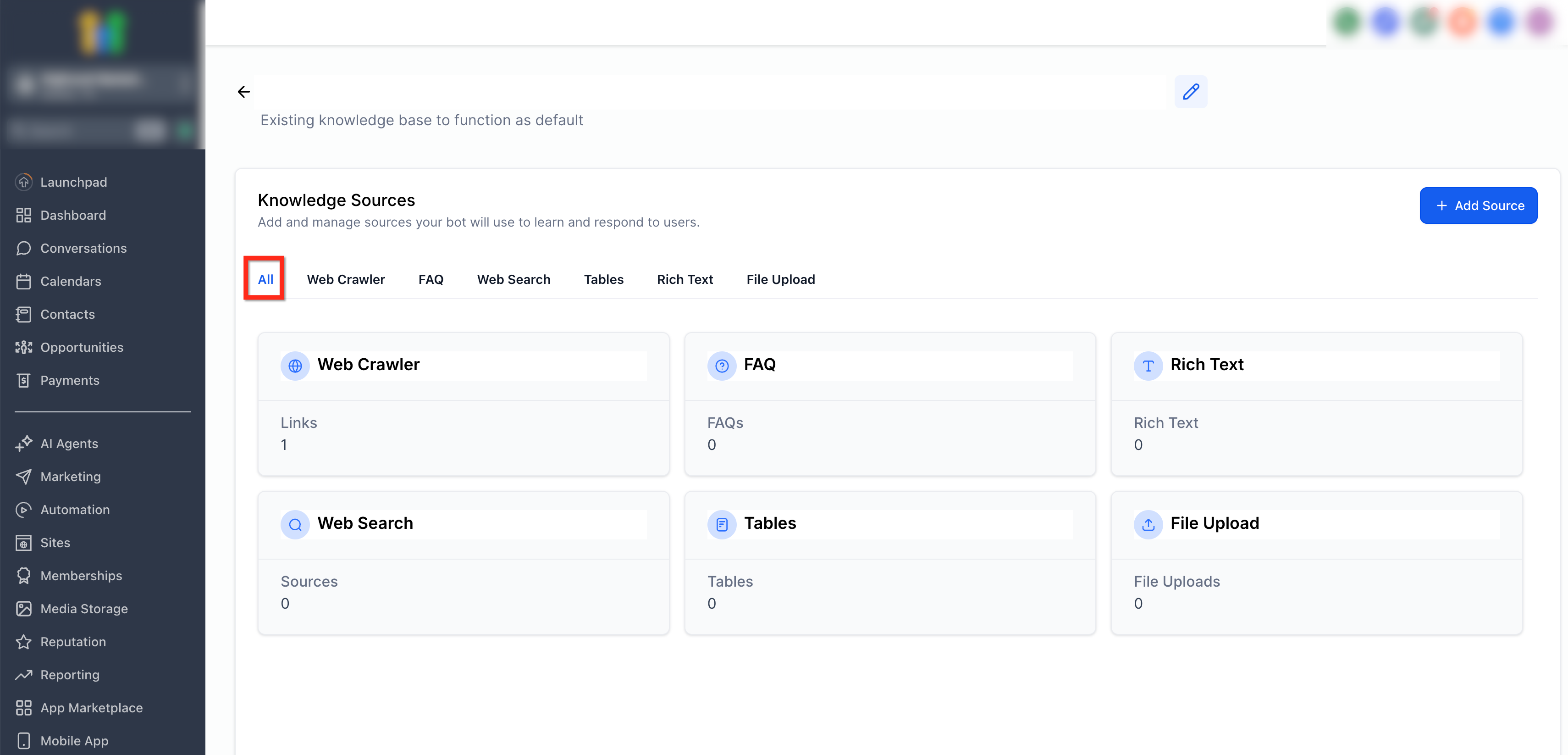
The Knowledge Base stores source material such as website pages, FAQ entries, CSV tables, rich text blocks, and uploaded documents. When an AI tool is connected, it can query this content to generate answers.
The interface opens with a Summary view that lists the connected sources and the overall structure of the Knowledge Base. Below the summary, each source type appears in its own tab, showing the number of items and providing add/manage actions. The same component is used across all HighLevel products that support AI.
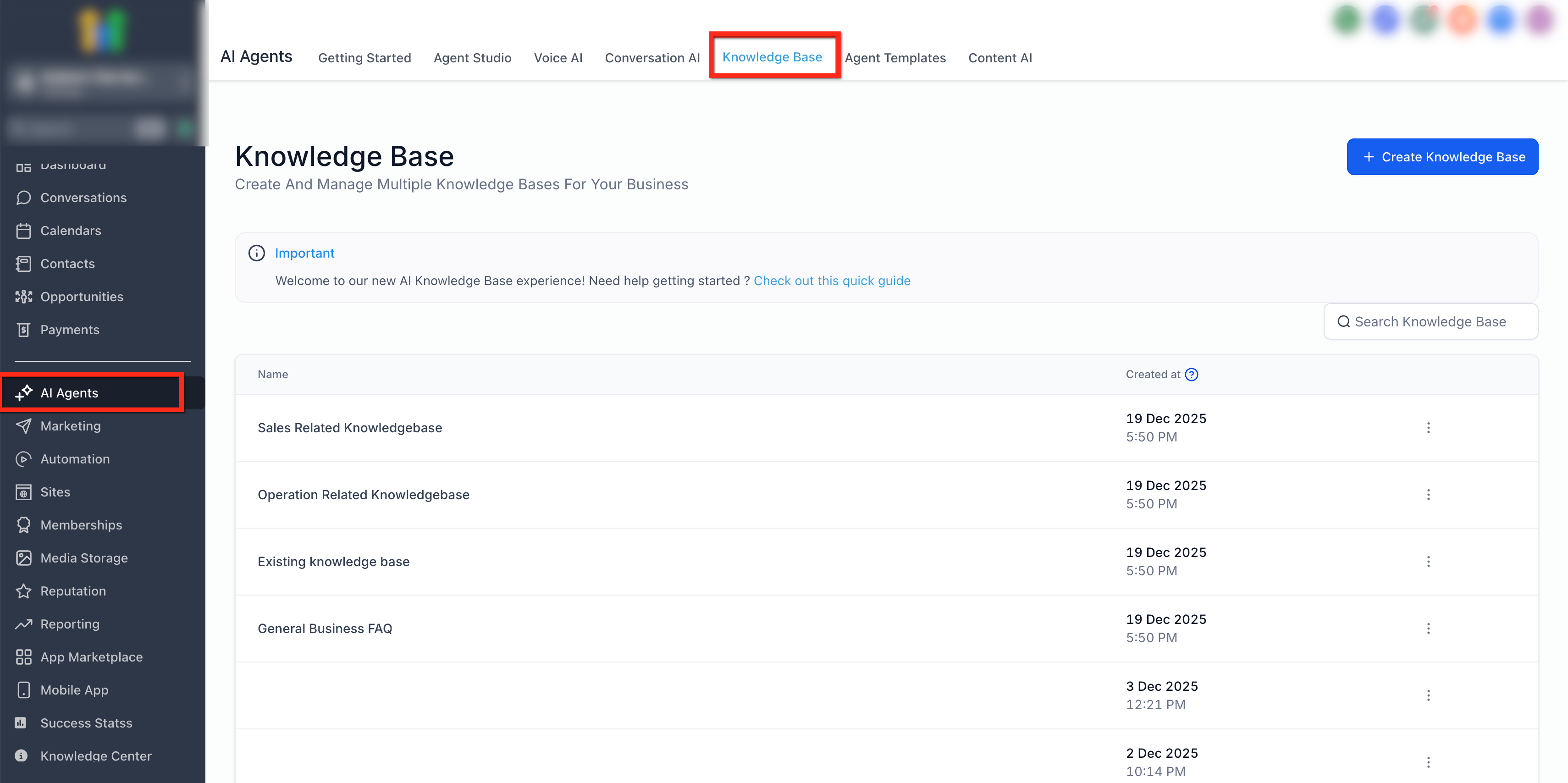
Access to the Knowledge Base is found via the navigation path AI Agents > Knowledge Base. From the landing page you can see all Knowledge Bases, create new ones, and open any to manage its sources.
03How businesses use knowledge bases
- Marketing agency. The agency creates a Knowledge Base, adds a Web Crawler source for client websites, and uploads FAQ documents. When the AI assistant answers client queries, it pulls from those sources within the same Knowledge Base.
- Real estate office. The office builds a Knowledge Base, adds a Tables source with property listings in CSV format, and uploads rich text descriptions. The AI bot draws on this structured data to reply to buyer questions.
- SaaS startup. The startup sets up a Knowledge Base, adds File Upload sources for product manuals, and includes an FAQ tab for common support questions. The AI agent references these files when responding to user tickets.
04The numbers and rules that matter
- Supported source tabs: Web Crawler, FAQ, Web Search, Tables, Rich Text, File Upload.
05Before you start
- User must have admin or editor permissions to see management controls.
06How to set up and use knowledge bases in HighLevel
Create a Knowledge Base
- Navigate to AI Agents and select Knowledge Base.
- Choose the option to create a new Knowledge Base from the landing page.
- Enter a name for the Knowledge Base and confirm the creation.
Add a source to a Knowledge Base
- Open the Knowledge Base you wish to edit.
- Select the appropriate source tab, such as Web Crawler or FAQ.
- Click the add source control shown on the tab.
- Provide the required information for the source and save the entry.
07What it looks like in HighLevel
08Things to know before you rely on it
- The refreshed UI rolls out progressively; the Summary view and tabs appear automatically when the update reaches the account.
- Existing Knowledge Bases and their sources remain unchanged after the UI refresh.
- Permissions determine whether a user can manage sources; viewer only users do not see management controls.
09If something goes wrong
- Management controls are not visible. Check that the user has admin or editor permissions; viewer only users cannot manage sources.
- Summary view or tabbed layout is missing. The UI update is being rolled out gradually; wait for the feature to appear automatically.
10How it connects to the rest of HighLevel
- Test source retrieval with the Knowledge Base Retrieval Tester Retrieval Tester
Michael's take

The refreshed layout gives a quick snapshot of what you have and keeps each source type on its own tab.
If I were setting up a new AI agent, I’d start by creating a Knowledge Base, add a Web Crawler source for the website, and then add a few FAQ entries. The Summary view lets me confirm everything is hooked up before I go live.