
01Who this is for
- Customer support managers who maintain AI driven help bots and need the answers to stay aligned with evolving help articles.
- Teams that operate AI agents across multiple subaccounts and want to reduce repetitive manual updates.
02Auto refresh of Knowledge Base trained links, explained
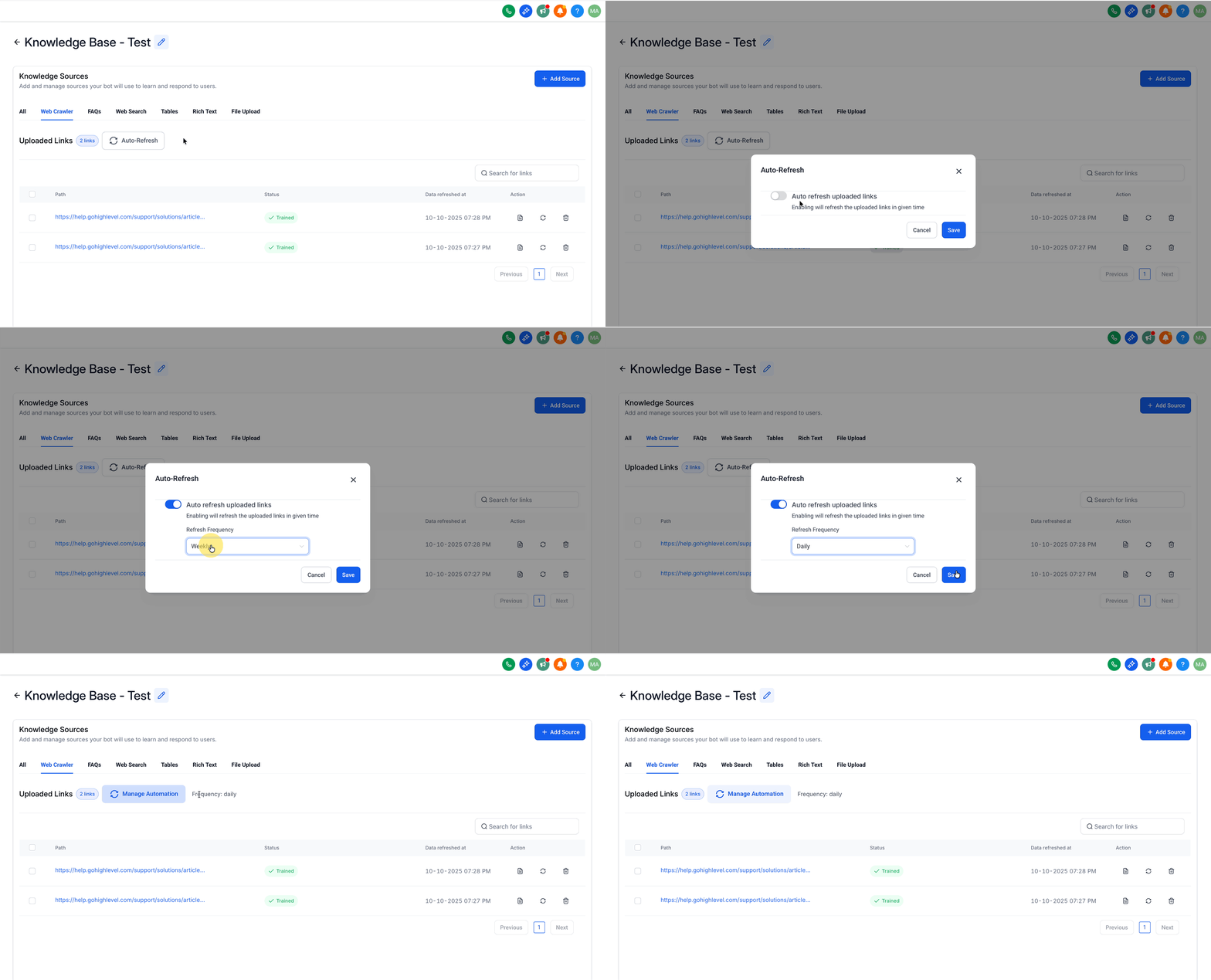
The feature lives inside the AI Agents section of a subaccount. After opening a Knowledge Base, the Web Crawler tab provides an Auto Refresh control. When activated, HighLevel periodically visits each listed URL, extracts fresh data, and re indexes it for the Conversation AI bot.
The system records the progress in a table view. Each URL shows a status such as Getting Data, Trained, or Failed, and a timestamp of the last successful refresh. Users can adjust the cadence, pause the automation, or retry a failed crawl directly from this view.
03How businesses use auto refresh of Knowledge Base trained links
- Ecommerce store. The store adds product page URLs to its Knowledge Base, sets the Auto Refresh frequency to Daily, and saves. The bot then pulls the latest pricing or stock information each day without further input.
- SaaS company. The SaaS team includes links to its public documentation in the Knowledge Base, selects a Weekly refresh, and monitors the status column. Weekly crawls keep the bot aligned with any new feature releases.
- Real estate agency. Agents list property listing pages as URLs, choose a Monthly refresh to match their content update cycle, and click Save. The AI assistant uses the refreshed listings whenever a client asks about available homes.
04The numbers and rules that matter
- Daily refreshes approximately every 24 hours.
05How to set up and use auto refresh of Knowledge Base trained links in HighLevel
Configure Auto Refresh for a Knowledge Base
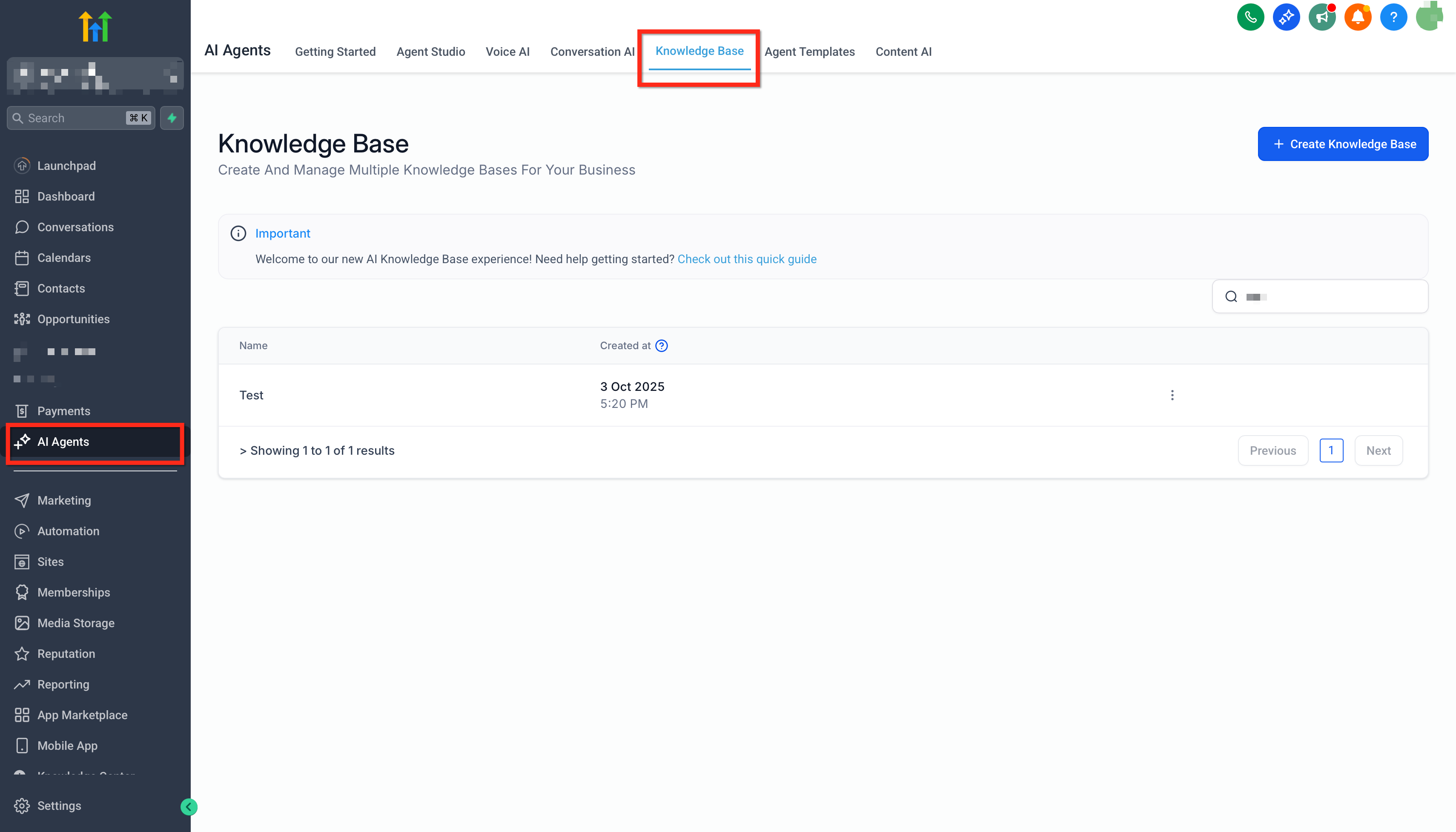
- Navigate from the Subaccount to AI Agents > Knowledge Base.
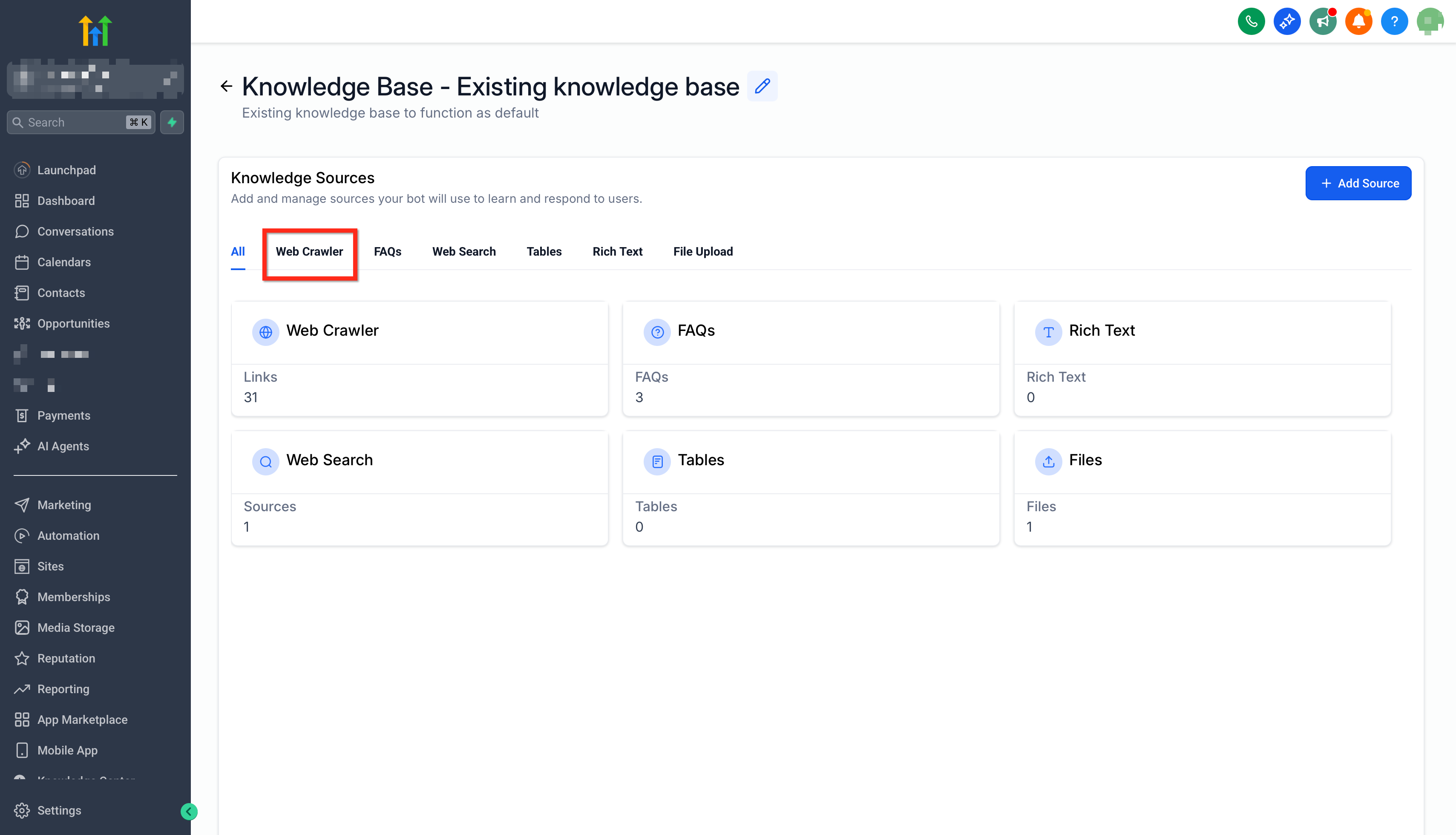
- Select the knowledge base you want to configure and open the Web Crawler view.
- Click the Auto Refresh icon (circular arrows).
- Choose a refresh cadence, Daily, Weekly, or Monthly.
- Press Save to apply the schedule.
06What it looks like in HighLevel
07Settings that matter
- Auto Refresh. Enables scheduled re crawling of URLs stored in the Knowledge Base.
- Refresh frequency. Determines how often the system revisits each URL, once per day, week, or month.
08Things to know before you rely on it
- Only three cadence options are available: Daily, Weekly, or Monthly.
- The feature works with publicly reachable web pages; links that need login or are on Google Docs / PDFs are not refreshed.
- Custom question answer pairs are static and are not updated by Auto Refresh.
- Failed crawls leave the previously trained data active until the URL is fixed or refreshed manually.
09If something goes wrong
- A URL shows a Failed status after an automatic refresh.. Review the link for accessibility issues, correct the URL if needed, and trigger a manual refresh.
- A URL remains in Getting Data for an extended period.. Check network connectivity and page load speed; if the page is too heavy, consider simplifying it or using a less frequent cadence.
10How it connects to the rest of HighLevel
- Overview of Knowledge Base features Knowledge Base Overview
- How the Web Crawler extracts content for the Knowledge Base Enhanced Web Crawler
- Testing retrieval of refreshed content from the Knowledge Base Retrieval Tester
Michael's take

When you have dozens of product pages or help articles that change regularly, the feature can reduce the manual effort of clicking Refresh on each link.
If your Knowledge Base consists of only a handful of static pages that rarely change, the scheduled crawling may add little value and could introduce unnecessary load; in that case manual refreshes or updating the static entries could be simpler.