
01Table search in Knowledge Base, explained
Table Search adds a new “Table Source” type to HighLevel Knowledge Base. When you upload a CSV, the platform creates vector embeddings for every row and stores the most relevant columns. This lets AI bots answer questions about structured data without needing SQL.
The engine uses semantic similarity matching, so a user can ask questions like “Which customers have overdue invoices?” and receive answers drawn from the appropriate rows and columns. Rows that informed the answer are cited in the Response Info sidebar, allowing quick verification.
02How businesses use table search in Knowledge Base
- Customer record look up. A support bot can retrieve a client’s payment status by asking a plain English question. The bot searches the uploaded CSV of invoices and returns the matching rows.
- Inventory or product catalog queries. An AI sales assistant can tell a prospect which items are in stock by querying a CSV of product SKUs. The bot responds with the relevant rows and quantities.
03The numbers and rules that matter
- Handles up to 50,000 rows and 500 columns per CSV.
- Selects the 20 most relevant columns for indexing.
- Maximum file size is 50 MB.
- Automatic schema detection with 80% confidence threshold.
- Rows are chunked into groups of five (max 2,000 characters) for indexing.
- Column types detected with 80% accuracy.
04Before you start
- Create a Knowledge Base.
- Have an AI Agent (Chat, Voice, or Workflow) ready to attach the Knowledge Base.
05How to set up and use table search in Knowledge Base in HighLevel
Set up table search in Knowledge Base
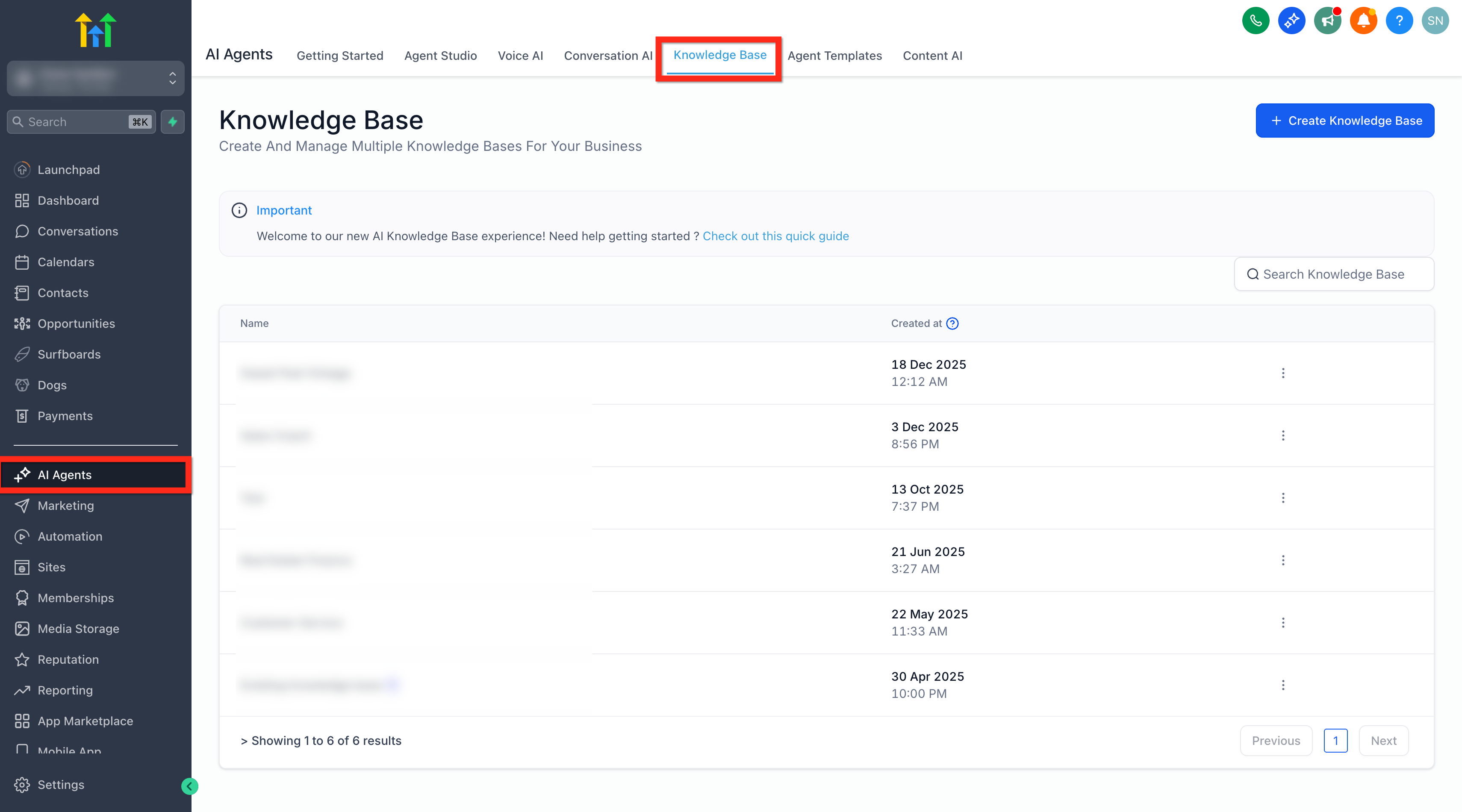
- Open AI Agents > Knowledge Base.
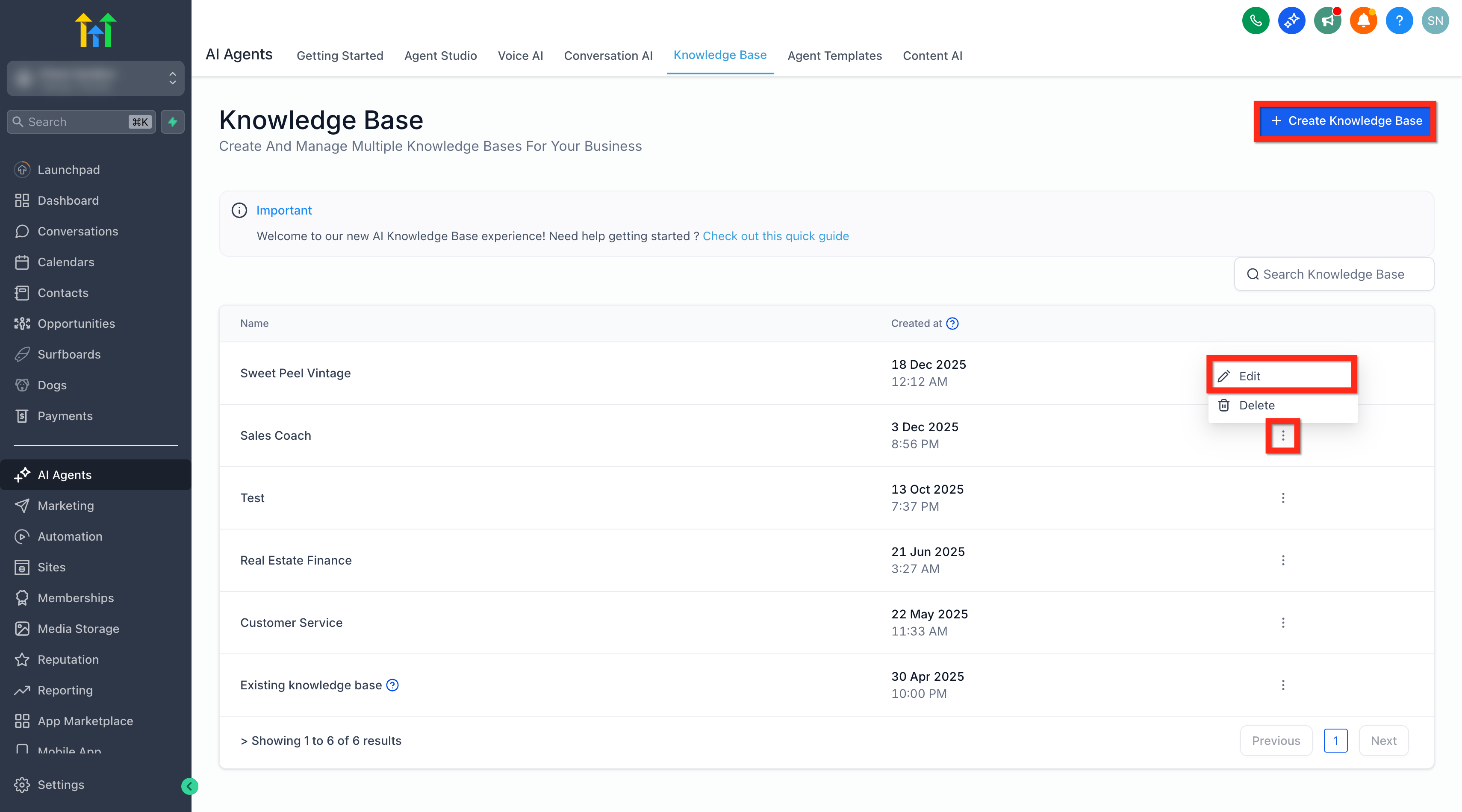
- Edit an existing Knowledge Base or click Create Knowledge Base and give it a name and description.
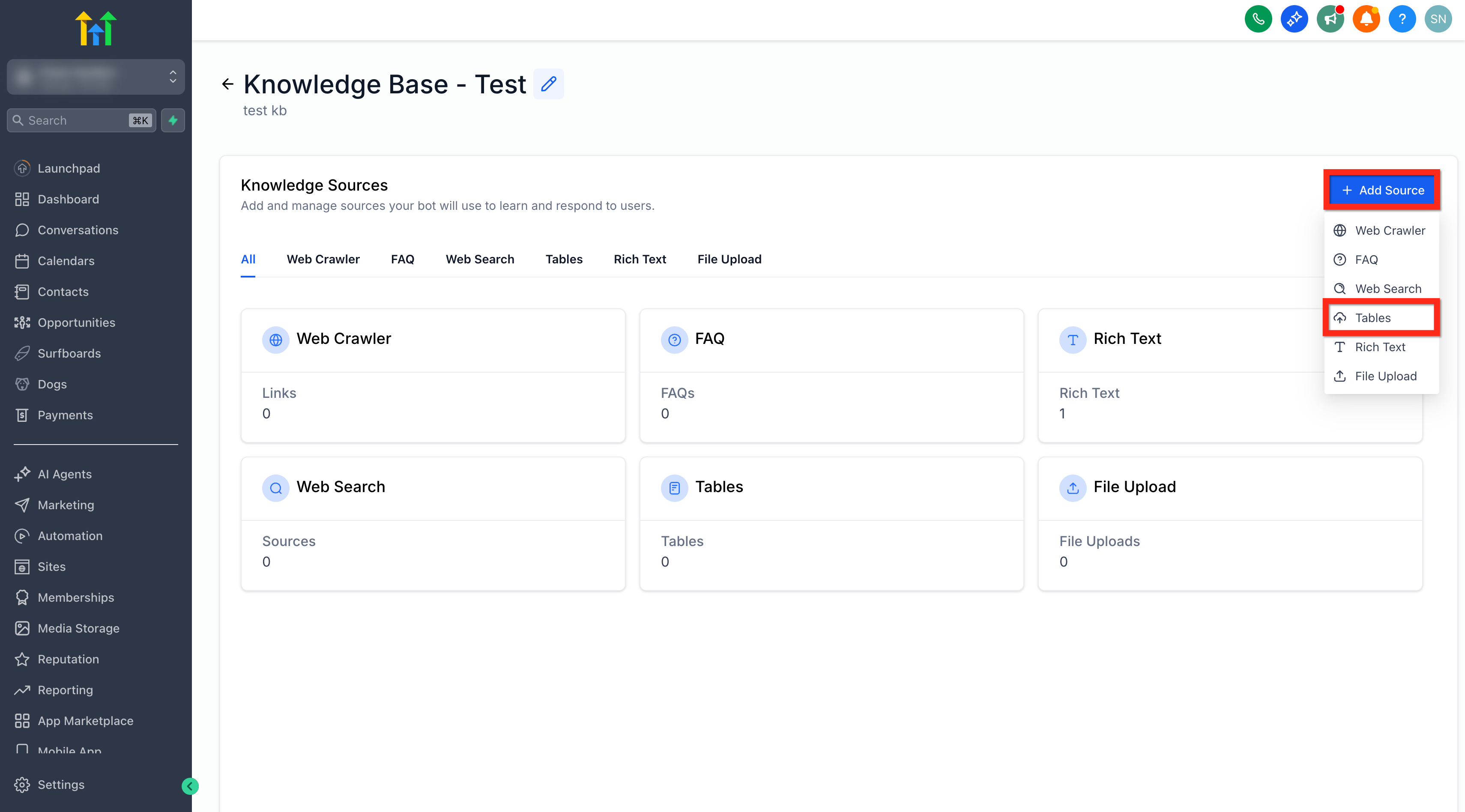
- Click Add Source, then choose Tables.
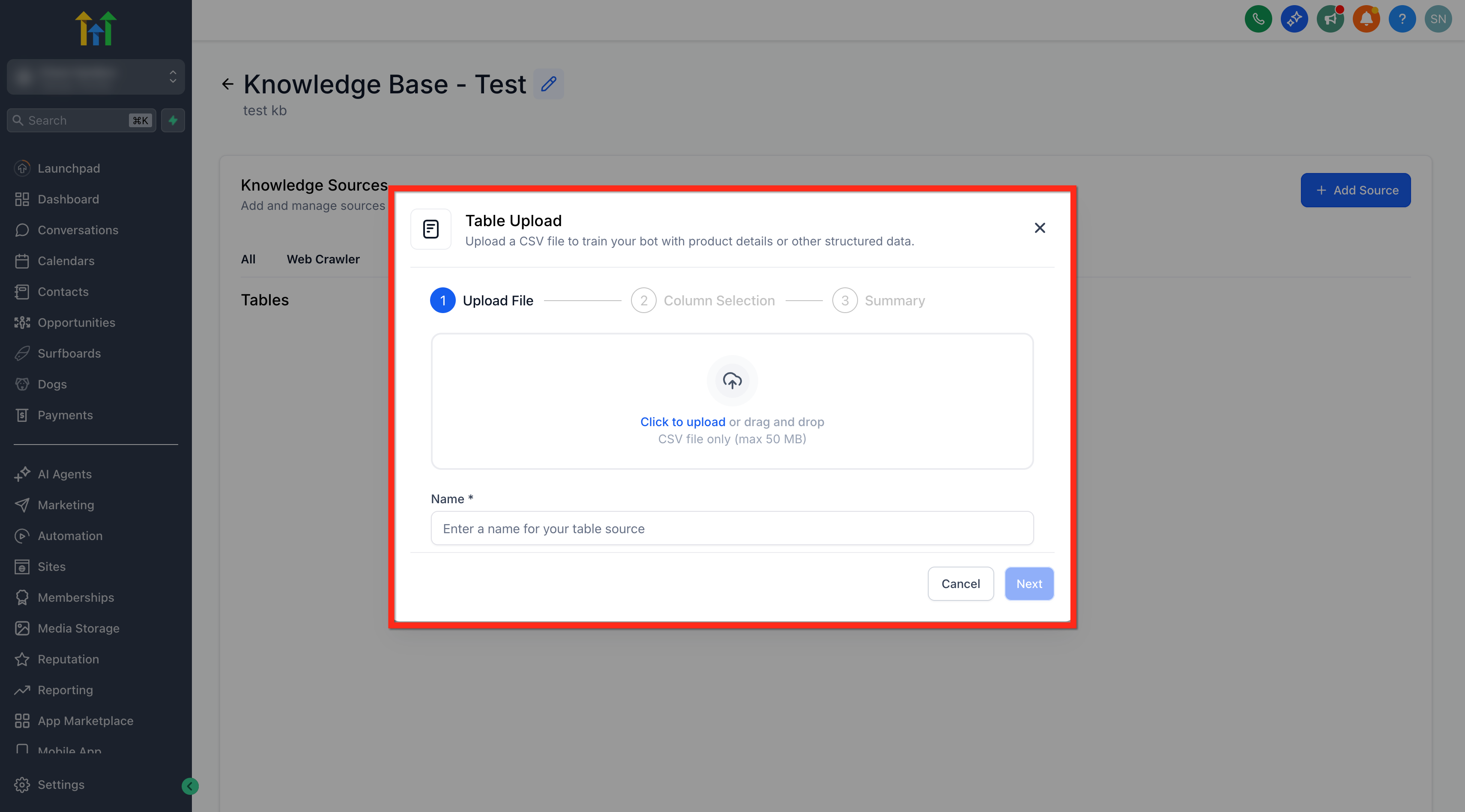
- Upload your CSV file using drag and drop or the file picker (max 50 MB).
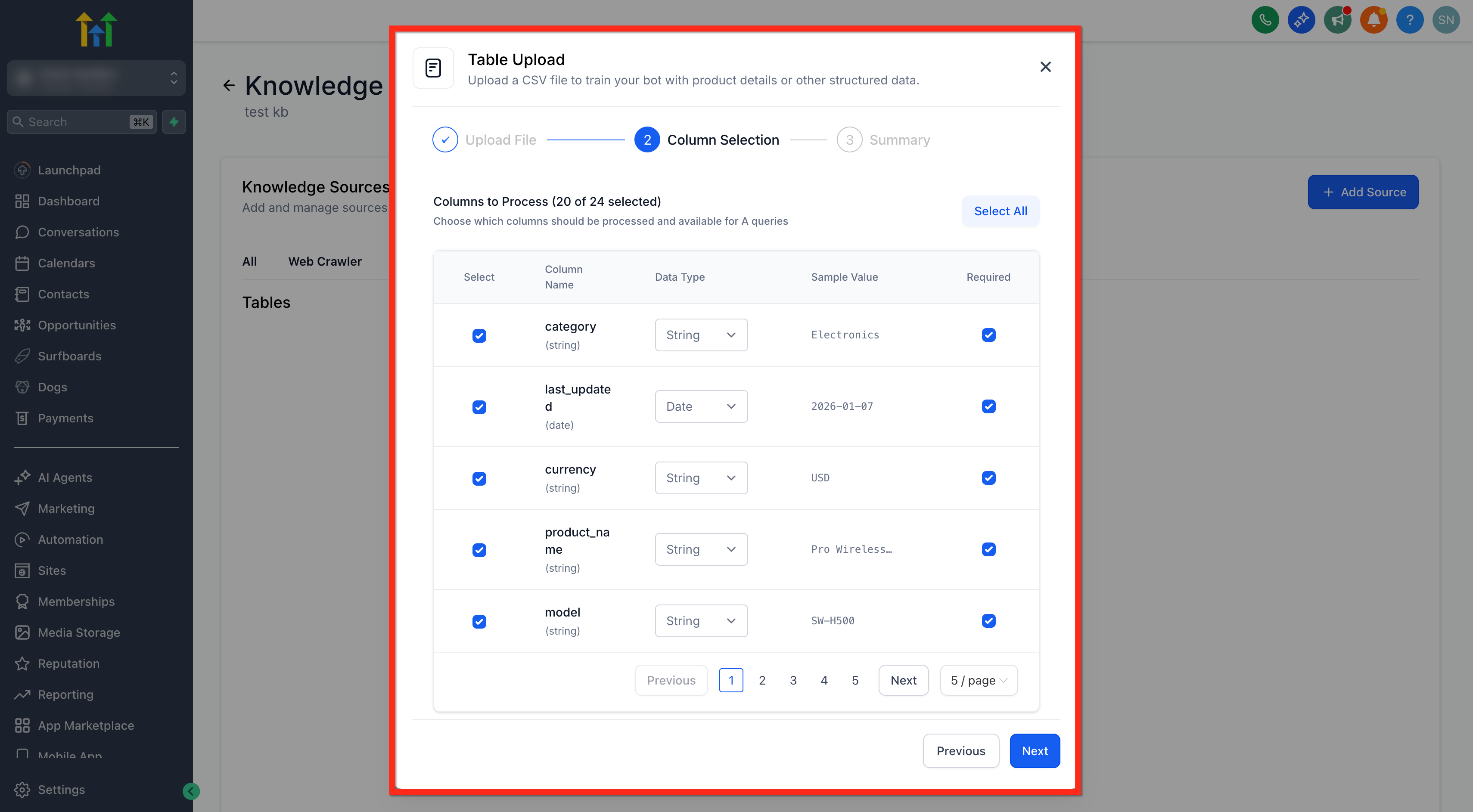
- Review detected columns and adjust data types if needed.
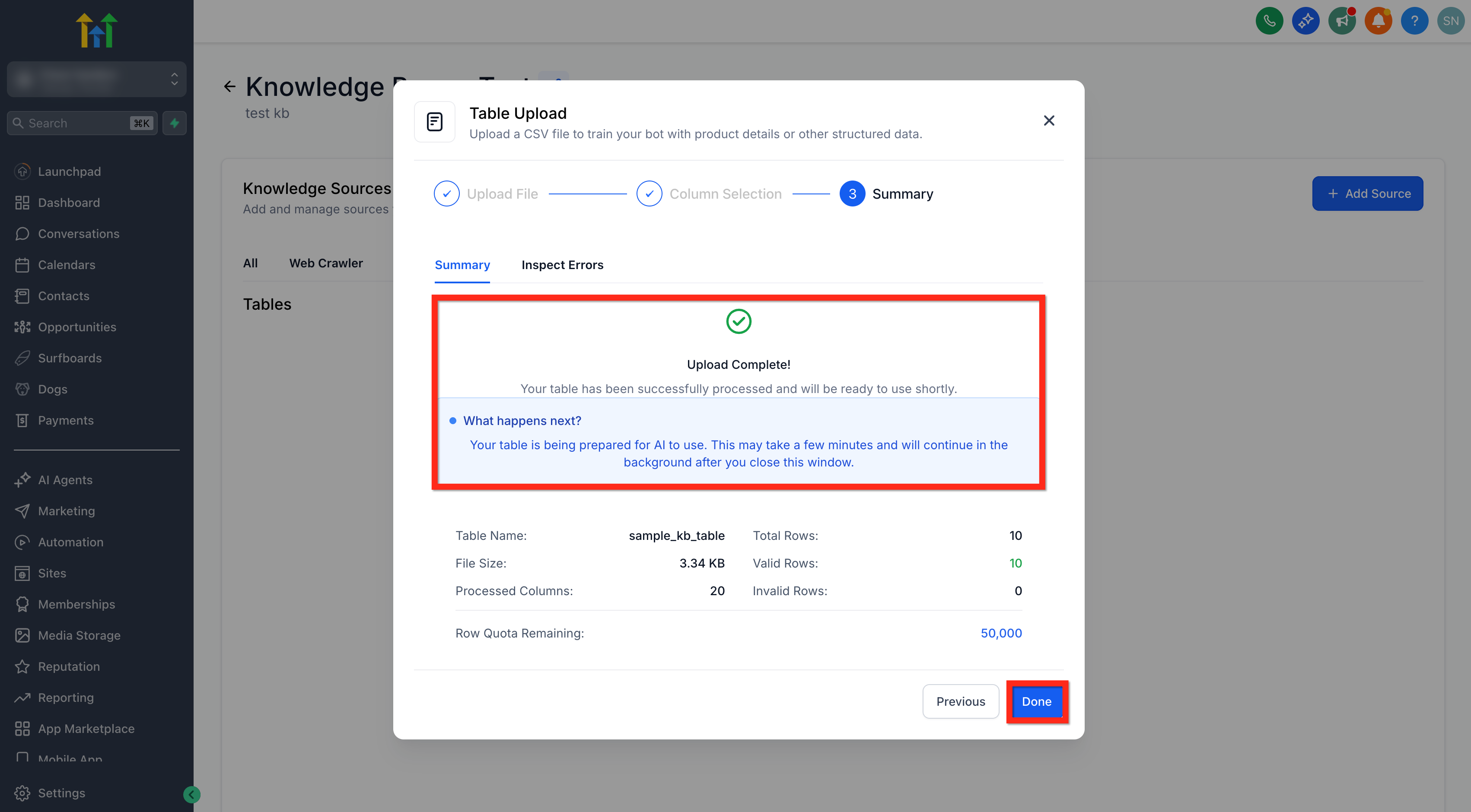
- Click Done to start indexing; watch the chunking progress bar.
- Attach the Knowledge Base to your AI Agent (Chat, Voice, or Workflow AI).
- Test a sample question such as “Which customers have overdue invoices?” to confirm results.
06What it looks like in HighLevel
07Settings that matter
- Table Source type. Enables the Knowledge Base to ingest CSV files and treat each row as a searchable record.
- Data type detection. Automatically determines column types with an 80% confidence threshold; you can adjust data types manually if needed.
- Column selection. Allows you to choose up to 20 columns that will be indexed for semantic search.
08Things to know before you rely on it
- CSV files must be.CSV format;.xlsx is not supported.
- Filtering, comparison, and sorting are not yet available in queries.
- Only bots linked to the Knowledge Base containing the Table Source can query the data.
09If something goes wrong
- CSV upload is rejected. Inspect the file in a spreadsheet program or text editor to ensure correct format, header row, and no hidden formulas or merged cells.
Michael's take

Wondering if a bot can actually read a spreadsheet without writing code? Table Search lets your AI Employee treat a CSV like a living database. Upload the file, let HighLevel index it, and then ask plain English questions. The bot pulls the right rows and shows you where the answer came from.
If I were adding a new support channel, I’d drop a CSV of recent tickets into a Knowledge Base and let the AI handle follow up questions. I’d run a quick test question first, just to see the citations, before rolling it out to live chats.