
01Who this is for
- Founders who travel frequently and need quick AI help without navigating the full app
- Small agency owners who want to capture client documents on site and ask Ask AI for summaries right away
- Service based business managers who prefer hands free AI interactions while moving between appointments
02Ask AI Home Screen Widget, explained
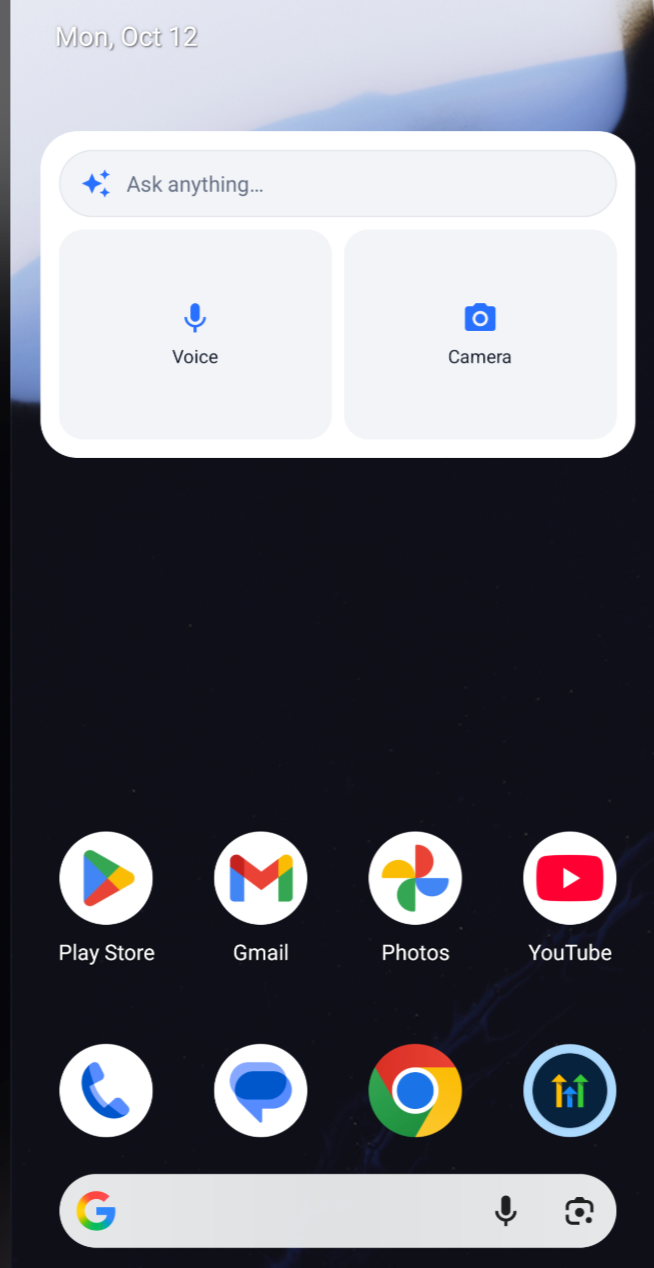
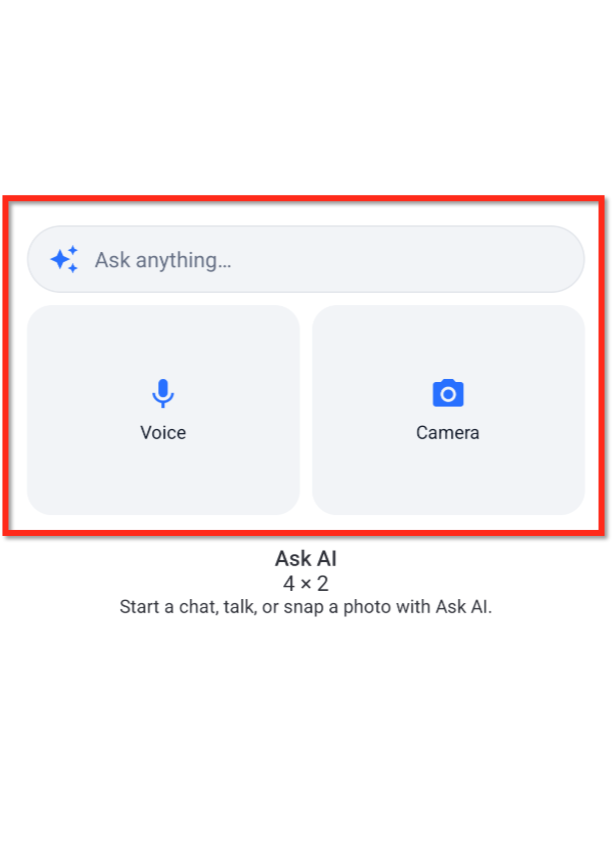
The widget is a shortcut that lives on the home screen of supported iOS and Android phones. It presents three tappable areas, a chat bar, a voice button, and a camera button, each launching a new Ask AI session in the selected mode.
The widget inherits the mobile app’s language, brand colors and respects light or dark mode. It appears only when the HighLevel, LeadConnector, or a White Label mobile app is version 4.27.0 or newer and Ask AI is turned on for the account. If the user is signed out, the widget prompts for login and then continues the chosen action.
03How businesses use Ask AI Home Screen Widget
- Real estate agency. An agent taps the Camera button while showing a property, snaps a picture of a floor plan, and asks Ask AI to generate a listing description. The agent stays on the property site and receives the draft right away.
- Construction crew manager. The manager presses the Voice button on the widget while walking a job site. He dictates a request for a parts list, and Ask AI replies without the manager needing to type.
- Online retailer. A shop owner uses the Chat bar on the widget to ask Ask AI for a promotional email draft while checking inventory on the phone, avoiding the need to open the full HighLevel app.
04The numbers and rules that matter
- Requires HighLevel, LeadConnector, or eligible White Label app version 4.27.0 or later.
05Before you start
- Device runs a supported version of iOS or Android
- HighLevel, LeadConnector, or eligible White Label app is updated to version 4.27.0 or later
- Ask AI feature is enabled for the account
- User can sign in to the mobile app
- For White Label apps, the Ask AI Home Widget switch is turned on for the company
06How to set up and use Ask AI Home Screen Widget in HighLevel
Add the Ask AI Widget on iOS
- Unlock the iPhone and go to the home screen where the widget will be placed
- Press and hold an empty area until the icons enter edit mode
- Tap the plus sign to open the widget gallery
- Search for HighLevel, LeadConnector, or the White Label app
- Select the Ask AI widget from the list
- Tap Add Widget and position it on the screen
- Exit edit mode to save the placement
- Tap any shortcut on the widget to confirm it opens a new Ask AI conversation
Add the Ask AI Widget on Android
- Unlock the Android device and view the home screen
- Press and hold an empty spot on the home screen
- Choose Widgets from the menu that appears
- Locate HighLevel, LeadConnector, or the White Label app in the widget list
- Select the Ask AI widget
- Drag the widget onto the home screen
- Complete the placement process
- Tap a shortcut on the widget to verify it launches a new Ask AI conversation
Start a Conversation from the Widget
- Tap the Chat bar to open a typed Ask AI session
- Tap the Voice button to launch a hands free Ask AI session; allow microphone permission if prompted
- Tap the Camera button, capture a photo, then enter the question; allow camera permission if prompted
07What it looks like in HighLevel
08Settings that matter
- Ask AI Home Widget switch. Enables or disables the widget for White Label mobile apps at the company level
09Things to know before you rely on it
- Widget appears only on devices with supported iOS or Android versions and on app version 4.27.0 or newer
- Requires Ask AI to be enabled for the user’s account
- Voice shortcut needs microphone permission; Camera shortcut needs camera permission
- Widget follows the app’s brand colors and language; separate color customization is not provided
10If something goes wrong
- Widget does not show in the phone’s widget list. Confirm the mobile app is updated to version 4.27.0 or later, the device meets OS requirements, and Ask AI is enabled. For White Label apps, ensure the Ask AI Home Widget switch is turned on
- Camera button fails to open the camera. Check that the mobile app has permission to use the device’s camera in the system settings and grant access if blocked
- Sign in prompt appears each time the widget is used. Make sure you are signed in to the HighLevel app before using the widget; the widget will resume the selected action after a successful login
11How it connects to the rest of HighLevel
- Create and edit images that can be sent through the Camera shortcut Image Generation
- Review pricing details for Ask AI sessions that run from the widget Ask AI pricing
- Start a 30 day trial to test the widget and other Ask AI features 30 day trial
- Learn how to enable Extra Usage and manage AI limits that affect widget usage Extra Usage
Michael's take

The widget can feel like an extra step if you’re not used to home screen shortcuts, and you’ll need to grant microphone and camera permissions before it works as intended. Skipping those permissions will leave the voice and photo buttons silent.
Once those basics are handled, the convenience of opening Ask AI with a single tap is worth the minor setup.