
01Who this is for
- Marketing managers benefit from rapid visual creation without a design team.
- Social media coordinators can tailor graphics to each platform’s size using aspect ratio cues.
- Small business owners gain a simple way to generate promotional images without design skills.
02Generating & editing images, explained
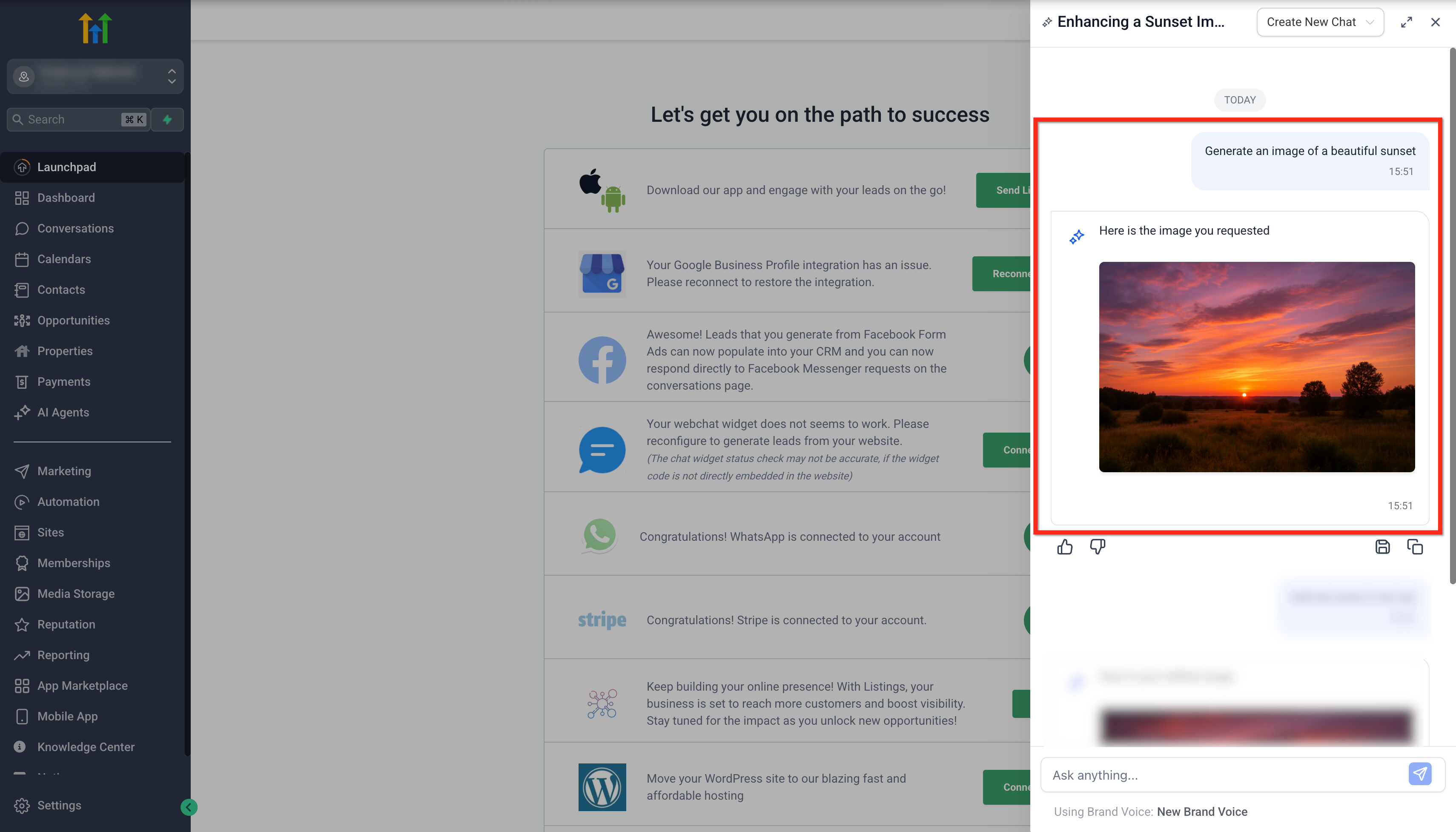
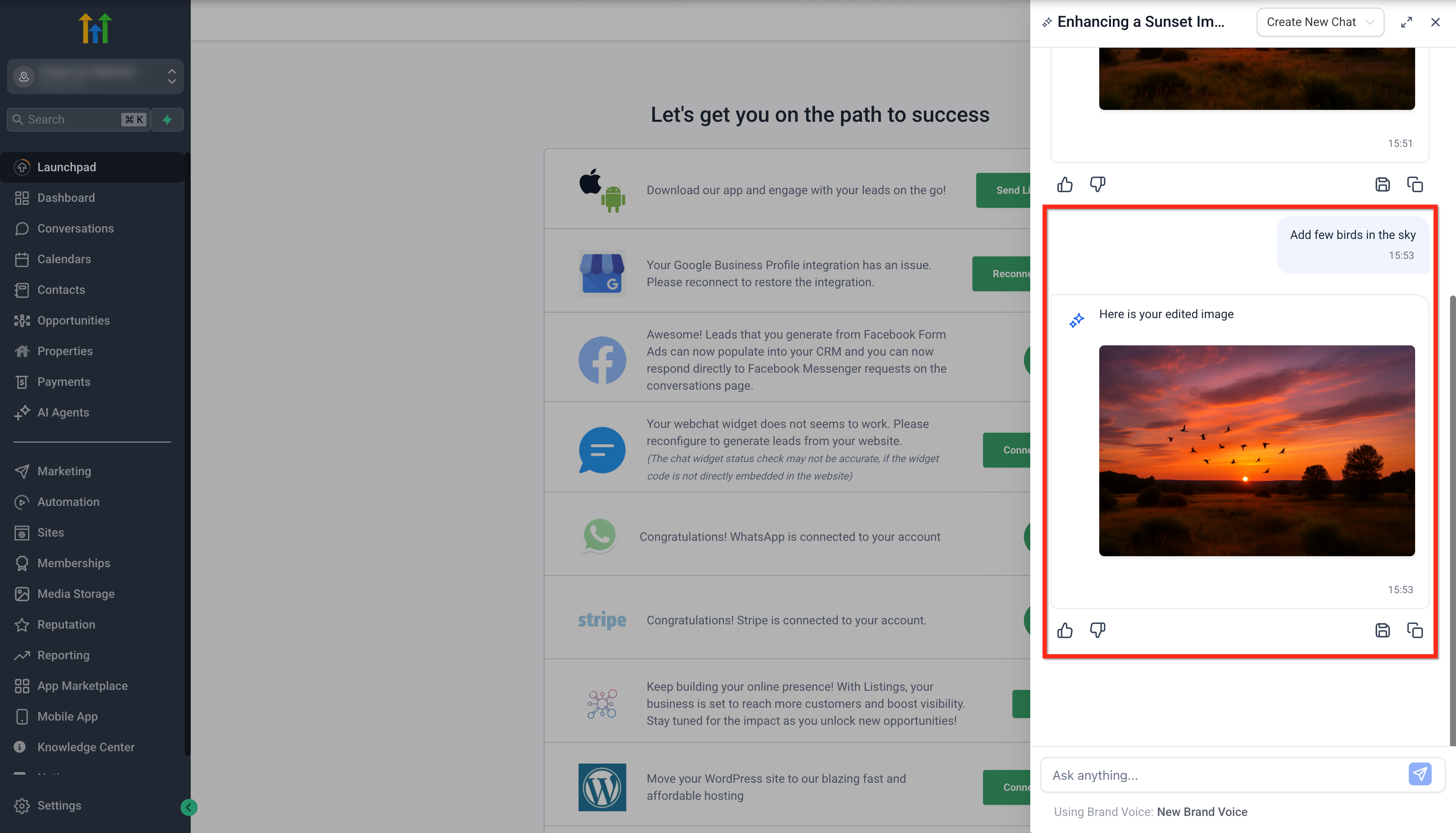
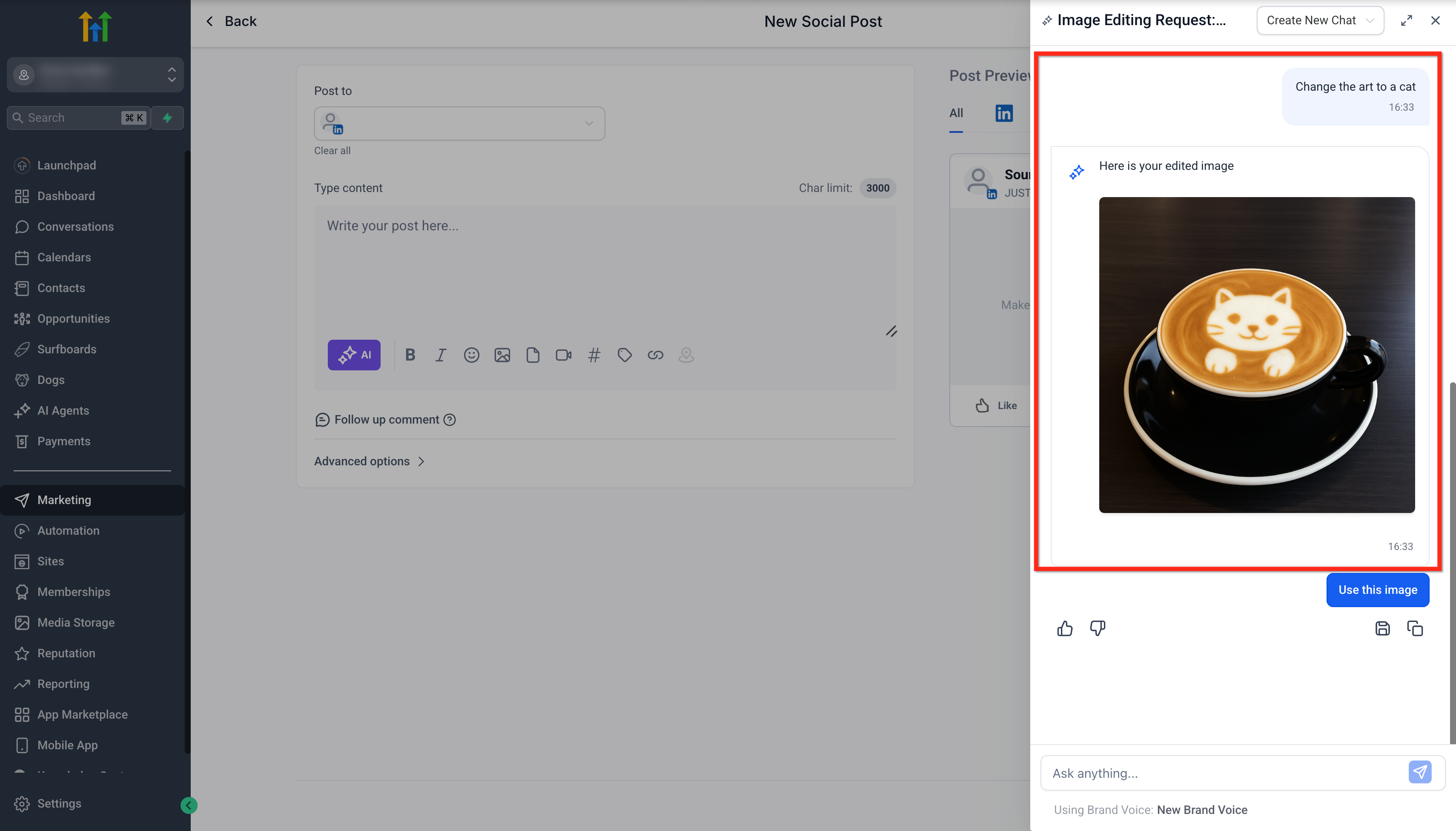
The feature lives inside the Ask AI modal that you open from any subaccount. Within that window you can type a description to have the AI render an image, then send follow up commands to change elements such as backgrounds or objects. All edits stay linked to the original picture in a session specific history.
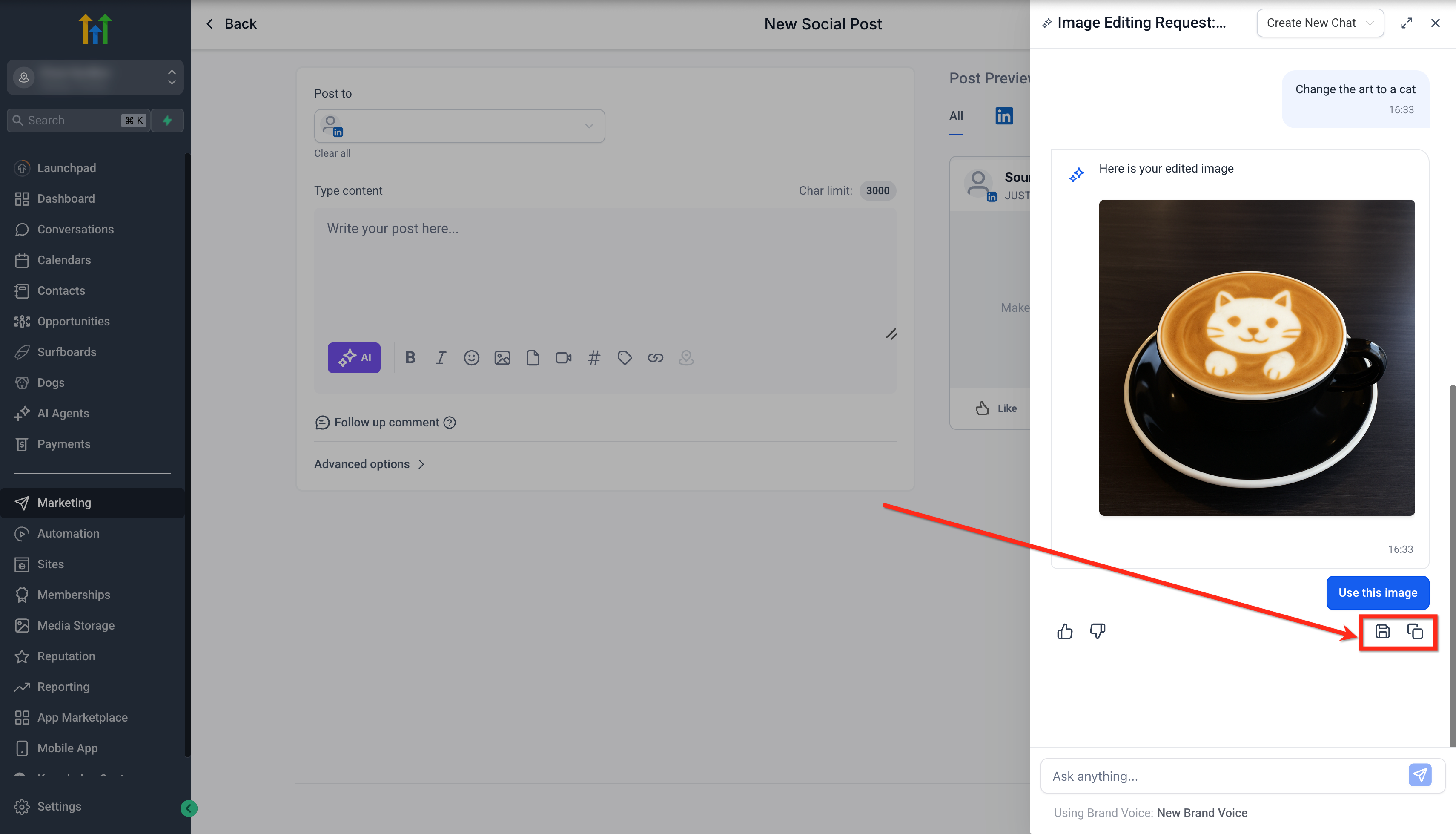
Images appear first only in the active Ask AI session. By clicking the Save icon you move them to HighLevel’s Media Library for reuse across funnels, emails, or web pages. If you choose not to save, the picture disappears when the session ends. The tool accepts explicit aspect ratio statements or platform cues to format the output for feeds, stories, banners, and more.
03How businesses use generating and editing images
- Real estate agency. An agent types a prompt for a modern kitchen layout in a 16:9 ratio, then asks the AI to add a ‘For Sale’ banner. After the edit, they save the image to the Media Library and insert it into a property landing page.
- Ecommerce store. The owner generates a product showcase image in a 1:1 square, requests a color variant background, and copies the final picture to paste into a promotional email template.
- Nonprofit organization. A communications lead creates a banner for an Instagram Story by specifying a 9:16 ratio, refines the text overlay through an edit prompt, and saves the result for future campaign use.
04The numbers and rules that matter
- $97/month AI Employee subscription (per HighLevel's help center, checked November 2026).
- Content AI pay per use enabled.
- Supported aspect ratios: 1:1, 4:5, 9:16, 16:9, 21:9, 2:3, 3:4, 3:2, 4:3, 5:4.
05Before you start
- Your account must have the $97 per month AI Employee subscription or Content AI pay per use enabled (per HighLevel's help center, checked November 2026).
06How to set up and use generating and editing images in HighLevel
Generate & edit images in the Ask AI modal
- Log in to your subaccount.
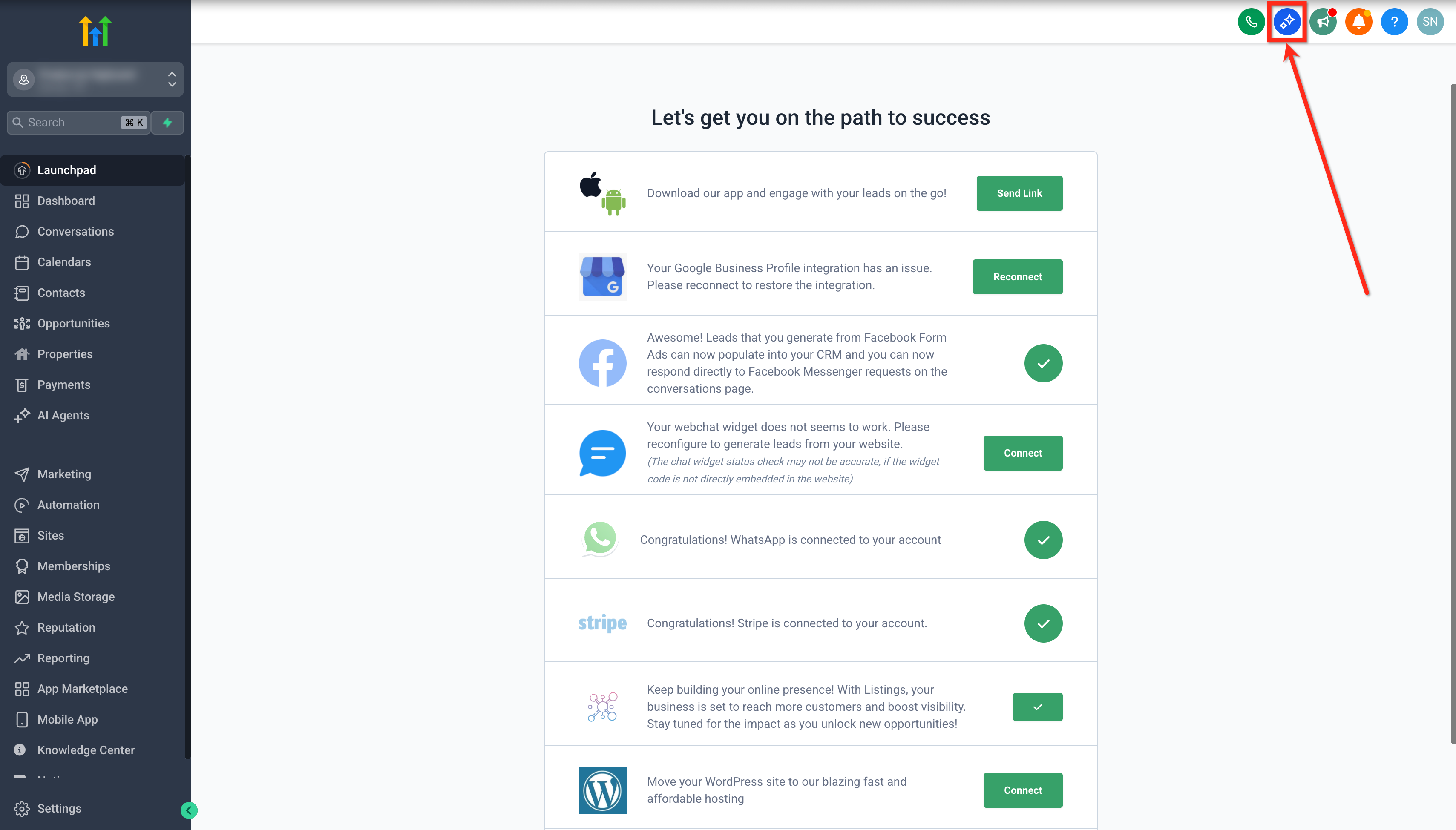
- Select the AskAI button located in the top right navigation bar.
- Enter a descriptive text prompt in the provided field.
- Press Enter or choose the Arrowhead button to send the prompt.
- Allow a few seconds while the AI creates the image.
- Click into the prompt box that appears beneath the picture.
- Write an edit style instruction that tells the AI what to change.
- Submit the edit instruction.
- Wait for the AI to produce the edited image.
Edit images generated via Content AI
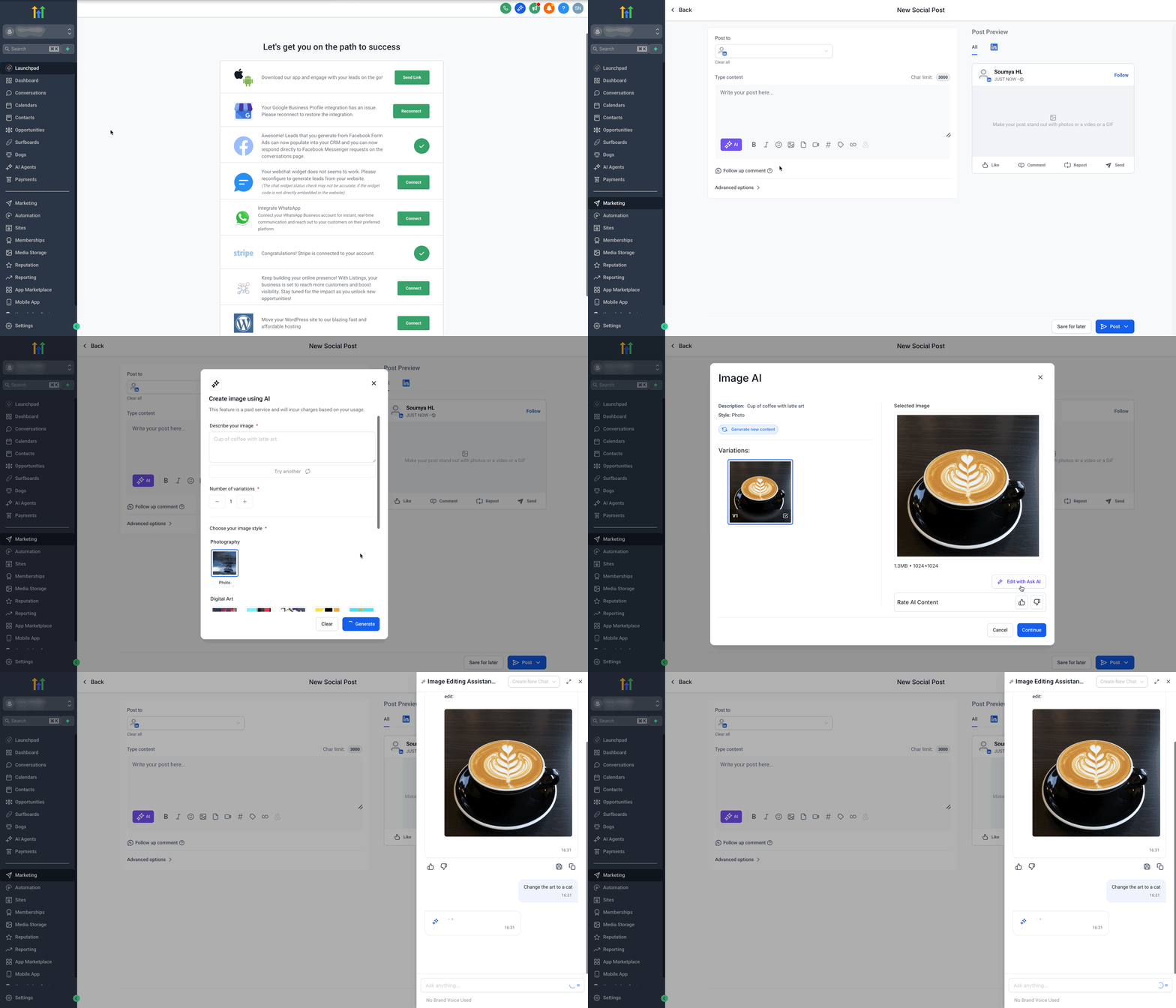
- Open a Content AI workflow such as Marketing > Social Planner.
- Start a new post or open an existing post containing an AI generated picture.
- Press the Edit with AskAI button.
- Type an edit prompt that details the desired modification.
- Submit the prompt and wait for the refreshed image to render.
Save or copy images
- Click the Save icon to add the picture permanently to the Media Library.
- Press the Copy button to place the image on your clipboard.
- Leave the image unsaved to keep it only within the current Ask AI session.
07What it looks like in HighLevel
08Things to know before you rely on it
- You need an active AI Employee subscription or Content AI pay per use to access image generation and editing.
- No extra fees apply for using the image features beyond the AI Employee access.
- Edits remain inside the Ask AI session; they do not appear in the Content AI edit history.
- You can refine an image an unlimited number of times while the session remains open.
09How it connects to the rest of HighLevel
- Review how Ask AI sessions are billed to understand cost implications. Ask AI session pricing
- Set up AI Employee access to unlock image generation and editing capabilities. AI Employee access
- Start a free trial to explore Ask AI image tools before purchasing a plan. 30 day trial
Michael's take

Ask AI’s image generation lets you create custom visuals using natural language prompts, without needing design skills.