
01Who this is for
- Customer support managers, they can supply agents with accurate answers drawn from a central Knowledge Base.
- Marketing directors, they can ensure AI responses reflect the brand voice defined in HighLevel.
- Voice AI developers, they can attach a single Knowledge Base to each voice agent for consistent information.
02Ask AI knowledge bases, explained
The feature lets you generate a Knowledge Base through a chat with Ask AI. You describe the desired source and target AI, and Ask AI selects Brand Voice, a website, or a manual option. It then creates the Knowledge Base, crawls a website if approved, and builds initial FAQs.
The Knowledge Base lives in the Knowledge Base settings area of HighLevel. After creation, you can edit sources, add documents, tables, or FAQs, and attach the Knowledge Base to either a Conversation AI bot, which can use multiple Knowledge Bases, or a Voice AI agent, which supports only one. The attachment makes the content searchable for the AI during interactions.
03How businesses use Ask AI knowledge bases
- Dental practice. The practice asks Ask AI to build a Knowledge Base from its website and connects it to a Conversation AI bot. The bot can then answer patient questions about services, hours, and insurance.
- Ecommerce store. The store uses Ask AI to create a Knowledge Base from its brand voice and attaches it to a Voice AI agent that fields order status calls, ensuring responses match the brand tone.
- Real estate agency. The agency creates an empty Knowledge Base with Ask AI and later adds property listings and FAQs manually, then links it to a Conversation AI bot for lead qualification chats.
04The numbers and rules that matter
- Voice AI supports one Knowledge Base per agent.
05Before you start
- Confirm the user has access to Ask AI.
- Confirm the user can manage Knowledge Base settings.
- Confirm the user can manage Conversation AI or Voice AI if attachment is required.
- Review Brand Voice if it should be used as a source.
- Check that the Business Profile website is correct if it will be crawled.
- Be prepared to approve website crawling when prompted.
06How to set up and use Ask AI knowledge bases in HighLevel
Create and attach a Knowledge Base using Ask AI
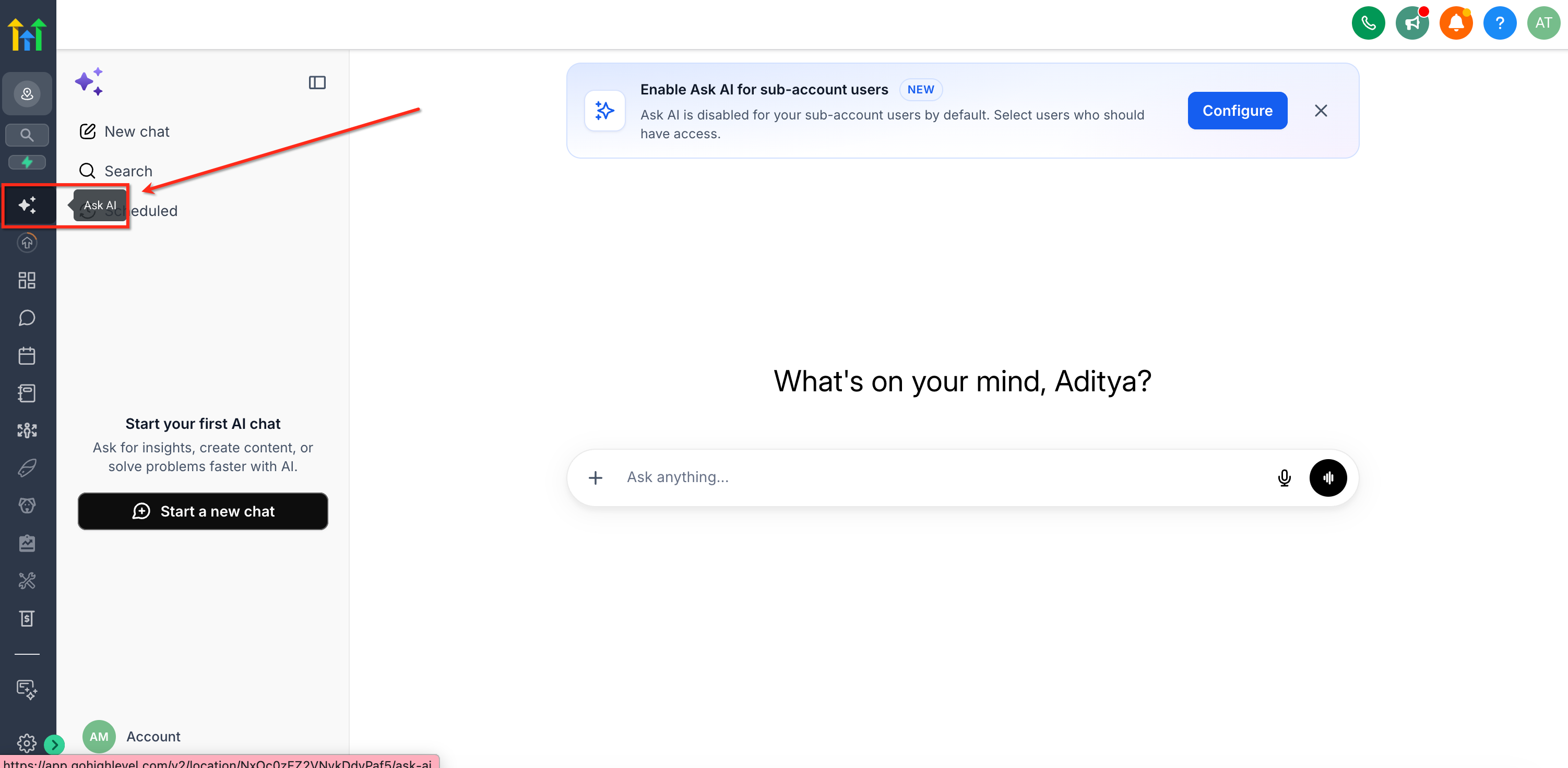
- Open Ask AI from the navigation menu and start a new chat.
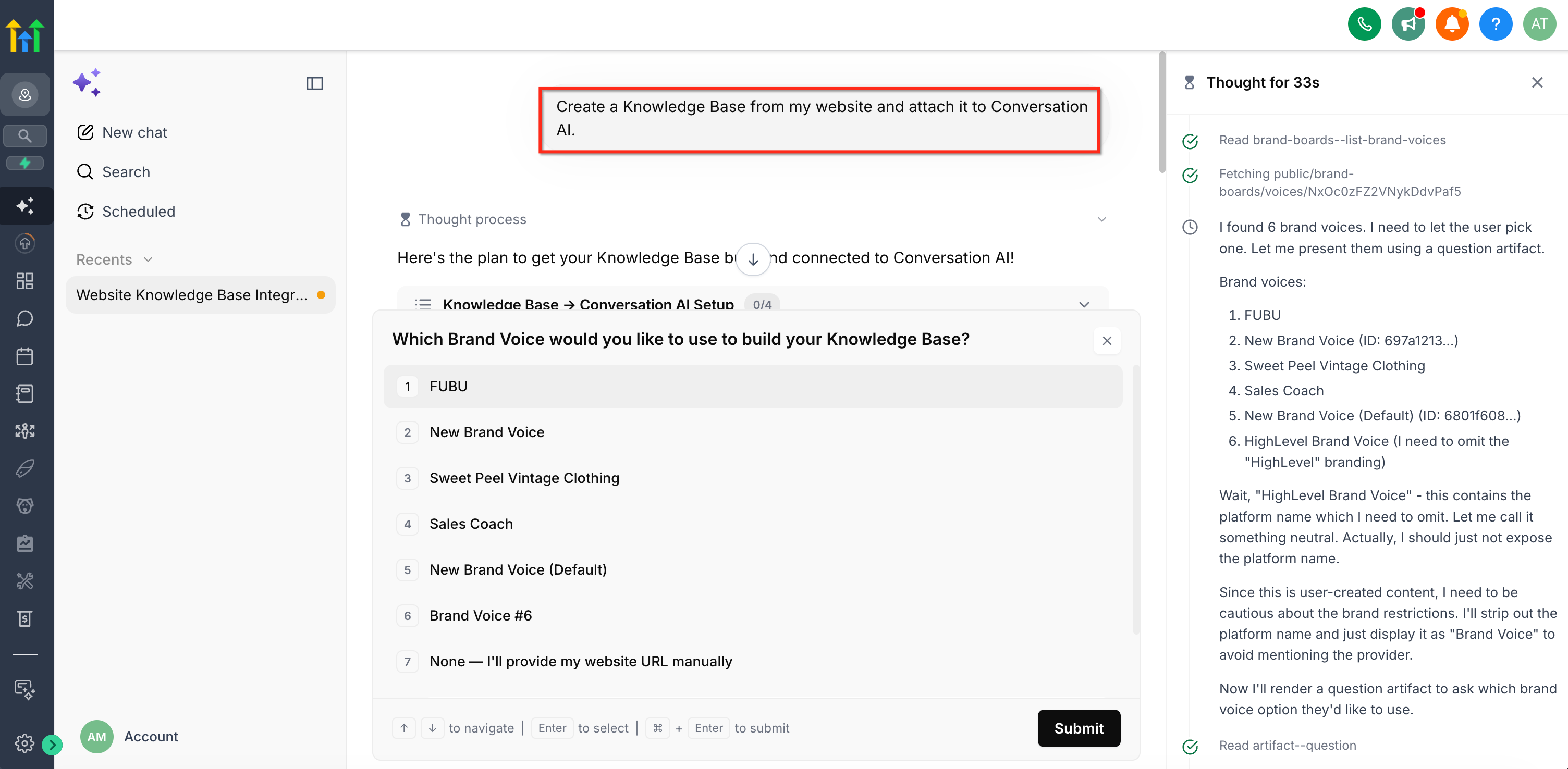
- Enter a prompt that requests a Knowledge Base and specifies the AI agent to attach.
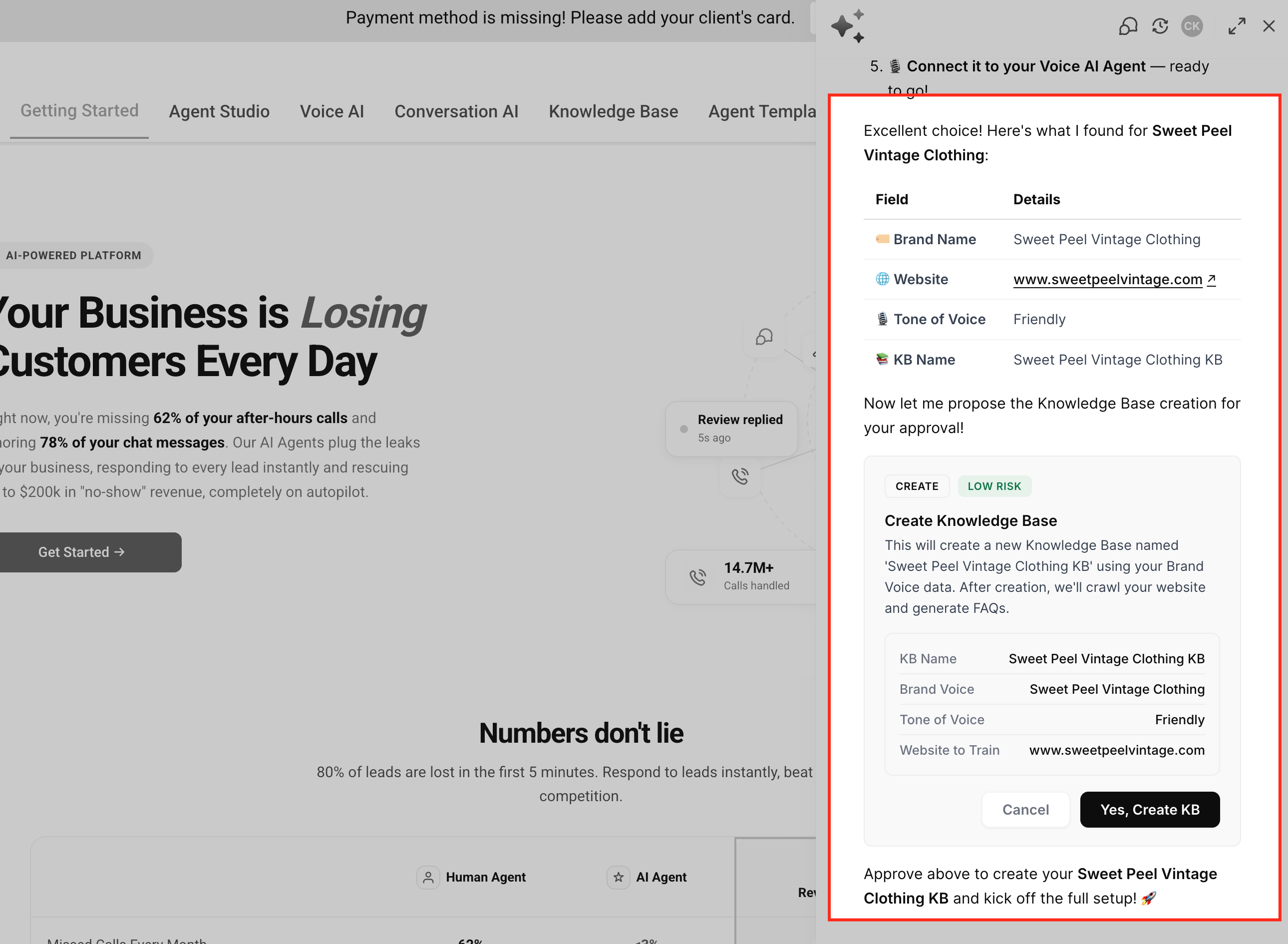
- Confirm the content source Ask AI suggests, Brand Voice, website, or manual setup.
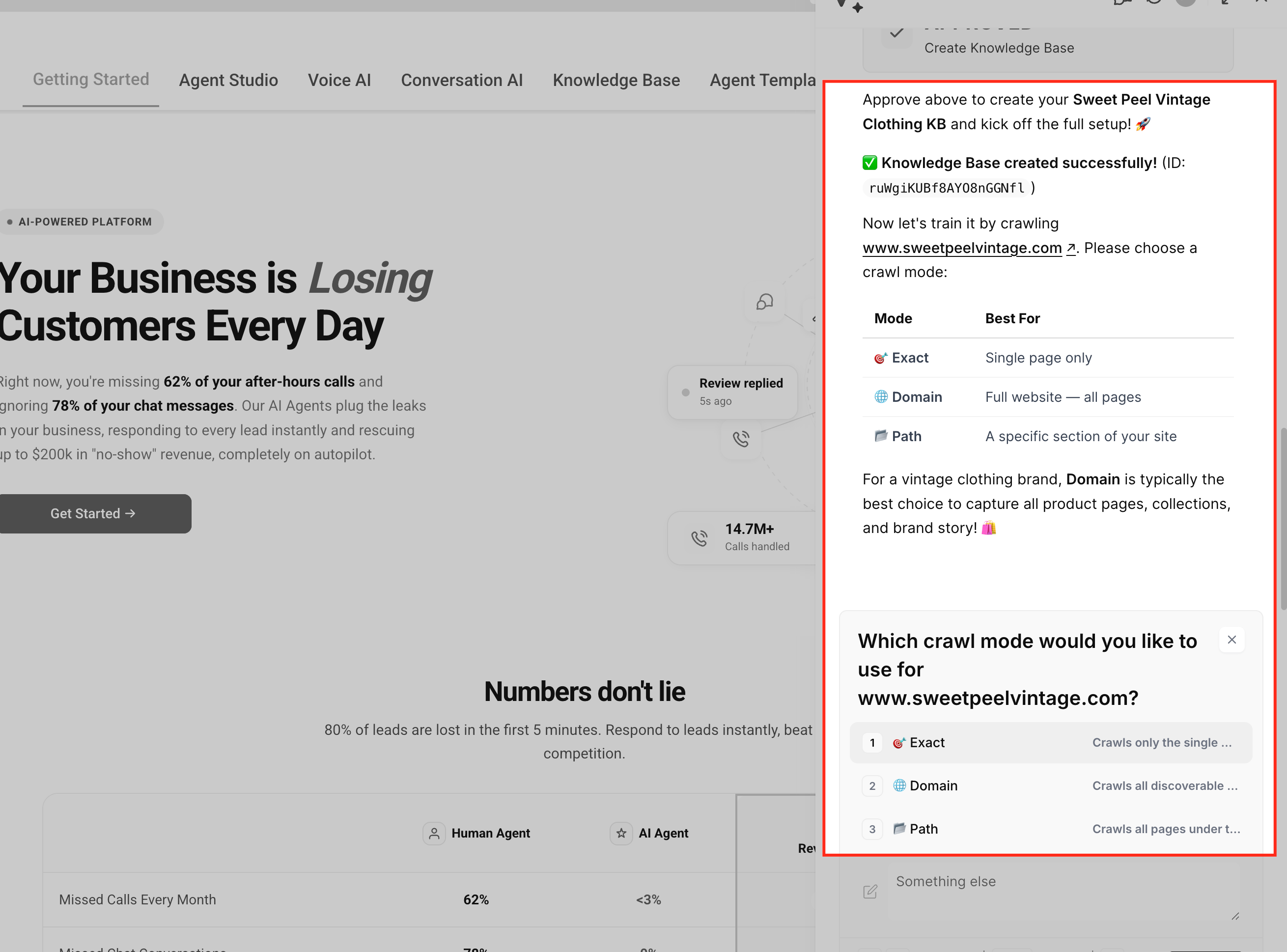
- If a website is selected, approve the crawl before Ask AI begins scanning pages.
- Review the Knowledge Base that Ask AI has created and ensure the sources are correct.
- Configure any FAQs that were generated or add new ones as needed.
- Select the Conversation AI bot or Voice AI agent to which the Knowledge Base should be attached.
07What it looks like in HighLevel
08Settings that matter
- Brand Voice. Provides business details, tone, and services that Ask AI can use as a Knowledge Base source.
- Business Profile website. The URL that Ask AI can crawl to extract content for the Knowledge Base.
- Knowledge Base settings. The area where the created Knowledge Base can be edited, sources added, and FAQs managed.
09Things to know before you rely on it
- Conversation AI can have multiple Knowledge Bases attached.
- Voice AI supports only one Knowledge Base per agent.
- Ask AI will not crawl any website until the user approves the request.
- When no source is available, Ask AI creates an empty Knowledge Base that must be populated manually.
10How it connects to the rest of HighLevel
- Explore all AI Employee capabilities in HighLevel. All AI Employee features
- Review pricing options for HighLevel plans. HighLevel pricing
- Start a free trial to test Knowledge Base creation. 30 day trial
Get More InformationOpens on HighLevelPublished November 2, 2026 · Updated November 17, 2026