
01Who this is for
- Social media managers, gain precise control over post wording without re typing the whole draft.
- Marketing agencies, edit client content quickly for different tones or platforms through a chat interface.
- Small business owners, refine their own posts to match brand voice while keeping workflow simple.
02Edit with Ask AI, explained
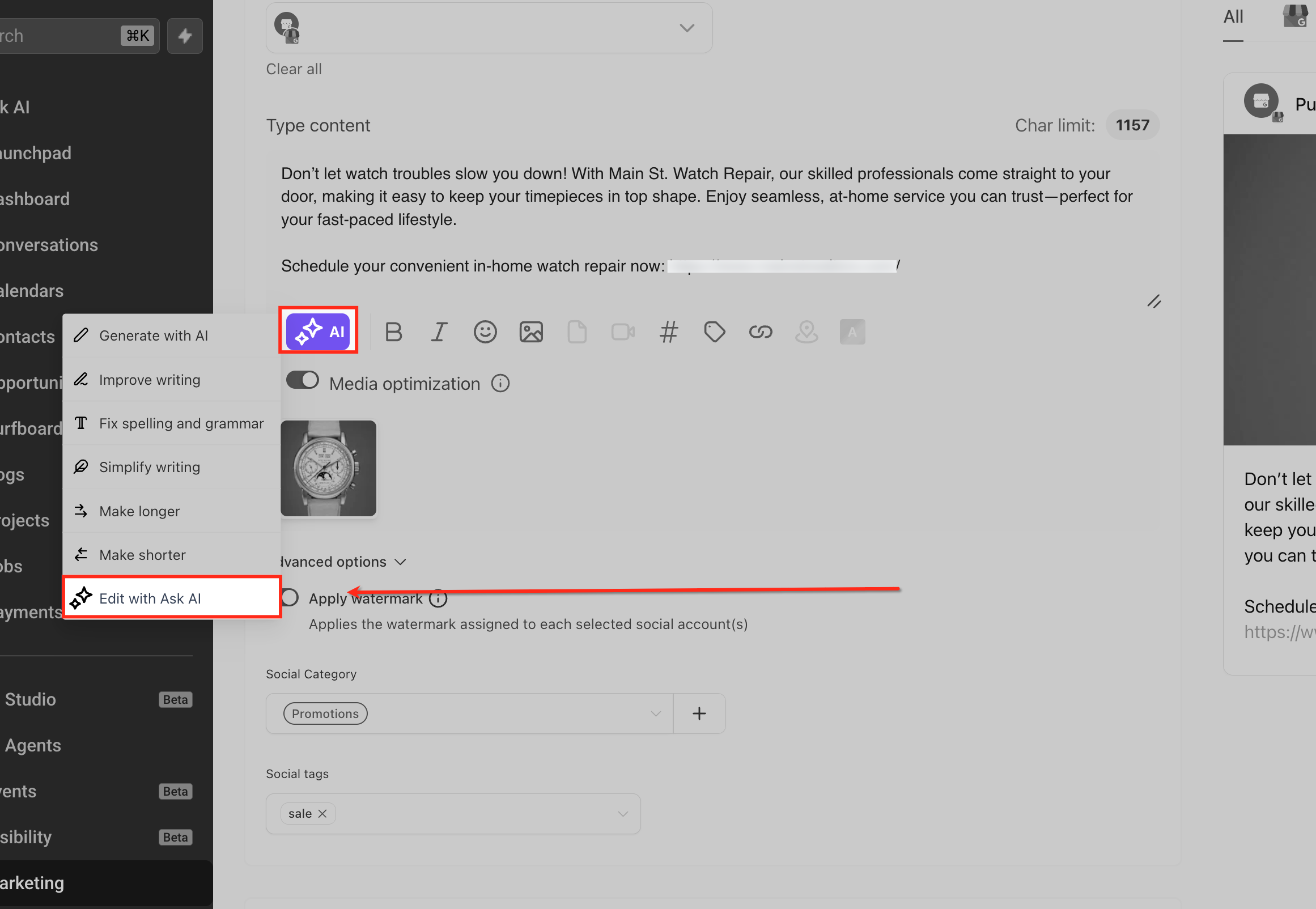
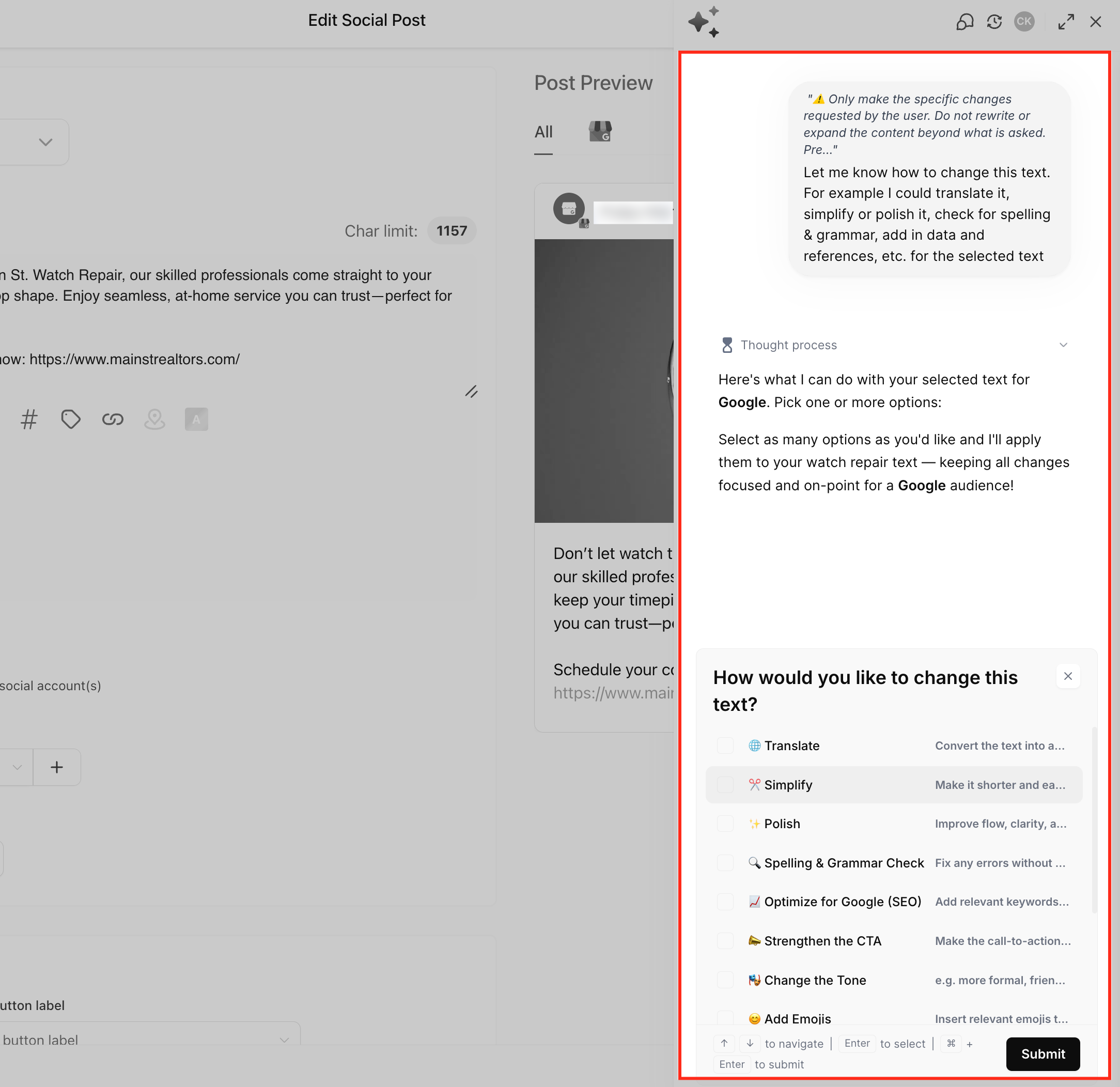
The feature sits in the Social Planner post editor wherever Content AI is turned on. After opening a draft, you click the purple AI button, pick Edit with Ask AI, and type a natural language request such as “make this more casual” or “add a stronger call to action.” The AI returns a revised version that appears in a preview pane.
You can iterate by sending follow up instructions until the wording meets your needs. When satisfied, choose Replace to overwrite the original text or Copy to keep both versions. The conversation is saved by Smart Session Memory, allowing you to return later without losing context.
03How businesses use edit with Ask AI
- Digital marketing agency. An agency drafts a client’s LinkedIn update with Content AI, then uses Edit with Ask AI to change the tone to professional and add a specific call to action. The revised copy is previewed, replaced in the post, and scheduled for publishing.
- Fitness studio. The studio writes a class promotion manually, opens the post in Social Planner, and asks Ask AI to shorten it for a Facebook ad while keeping the friendly tone. After previewing, the studio copies the shorter version to reuse in an email campaign.
- SaaS startup. A startup creates a product announcement draft, then instructs Edit with Ask AI to reformat the text into a bulleted list and simplify technical jargon. The startup previews the edit, replaces the draft, and schedules the post across multiple channels.
04Before you start
- Be inside the Marketing > Social Planner area.
- Ensure Content AI is enabled for the account.
- Work within a supported content editing field.
05How to set up and use edit with Ask AI in HighLevel
Edit a social post using Ask AI
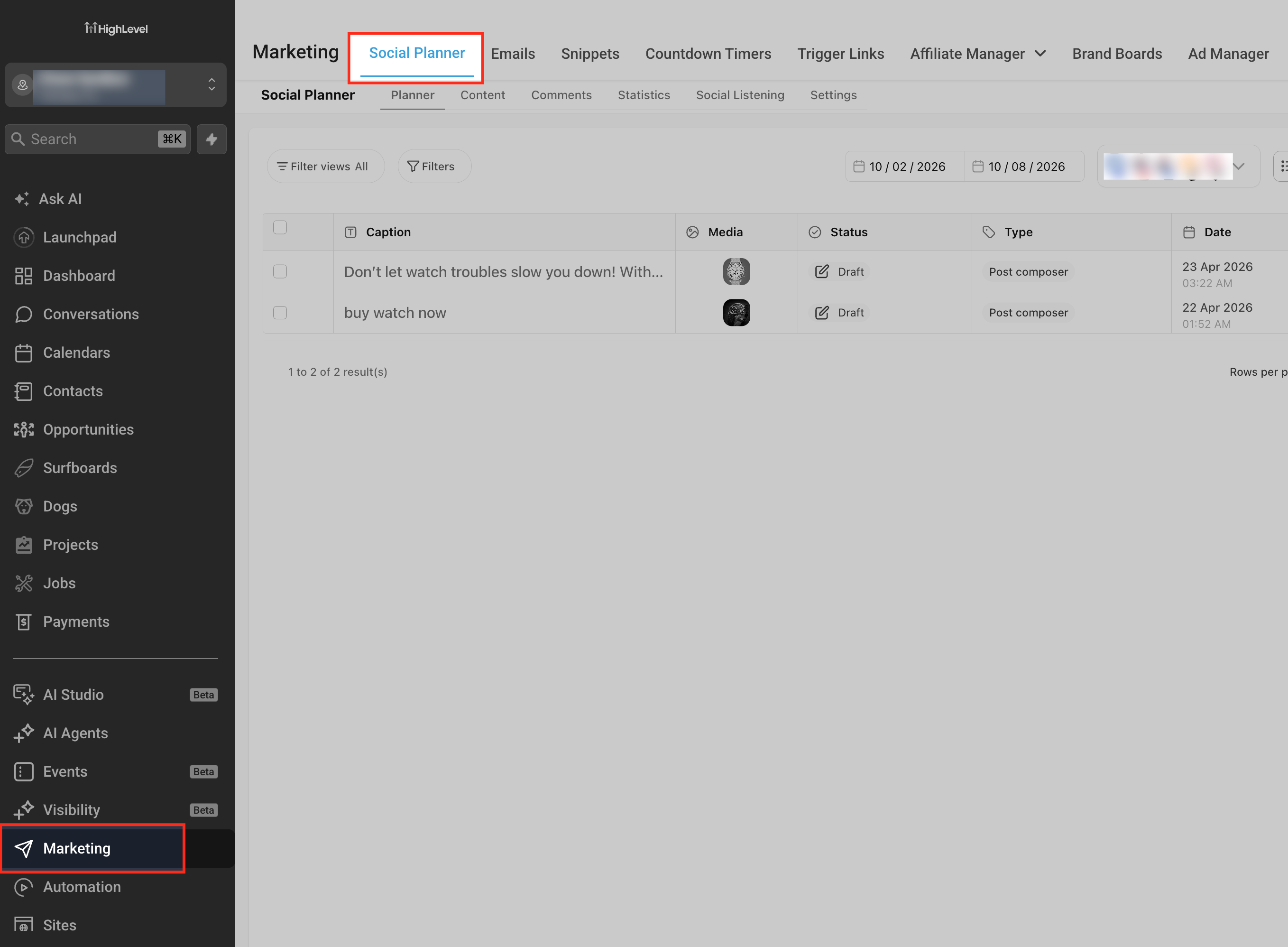
- Open Marketing > Social Planner.
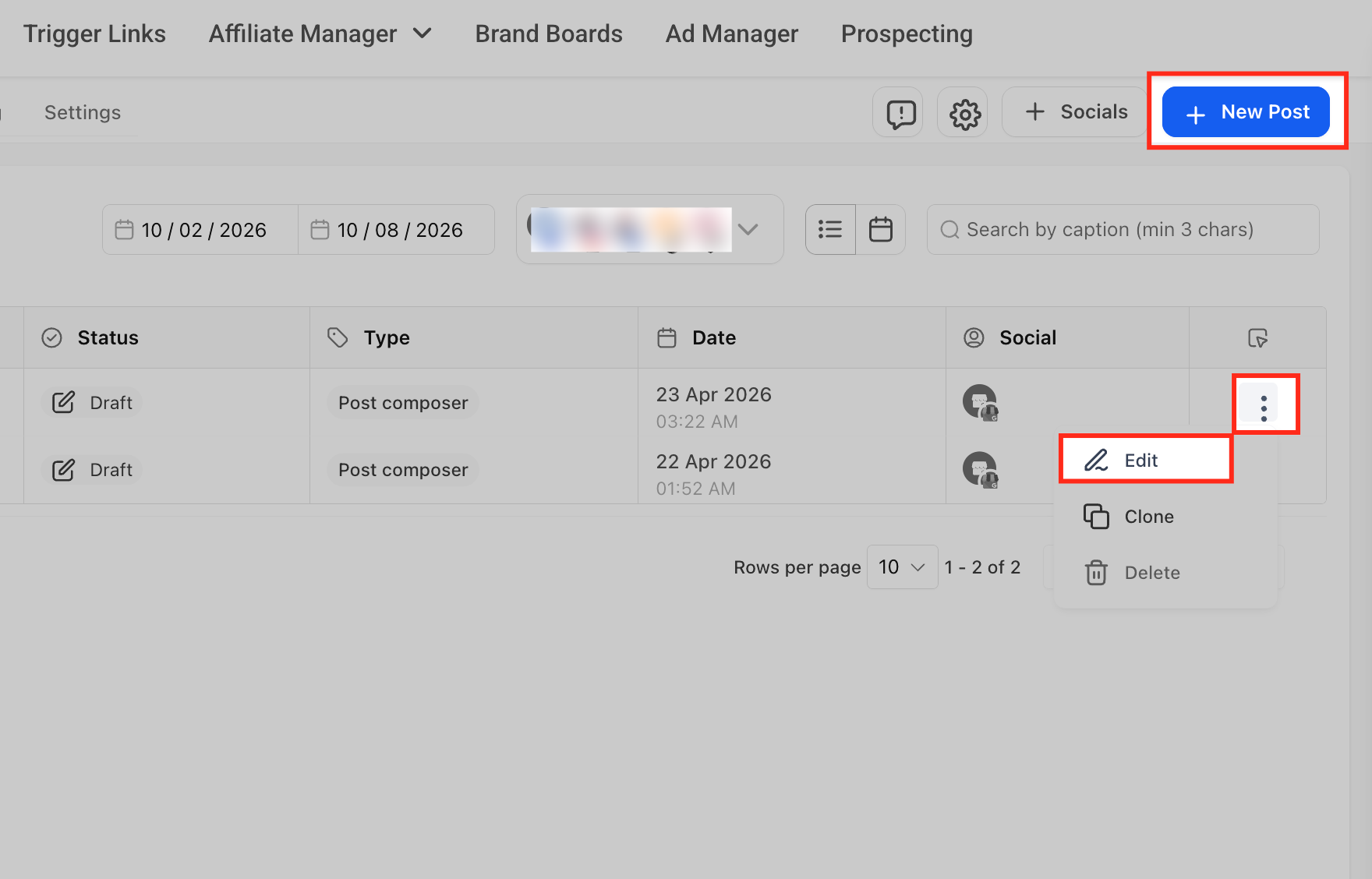
- Create a new post or open an existing draft.
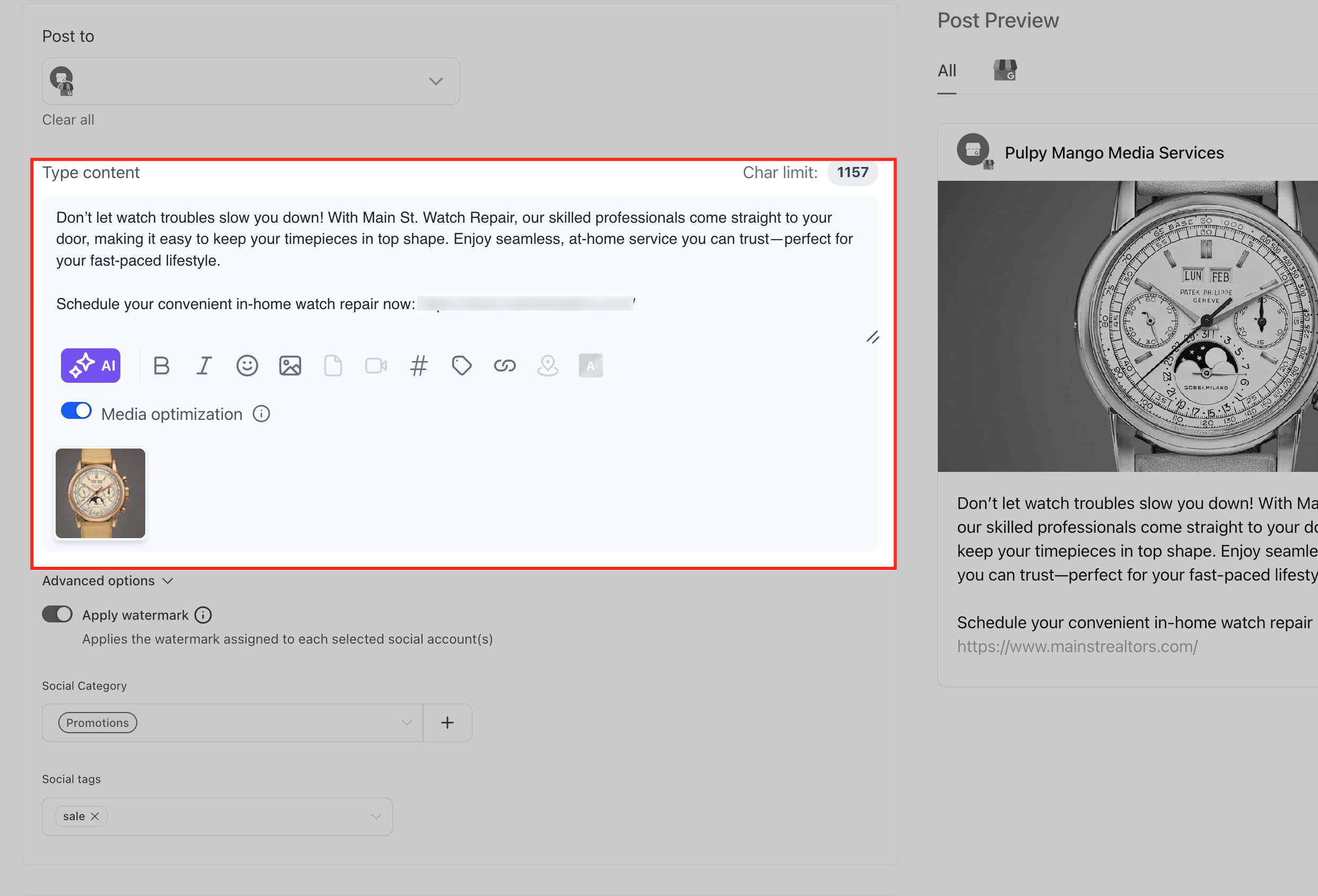
- Enter or review the text in the Type content field.
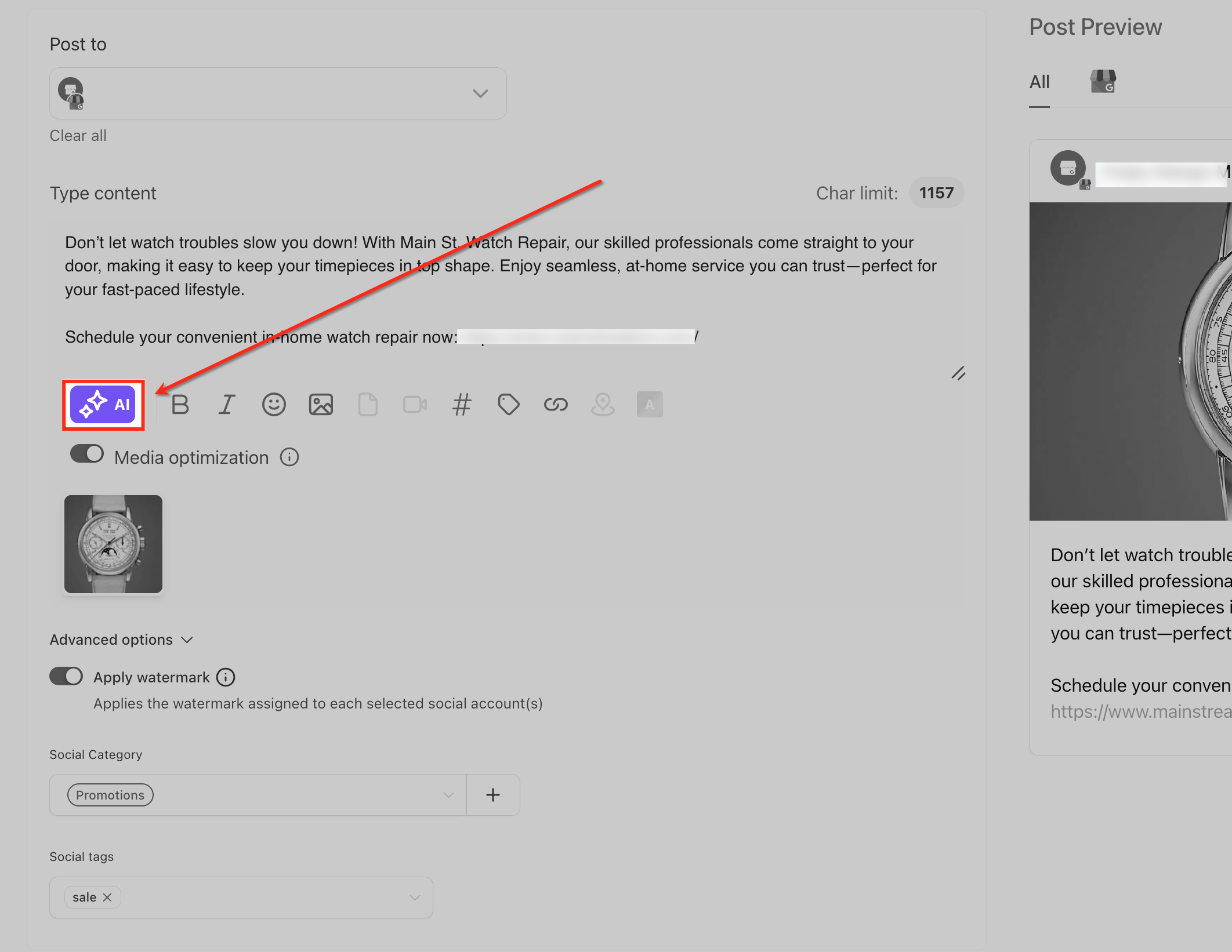
- Click the purple AI button next to the formatting toolbar.
- Choose Edit with Ask AI from the AI menu.
- Type a specific editing instruction for the content.
- View the AI generated revision in the preview area.
- If needed, send additional instructions to refine the text.
- Select Replace to overwrite the original text or Copy to keep the revision separate.
- Check the Post Preview panel for how the content appears on the chosen channel.
- Save the post, schedule it, or publish it directly.
06What it looks like in HighLevel
07Settings that matter
- Smart Session Memory. Keeps the editing conversation stored so you can return later and continue where you left off.
08Things to know before you rely on it
- Edit with Ask AI does not consume additional AI credits.
- The tool is only available in Social Planner where Content AI is enabled.
09If something goes wrong
- Edit with Ask AI does not appear in the AI menu. Confirm you are in Social Planner, Content AI is enabled, and you are editing in a supported content area.
10How it connects to the rest of HighLevel
- Generate a contact summary using Ask AI Contact summary guide
- Create and edit images with Ask AI Image editing guide
- Learn how Ask AI session pricing works Pricing details
Michael's take

Most users jump straight to the quick one click actions and miss the chance to fine tune their copy. The chat style editing lets you tell the AI exactly what you need. Tone, length, audience, or format. And then see a preview before you commit.
If I were polishing a post, I’d start with a basic draft, open Edit with Ask AI, and ask for a specific tweak like “make this sound more friendly for small business owners.” I’d preview, copy the result, and keep the original as a backup until I’m happy with the final version.