
01Who this is for
- Founders who run multiple messaging platforms and need to limit bot replies to specific apps.
- Marketing teams that want to assign different Conversation AI bots to different social or chat channels.
- Support managers who require tag based rules to restrict bot responses to certain customer groups.
02Custom conversation providers, explained
Custom Conversation Providers are Marketplace apps that add new messaging channels to a Conversation AI bot. After the required Labs feature is enabled, you install a supported app, then attach it to a bot on the Deploy tab. Each added app appears as its own card, where you can turn it on or off and apply contact tag rules.
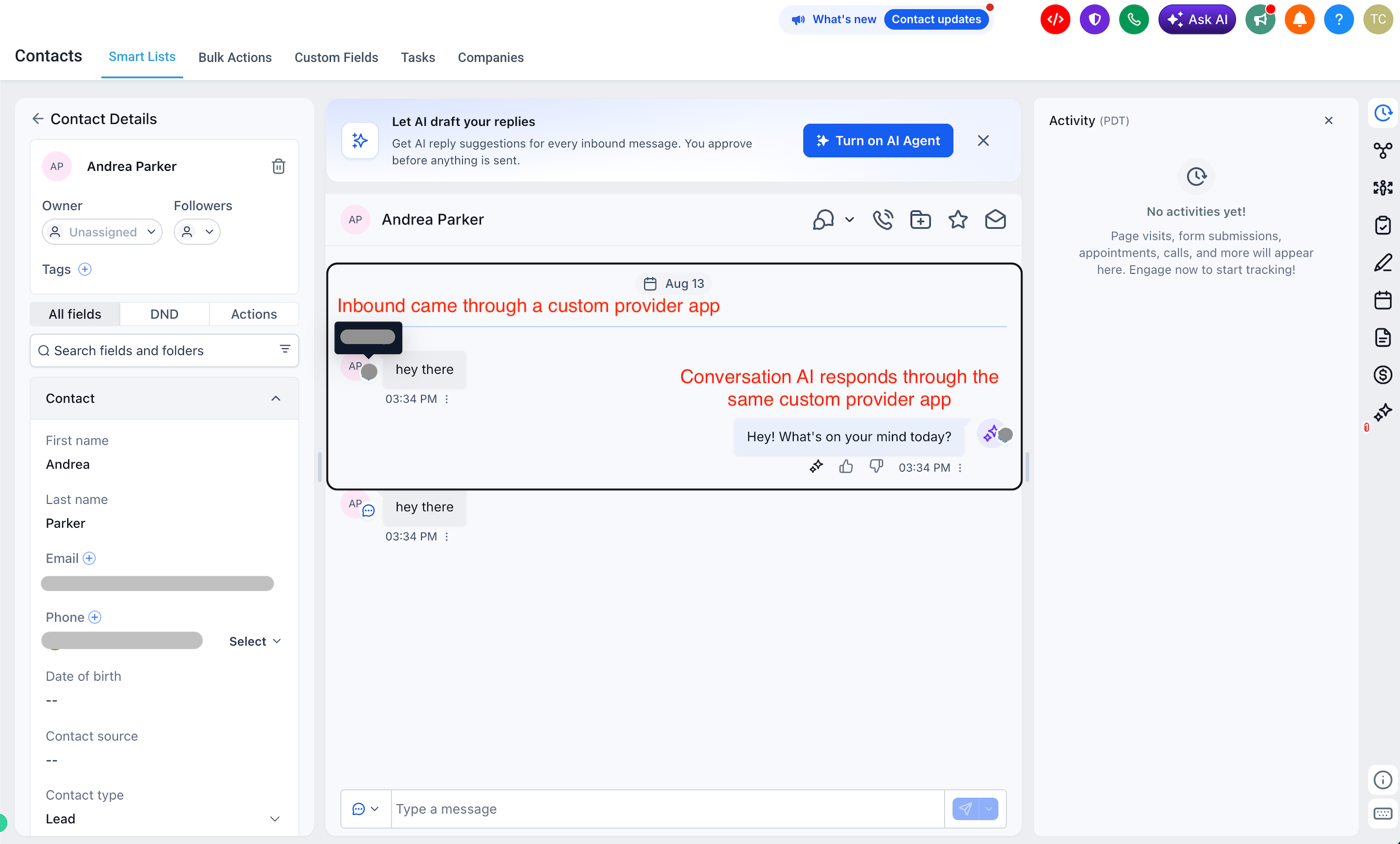
The feature lives in the Deploy section of a Conversation AI bot. It works alongside built in channels such as SMS, Email, Facebook, Instagram, WhatsApp, TikTok, Live Chat, and Chat Widget. When a customer contacts you through the chosen Marketplace app, the bot reads the message, generates a reply, and sends it back through the same app, provided the channel is active and any tag conditions are met.
03How businesses use custom conversation providers
- Real estate agency. The agency installs a marketplace app that connects to a local MLS chat platform. In the bot's Deploy tab, it adds this app, sets a tag rule so only leads with the "buyer" tag can receive replies, and activates the channel. The bot then answers inquiries that arrive via the MLS chat.
- Dental practice. The practice adds a messaging app that supports patient text scheduling. It selects the app on the Deploy tab, enables it, and adds a rule to exclude contacts tagged "inactive". The Conversation AI bot can now confirm appointments sent through that app while ignoring inactive patients.
- Ecommerce store. The store installs a marketplace app that links to a popular shopping messenger. In the Deploy screen it adds the app, turns it on, and adds a "Has tags" rule for contacts with the "vip" tag. The bot replies to VIP customers who message through the shopping messenger.
04The numbers and rules that matter
- Supported built in channels: SMS, Email, Facebook, Instagram, WhatsApp, TikTok, Live Chat, Chat Widget.
05Before you start
- Conversations AI Channel Management turned on in Labs.
- A Conversation AI bot already created.
- A Marketplace app that supports Conversation Provider.
- The app installed for the correct subaccount.
- The app connected and active.
06How to set up and use custom conversation providers in HighLevel
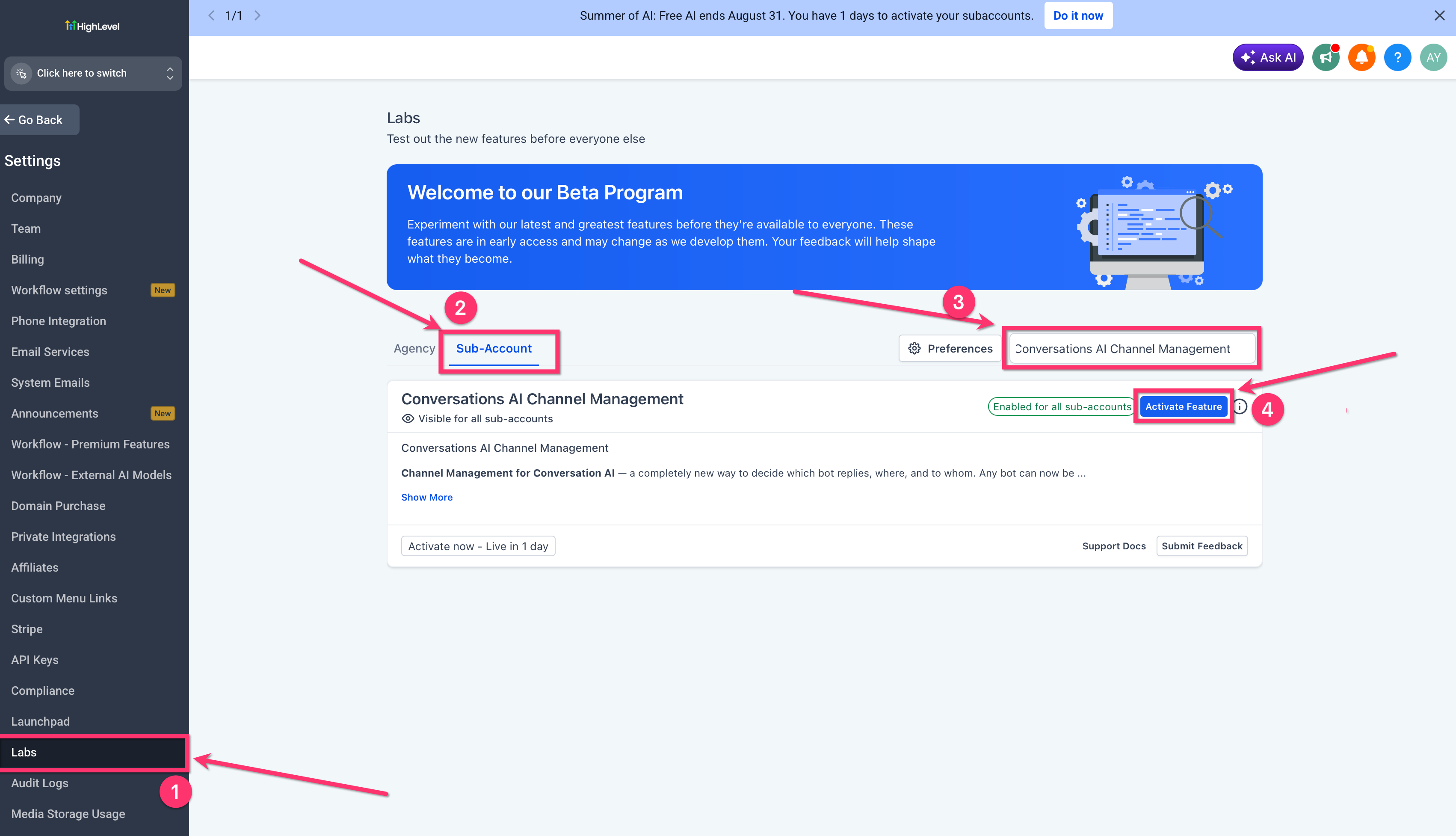
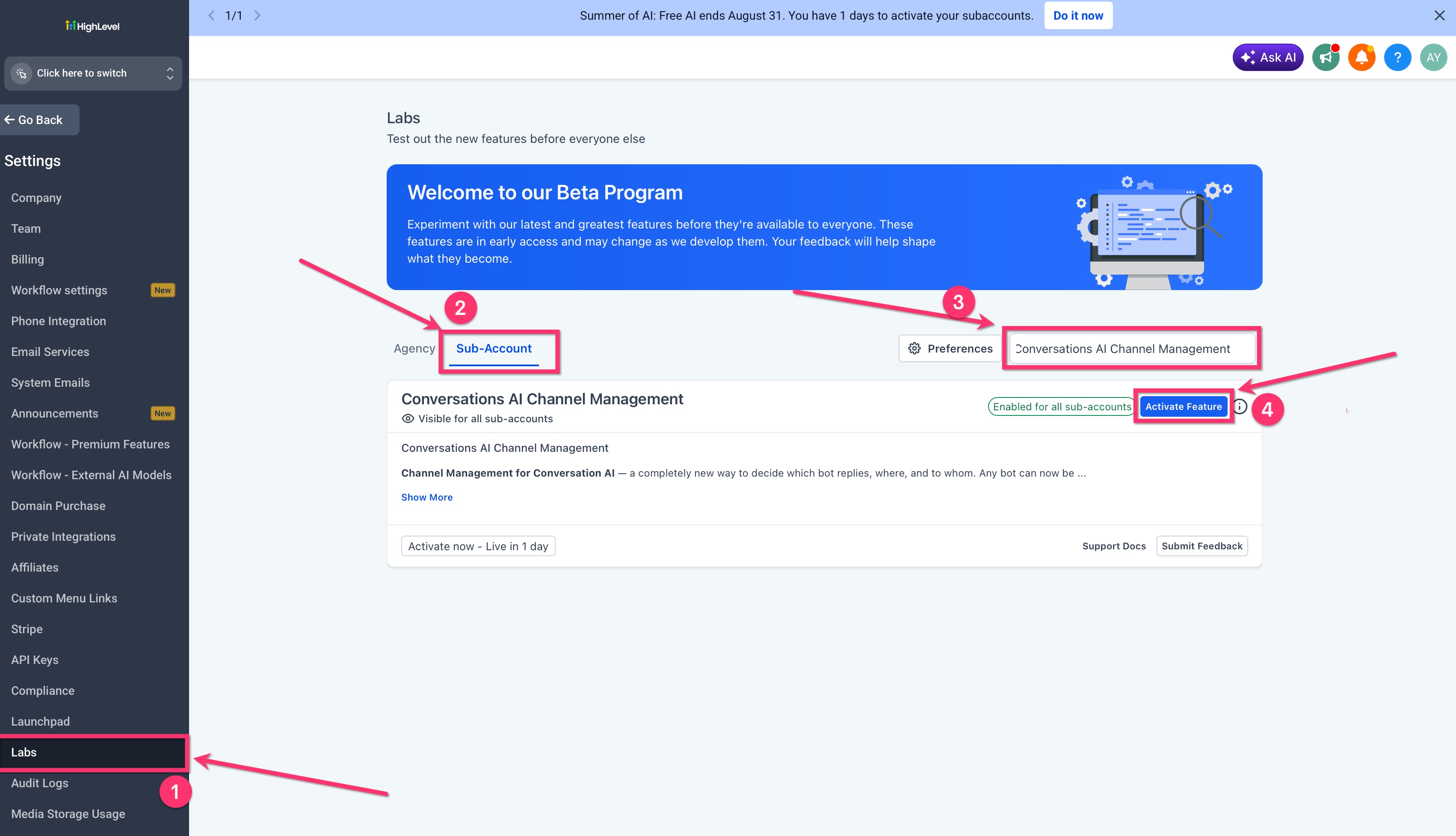
Turn on Conversations AI Channel Management in Labs
- Open Settings from the main menu.
- Select Labs within Settings.
- Locate the Conversations AI Channel Management option.
- Enable the feature by switching it on.
Install a Supported Marketplace App
- Open the App Marketplace from the navigation.
- Search for the desired messaging app.
- Verify that the app lists Conversation Provider support.
- Install the app into the appropriate subaccount.
- Complete any required setup steps for the app.
- Confirm the app shows as active.
Open your Conversation AI bot and go to Deploy
- Navigate to AI Agents > Conversation AI.
- Select the bot you wish to modify.
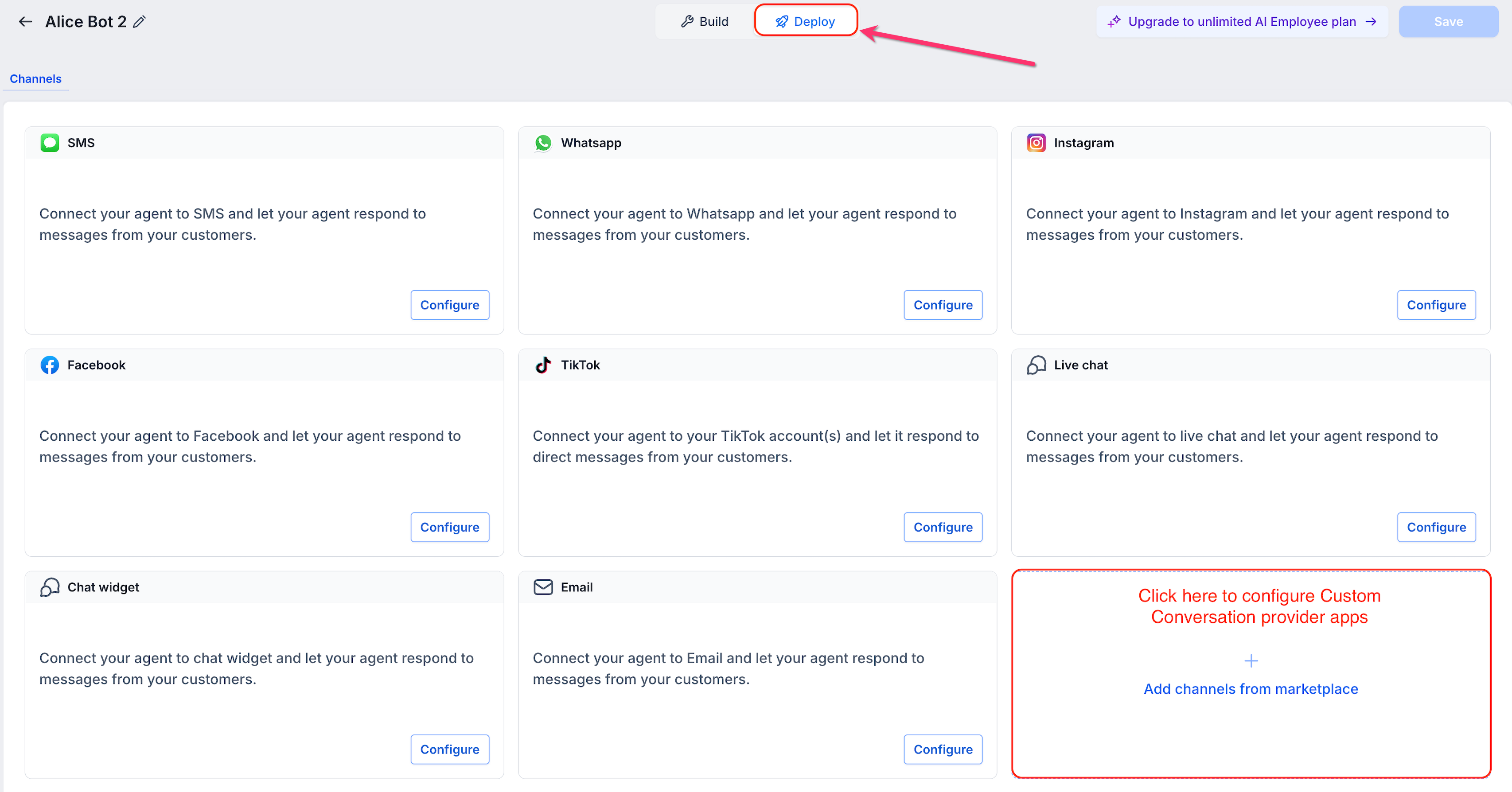
- Click the Deploy tab to view channel options.
Add the Marketplace Messaging App
- Click the Add channels from marketplace button.
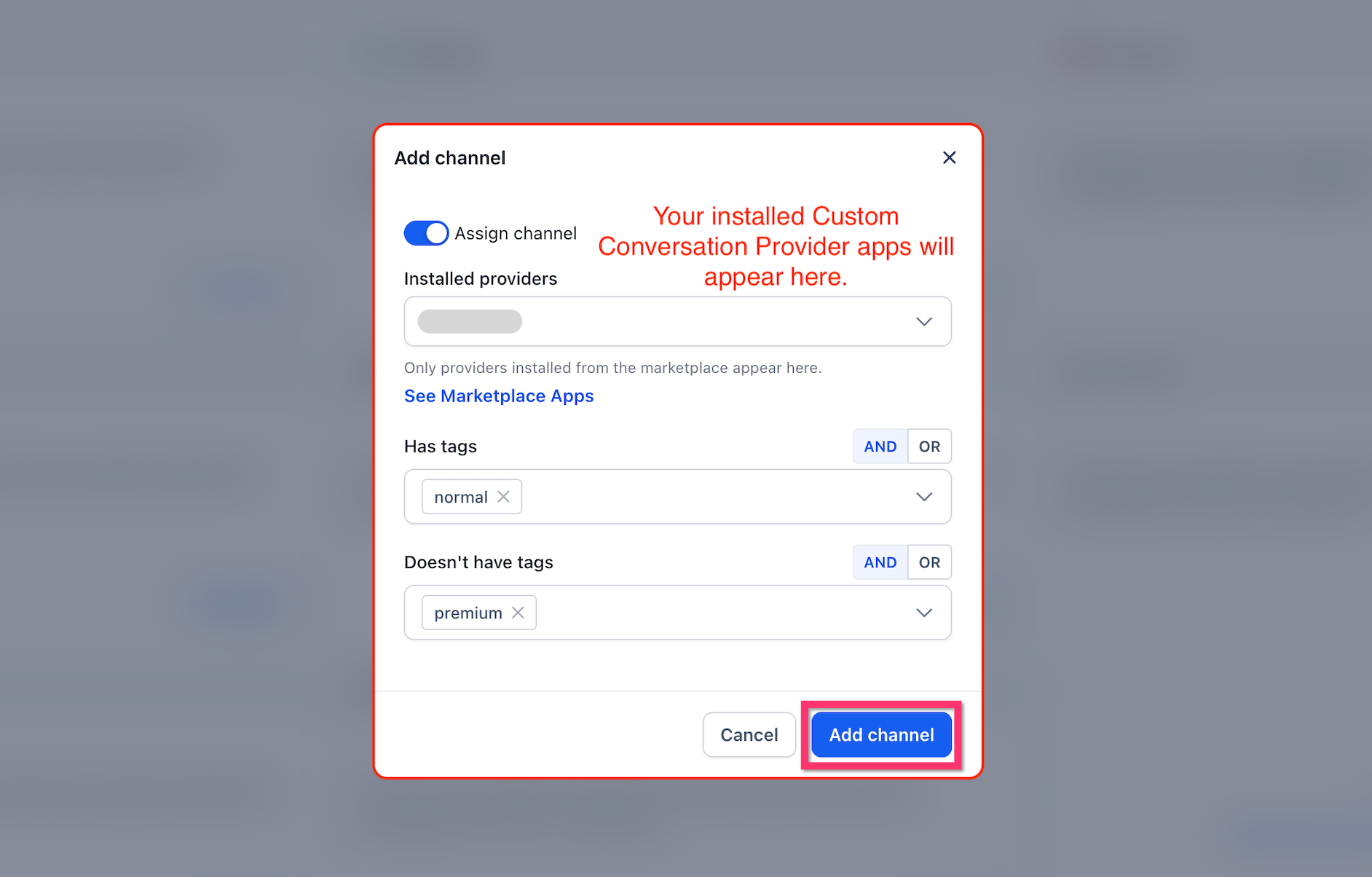
- Open the Installed providers dropdown menu.
- Choose the installed app you want to connect.
- Optionally define contact tag rules for the channel.
- Select AND or OR logic if multiple tags are used.
- Press Add channel to attach the app.
Check the channel and save
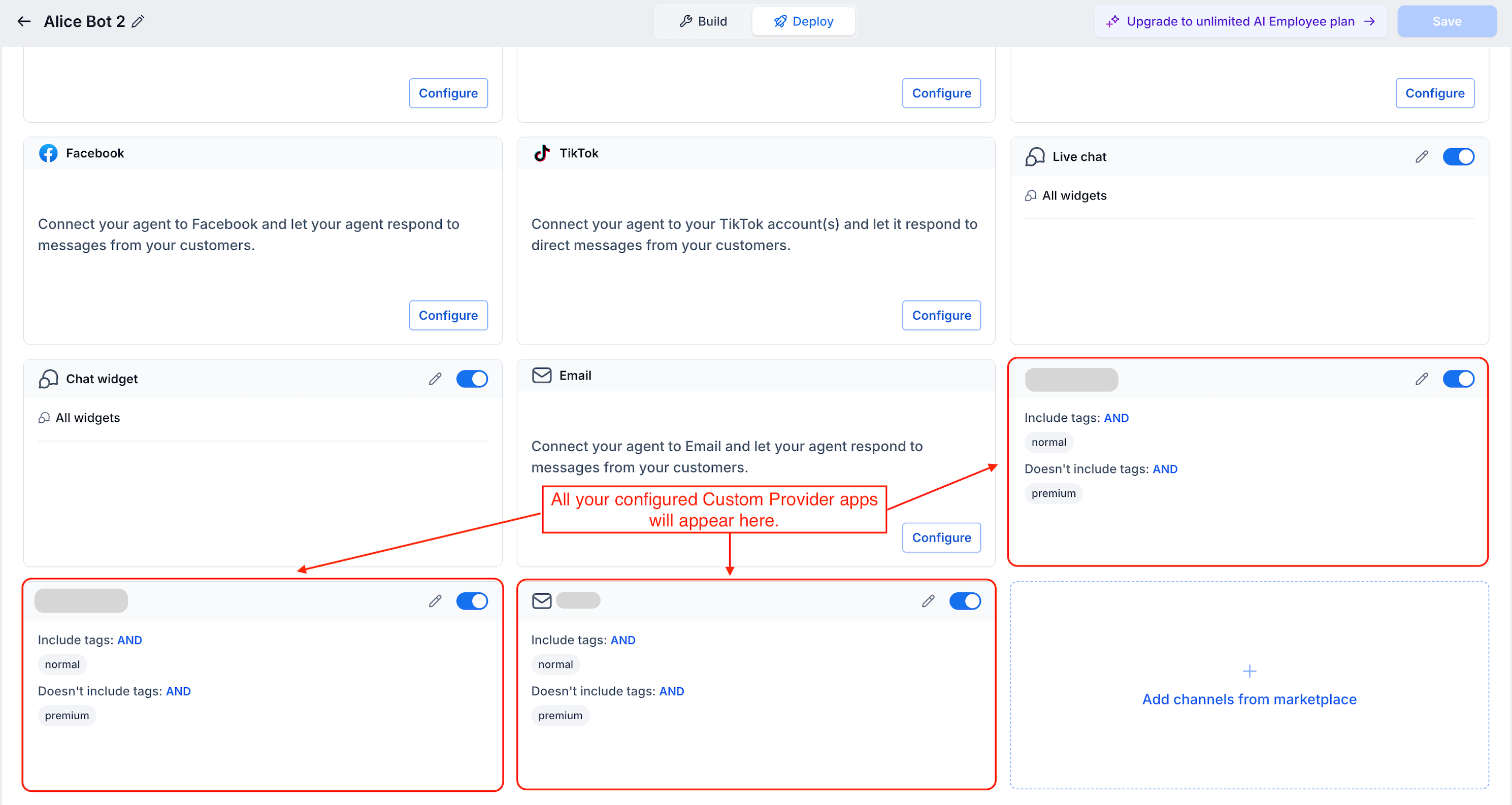
- Verify the new app appears as a card on the Deploy screen.
- Ensure the app’s toggle is set to on.
- Review any tag filter settings you added.
- Confirm the other channels on the bot are correct.
- Click Save to store the changes.
07What it looks like in HighLevel
08Settings that matter
- Conversations AI Channel Management. Enables the ability to add custom Marketplace messaging apps as separate channels for Conversation AI bots.
09Things to know before you rely on it
- Only Marketplace apps that explicitly support Conversation Provider appear for selection.
- The Labs feature must be enabled; otherwise custom channel options will not show.
- Each custom app is managed individually on the Deploy tab and can be turned on or off separately.
- Contact tag rules are optional and only affect replies when defined.
10If something goes wrong
- Marketplace app does not appear. Confirm the Labs feature is enabled, the app is installed for the correct subaccount, the app supports Conversation Provider, and the app is active.
- Bot is not replying. Check that the custom app was added to the bot, the app is turned on, the bot was saved after the change, any tag rules match the contact, and the app itself is connected properly.
- Bot replies to some contacts but not others. Review the Has tags and Doesn't have tags rules for the channel; contacts not meeting those conditions will not receive replies.
11How it connects to the rest of HighLevel
- Set up a Conversation AI flow builder to define bot behavior Conversation AI flow builder
- View bot status for individual contacts Bot status per contact
- Create an integration token for accessing the Conversation AI public API Integration token guide
Michael's take

Jumping into custom conversation providers can feel risky if you haven’t verified that the Labs feature is active and the Marketplace app truly supports Conversation Provider. Missing any of those pieces means the channel never shows up, and you’ll waste time wondering why the bot stays silent.
When everything lines up, you can let a single bot talk across a niche messaging platform while the existing core HighLevel channels remain unchanged. That extra flexibility is worth the extra checklist step.