
01Who this is for
- Agency owners who manage multiple client dashboards, because they can reference client data while asking AI for copy or strategy.
- Coaches using the calendar to schedule sessions, because they can view appointment details while drafting follow up messages with Ask AI.
- SaaS Founders reviewing service settings, because they can keep the settings page open while consulting AI for pricing or feature ideas.
02Ask AI split view, explained
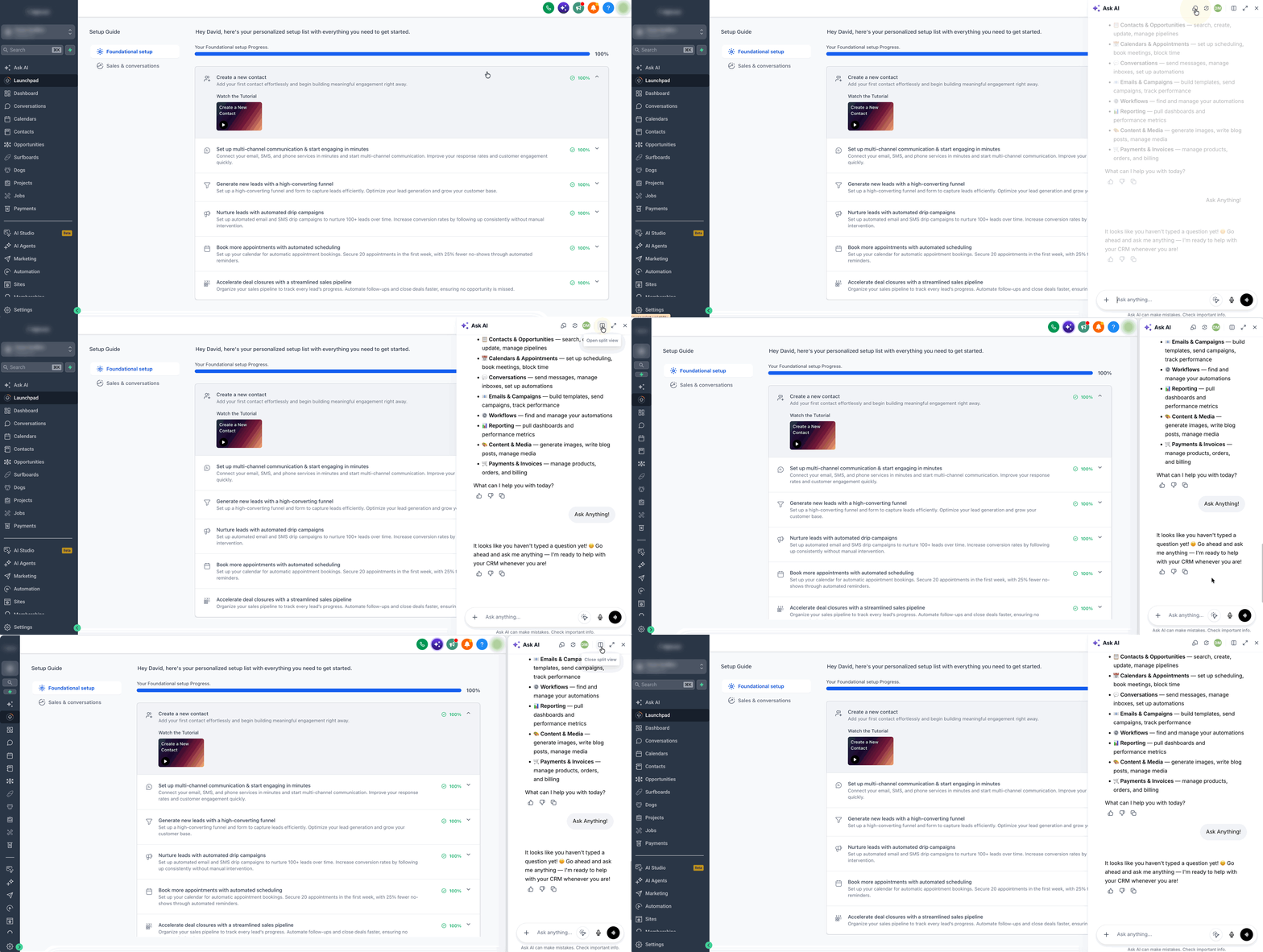
Ask AI Split View places the Ask AI panel beside the current HighLevel workspace instead of floating over it. The docked panel allows you to keep the page visible and clickable while you type questions or commands to the AI. When you move to a page that does not support Split View, the panel automatically switches back to the floating mode and the preference is remembered.
The feature is available on a set of screens such as the Agency Dashboard, Launchpad, Subaccount areas, Calendars, appointments and related settings. On those pages you can open Split View from the panel header, work side by side, and close it to return to the floating panel.
Split View does not affect other Ask AI capabilities. Page element selection and automatic page context work with both the docked and floating panels when a host page is available.
03How businesses use Ask AI split view
- Marketing agency. On the Agency Dashboard, open Ask AI and click Open split view. While the AI panel is docked, reference client metrics and ask the AI to draft campaign copy without losing sight of the dashboard.
- Appointment scheduler. Navigate to Calendar view, open Ask AI, and enable Split View. Scroll through appointments and ask the AI to generate reminder texts, keeping the calendar visible for quick edits.
- Service manager. While editing a service on the Services page, dock Ask AI beside the page. Request pricing suggestions or wording changes and apply them directly without closing the AI panel.
04The numbers and rules that matter
- Supported areas: Agency Dashboard, Agency Launchpad, Subaccount Dashboard, Subaccount Launchpad, Calendars, Calendar view, Appointments, Troubleshoot, Calendar Settings, Preferences, Availability, Connections, Services, Rentals.
05Before you start
- You must be logged into HighLevel.
- You must be on a page that supports Split View.
06How to set up and use Ask AI split view in HighLevel
Enable Ask AI split view
- Log in to HighLevel and go to a screen that supports Split View.
- Open Ask AI by clicking the button in the upper right corner.
- In the Ask AI panel header, click Open split view.
- Work with the docked Ask AI panel while interacting with the page.
- Click Close split view in the panel header to return to the floating panel.
07What it looks like in HighLevel
08Settings that matter
- Open split view. Switches the Ask AI panel from floating to a docked position beside the current HighLevel page.
- Close split view. Returns the Ask AI panel to its floating mode, removing the docked layout.
09Things to know before you rely on it
- Split View works only on listed pages such as Agency Dashboard, Launchpad, Subaccount areas, Calendars and related settings.
- On unsupported screens the Open split view option is hidden and Ask AI appears as a floating panel.
- Page element selection and automatic context are available with both docked and floating panels when a host page exists.
10If something goes wrong
- Open split view option is not visible. Confirm you are on a page that supports Split View; unsupported screens hide the control.
11How it connects to the rest of HighLevel
- Create a contact summary with Ask AI while using Split View for quick reference. Generate contact summary
- Set up access and manage billing for Ask AI across your team. AI Employee access
- Review pricing plans to understand any limits on Ask AI usage. Pricing and plans
Michael's take

Ask AI split view is a modest convenience for anyone who likes to keep reference material in sight while they chat with the AI. It saves you the back and forth of closing a floating panel, but it isn’t a game changing shift in how you run a business.