
01Who this is for
- Founders who need quick context before client calls, because the summary card shows the latest activity without extra navigation.
- Sales managers who want to generate briefings for upcoming meetings, since the Prep Me action appears when an appointment is within seven days.
- Support team leads who capture post call notes by dictating them, allowing AI to suggest follow up tasks that must be approved.
02Ask AI in Contact Details, explained
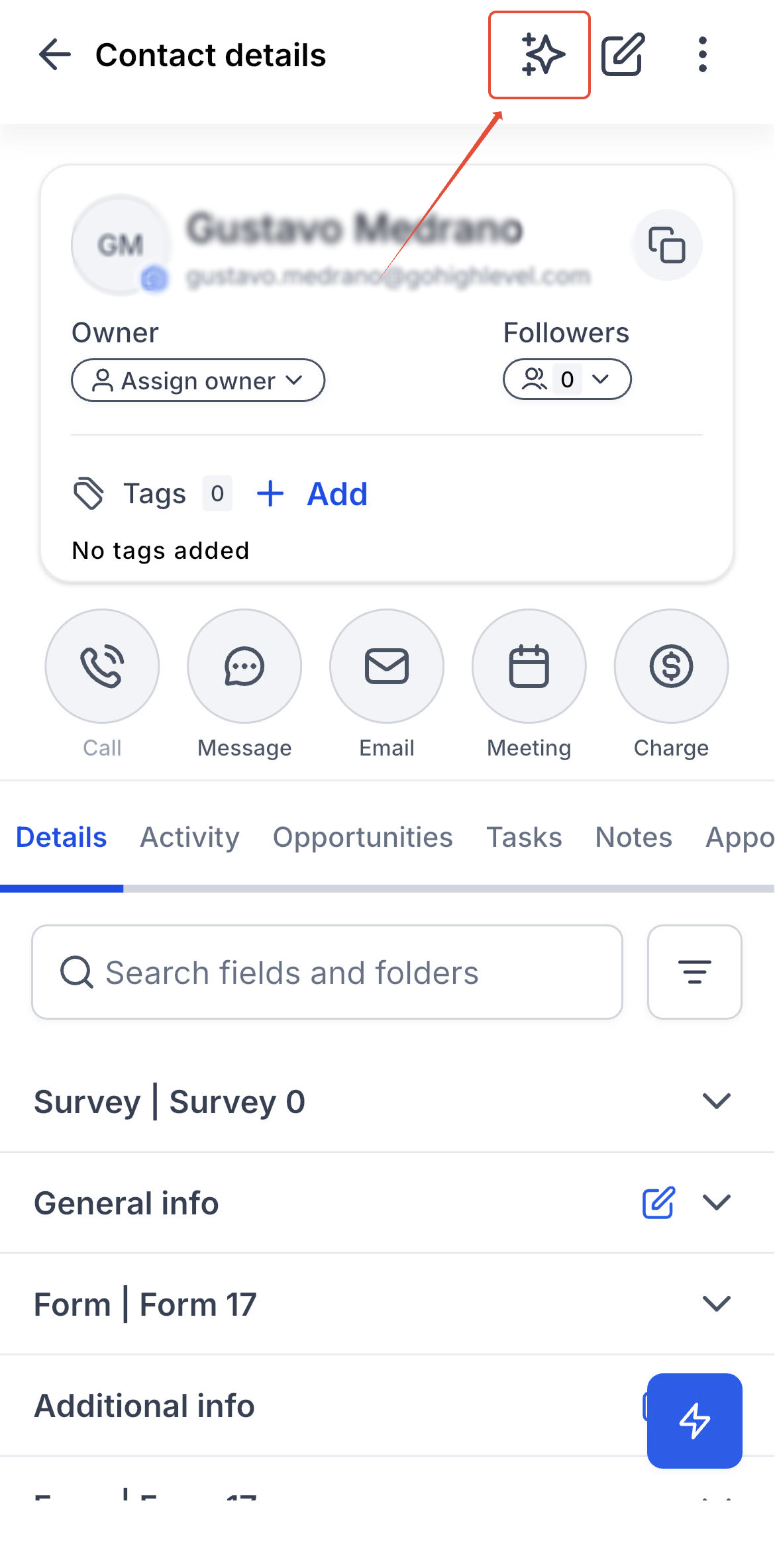
Ask AI appears as an icon at the top of a contact’s record in the HighLevel mobile app. When you open it, the assistant receives the selected contact as its context, so it can display a summary card built from existing records. The card lists the last message, next appointment, biggest open deal, and open tasks, and each row opens the underlying record when tapped.
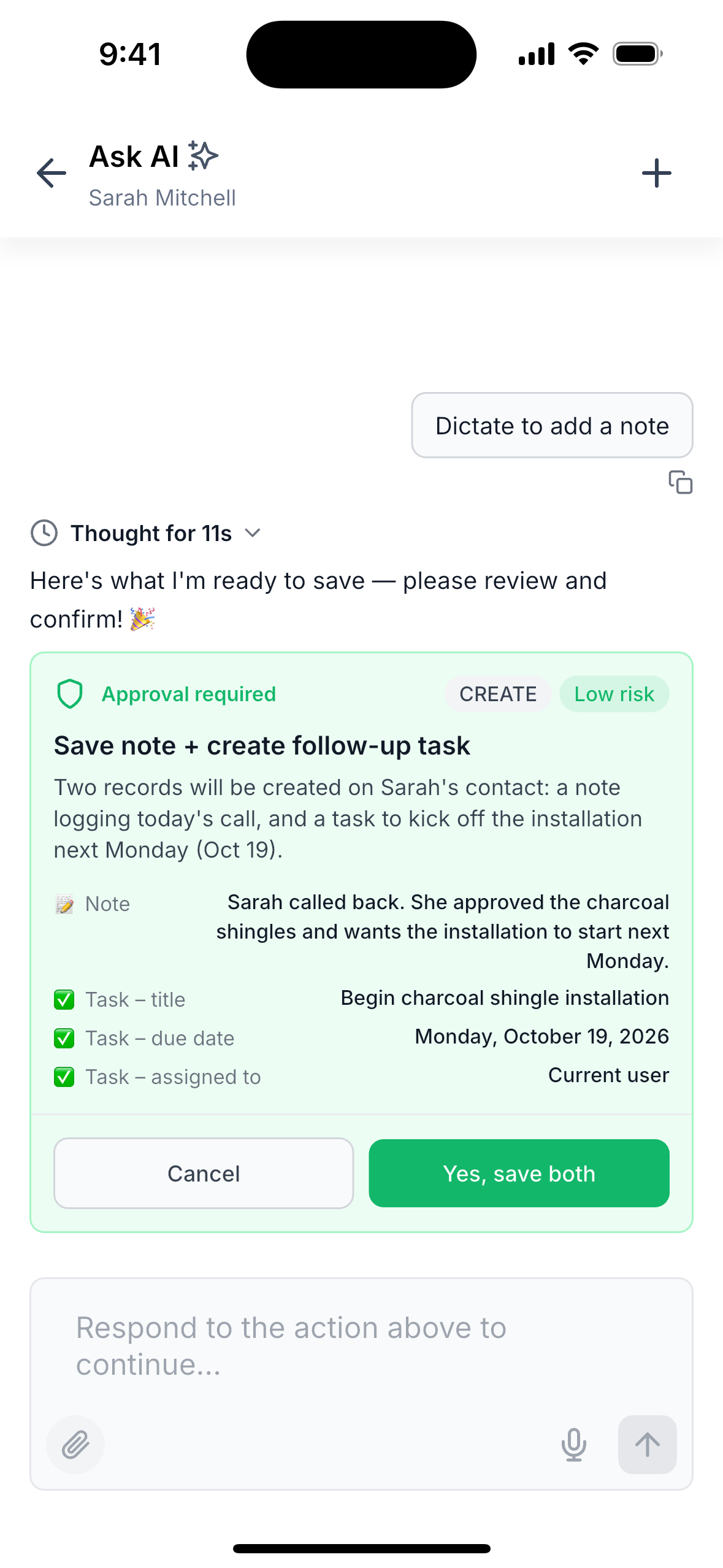
The assistant offers three built in actions. "Prep Me for Next Appointment" creates a short briefing if the contact has an appointment in the next seven days. "Summarize This Contact" produces an AI generated overview of the contact’s history and allows follow up questions. "Dictate to Add a Note" lets you speak a note, which AI turns into a proposed note and may suggest a task. All AI generated content stays provisional until you review and approve it.
Ask AI respects the user’s existing permissions; no extra permission is required beyond having Ask AI access. Each time you launch the feature from a contact, a fresh chat begins. You can start another chat for the same contact by tapping the + icon after the first message.
03How businesses use Ask AI in Contact Details
- Real estate brokerage. A broker opens a client’s contact record, taps the Ask AI icon, and selects "Prep Me" to receive a concise briefing of recent communications and upcoming showings. The broker reviews the AI generated notes and approves any tasks before the meeting.
- Dental practice. The office manager selects a patient’s contact, launches Ask AI, and uses "Dictate to Add a Note" after a consultation. The spoken note is turned into a draft, the manager reviews it, and approves the attached follow up task if needed.
- Online coaching service. A coach opens a subscriber’s profile, chooses "Summarize This Contact" to get a quick overview of past sessions and messages, asks any follow up question, then approves any suggested actions before saving them.
04The numbers and rules that matter
- Available on iOS and Android in HighLevel, LeadConnector, and supported White Label Apps running version 4.27.0 or later.
05Before you start
- User must have Ask AI access enabled.
- Mobile app must be version 4.27.0 or later on iOS or Android.
06How to set up and use Ask AI in Contact Details in HighLevel
Access Ask AI from a contact profile
- Open the contact by navigating to Contacts, Conversations, or using Search in the mobile app.
- Tap the Ask AI icon located in the contact’s top navigation bar.
- Examine the summary card that shows recent messages, upcoming appointments, open deals, and tasks.
- Select one of the actions, Prep Me, Summarize, Dictate, or type a custom question.
- Review any proposed note or task and approve it before it is saved.
07What it looks like in HighLevel
08Things to know before you rely on it
- Prep Me appears only when the contact has an appointment within the next seven days.
- Full Voice Mode is not available in contact specific chats; use Dictate to Add a Note instead.
- Only records the user has permission to view are shown on the summary card.
- If the app cannot load details, it displays "Couldn't load details" and requires a reconnection and pull to refresh.
- Opportunity amounts are presented as plain numbers without currency symbols.
09If something goes wrong
- Unable to load contact details offline. Reconnect to the internet and pull down to refresh the view.
- Contact was deleted or access removed. The assistant will display an unavailable contact message; verify that the contact still exists and that you have permission.
- Full Voice Mode does not work in the contact chat. Use the Dictate to Add a Note action, which is supported for contact specific interactions.
10How it connects to the rest of HighLevel
- Generate a detailed contact summary using Ask AI Contact summary guide
- Manage user permissions for Ask AI access Ask AI access controls
Michael's take

When you need to prepare quickly for a call, the briefings and voice dictated notes let you gather information without leaving the contact screen.
If you primarily work on desktop or already have another system for meeting prep, you might find the mobile only feature adds limited value, especially given the need to approve each AI generated note and the lack of full Voice Mode in contact chats.