
01Who this is for
- Agency administrators can activate the feature for client subaccounts to automate web based tasks.
- Founders of small businesses can use the desktop to collect information from sites that lack native integrations.
- Team members who need to generate files or run scripts can rely on the cloud computer without installing software locally.
02Ask AI Computer, explained
Ask AI Computer is a cloud based desktop that lives inside the Ask AI workspace. It includes a Chrome browser, a terminal, and a file manager, allowing the assistant to interact with websites, execute commands, and handle documents.
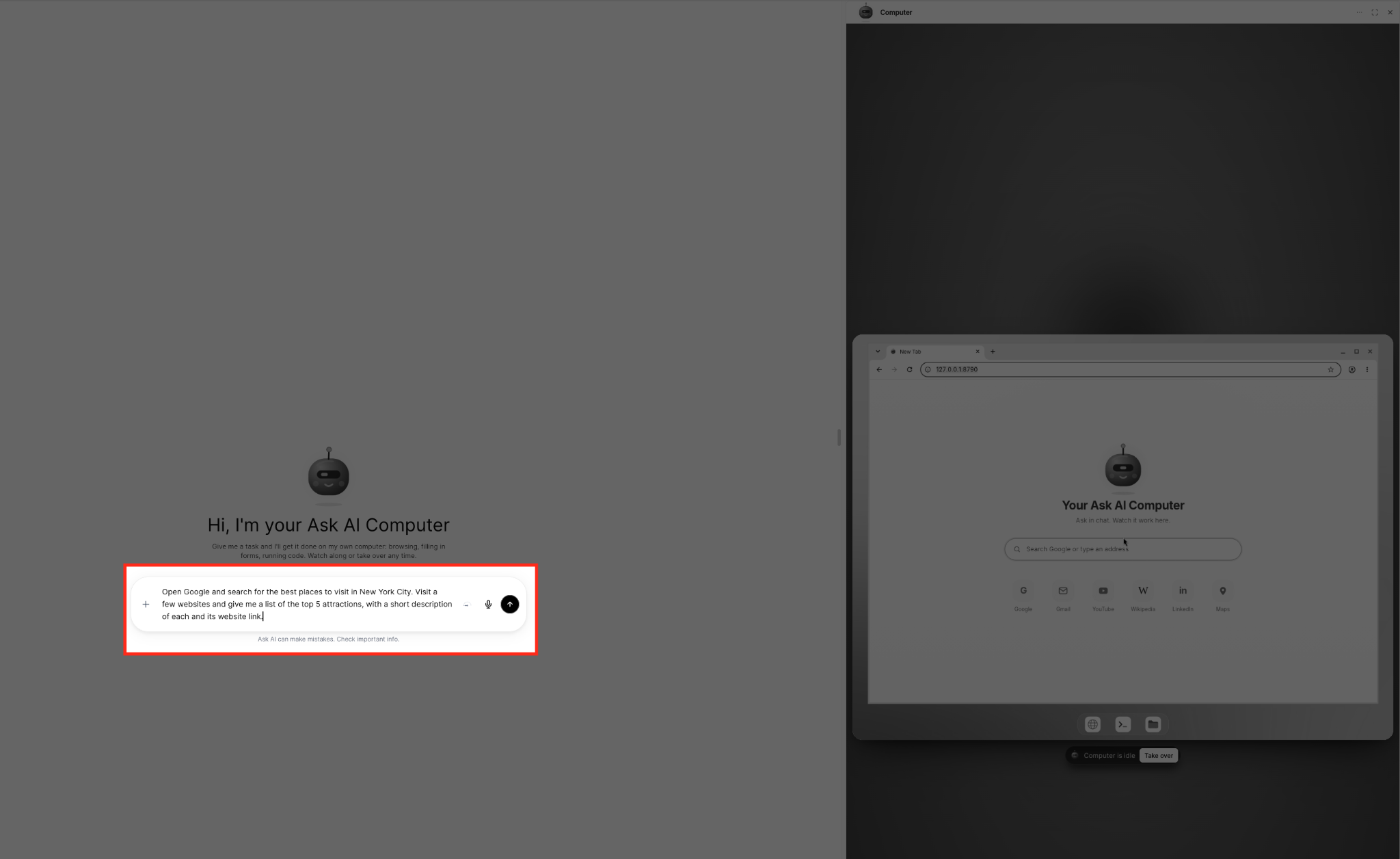
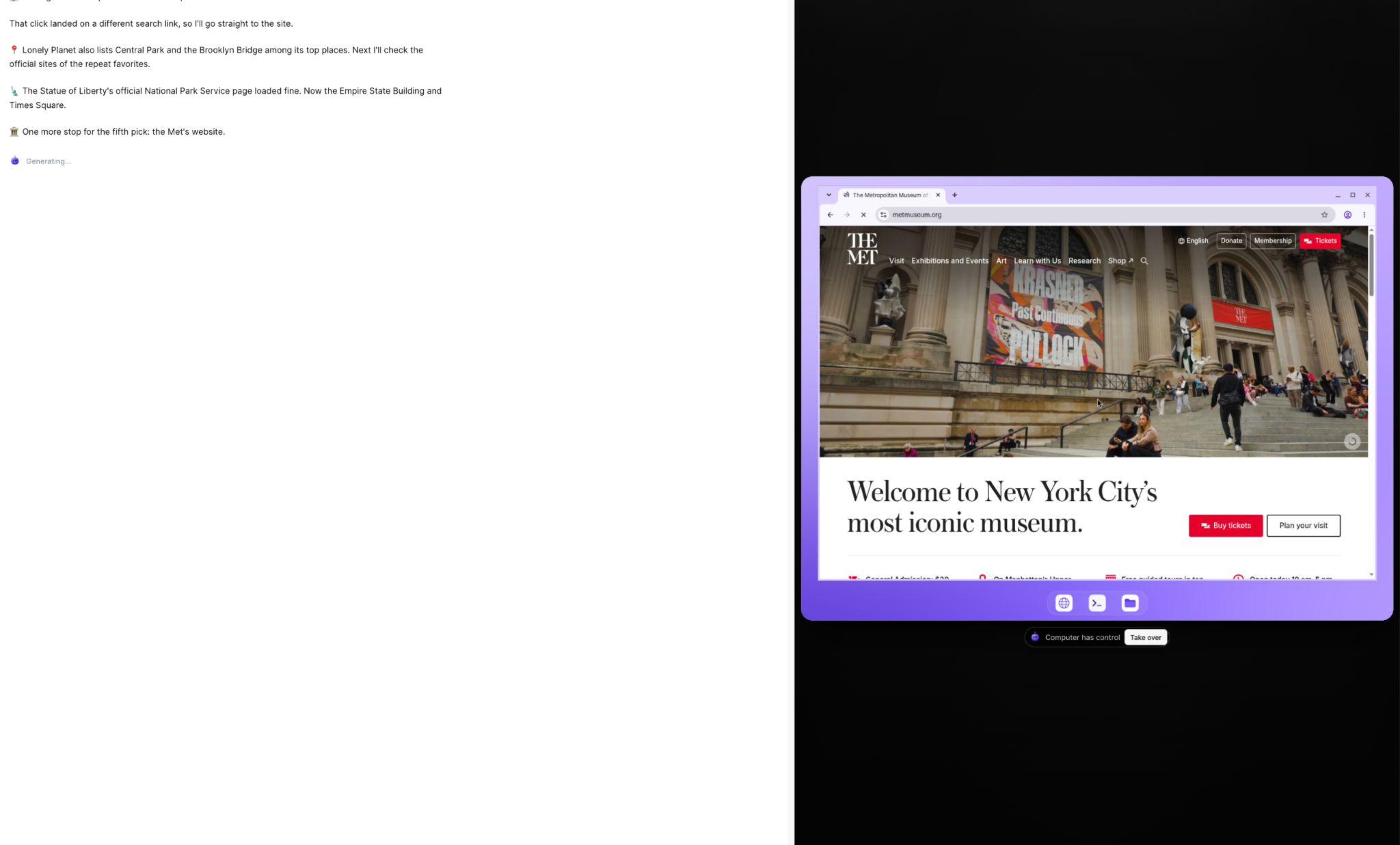
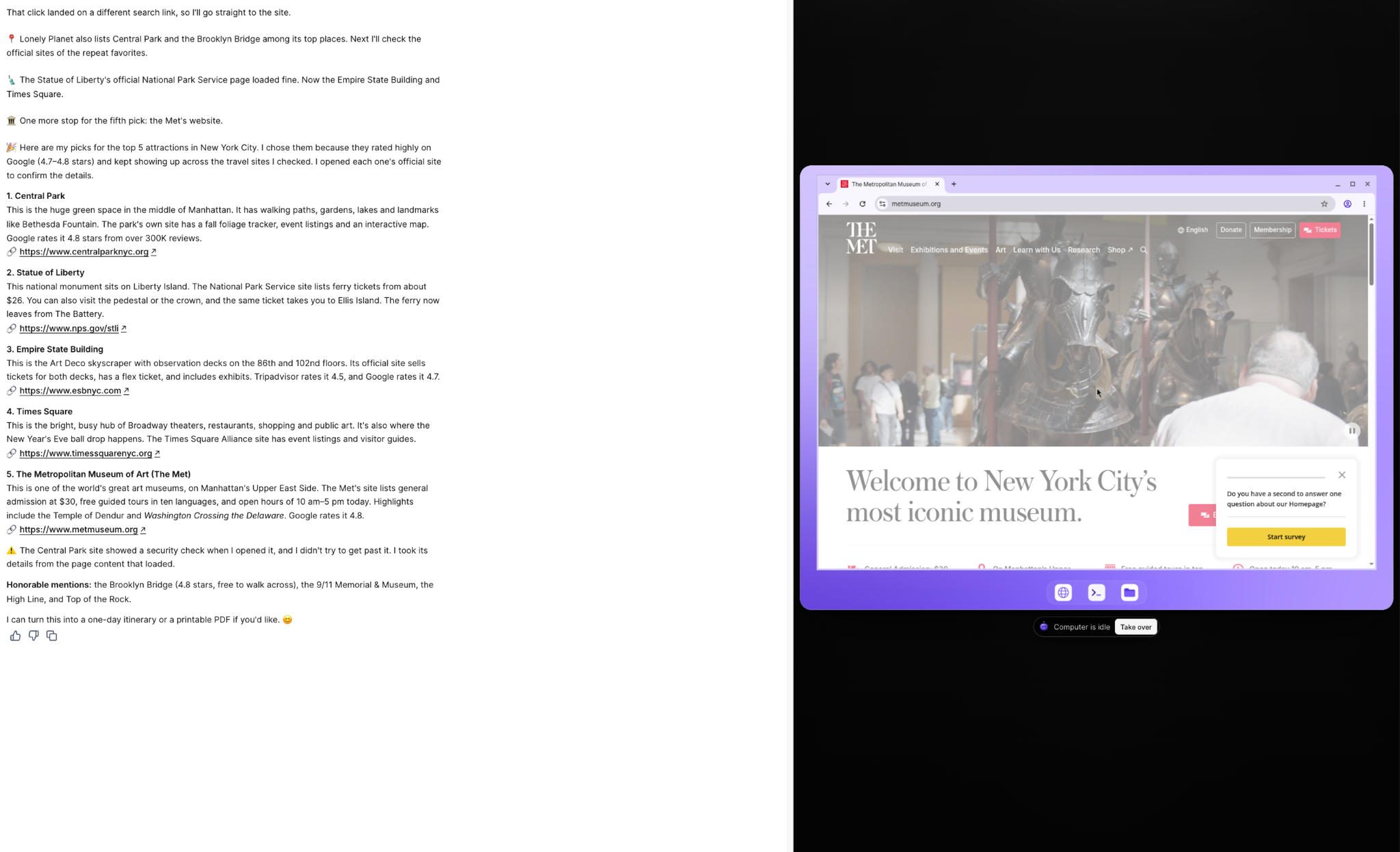
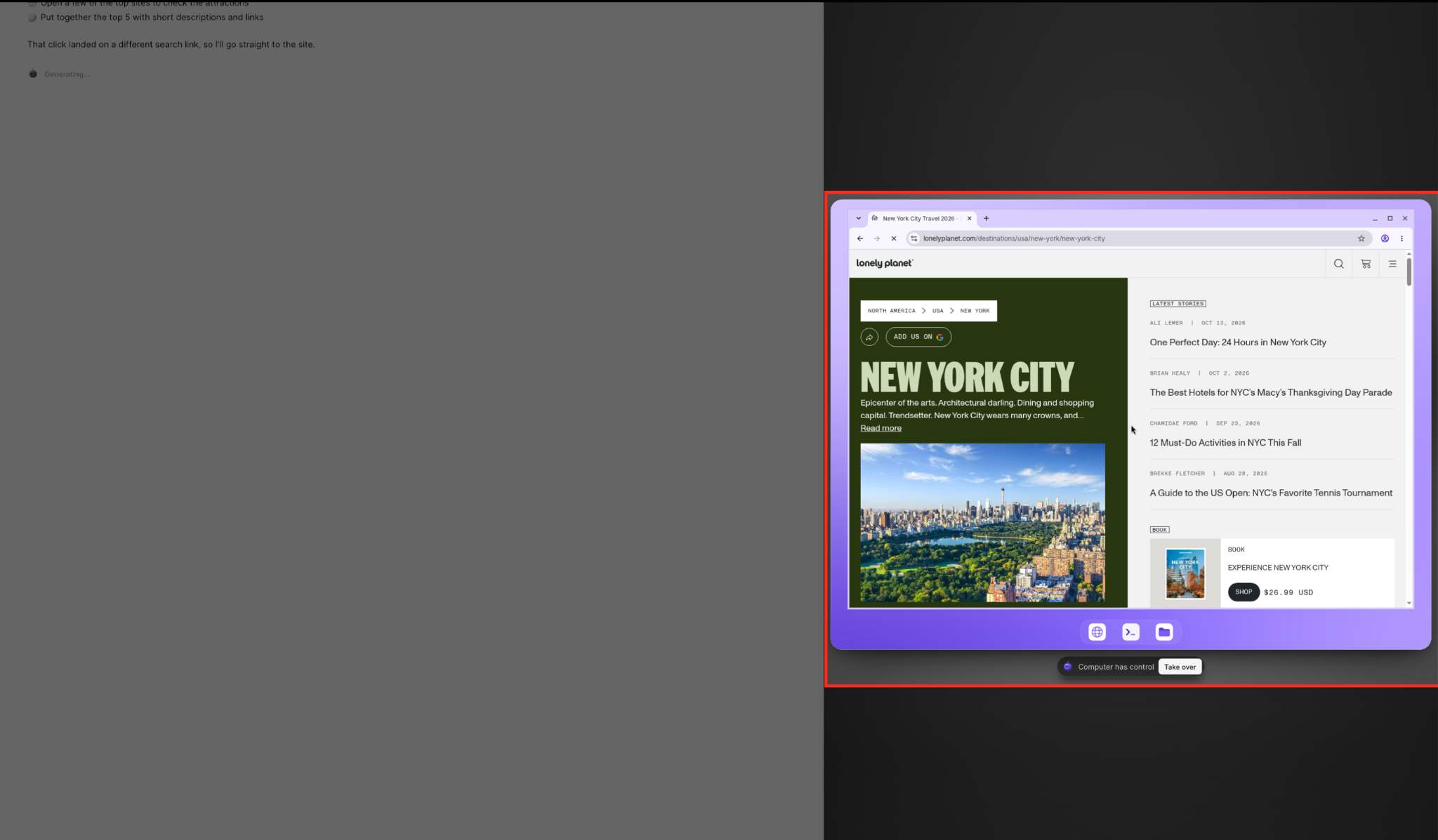
When you open the Computer chat, the desktop preview appears. You describe a task in plain language, press send, and the assistant starts working. You can watch the live preview, see who has control, and intervene by taking over the desktop. After you hand back control, Ask AI resumes the task.
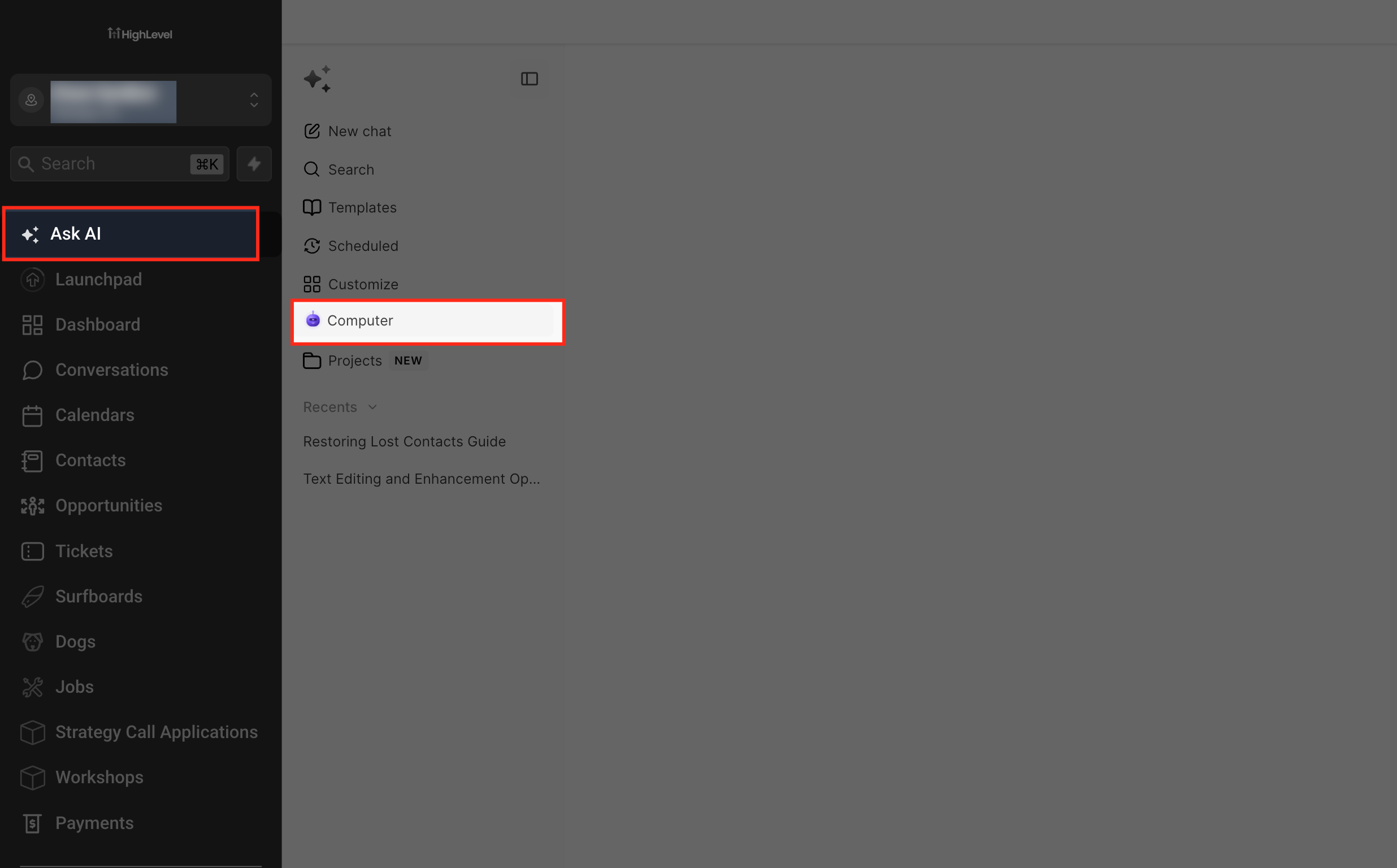
The feature is accessed from the subaccount view by selecting Ask AI in the left navigation and then choosing Computer in the Ask AI sidebar.
03How businesses use Ask AI Computer
- Digital marketing agency. The agency opens the Computer chat for a client subaccount, describes a keyword research task, and lets Ask AI browse competitor sites. The agency can watch the browser activity and retrieve the compiled list of keywords directly in the conversation.
- Real estate brokerage. An agent uses the terminal tool in the cloud desktop to run a script that formats property data. The agent can take control to adjust parameters and then hand back the computer for Ask AI to finish the report and upload the file.
- Ecommerce store. The store owner asks the computer to open a supplier portal, download a product catalog PDF, and store it in the Files area. The owner can verify the download in real time and share the file with the team.
04The numbers and rules that matter
- File size limit: 25 MB per uploaded or downloaded file.
- Storage: 15 GB per user across all subaccounts.
- Computer sleeps after 15 minutes of inactivity and wakes when needed.
05Before you start
- The subaccount must have Ask AI Level Up enabled.
- Agency or admin must grant Computer access at the agency, subaccount, and user levels.
06How to set up and use Ask AI Computer in HighLevel
Set up Ask AI Computer
- From the subaccount view, click Ask AI in the left navigation menu and select Computer in the sidebar.
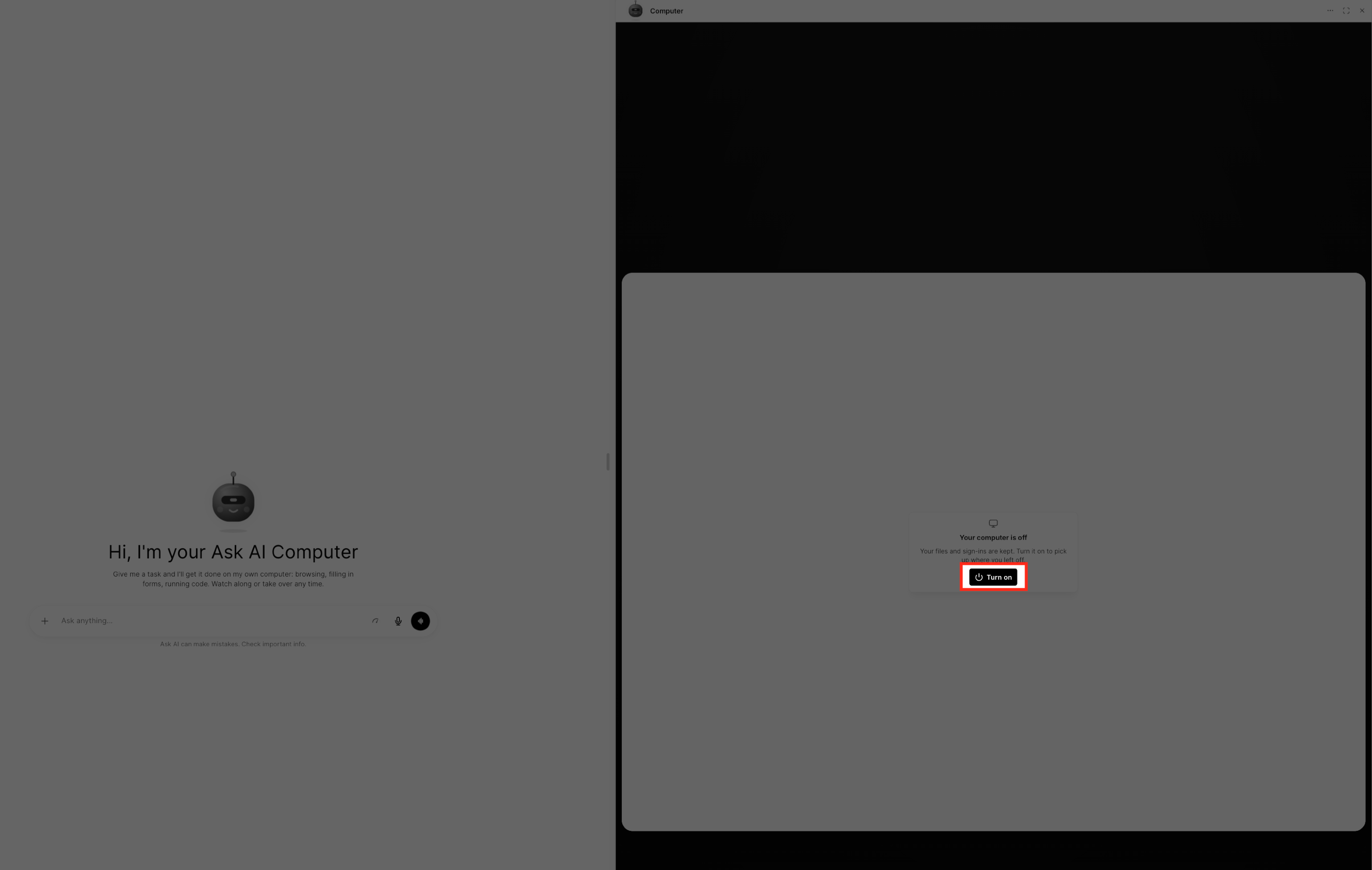
- If the preview shows ‘Your computer is off’, click Turn on to start the cloud desktop.
- In the Computer chat, click the Ask anything input field, describe the desired task, and press the send arrow.
- Watch the assistant work in the live preview, and review the final response, links, or files when the task completes.
07What it looks like in HighLevel
08Things to know before you rely on it
- Only subaccounts with Ask AI Level Up can see and use Ask AI Computer.
- Each uploaded or downloaded file may be up to 25 MB.
- Every user receives 15 GB of storage across all subaccounts.
- The computer can reach public internet sites but cannot connect to private networks.
- The desktop sleeps after 15 minutes of inactivity and wakes when needed.
09If something goes wrong
- Computer does not appear in the Ask AI sidebar. Check that you are in the correct subaccount and that Ask AI Level Up is enabled. Verify that the agency admin has allowed Computer access at all levels, then reopen Ask AI. If it still does not show, contact HighLevel Support.
10How it connects to the rest of HighLevel
- Open Ask AI from Global Search Ask AI search
- Configure access and rebilling for AI Employee features AI Employee access
- Review HighLevel pricing and plan eligibility Pricing page
Michael's take

Ask AI Computer adds a visual layer to the chat only assistant, letting you see exactly what’s happening and step in when needed.
A boutique travel agency could use it to pull the latest destination guides, format itineraries and pull PDFs into a single client package, all while you watch the AI click through booking sites and generate the final documents.