
01Who this is for
- Any user with Ask AI access can link external applications to use the AI on a mobile device.
- Team members working within a subaccount can manage their own private connector settings.
02Ask AI Connectors, explained
Ask AI Connectors are a way for the Ask AI assistant to interact with supported third party applications using the Model Context Protocol. The feature lives inside the HighLevel mobile application and works at the subaccount level.
When a connector is active, the AI can call the selected tools of the linked app. Users choose which accounts and which specific tools are allowed, and they may add custom MCP servers for services that are not listed in the catalog. All changes made on the phone appear on the web version and vice versa.
03How businesses use Ask AI Connectors
- Connect a third party app. Add an external application, select the tools the AI may use, and turn the connector on so Ask AI can perform those actions from mobile.
- Add a custom MCP server. Provide a server name, URL and authentication details to extend the range of tools available to Ask AI on the phone.
- Manage permissions. Choose individual tools or select all for each connected account, keeping control over what the AI can do in each application.
04The numbers and rules that matter
- Connectors are available in HighLevel, LeadConnector, and white label mobile apps running version 4.27.0 or later.
- Ask AI Skills are available on web but are not included in mobile Customize in version 4.27.0.
05Before you start
- The mobile app must be version 4.27.0 or later.
- The user must have Ask AI access and be working inside a subaccount.
06How to set up and use Ask AI Connectors in HighLevel
Set up an Ask AI Connector on mobile
- Open the HighLevel mobile application and go to the Ask AI section.
- Tap the chat history icon located at the top right of the screen.
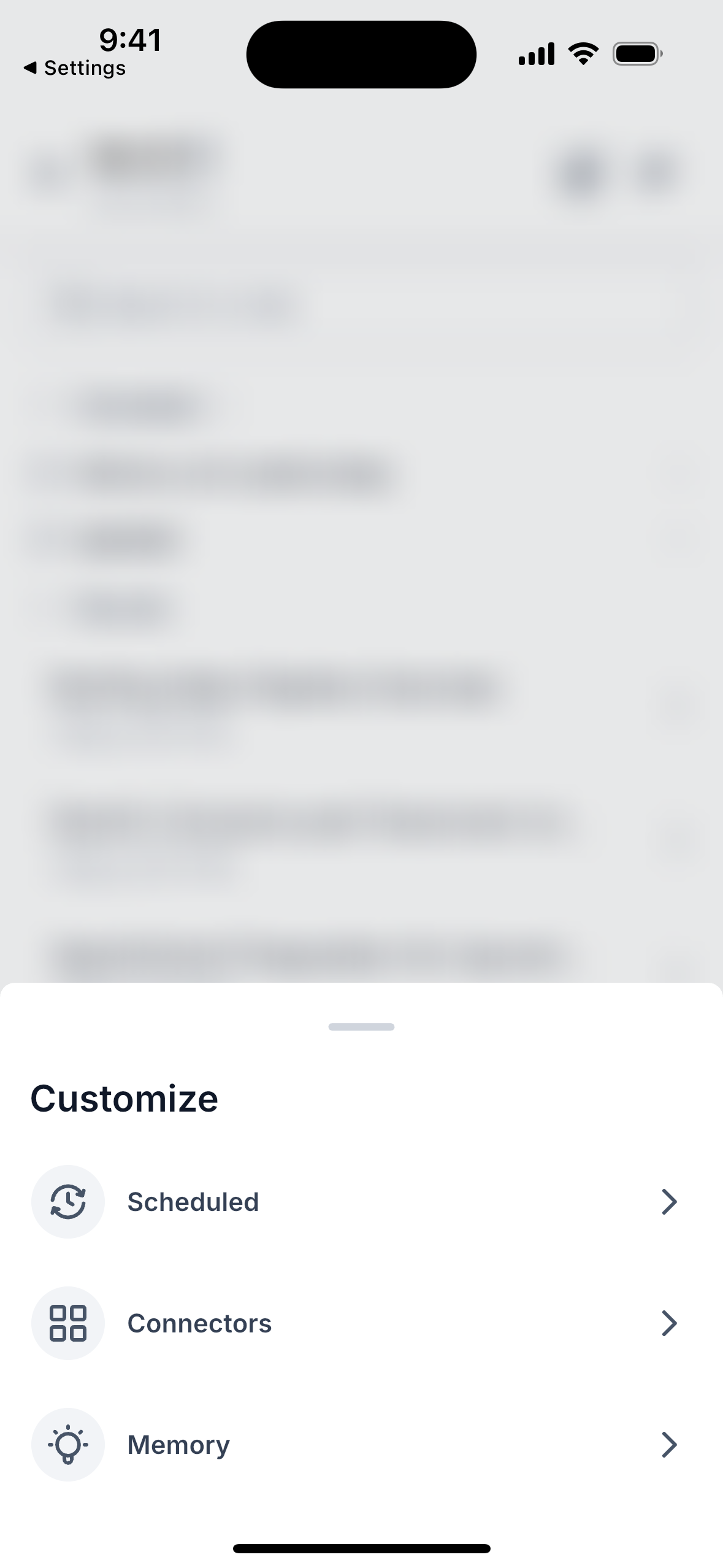
- Select Customize and then choose Connectors.
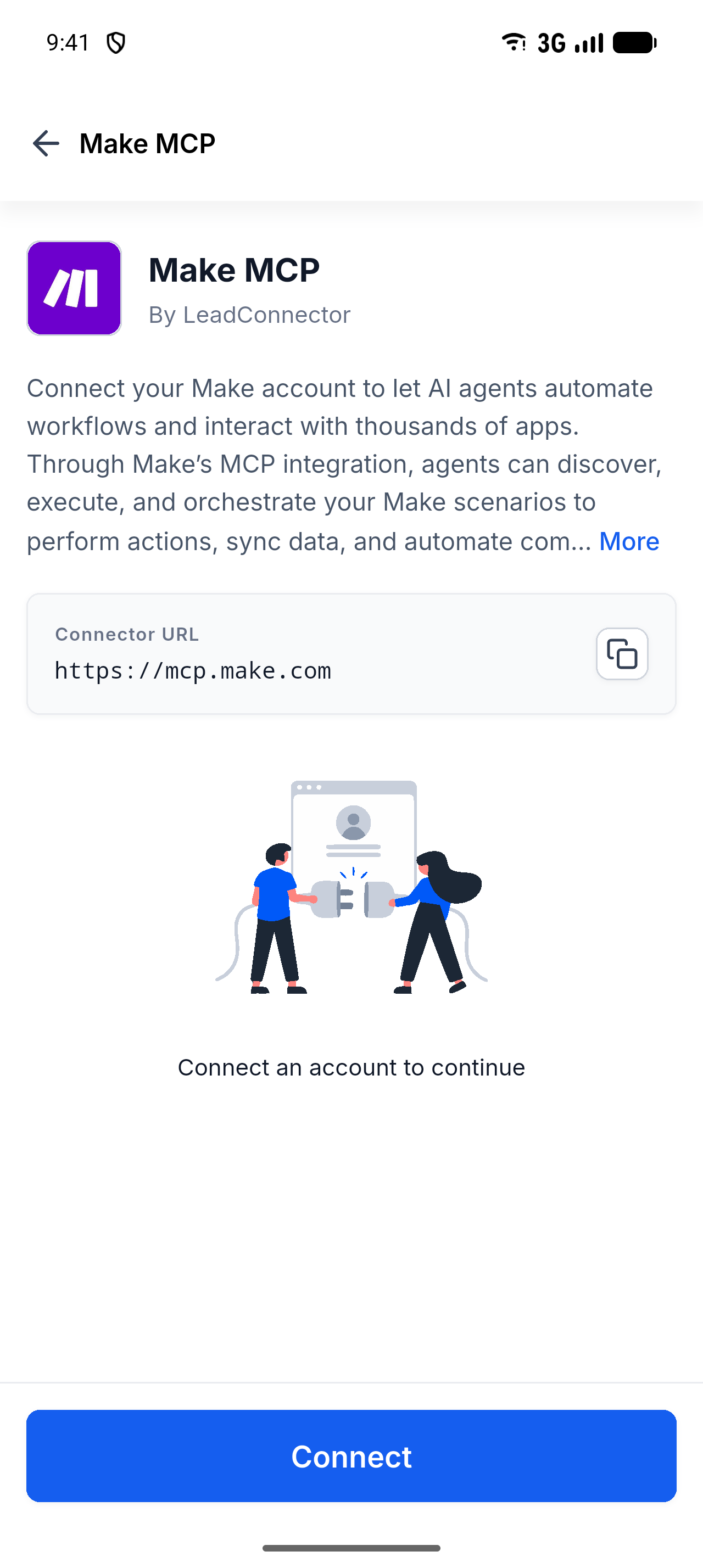
- Switch to the Browse tab and pick the desired third party application.
- Tap Connect and follow the on screen authentication prompts.
- Choose the linked account and mark the tools the AI may use.
- Make sure the Connector enabled toggle is switched on.
- Tap Save to finish the configuration.
07What it looks like in HighLevel
08Settings that matter
- Connector enabled. Turns the connector on or off for the chosen application.
09Things to know before you rely on it
- A connector must have at least one linked account and one tool selected to be active.
- Tool selections apply to the whole application, not to individual accounts.
- Connected accounts are private and cannot be seen by other users in the same subaccount.
- Deleting a custom MCP server permanently removes every account attached through it.
- Some applications open a secure in app browser for authentication.
- Ask AI Skills are not included in the mobile Customize screen for version 4.27.0.
- When offline, the connector list cannot refresh; tap Try again after reconnecting.
10If something goes wrong
- Cannot see Connectors on mobile. Verify the app is updated to version 4.27.0 or newer, confirm Ask AI access, and ensure you are inside a subaccount.
- Connection expires. Open the affected connector and complete the reconnection or authentication steps shown.
- Unable to refresh while offline. View the previously loaded list, go online, and tap Try again to reload.
11How it connects to the rest of HighLevel
- Create and attach a Knowledge Base with Ask AI in HighLevel Knowledge Base guide
- Ask AI sessions in HighLevel: How pricing works Pricing details
- HighLevel pricing and plans Pricing page
Michael's take

Expect to reconnect a connector now and then when a link expires. Connected accounts stay private to the person who linked them, which protects your logins but also means teammates cannot share one connection.
Adding and tuning tools from your phone is a real time saver. I would use the custom MCP option to bring in services that are not in the catalog, then let Ask AI do the work while you are away from your desk.