
01Who this is for
- Team members who build and manage Conversation AI agents.
- Users who need to test and refine bot prompts before publishing them live.
02Trial chat Prompt Optimizer, explained
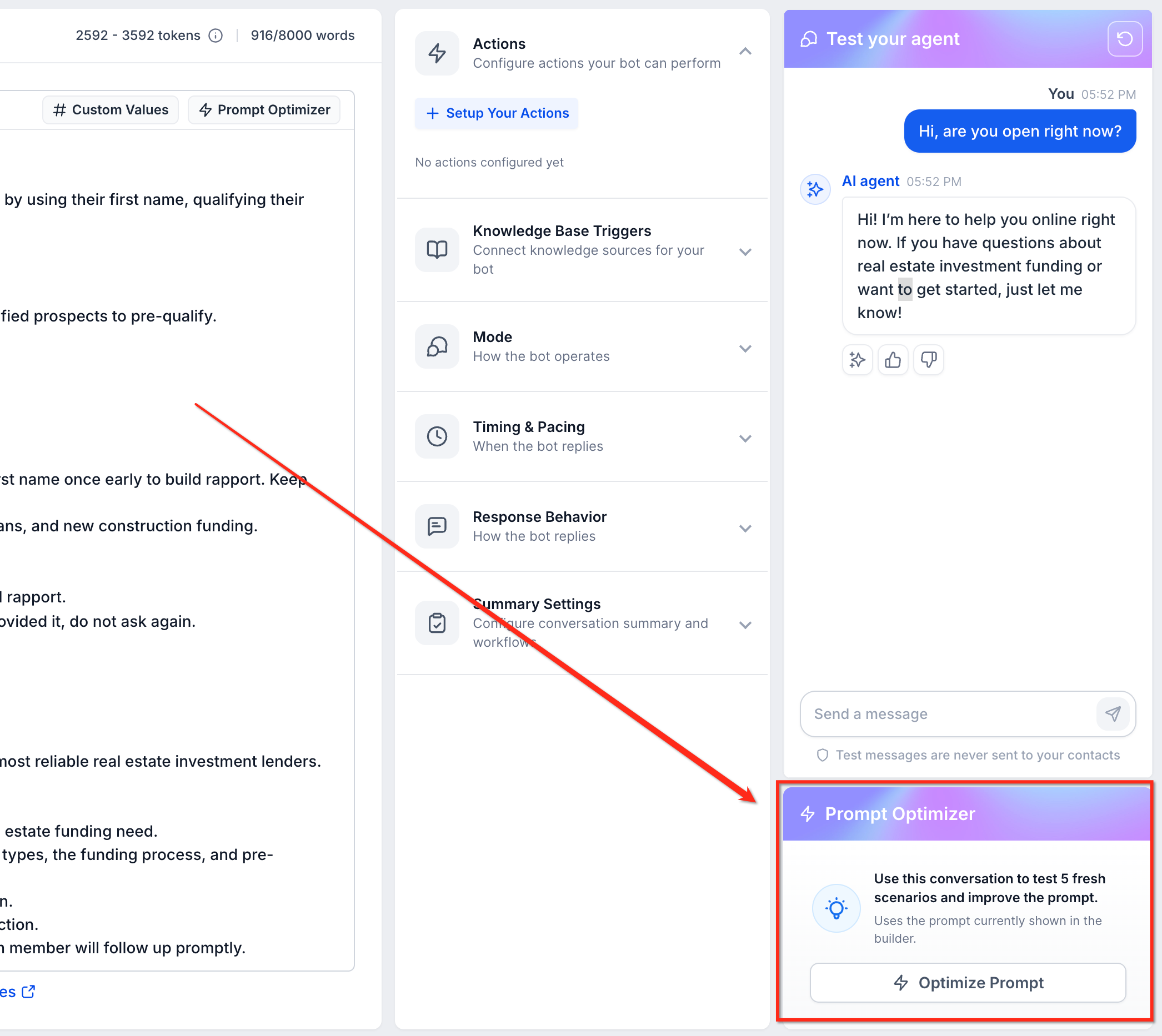
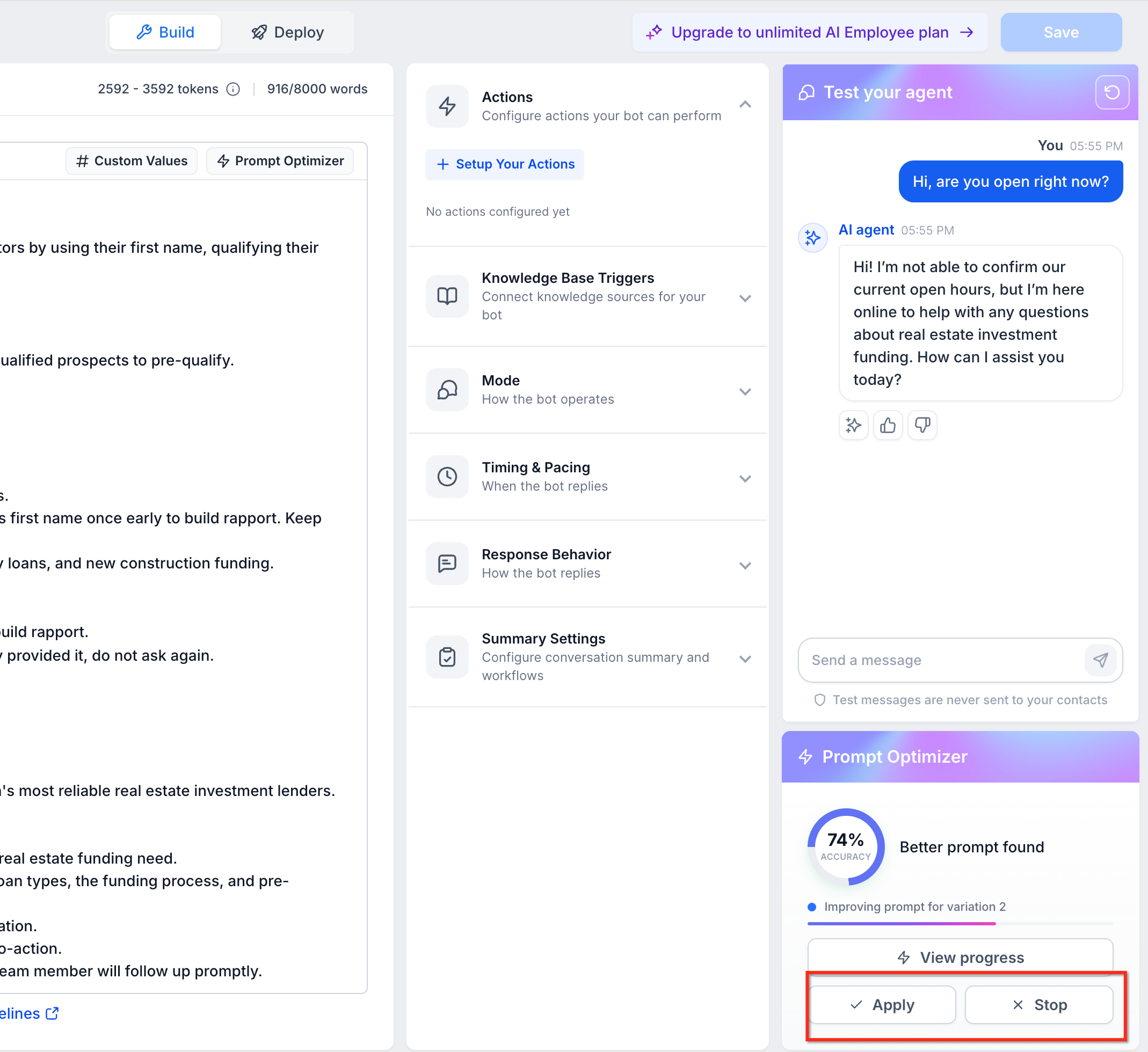
The optimizer lives inside the Conversation AI builder under the Test your agent panel. After sending a test message and receiving a reply, an Optimize Prompt button appears. Clicking it launches a background run that creates test scenarios, evaluates the agent with an evaluation copy, and returns multiple prompt variations.
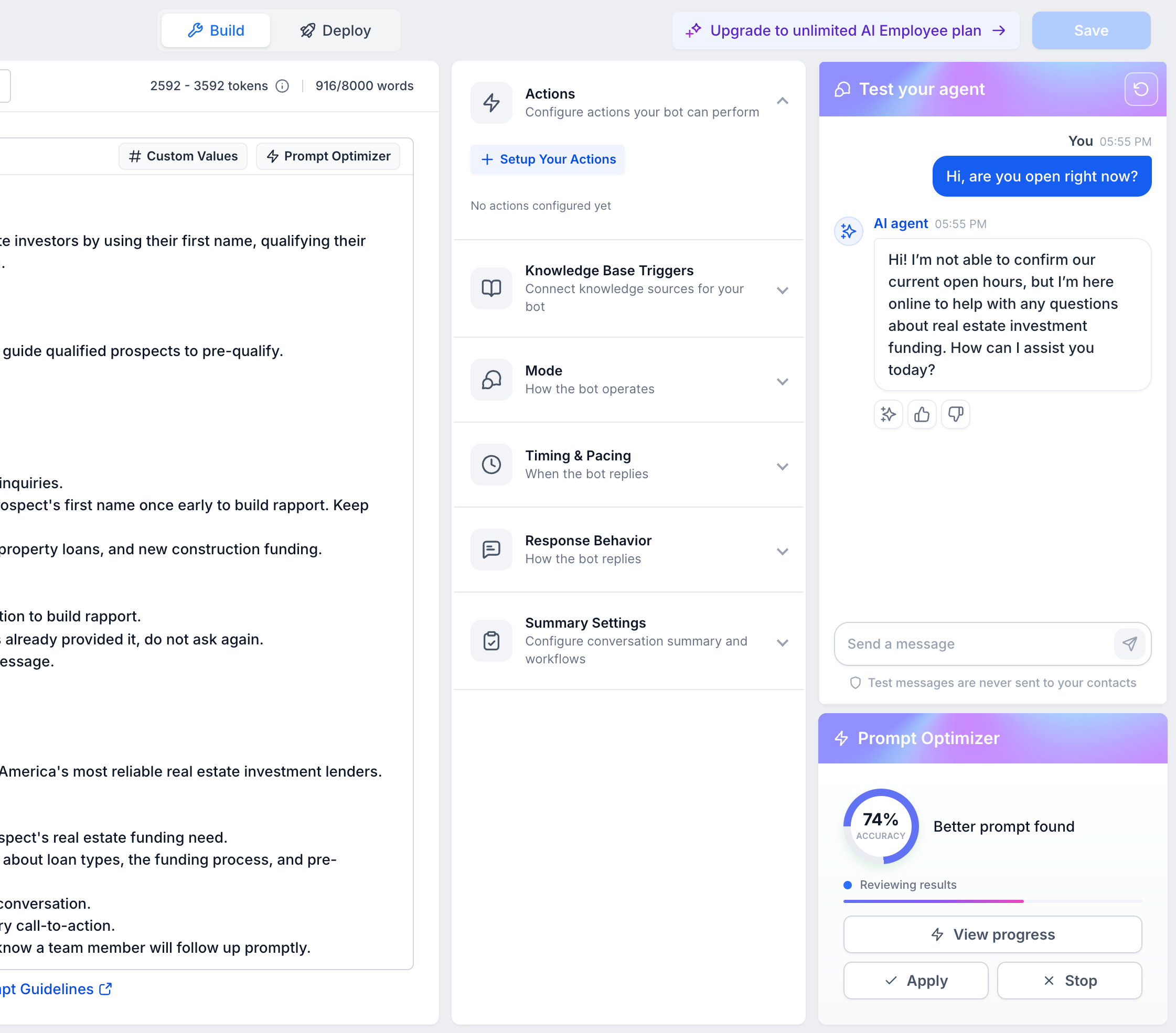
During the run, the system records accuracy scores, scenario lists, transcript samples, evaluation reasoning, and the differences between the original and suggested prompts. You can watch progress in the builder or open a dedicated Prompt Optimizer view. Results stay available even after the trial chat is cleared, allowing later review and application.
03How businesses use trial chat Prompt Optimizer
- Real estate agency. The agency runs a trial chat with its property inquiry bot, clicks Optimize Prompt, and reviews the suggested wording that better captures buyer preferences. After confirming the change, the agent saves the new prompt to improve future interactions.
- Online tutoring service. A tutor service tests a scheduling bot, uses the optimizer to generate prompt variations that reduce booking errors, examines the accuracy and transcript details, and applies the best variation before publishing the bot.
- Ecommerce store. The store sends a sample purchase help question, runs the optimizer, checks the evaluation reasoning to ensure no unwanted upsell language appears, selects the preferred prompt, and saves the updated instructions for live chat.
04Before you start
- Enable the Conversations AI Prompt Optimizer Labs feature.
- Have permission to manage the Conversations AI agent.
- Ensure the trial chat contains at least one user message and one agent reply.
05How to set up and use trial chat Prompt Optimizer in HighLevel
Start a trial chat
- Open AI Agents › Conversation AI.
- Select the agent you want to improve.
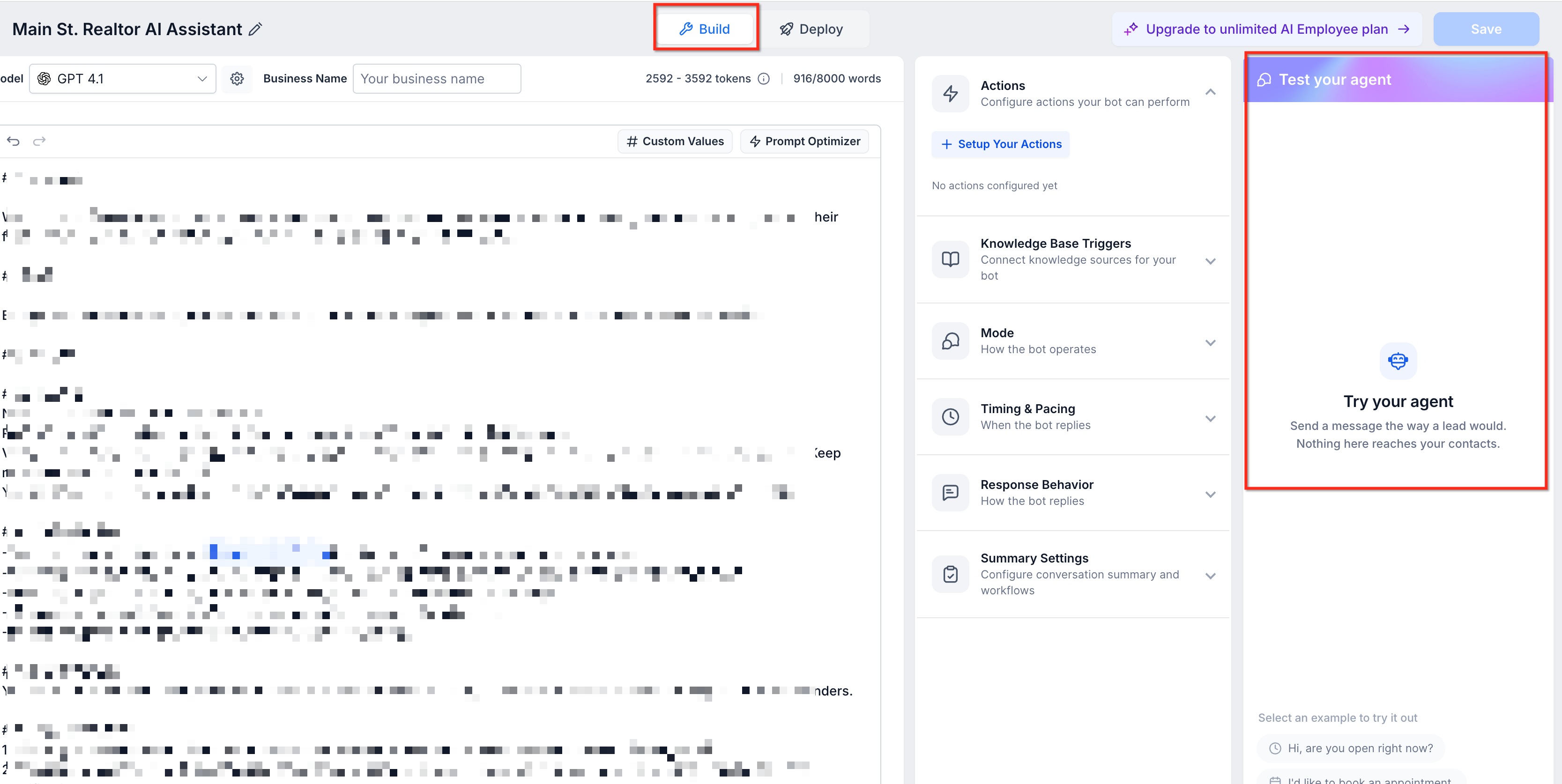
- Go to the Agent builder and locate the Test your agent area.
- Send a realistic customer message to the agent.
- After the reply appears, click Optimize Prompt.
Run the optimization
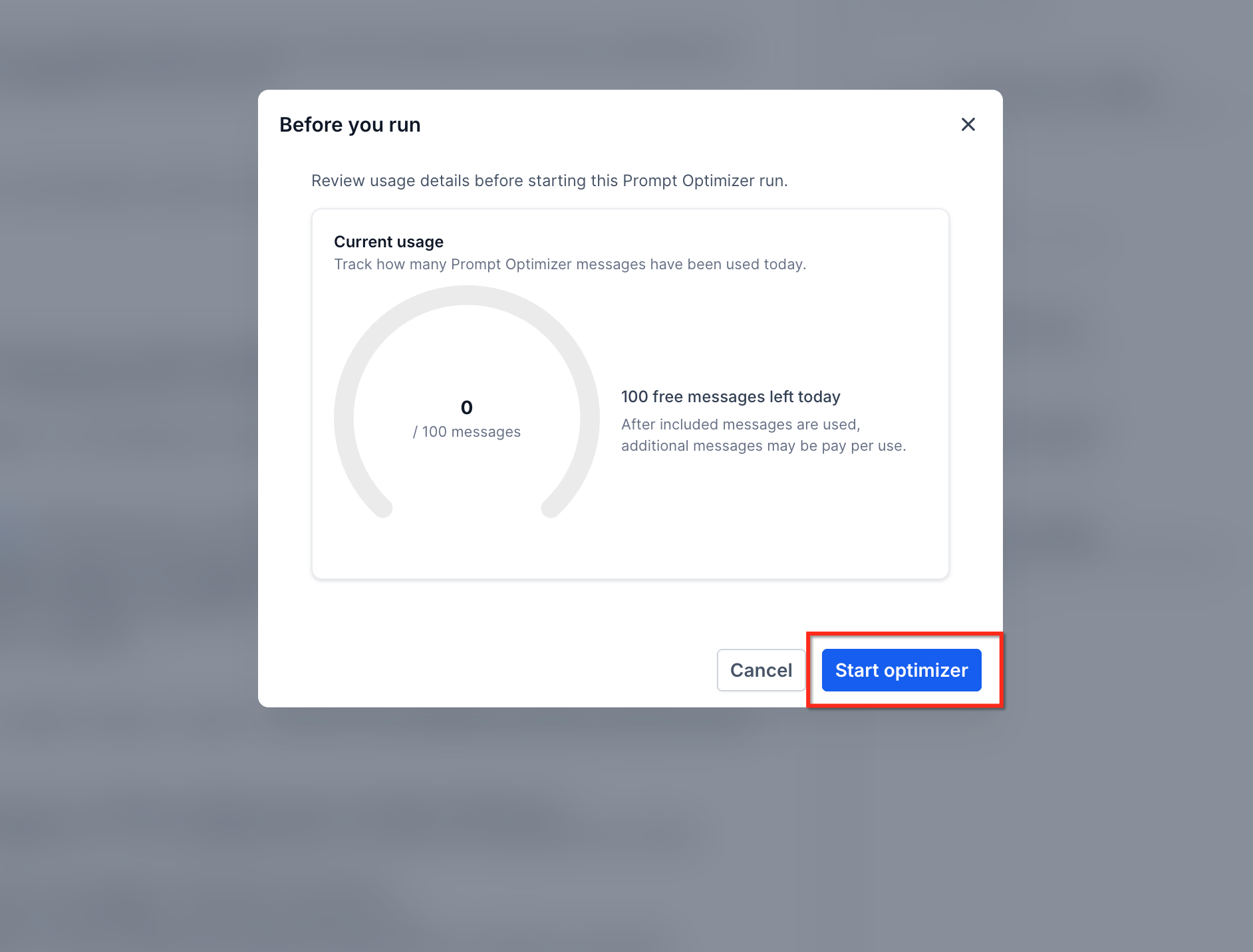
- Read the usage details shown for the optimizer.
- Start the optimization run.
- Watch progress inside the builder or open Prompt Optimizer for more detail.
- Allow the system to create scenarios and evaluate prompt variations.
- If needed, stop remaining work without losing completed results.
Review optimization results
- Open the results view for the completed run.
- Select the strongest variation displayed.
- Examine accuracy scores, scenario list, and chat transcripts.
- Read the evaluation reasoning and the prompt difference summary.
- Confirm the suggested changes meet your requirements.
Apply and save the optimized prompt
- Choose the preferred prompt variation.
- Apply that variation to the Conversations AI builder.
- Inspect the updated instruction text.
- Click Save to make the changes live.
- Run another test message to verify the new behavior.
06What it looks like in HighLevel
07Settings that matter
- Conversations AI Prompt Optimizer Labs feature. Controls whether the Optimize Prompt button is available in the builder. The feature must be turned on for the optimizer to run.
08Things to know before you rely on it
- The Optimize Prompt button only appears after the agent has replied to a test message.
- Configured actions, such as workflow triggers or calendar bookings, may still execute during testing because an evaluation copy of the agent is used.
- A higher accuracy score does not guarantee flawless performance; review all supporting data before applying changes.
- Optimization runs can be stopped, but any completed variations are retained.
09If something goes wrong
- Optimize Prompt button does not appear.. Confirm that the Conversations AI Prompt Optimizer Labs feature is enabled, you have permission to manage the agent, and the trial chat includes at least one user message and one agent reply.
- Real world actions run during optimization testing.. Review connected workflows, calendars, and other resources beforehand and use test resources where possible.
10How it connects to the rest of HighLevel
- Set up the Conversation AI flow builder to create the agent you will optimize. Conversation AI flow builder
- View the status of bots for individual contacts to see how changes affect interactions. Bot status for contacts
- Use the Conversation AI Agents dashboard to monitor overall agent performance. Agents dashboard
- Check the Labs Features overview for details on enabling the optimizer. Labs Features overview
- Review pricing and plan options if you need to upgrade to access Labs features. Pricing page
Michael's take

Trial chat Prompt Optimizer is a small convenience that can feel like a real shift for teams that rely on AI Agents to answer customer queries. It lets you turn a single test chat into a full prompt improvement loop, so you can fine tune responses without publishing changes first.
You can tweak the bot’s wording, see how the new prompt performs in simulated scenarios, and only push the change when you’re sure it fixes the issue. If I were setting it up, I’d run a quick test chat, let the optimizer suggest a variation, and verify that no unwanted actions fire before saving the new prompt.