
01Who this is for
- Founders who need quick overviews of client chats to keep leadership informed.
- Support managers who want a complete transcript saved for compliance and follow up.
- Marketers who route summaries into workflows for automated lead nurturing.
02Conversation summaries and transcripts, explained
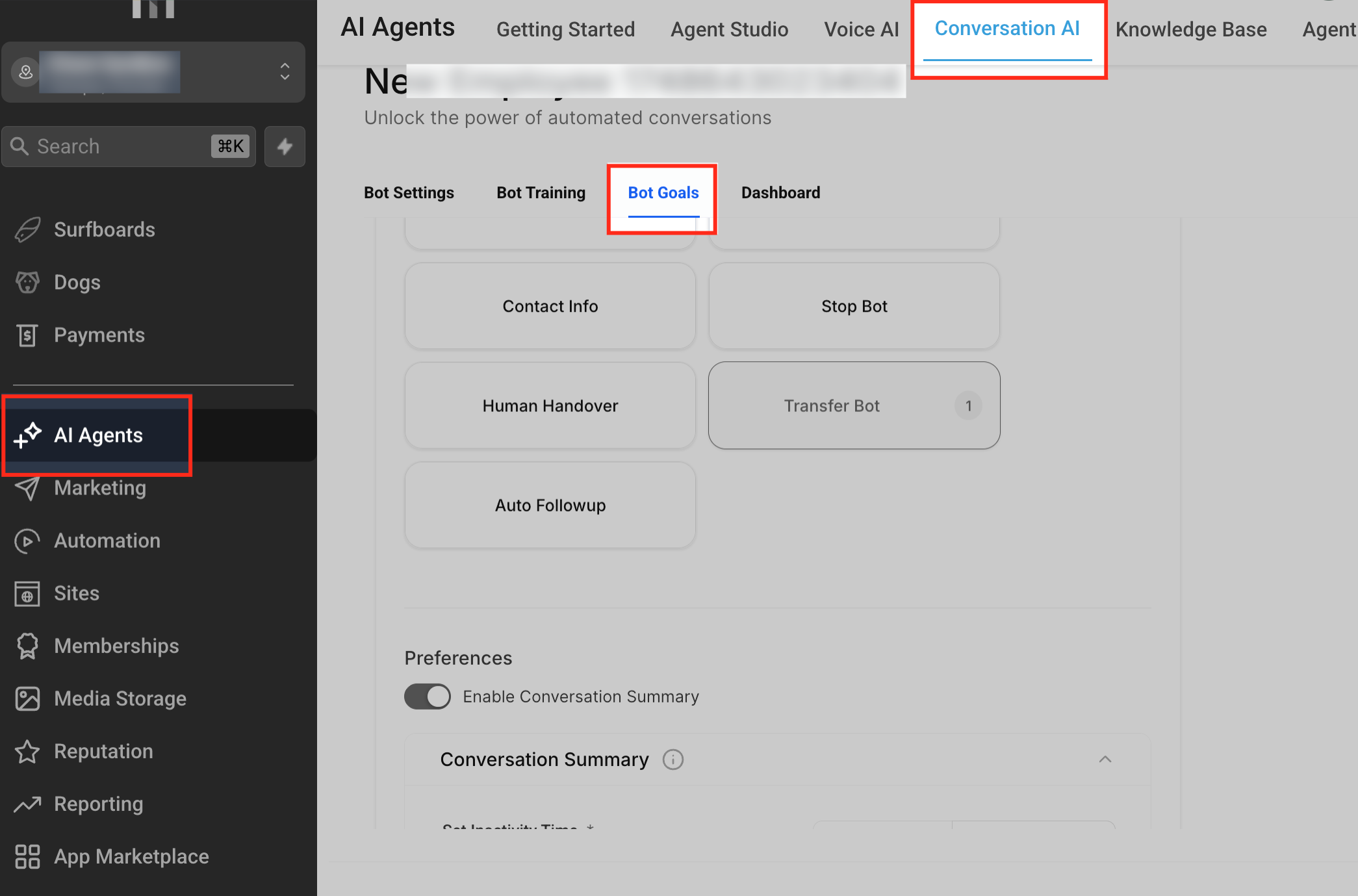
Conversation Summary produces a brief overview of a chat after the bot detects inactivity. Transcript records every exchange in full. Both are generated only when the bot’s inactivity timer expires and the conversation meets a minimum message count. The feature lives under AI Agents > Conversation AI in the bot’s Bot Goals tab.
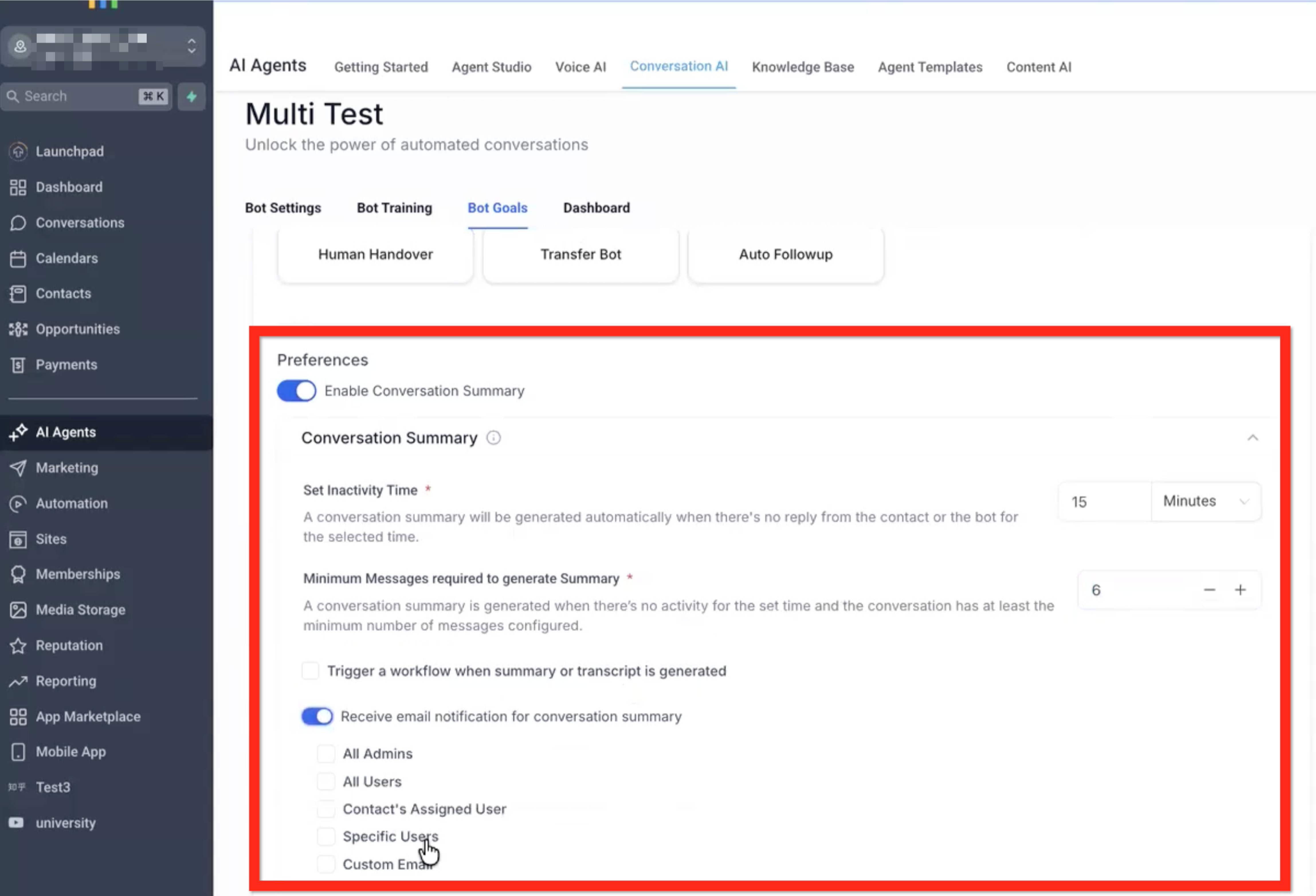
The settings let you choose how long a conversation must wait before a summary is created, the minimum number of messages required, whether to trigger a workflow, and who receives an email notification. Summaries are not stored automatically; you must send them to a workflow, add them to a note, or email them to retain the information.
03How businesses use conversation summaries and transcripts
- Real estate agency. Enable the summary toggle on the lead qualification bot. Set an inactivity period of 10 minutes and a minimum of 5 messages. When a prospect stops responding, the bot generates a summary that is emailed to the assigned agent, keeping them aware of the conversation without opening the chat.
- Dental practice. Create a workflow that adds the Conversation AI Summary and Transcript merge fields to a patient note. Configure the bot to trigger that workflow after inactivity, ensuring every appointment booking chat is archived in the patient’s record for future reference.
- SaaS startup. Turn on the workflow trigger for both summary and transcript. Build a workflow that posts the merged content to an internal Slack channel via a webhook action, allowing the product team to review support interactions right away.
04How to set up and use conversation summaries and transcripts in HighLevel
Enable conversation summary
- Navigate to AI Agents > Conversation AI.
- Select an existing bot or create a new one.
- Open the Bot Goals tab.
- Turn on the Enable Conversation Summary toggle.
Send the summary or transcript to a workflow
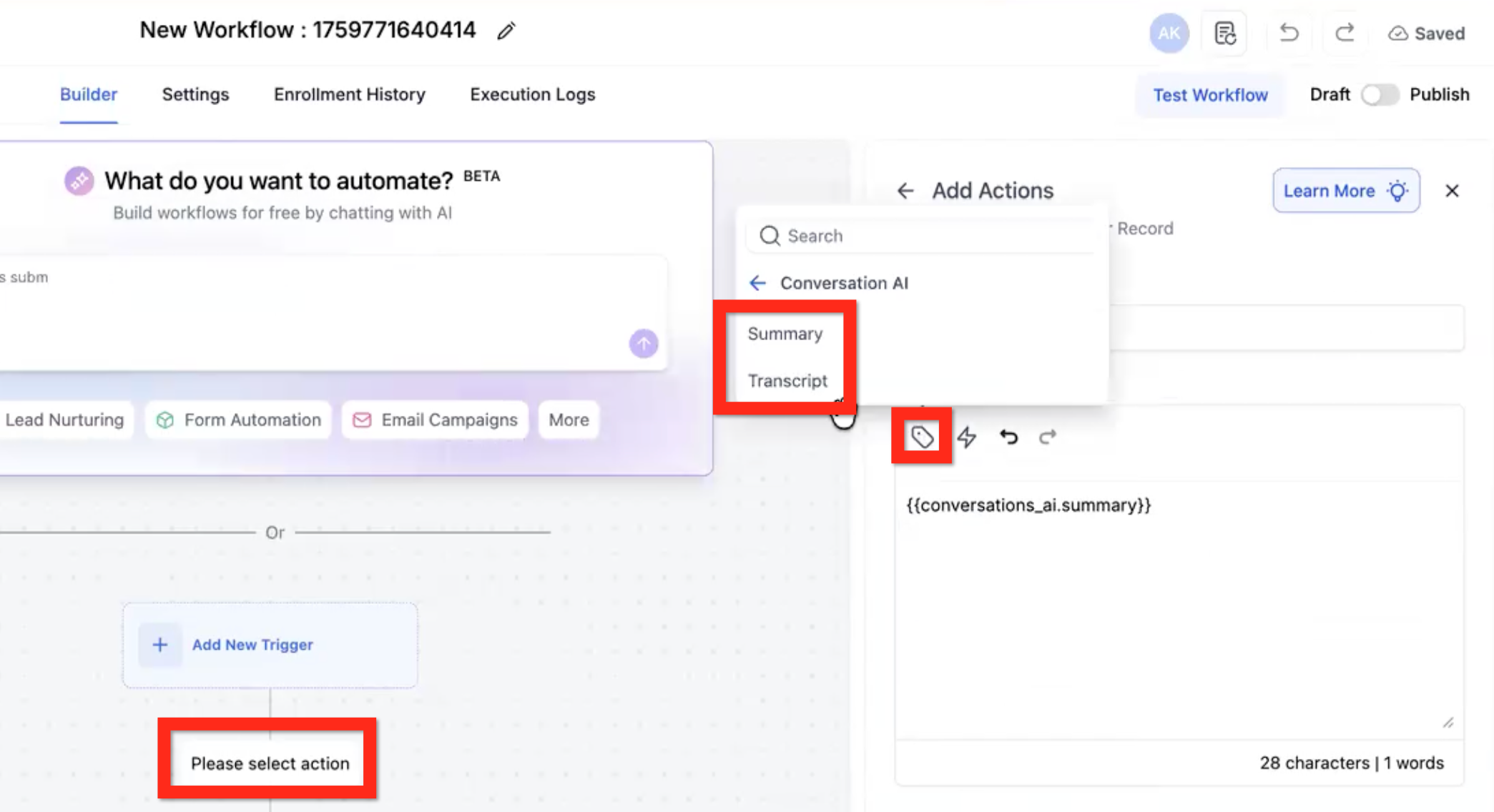
- Go to Automation > Workflows.
- Create a new workflow.
- Leave the workflow without a standard trigger.
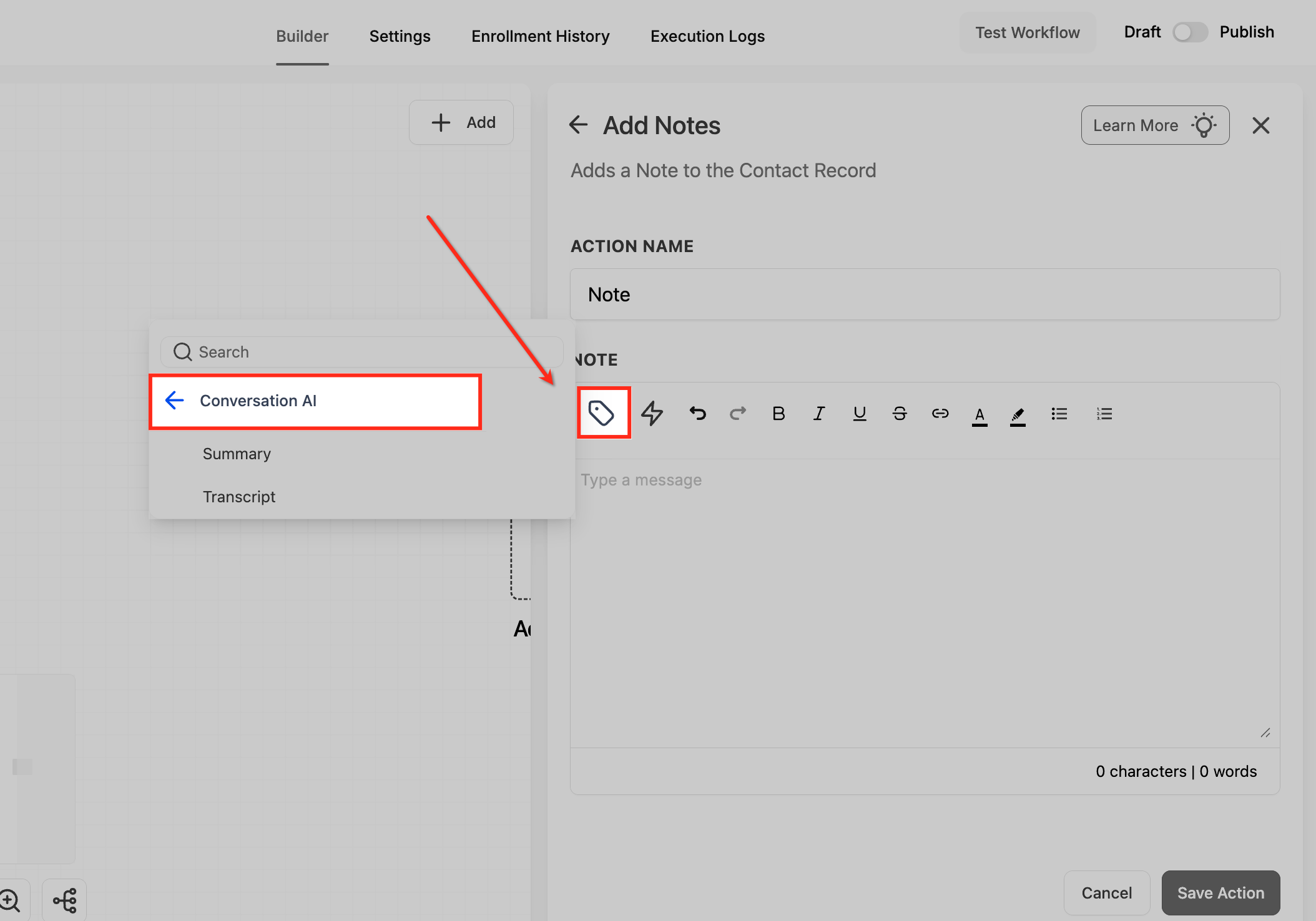
- Add an action such as Add To Note.
- Insert the merge field Conversation AI > Summary.
- Insert the merge field Conversation AI > Transcript.
- Return to the bot’s Conversation Summary settings.
- Enable Trigger a workflow when summary or transcript is generated and select the workflow from the dropdown.
Send the summary by email
- In the bot’s Conversation Summary settings, turn on Receive email notification for conversation summary.
- Select one or more recipients (All Admins, All Users, Contact’s Assigned User, Specific Users, Custom Email).
- Save the bot settings.
05What it looks like in HighLevel
06Settings that matter
- Enable Conversation Summary. Activates generation of a summary after the conversation becomes inactive.
- Set Inactivity Time. Defines how long the chat must remain silent before a summary is produced.
- Minimum Messages Required to Generate Summary. Prevents a summary from being created if the total message count is below this threshold.
- Trigger a Workflow When Summary or Transcript is Generated. Sends the generated summary or transcript to a selected workflow for further processing.
- Receive Email Notification for Conversation Summary. Emails the generated summary to chosen recipients such as admins, users, or a custom address.
07Things to know before you rely on it
- Conversation summaries are off by default and must be manually enabled.
- Generated summaries are not saved automatically; they require a workflow, note, or email action to retain.
- If the conversation does not meet the minimum message requirement, no summary will be created.
- A summary is only generated after the configured inactivity period has elapsed.
08How it connects to the rest of HighLevel
- Set up a Conversation AI flow builder to customize bot behavior. Conversation AI flow builder
- Check individual contact bot status for monitoring active or inactive sessions. Bot status for contacts
- Use the Conversation AI Agents dashboard to view summary settings across bots. Agents dashboard
Michael's take

Turning on the summary toggle does not automatically store the summary in HighLevel; you must send it somewhere such as a workflow, note, or email.
I would first enable the summary, set a sensible inactivity pause, and then link it to a simple workflow that adds the summary and transcript to a note. Watching the note appear on a lead’s timeline confirms the connection works before I add any email notifications.