
01Who this is for
- Founders of service oriented businesses who need automated call handling without hiring staff.
- Small marketing agencies that want to route inbound leads to the right team quickly.
- Coaches and consultants who require appointment scheduling and lead qualification over the phone.
02Flow based Voice AI Agents, explained
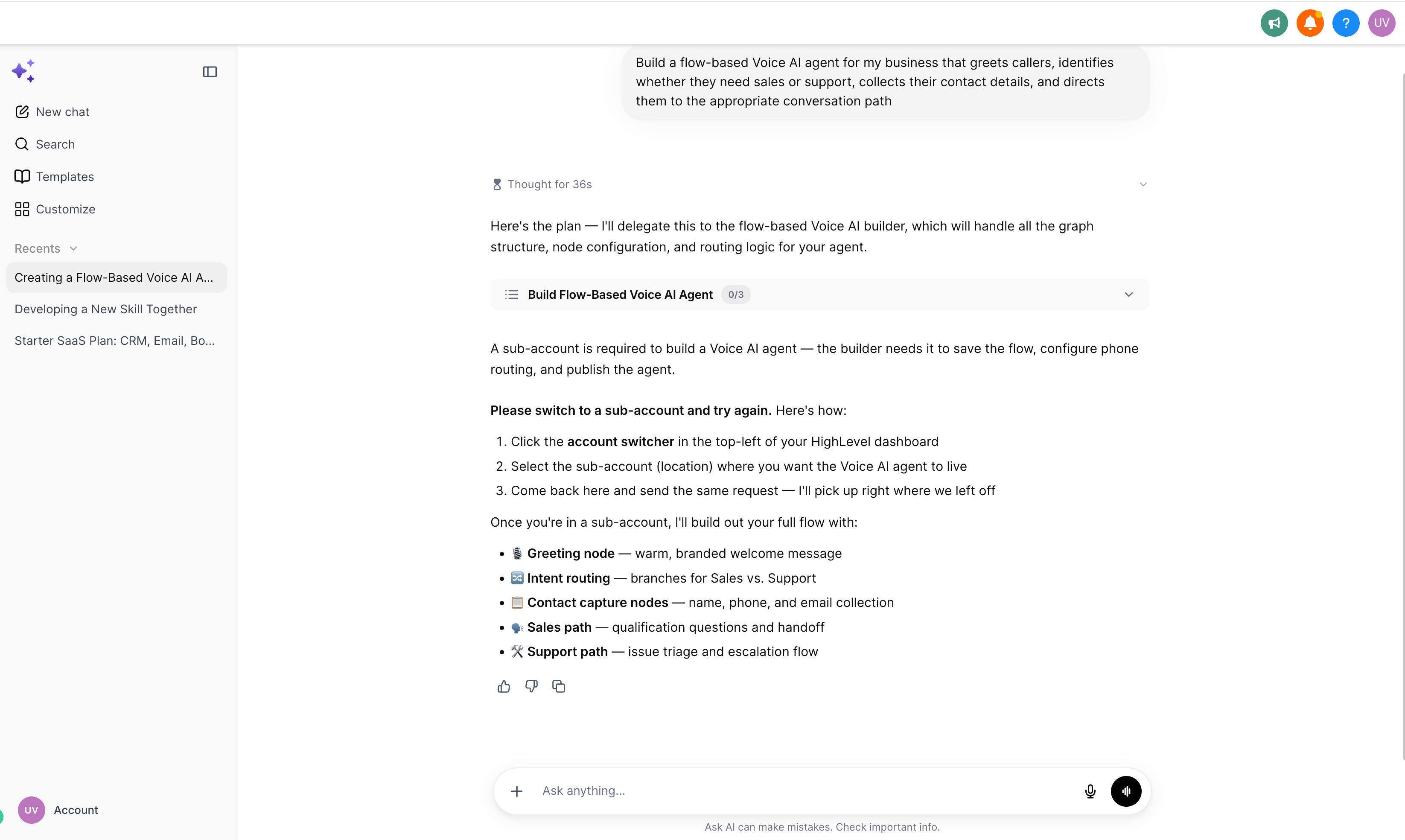
The feature lives inside the Ask AI assistant in HighLevel. After you open Ask AI, you can describe a voice agent, answer follow up questions, and review a visual build plan. Approving the plan causes Ask AI to generate an editable voice flow on a canvas. You can modify nodes, routing conditions and actions, save your changes, test the conversation with the built in tester, and if major adjustments are needed, request a rebuild or open the flow in the full Voice Flow Builder for advanced configuration. All steps require a subaccount with Ask AI and Voice AI enabled.
03How businesses use flow based Voice AI Agents
- Dental practice. The practice describes an agent that greets callers, collects name and phone number, and offers options to book appointments, hear office hours, or speak to staff. Ask AI builds a flow with those paths, which the dentist reviews, edits, and tests before going live.
- Real estate agency. The agency requests a flow that qualifies leads, asks for property type, and routes callers to a sales or support team. Ask AI generates the flow, the agency tweaks node texts, saves, and runs a test call to confirm routing.
- SaaS startup. The startup asks for an agent that handles demo requests, captures email addresses, and hands off to a chatbot. After approval of the build plan, the startup edits the generated flow, saves, and uses the web call tester to validate the experience.
04Before you start
- Confirm the HighLevel subaccount has access to both Ask AI and Voice AI.
- Identify the main purpose of the Voice AI agent you want to create.
- Prepare a basic outline of expected conversation paths and caller outcomes.
05How to set up and use flow based Voice AI Agents in HighLevel
Create a flow based Voice AI agent using Ask AI
- Log in to your HighLevel account and switch to the subaccount where the agent will be built.
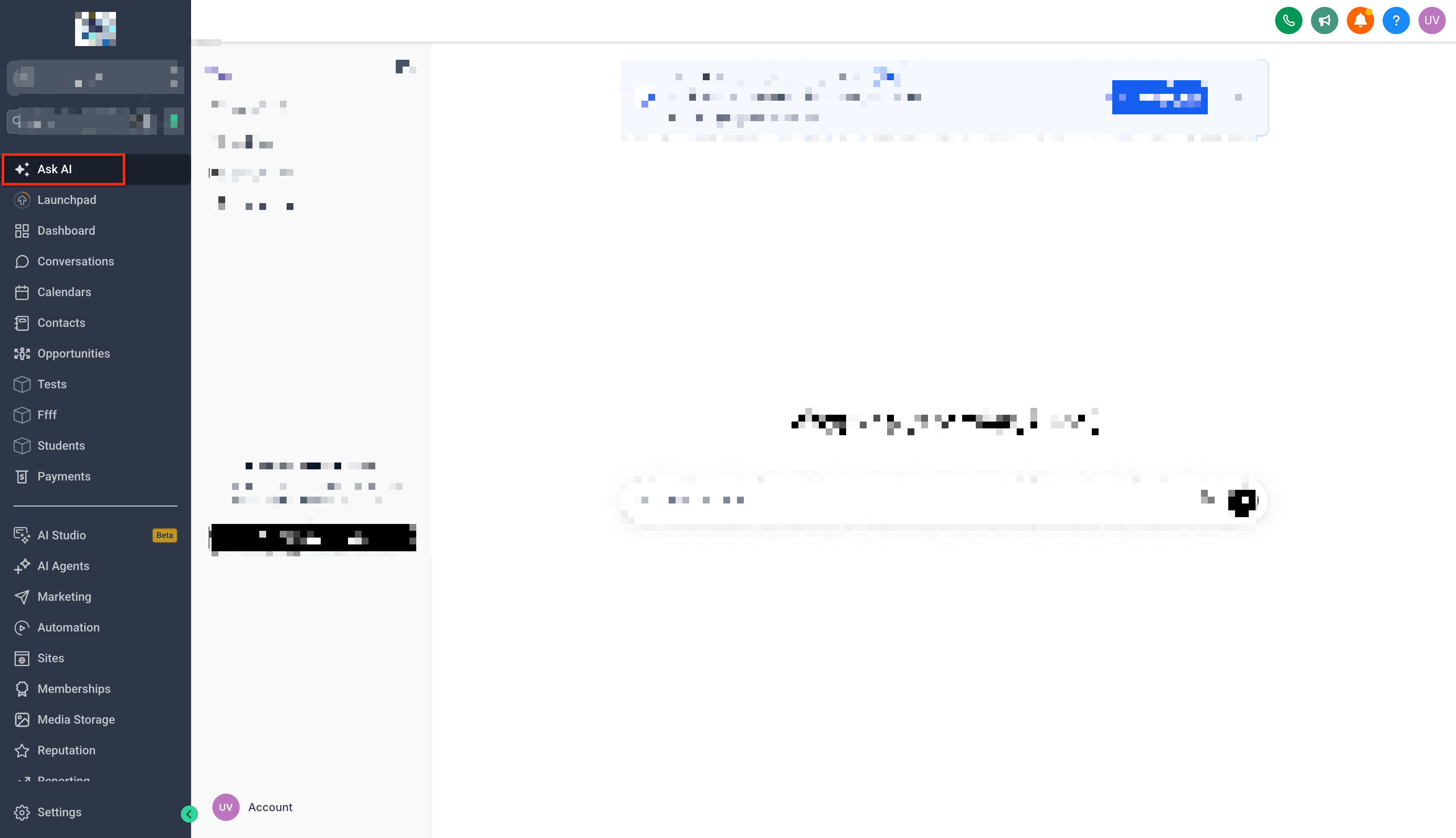
- Click the Ask AI icon in the top navigation bar to open the assistant.
- Enter a request that describes the desired flow based Voice AI agent and submit it.
- Answer the guided follow up questions to clarify purpose, paths and responses.
- Review the visual build plan generated by Ask AI.
- Approve the build plan so Ask AI can generate the editable voice flow.
- Examine the generated flow on the canvas and make any needed edits.
- Save your edits before any further actions.
- Run a test conversation using the built in testing option to validate behavior.
- If the flow requires broader changes, save the current canvas edits and request a rebuild, or open the flow in the full Voice Flow Builder for advanced configuration.
06What it looks like in HighLevel
07Things to know before you rely on it
- The feature rolls out gradually to subaccounts with Ask AI and Voice AI; it may not appear immediately in every eligible subaccount.
- You must save any canvas edits before requesting a rebuild, otherwise changes could be lost.
- Ask AI does not automatically configure external integrations; those actions require separate setup.
08If something goes wrong
- The option to create flow based Voice AI agents is not visible in Ask AI.. Verify that the subaccount has both Ask AI and Voice AI enabled, then check again as the rollout progresses.
- The generated flow does not match the required business process.. Edit the flow on the canvas or request a rebuild with updated instructions, remembering to save edits before rebuilding.
09How it connects to the rest of HighLevel
- Build and launch a Voice AI Agent in HighLevel Voice AI agent guide
- Understand Ask AI session pricing and usage limits Ask AI pricing
- Explore HighLevel pricing and plan options HighLevel pricing
Michael's take

Flow based Voice AI Agents let a small business reduce the manual effort of wiring nodes together, turning a simple description into a working flow that can be tweaked and tested.
Don’t forget to save your canvas edits before you ask Ask AI to rebuild the flow.