
01Who this is for
- Founders who maintain pricing or service documents that change regularly, because the feature keeps those files current without manual effort.
- Small agencies that host policy or FAQ PDFs in the Knowledge Base, allowing the AI to reference the latest version automatically.
02Daily scheduled sync, explained
Daily Scheduled Sync monitors eligible Google Drive documents that have been imported into the Knowledge Base. Every 24 hours the platform looks at the original Drive file; if the file is unchanged, only a lightweight check is recorded. If the file has been edited, HighLevel runs the existing re sync process to download, re chunk and embed the new content.
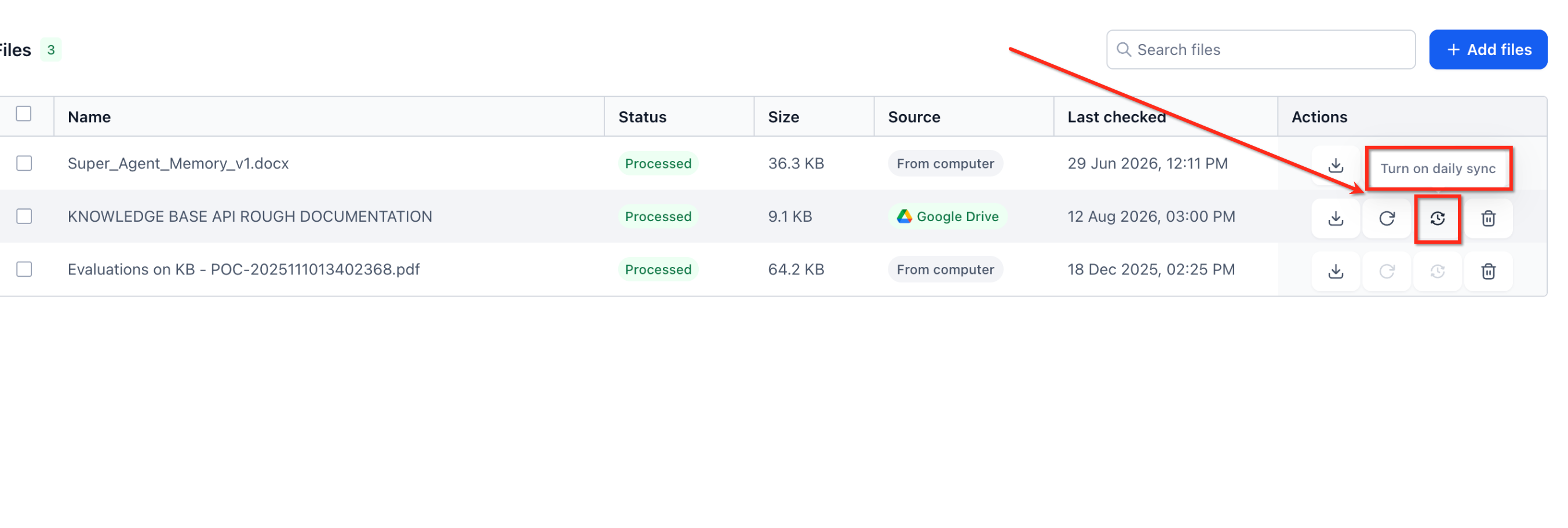
The setting is controlled per file, so you can enable it for frequently updated documents while leaving static files untouched. The feature is accessed through the Knowledge Base UI under AI Agents > Knowledge Base, and the sync option appears in the file’s Actions column.
03How businesses use daily scheduled sync
- Consulting firm. The firm imports its rate card PDF from Google Drive into the Knowledge Base, then enables Daily Scheduled Sync. When the consulting rates are updated in Drive, the Knowledge Base refreshes automatically, so the AI can quote the latest fees.
- Healthcare clinic. A clinic stores its patient intake policy as a Google Doc in the Knowledge Base. By turning on Daily Scheduled Sync, any amendment to the policy is detected within 24 hours, ensuring the AI provides up to date procedural guidance.
- Software startup. The startup uploads its product roadmap DOCX from Google Drive, activates Daily Scheduled Sync, and lets the AI answer prospect questions using the most recent roadmap without manual re imports.
04The numbers and rules that matter
- Supported file types: PDF, Google Docs, Microsoft Word.doc, Microsoft Word.docx.
- Check interval: Once every 24 hours.
- Sync is enabled per file.
05Before you start
- Activate the Daily Scheduled Sync feature in Labs.
- Import the document from Google Drive; files uploaded from a computer are not eligible.
06How to set up and use daily scheduled sync in HighLevel
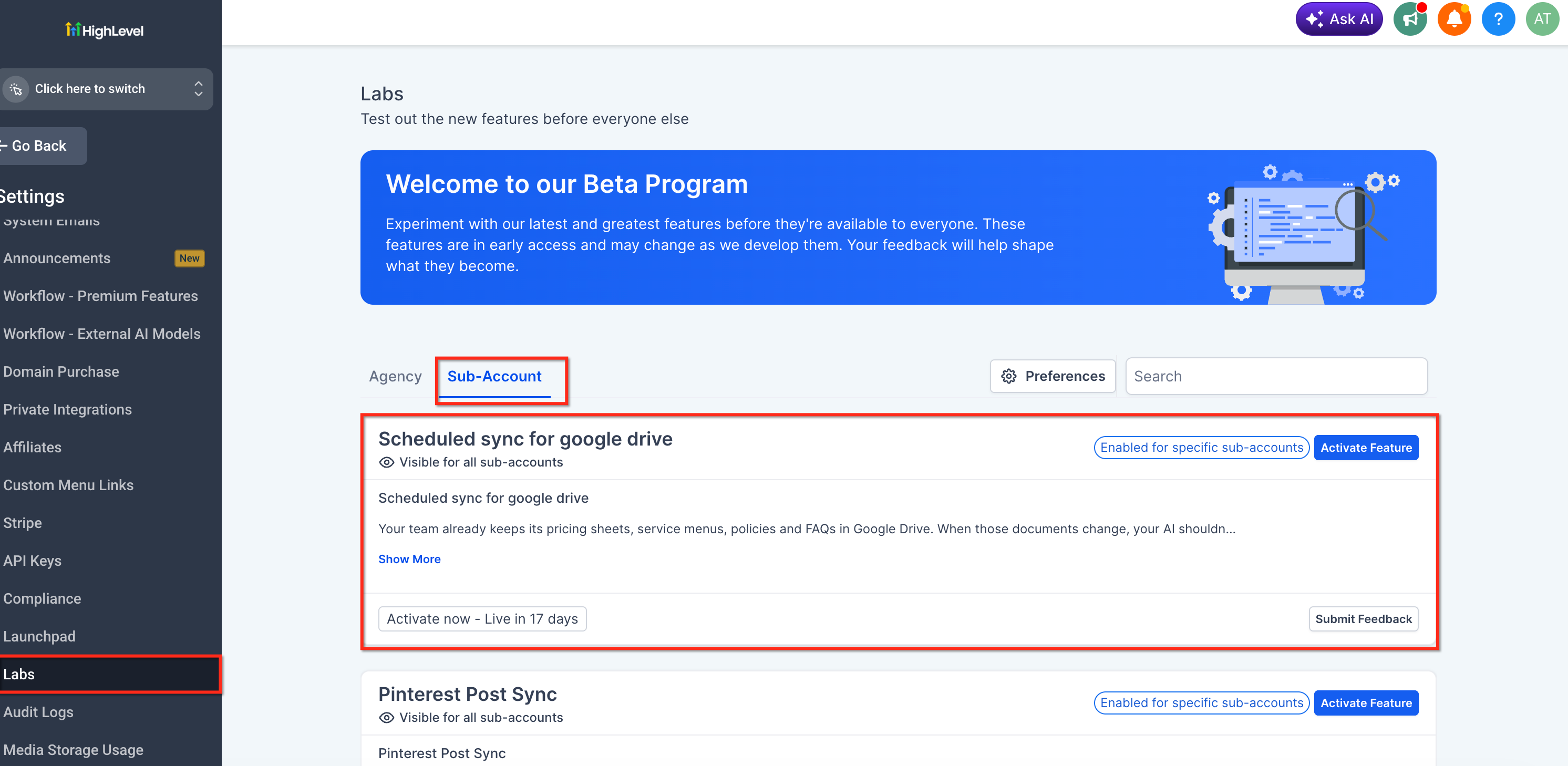
Activate Daily Scheduled Sync in Labs
- Open Settings in the subaccount.
- Select Labs from the menu.
- Open the Subaccount tab.
- Find the entry labeled Scheduled sync for google drive.
- Click Activate Feature.
Open the Knowledge Base
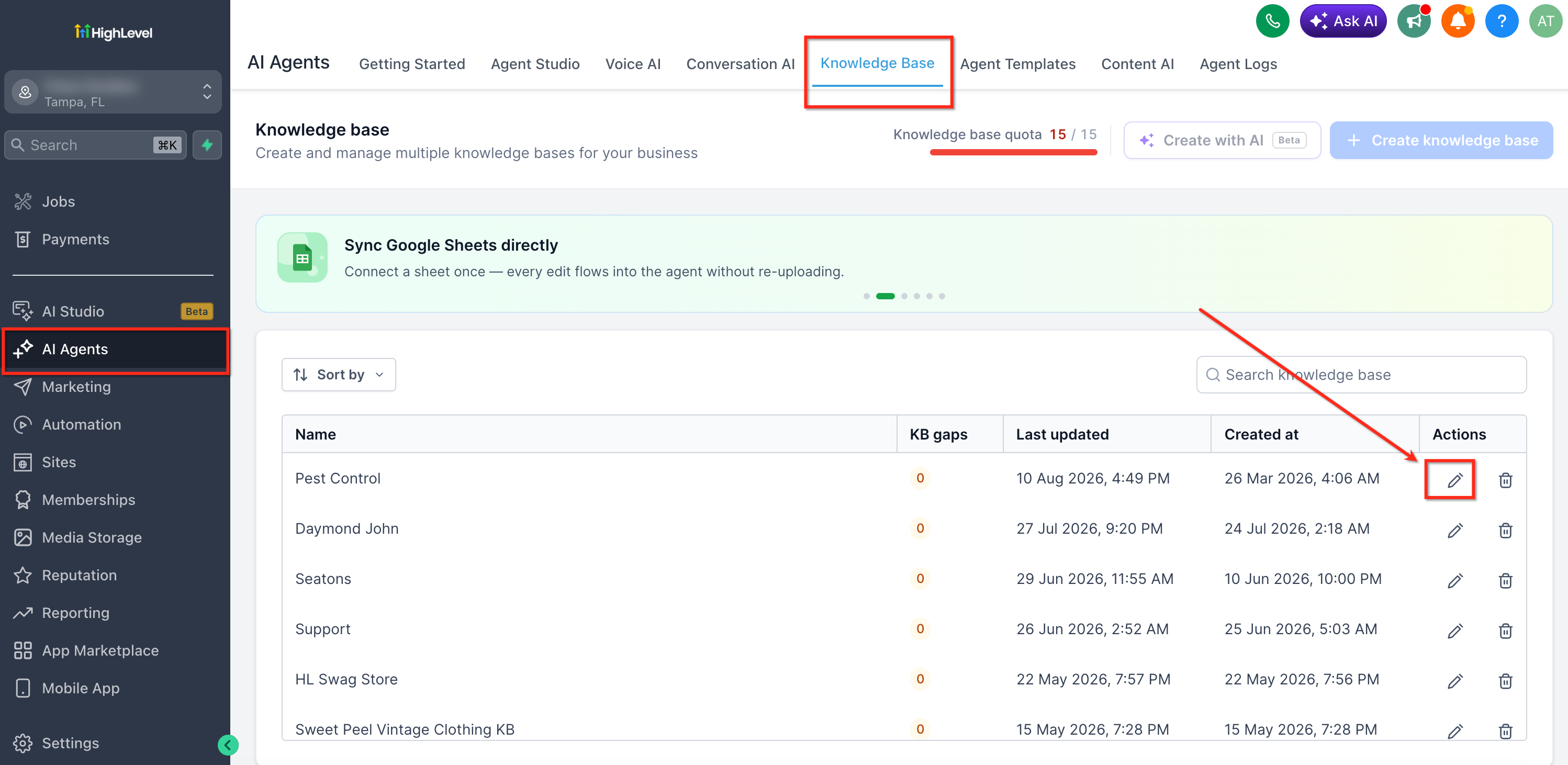
- Navigate to AI Agents and choose Knowledge Base.
- Locate the Knowledge Base that contains the target Google Drive file.
- Click the edit icon or otherwise open that Knowledge Base.
Import or locate the file
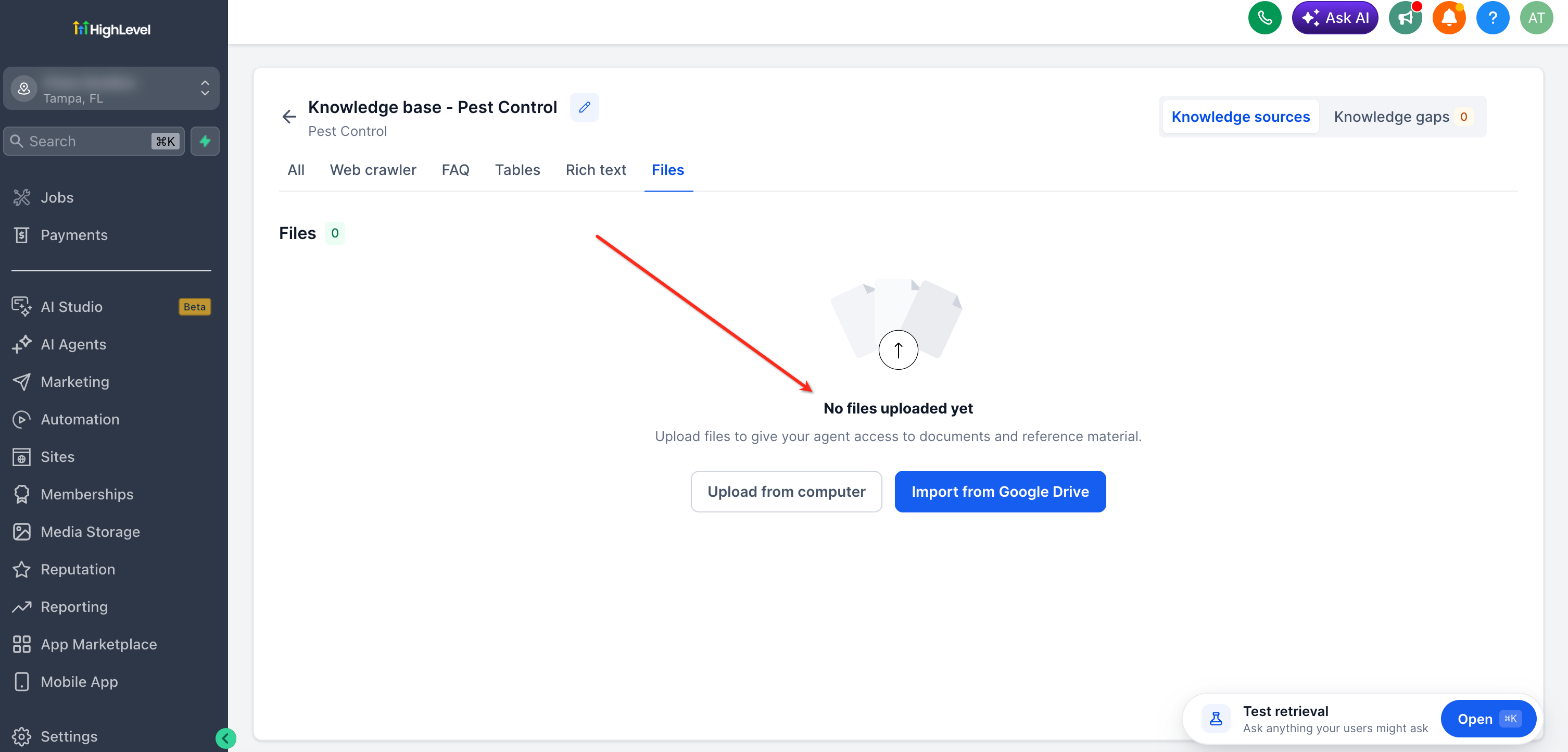
- Within the Knowledge Base, select Files.
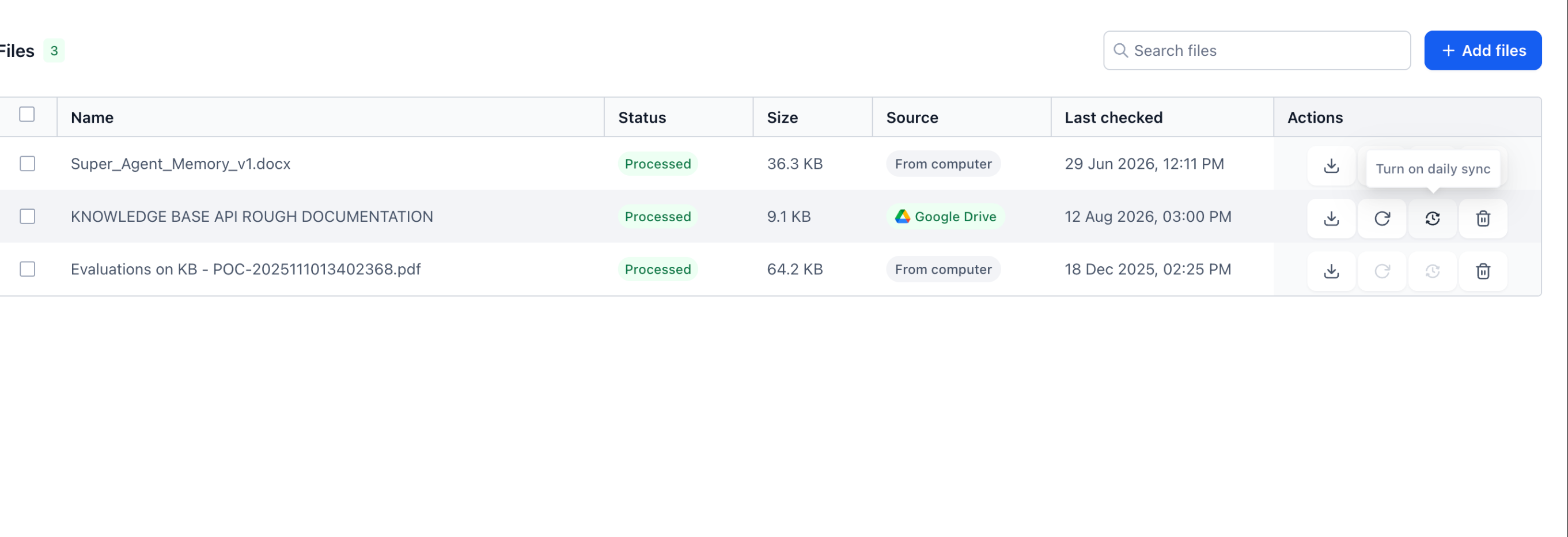
- Review the list and look for the Google Drive label in the Source column.
- Click Add files or Import from Google Drive to start a new import.
- Authorize your Google account if a prompt appears.
- Choose the eligible document from Drive and import it.
- Wait until the file status changes to Processed.
Turn on Daily Scheduled Sync for the file
- Find the imported Google Drive file in the Files list.
- In the Actions column, hover over the scheduled sync control and click Turn on daily sync.
- Confirm the selection to enable Daily Scheduled Sync for that file.
Validate important Knowledge Base updates (optional)
- After a source change has been synchronized and processing completes, open the Knowledge Base Retrieval Tester.
- Ask a question related to the updated content.
- Review the returned source to confirm the new information is available.
07What it looks like in HighLevel
08Settings that matter
- Scheduled sync for google drive. Enables the per file daily check of the Google Drive source, allowing automatic updates when the document changes.
09Things to know before you rely on it
- Only PDF, Google Docs, DOC and DOCX files imported from Google Drive are eligible.
- Files uploaded directly from a computer cannot use Daily Scheduled Sync.
- The sync runs once every 24 hours; custom times are not supported.
- If the source file is unchanged, HighLevel records the check and performs no download or re processing.
- If the source file is deleted or access is lost, synchronization stops and the condition is reported.
10How it connects to the rest of HighLevel
- Import Google Drive files into the Knowledge Base Google Drive integration
- Validate updated content with the Retrieval Tester Retrieval Tester
- Manage Knowledge Base sources with the new UI Knowledge Base overview
Michael's take

Wondering whether you need a daily check on your pricing sheet or policy doc? Daily scheduled sync lets HighLevel watch the Google Drive file for you, so the Knowledge Base reflects the latest version without you clicking resync every time.
If I were setting it up, I’d start with the document that changes most often. Maybe a monthly pricing update. After activating the feature in Labs and turning it on for that file, I’d use the Retrieval Tester to confirm the new numbers appear before I rely on the AI tools.