
01Who this is for
- Customer support managers can share specific customer emails with other departments without leaving the platform.
- Sales teams can forward prospect messages to legal or finance for contract review while keeping the original thread.
- Partnership coordinators can send vendor inquiries directly from the conversation to external contacts.
02Email forwarding in conversations, explained
The feature adds a manual Forward action to inbound email messages inside a Conversation thread. When you select Forward, you choose external recipients and the platform sends the original email using the mailbox linked to the conversation’s email channel. The forwarded message appears in the timeline as an outbound email event, showing who forwarded it and when.
Forwarded emails keep the original layout, inline images and supported attachments. Replies to the forward are routed back through the connected mailbox and, if two way sync is active, reappear in the same Conversation, preserving a single source of truth for all communication.
03How businesses use email forwarding in conversations
- Dental practice. The front desk forwards a patient’s inquiry email to an external lab for test processing. The forward includes the original attachment, and the lab’s reply later appears in the same patient conversation.
- Real estate agency. An agent forwards a buyer’s property request email to a third party mortgage broker. The broker receives the full email content and any attached documents, while the agency retains a record of the forward inside the lead’s thread.
- IT services firm. A support specialist forwards a client’s error report email to a vendor’s technical team. The forward preserves screenshots and log files, and any vendor response is captured back into the client’s conversation.
04The numbers and rules that matter
- An active email channel must be connected to the subaccount (LC Email, Gmail via 2 way sync, Outlook via 2 way sync, or SMTP).
05Before you start
- An active email channel must be connected to the subaccount (LC Email, Gmail via 2 way sync, Outlook via 2 way sync, or SMTP).
- User must have access to Conversations and permission to send emails.
- If using a mobile device and the Forward option is missing, switch to the web app.
06How to set up and use email forwarding in conversations in HighLevel
Forward an email
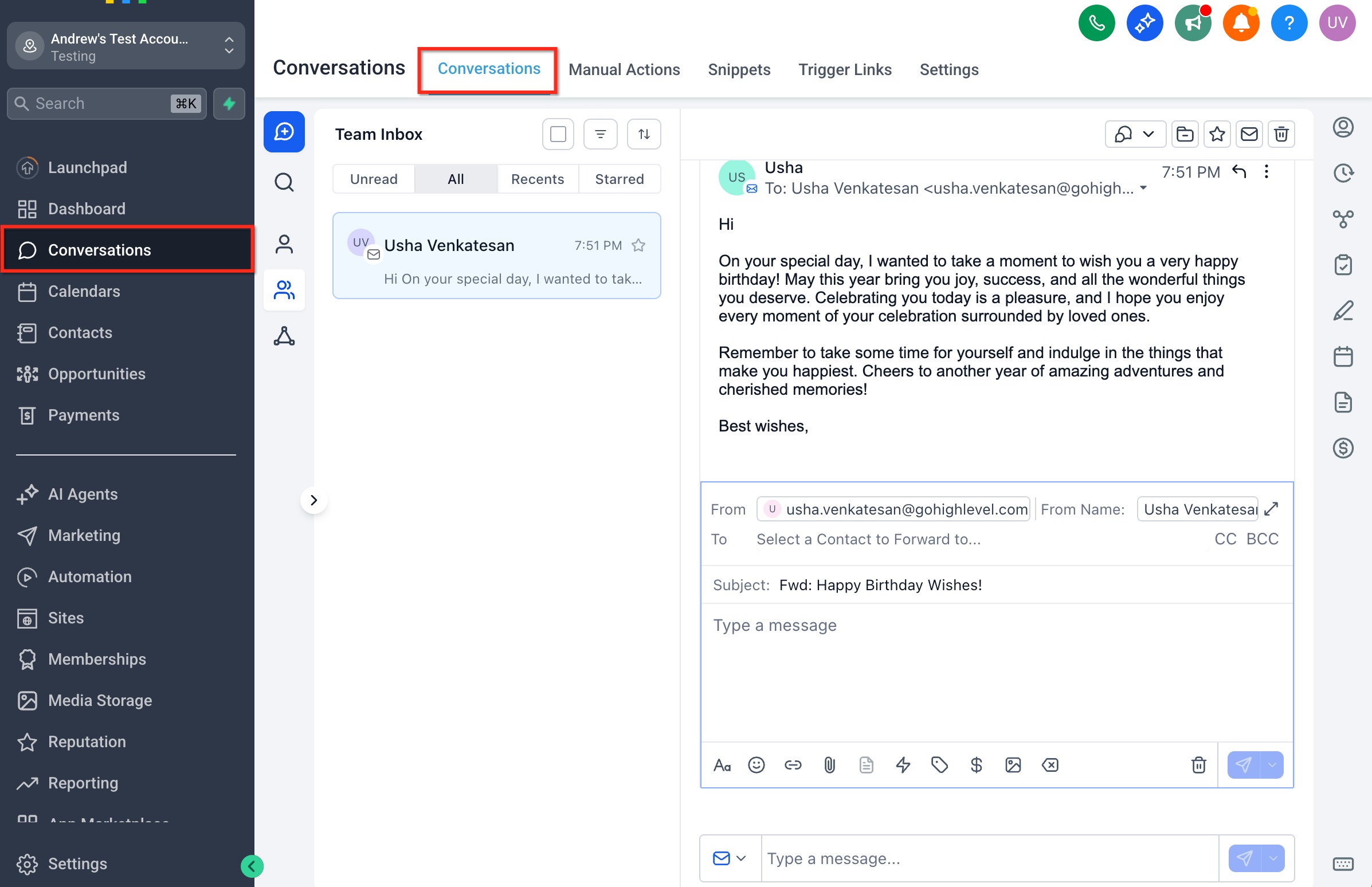
- Open Conversations and select the thread that contains the inbound email you want to forward.
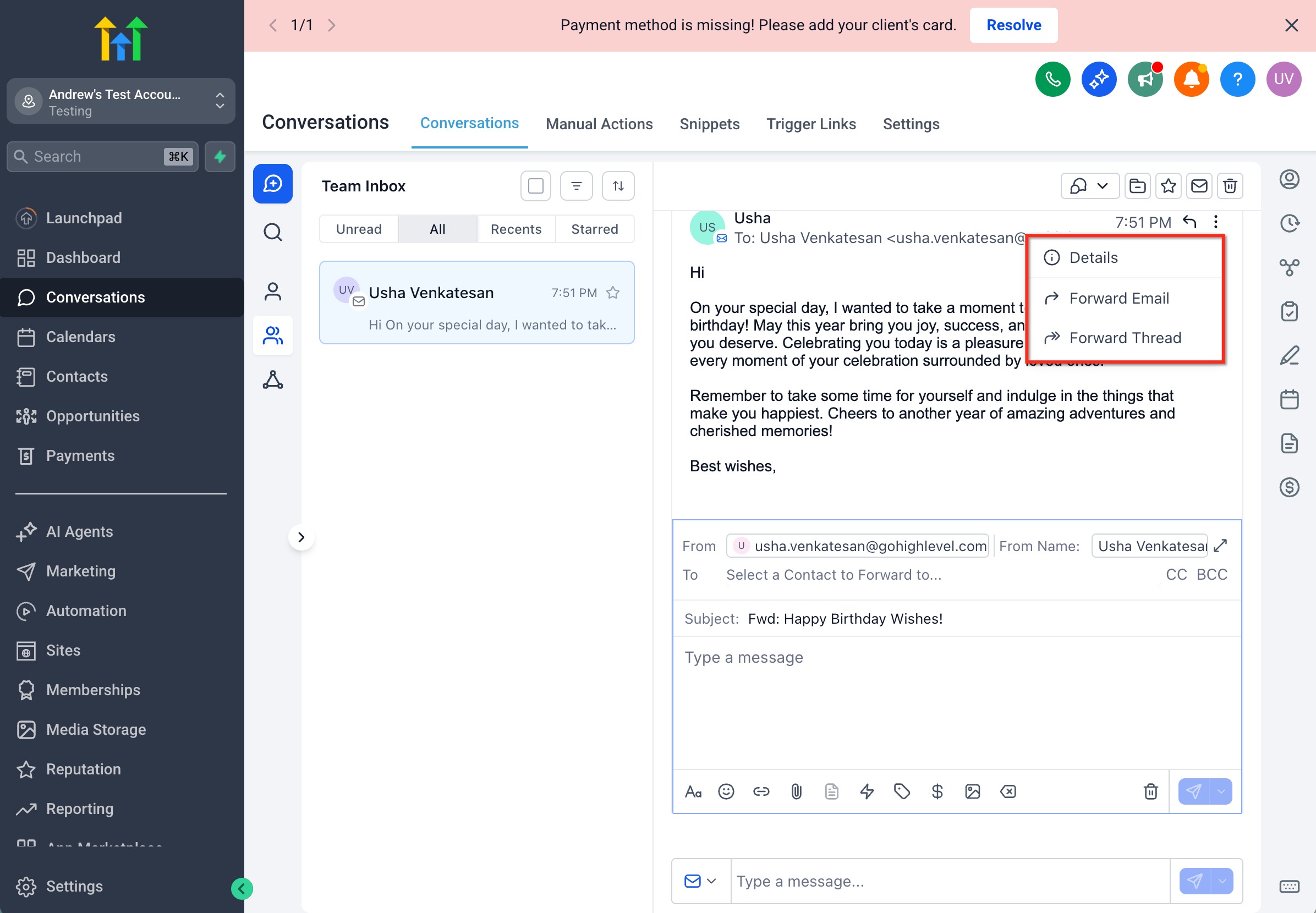
- Click the kebab (three dot) icon on the message and choose the Forward action from the overflow menu.
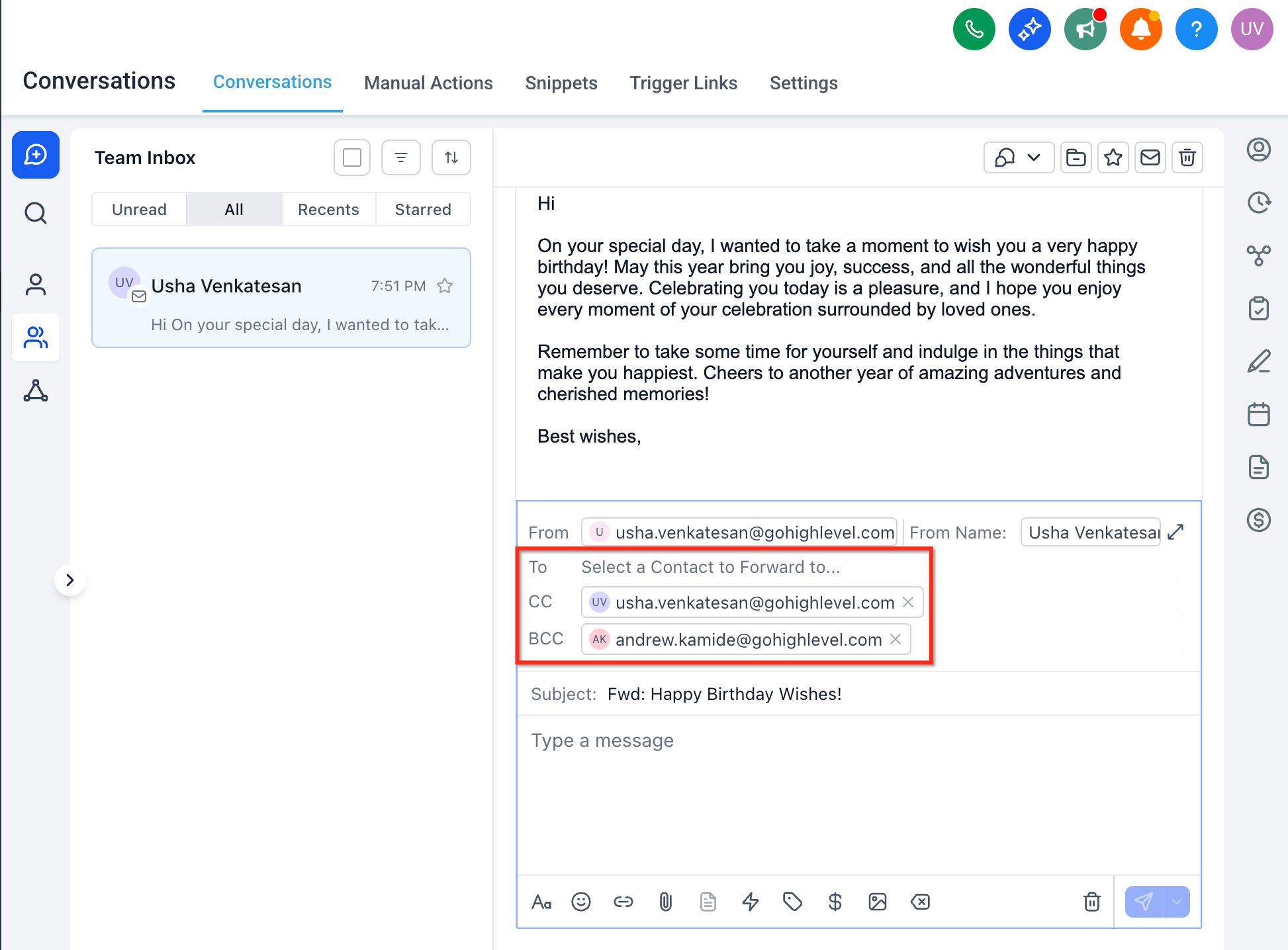
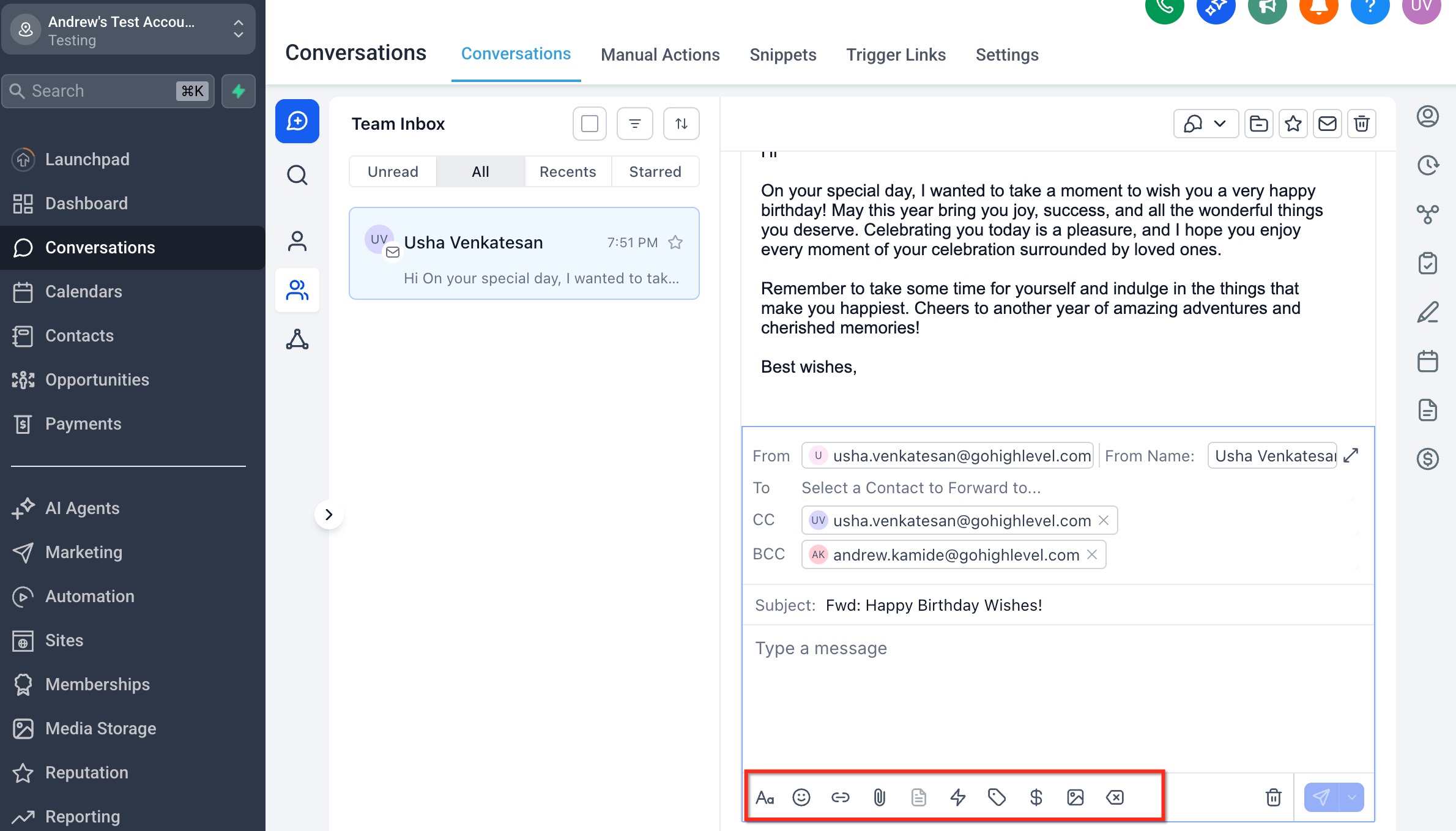
- In the Forward composer, enter recipient addresses in the To field; add CC or BCC if needed.
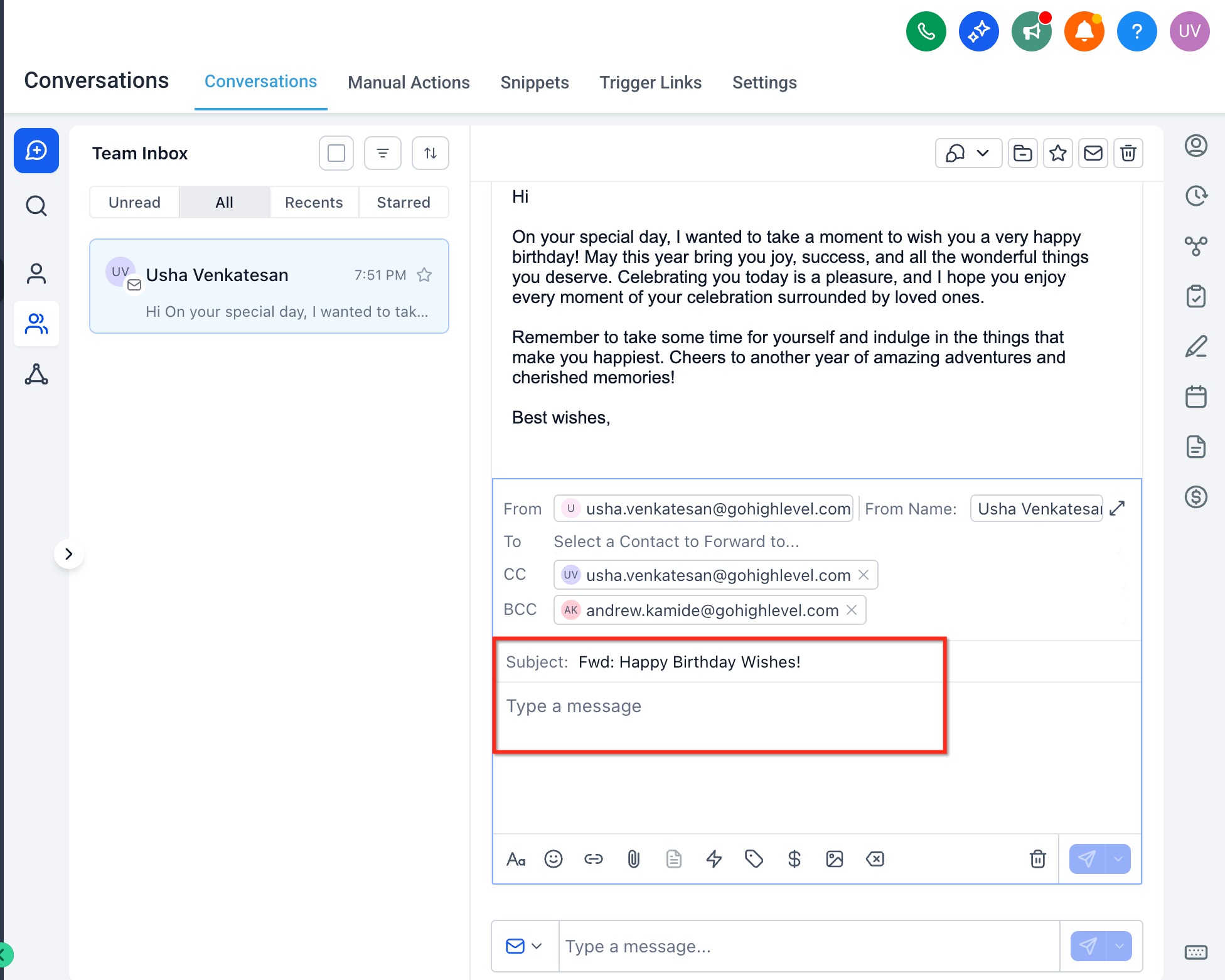
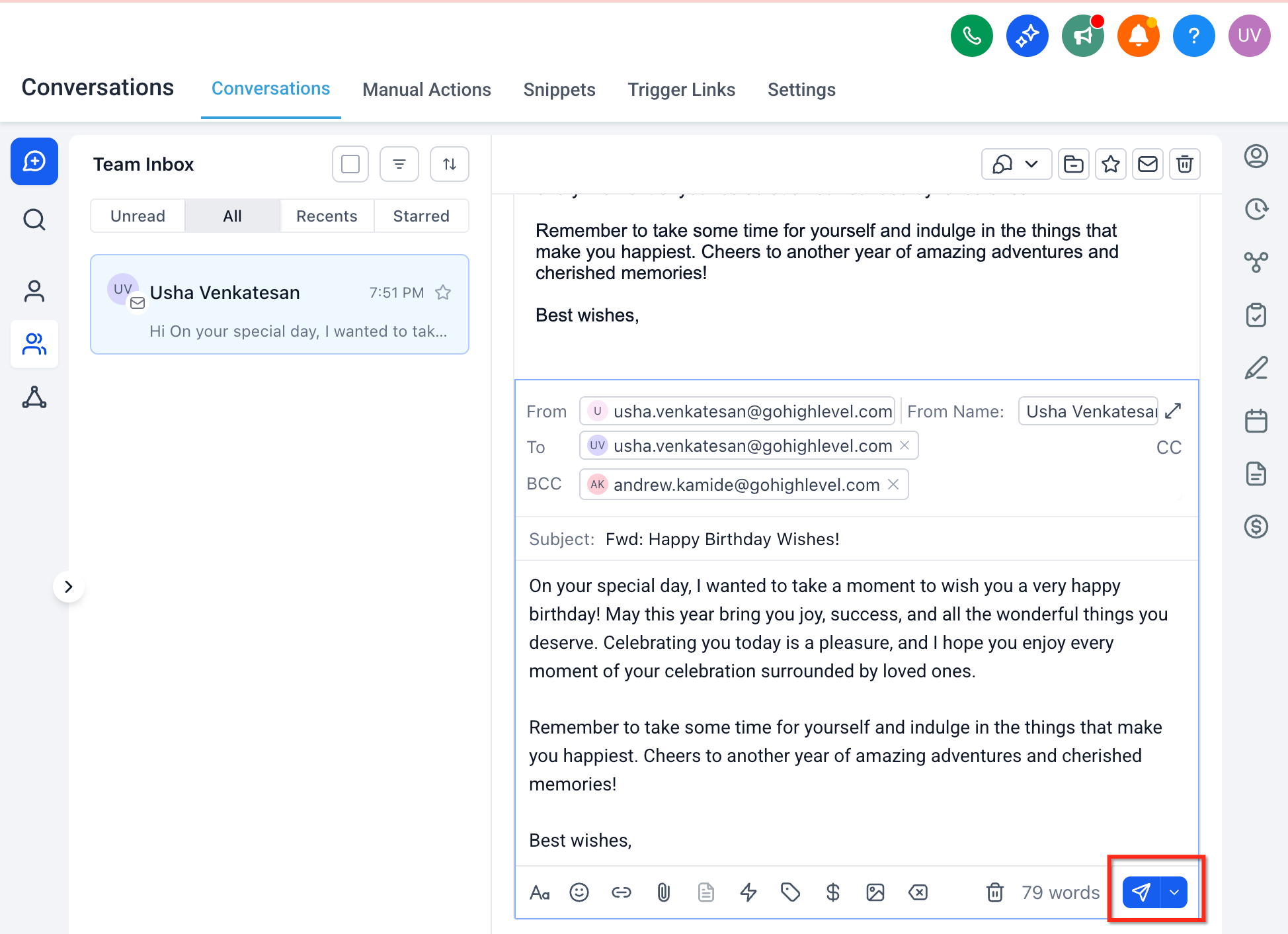
- Check the Subject line (automatically prefixed with Fwd:) and modify the body text if desired.
- Verify that any attachments or inline images you need are displayed in the composer.
- Press Send; the forwarded email is added as an outbound event in the conversation timeline.
07What it looks like in HighLevel
08Settings that matter
- Sending Priority. Determines which connected mailbox and from name the platform uses when sending a forwarded email.
09Things to know before you rely on it
- Attachments that exceed provider size limits or are of blocked file types may be removed from the forward.
- Inline images and signatures are included only when supported by the source email provider.
- From name editing for forwards is not yet available; the platform uses the current Sending Priority configuration.
- Mobile devices may not display the Forward option; the web app is required in that case.
10If something goes wrong
- Can’t see the Forward Option. Confirm you are viewing an inbound email message, not SMS or social, and that your user role includes send permissions and an email channel is connected.
- Bounces or Delivery Errors. Check the error banner in the Conversation, verify domain DNS records, sender reputation, and any provider imposed limits.
- Missing Attachments or Broken Formatting. Large files, blocked types, or certain inline formats may be stripped; re attach files manually or share via a secure link.
- Replies Not Threading Back. Ensure two way sync is active and healthy for the sending mailbox used for the forward.
- Unexpected Sender. Review the account’s Sending Priority and mailbox connections to see which address HighLevel selected for the forward.
11How it connects to the rest of HighLevel
- Explore all AI Employee features that complement Conversation workflows AI Employee features
- Review HighLevel pricing and plan options Pricing
- Start a 30 day trial to test email forwarding and other tools 30 day trial
Michael's take

People often think forwarding is just a copy paste trick, but the real power is keeping the original email inside HighLevel while notifying the right external person.
If I were setting this up, I’d forward the first inbound request to the specialist who handles that issue, then check the conversation to confirm the forward logged correctly. After that I’d verify the reply lands back in the thread before relying on the process for larger handoffs.