
01Who this is for
- Lead generation teams benefit because they can auto populate qualification fields without manual entry.
- Customer support staff gain by capturing preferences during chats, keeping contact records up to date.
- Marketing managers use the feature to gather audience interests directly from conversational interactions.
02Expanded contact field support, explained
Expanded contact field support adds new custom field types to the existing Add Contact Info action. Agents can now handle Radio Select, Checkbox, single select and multi select Dropdowns, and Phone fields, alongside the standard Contact Source and Contact Type fields. When a field has predefined options, the AI interprets a customer's natural language reply and stores the matching value. The action only writes to empty fields and never overwrites existing data; updated option lists in Settings > Custom Fields take effect from the next customer message.
03How businesses use expanded contact field support
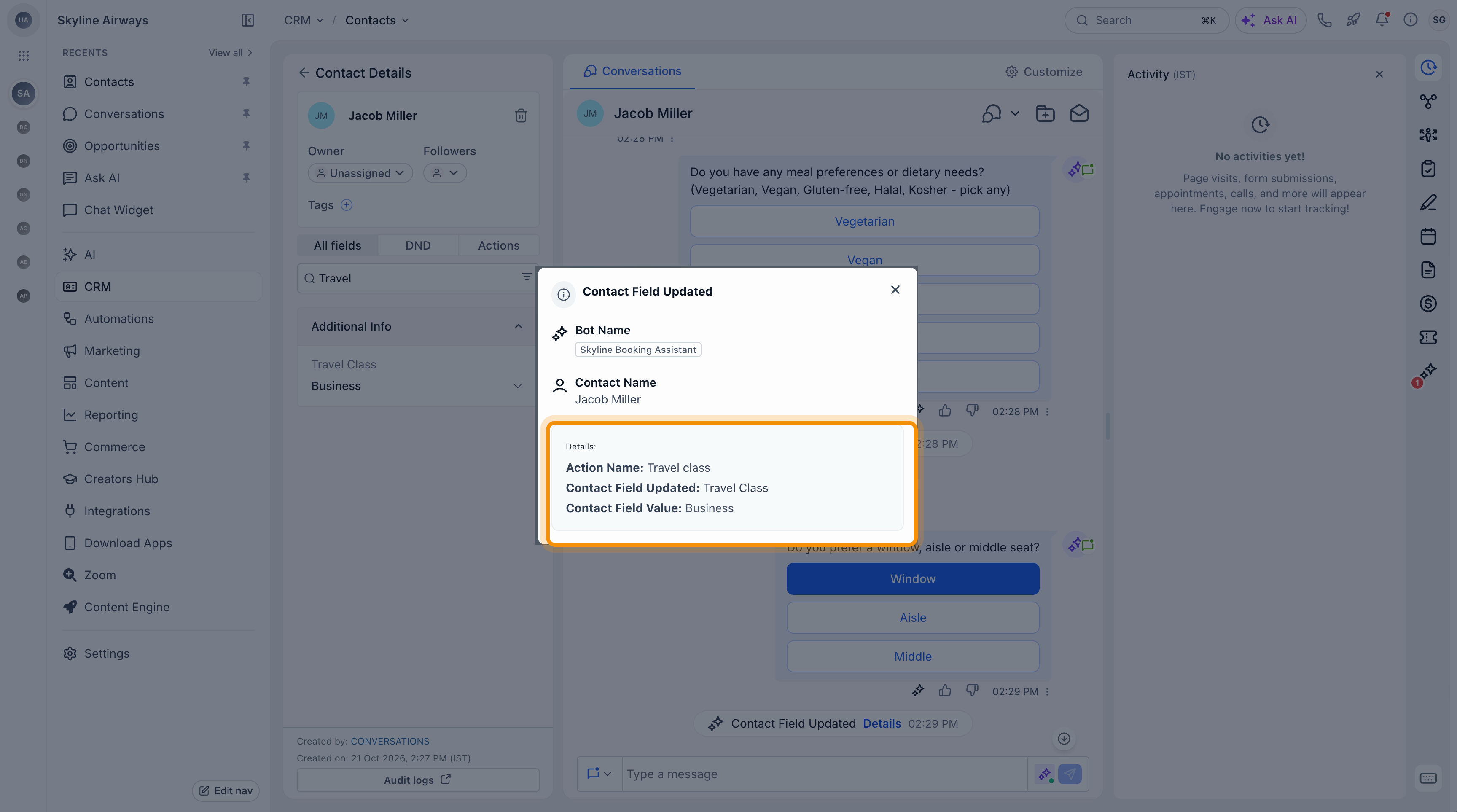
- Travel agency. Create a Radio Select custom field for travel class. Add the field to the Add Contact Info action. In the bot prompt, ask the traveler for their class. The AI will match responses like "business class please" and store "Business".
- Fitness studio. Set up a Checkbox field for dietary preferences. Include the field in the Add Contact Info action. Prompt the member to list any restrictions. The AI captures each matching option, such as "vegetarian" and "gluten free," into the contact record.
- Consulting firm. Add a multi select Dropdown field for interested services. Link the field in the Add Contact Info action. Ask the prospect which services they want. The AI saves every matching choice, for example "Consulting" and "Training," to the contact.
04The numbers and rules that matter
- Supported custom field types: Radio Select, Checkbox, single select Dropdown, multiselect Dropdown, Phone.
05Before you start
- A prompt based Conversation AI agent must be in Auto Pilot mode.
- Custom fields of the desired types need to exist in Settings > Custom Fields.
- Standard fields Contact Source and Contact Type should be available if they will be used.
06How to set up and use expanded contact field support in HighLevel
Set up the Add Contact Info action
- Open AI Agents > Conversation AI > Agents List and select your prompt based agent.
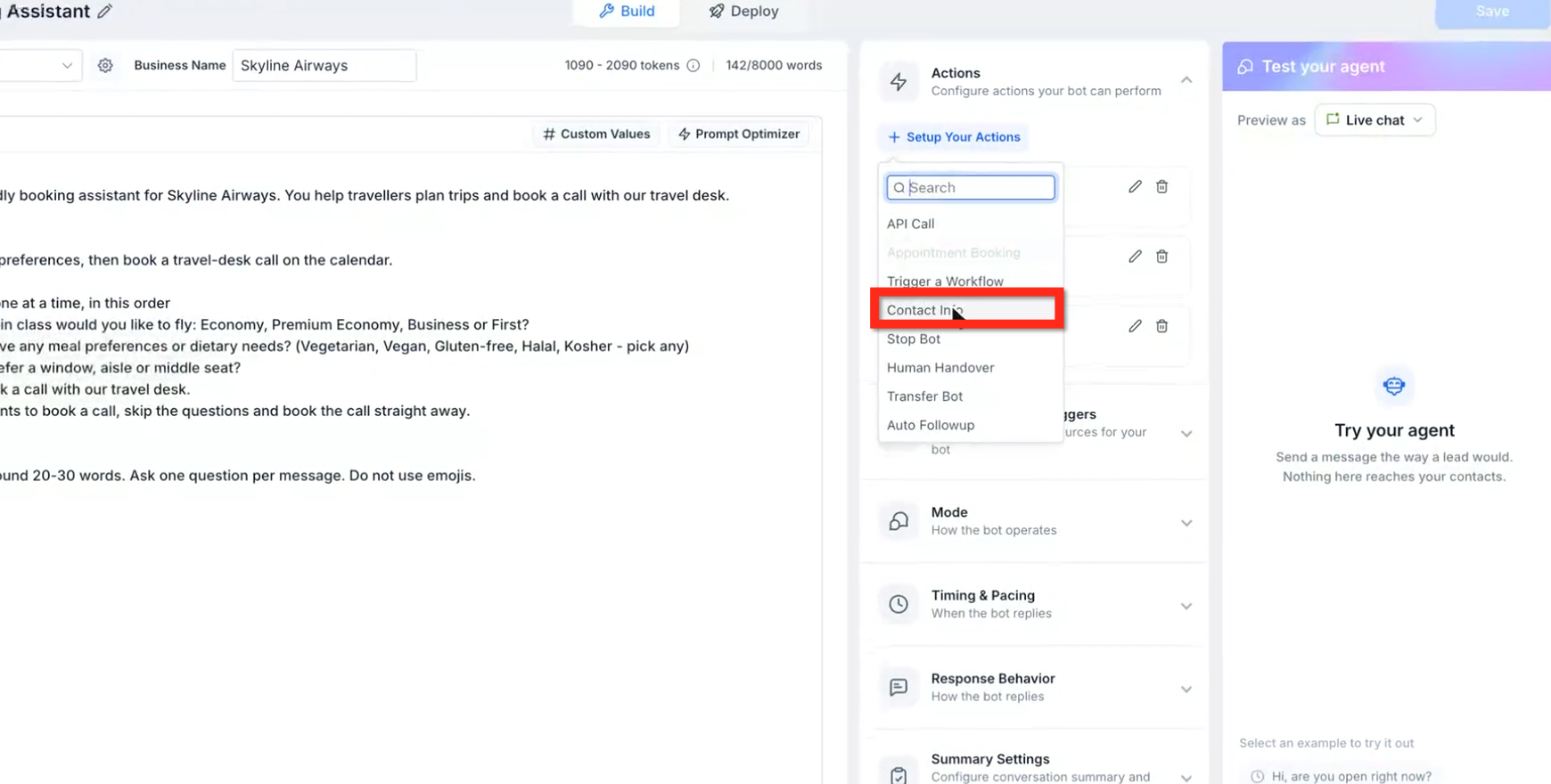
- Inside Bot Goals > Setup your Actions, choose the Contact Info option.
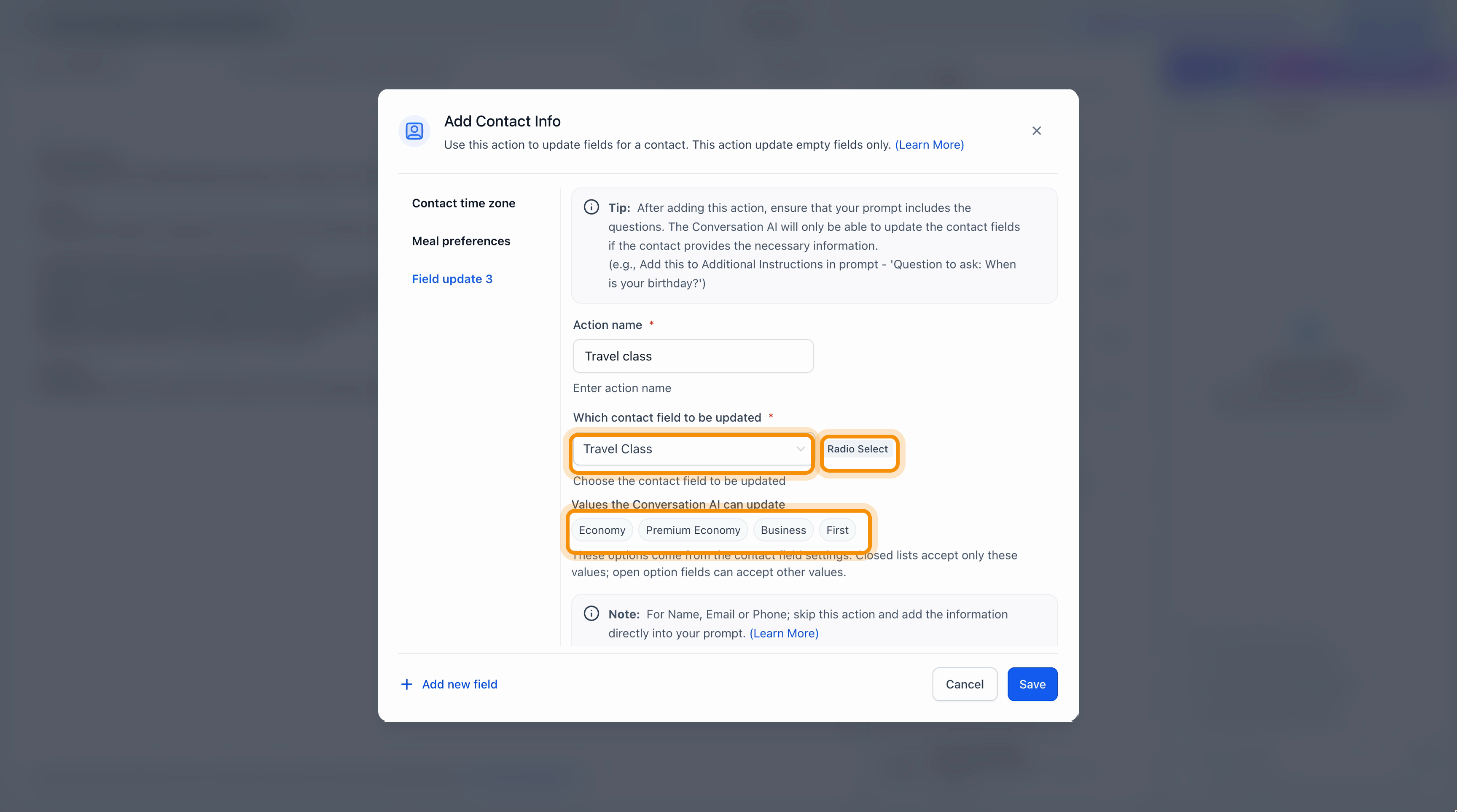
- Give the action a name and pick the contact field that the AI should update.
- If the field has predefined options, review the Values the Conversation AI can update to verify the list.
- Select Add new field to include additional fields and configure each one as needed.
- Click Save to store the action configuration.
- Edit the agent’s prompt to include clear instructions that ask customers for the required information.
- Important: Adding a Contact Info action does not automatically cause the agent to ask the corresponding questions; you must add the prompts yourself.
- Test the agent and confirm that customer responses are saved to the correct fields in the contact record.
07What it looks like in HighLevel
08Settings that matter
- Contact Source. records where the contact originated, such as a referral or campaign.
- Contact Type. stores the classification or category assigned to the contact.
09Things to know before you rely on it
- The AI only saves values that match predefined options; custom options are saved only if the field permits them.
- Add Contact Info updates only empty fields and never overwrites existing data.
- Supported field types are limited to Radio Select, Checkbox, single select Dropdown, multi select Dropdown, and Phone.
- The feature works for prompt based agents operating in Auto Pilot mode.
- If you modify options under Settings > Custom Fields, Conversation AI uses the new list starting with the next customer message.
10If something goes wrong
- Customer response does not appear in the contact record. Check that the field is empty, the response matches an available option, the correct field was selected in the action, and the agent’s prompt includes the appropriate instruction.
11How it connects to the rest of HighLevel
- Set response mode for a Conversation AI bot Response mode guide
- All AI Employee features overview AI Employee features
- Set up a HighLevel chat widget on your site Chat widget setup
Michael's take

When you have a steady flow of leads that need to be qualified or preferences that must be logged, the expanded field support can be valuable.
The AI captures details like service interests or dietary needs without a human typing anything, keeping your contact records clean and ready for follow up.
If your process relies on only a few basic fields or you rarely need to store multiple selections, the extra setup may not add enough value. In those cases the standard fields already cover what you need, and the effort to configure prompts and Custom Fields could outweigh the benefit.