
01Who this is for
- Agency admins can generate campaign assets without extra cost, staying within fair use limits.
- Agency users can quickly produce social media graphics and ads, reducing manual design effort.
- Subaccount users with an AI Employee subscription can access Creator Studio and pay per use for additional generations.
02Creator Studio pricing, explained
Creator Studio lets users describe a marketing asset in plain language and receives AI generated designs, images or short video clips. The system decides the appropriate format, creates multiple variations, and returns editable layers or video frames that can be refined.
Usage is measured by the work performed in each session, not by the number of prompts. Included usage depends on the agency plan or AI Employee subscription and follows a fair use policy. When the rolling five hour allowance is exhausted, extra usage can be billed if Extra Usage is enabled; otherwise access pauses until the window resets.
The feature lives under Labs in Agency Settings. Once activated, it appears in the subaccount search (⌘K) and can be opened directly. Users receive email and in app notifications as they approach 75% and 90% of their allocated usage.
03How businesses use Creator Studio pricing
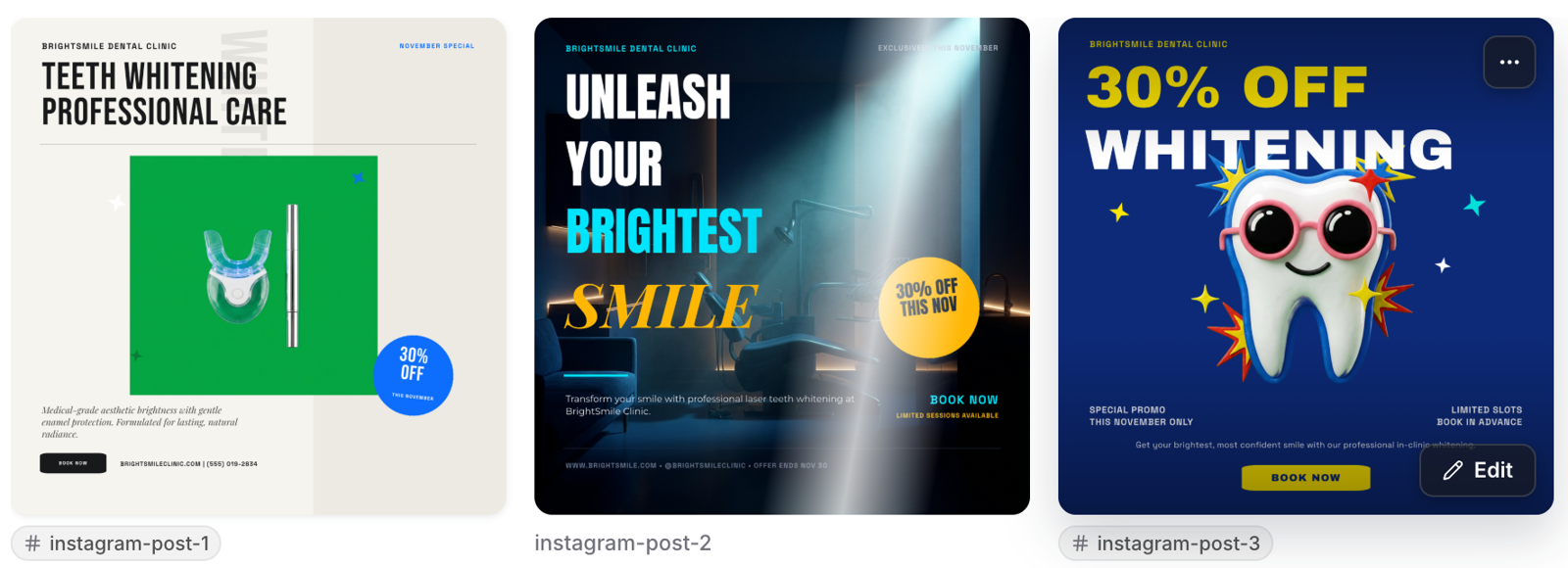
- Dental practice. The practice types a prompt for an Instagram post announcing a teeth whitening discount. Creator Studio selects the Instagram format, generates three design variations, and saves them as a project for later editing or download.
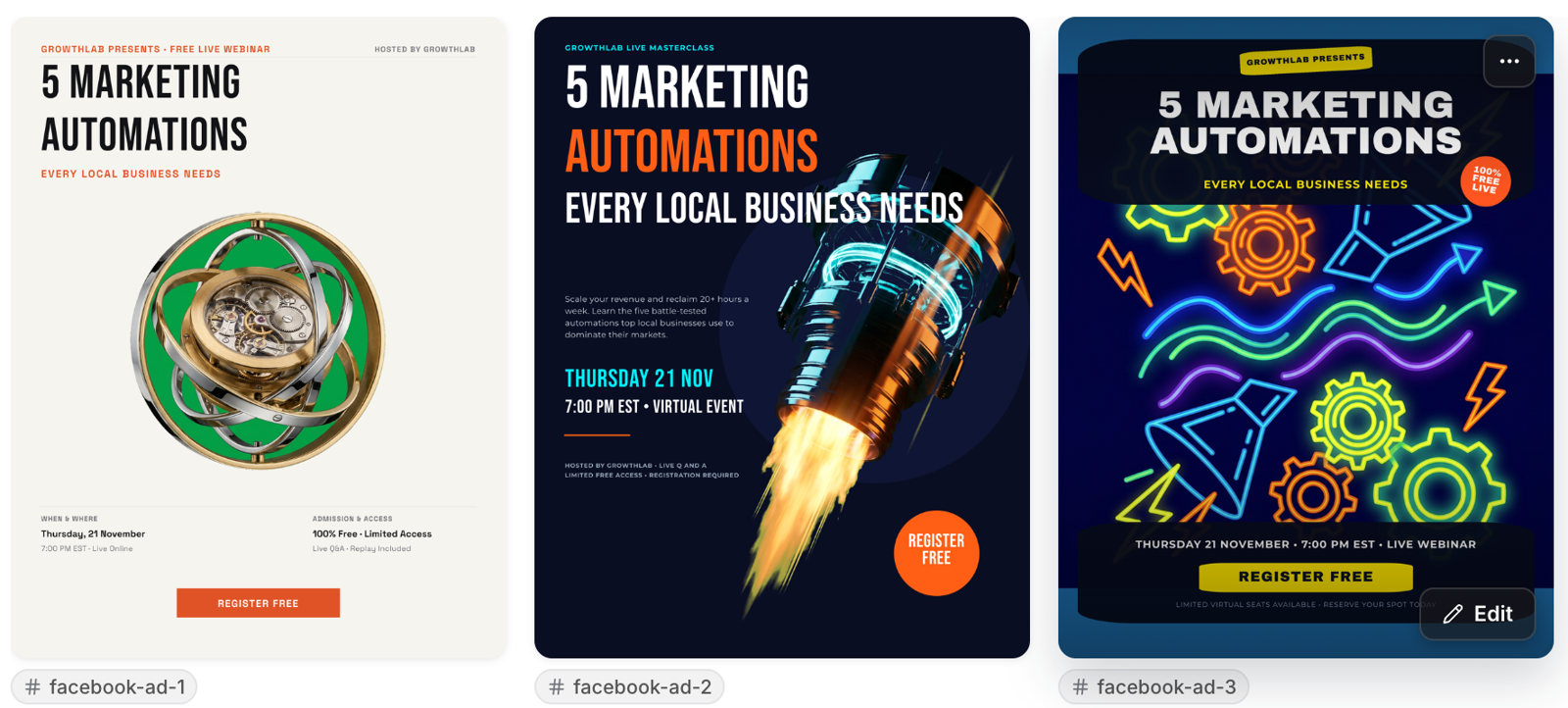
- Marketing consultancy. The consultancy asks for a Facebook ad promoting a live webinar. Creator Studio produces flyer style designs, offers resize suggestions for a square ad, and stores the results as a project that can be edited before publishing.
- Bakery. The bakery requests a short holiday promo video. Creator Studio creates a six second video clip with the specified scenes, saves it as a project, and allows the user to regenerate it if the text is incorrect.
04The numbers and rules that matter
- Agency Admins & Users ($97 & $297 agency plans): Free, subject to fair use*; Output Quality: Standard, High (per HighLevel's help center, checked November 2026).
- Agency Admins & Users ($497 agency plan): Free, subject to fair use*; Output Quality: Standard, High, Ultra (per HighLevel's help center, checked November 2026).
- Subaccount Users (without an AI Employee plan): Not included; Pay per use.
- AI Employee Starter ($20/month): Usage Included*; Output Quality: Standard, High (per HighLevel's help center, checked November 2026).
- AI Employee Growth ($50/month): 2x Usage Included*; Output Quality: Standard, High, Ultra (per HighLevel's help center, checked November 2026).
- AI Employee Unlimited ($97/month): 5x Usage Included*; Output Quality: Standard, High, Ultra (per HighLevel's help center, checked November 2026).
- *Fair Use Policy: Free, standard, high and unlimited usage is subject to HighLevel's Terms of Service, including excessive use restrictions. If usage is excessive, abusive, or negatively affects platform performance, HighLevel may throttle, limit, require service upgrades, or terminate access with or without notice.
- When an allowance is reached, extra usage may be billed at pay per use rates if Extra Usage is enabled; otherwise access pauses until the allowance resets.
05Before you start
- Creator Studio is a Labs feature.
- An agency admin must activate it for each subaccount before users can access it.
06How to set up and use Creator Studio pricing in HighLevel
Enable Creator Studio for a subaccount
- Navigate to Agency Settings > Labs > Subaccount.
- Locate Creator Studio and click Activate Feature.
- Search for the target subaccount, turn the Enable switch on, and click Save.
Access Creator Studio from a subaccount
- Open the desired subaccount.
- Press ⌘K or click the Search icon.
- Enter “Creator Studio” and select the result to open it.
Create a design, image or video in Creator Studio
- Open Creator Studio.
- Choose Design, Image or Video clip under the prompt box (optional).
- Enter a description that includes the business name, offer and call to action.
- Click Send to start generation.
- Wait two to three minutes for the results to appear.
- Click Edit on a design to modify individual layers.
- Send a follow up message to request additional changes.
07What it looks like in HighLevel

08Settings that matter
- Creator Studio. Controls whether the Creator Studio feature is available in the Labs section for subaccounts.
- Enable. Turns the feature on for a specific subaccount after it has been activated in Labs.
09Things to know before you rely on it
- Usage is measured in rolling five hour windows and varies by plan.
- Agency plans receive free usage subject to a fair use policy; excessive use can trigger throttling or termination.
- Subaccount users without an AI Employee plan must use pay per use billing or purchase an AI Employee subscription.
- Higher output quality (Ultra) is only available on the $497 agency plan and on AI Employee Growth or Unlimited plans (per HighLevel's help center, checked November 2026).
- If the included allowance is reached, extra usage is billed only when Extra Usage is enabled; otherwise access pauses until the window resets.
10If something goes wrong
- Creator Studio doesn't appear in the subaccount. Enable Creator Studio in Labs as described in the Before You Start section.
- Design comes back in the wrong size. Use the Resize suggestion or specify the desired dimensions directly in the prompt.
- Spelling mistake in a video. Regenerate the video; text inside generated videos cannot be edited.
- Video is widescreen when 1:1 was selected. Regenerate the video and contact support.
11How it connects to the rest of HighLevel
- Learn how to enable Extra Usage for pay per use billing. Extra Usage guide
- Review all AI Employee features and pricing options. HighLevel pricing
- Start a free trial to test Creator Studio before committing. 30 day trial
Michael's take

I would begin with turning Creator Studio on in Labs so every subaccount can reach the feature without delay.