
01Who this is for
- Customer support teams can handle visual issues without needing a human agent.
- Ecommerce owners can answer product photo questions directly in chat.
- Health care clinics can verify uploaded documents or insurance cards right away.
02Conversations AI image responses, explained
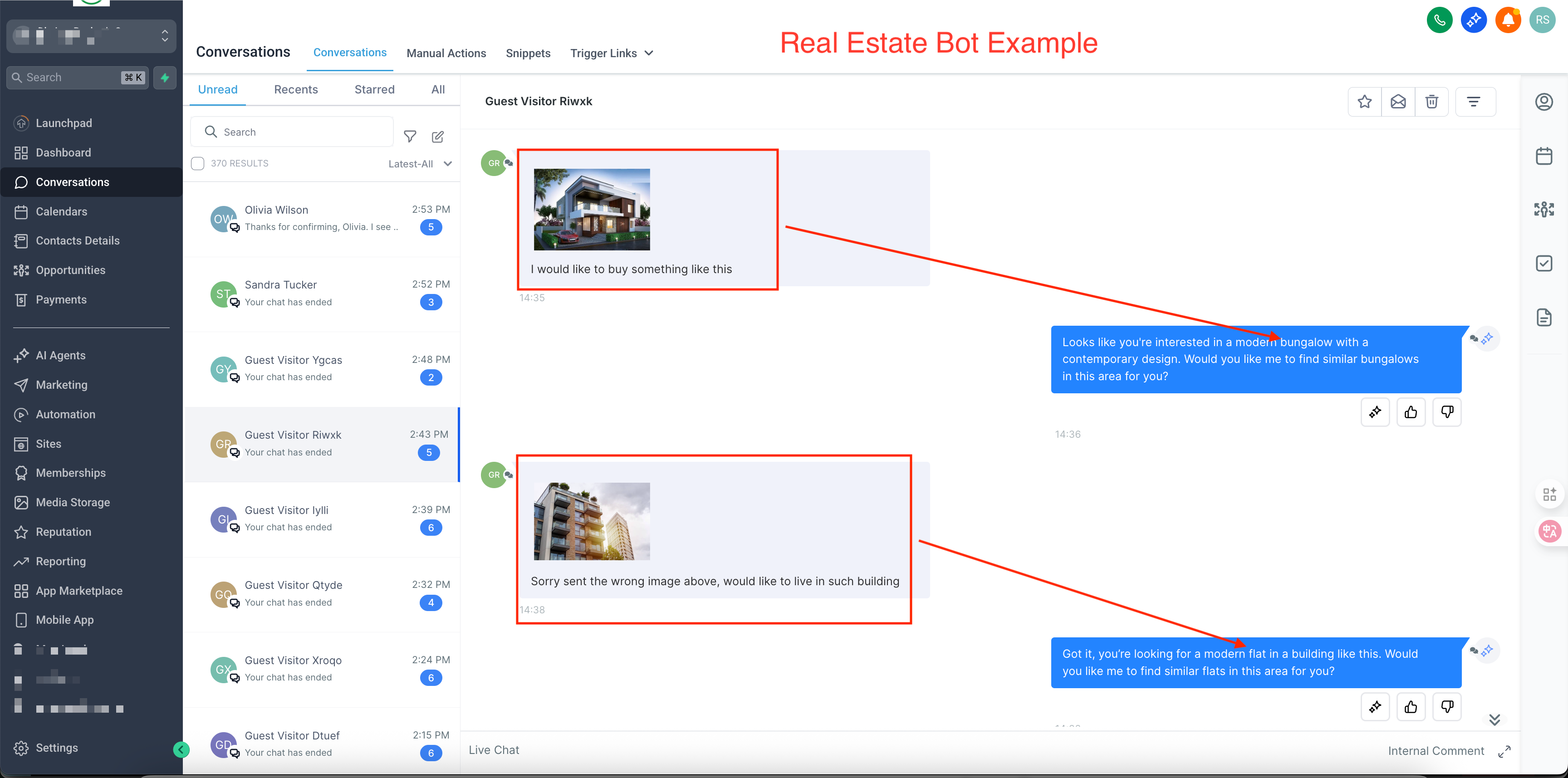
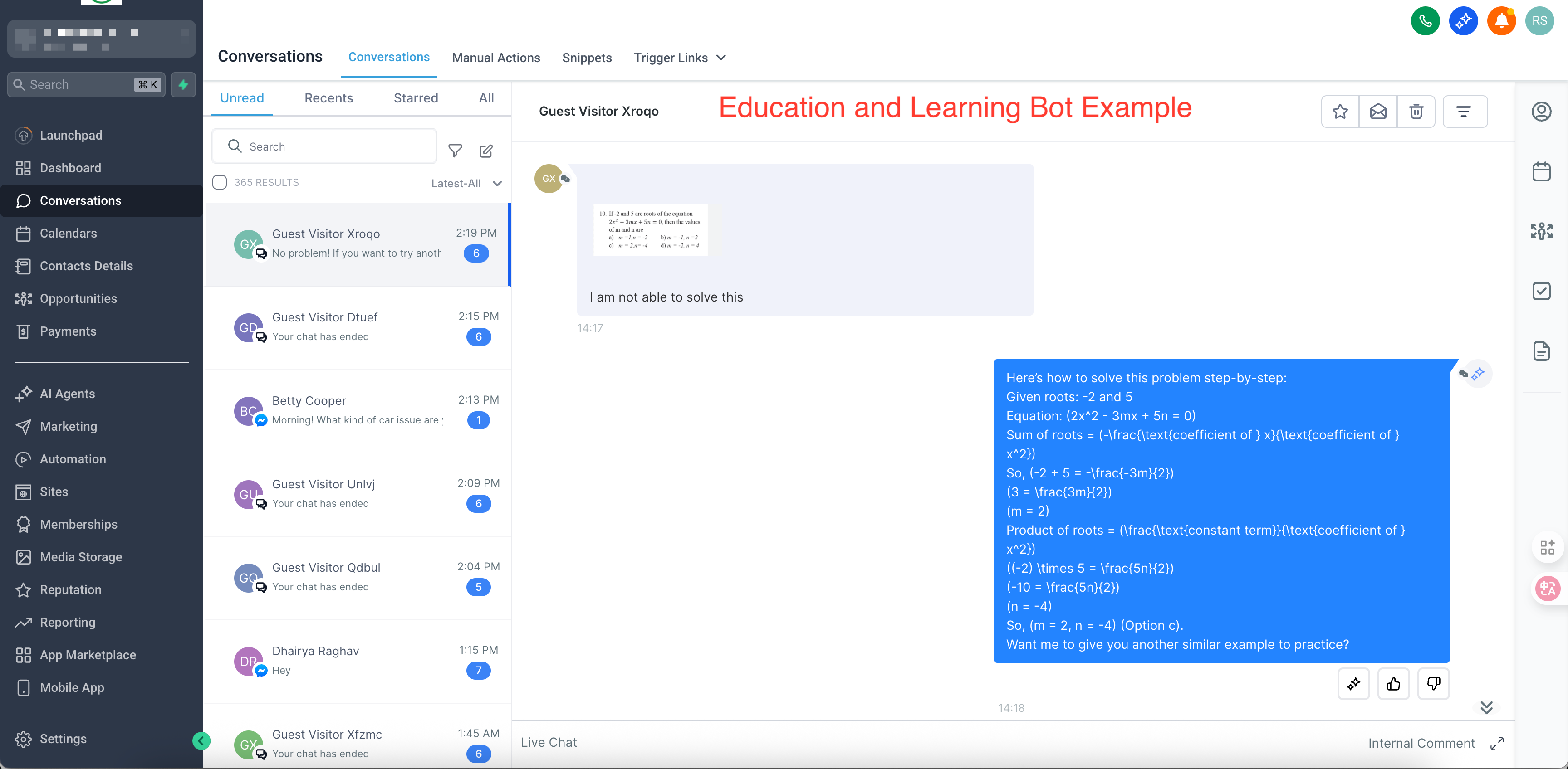
The feature allows a Conversation AI bot to accept image files from a contact, analyse the visual content, and generate a reply that mentions the image details. It works on channels that accept pictures, including Live Chat, Facebook Messenger, Instagram Direct, WhatsApp, and SMS/MMS where MMS is available. The bot must be set to Autopilot mode; Suggestive mode will not process images.
When a contact sends a JPG, JPEG, or PNG, the bot reads the picture and crafts a single response that can reference multiple images sent together. The process runs inside the same conversation thread, so the exchange stays uninterrupted. The setting to turn on this behaviour lives in each bot’s configuration page.
03How businesses use conversations AI image response
- Ecommerce store. Enable image response on the store’s support bot, then customers can send product photos of defects. The bot reads the picture and replies with troubleshooting steps, keeping the chat in the same flow.
- Dental practice. Activate image handling for the appointment intake bot. When a patient uploads a screenshot of an insurance card, the bot extracts the visible data and confirms coverage without manual review.
- Restaurant. Turn on image response for the reservation bot. Patrons can send a photo of a menu item they saw on social media, and the bot replies with availability and ordering options.
04The numbers and rules that matter
- Supported image formats: JPG (.jpg), JPEG (.jpeg), PNG (.png).
- Supported channels: Live Chat, Facebook Messenger, Instagram Direct Messages, WhatsApp, SMS/MMS (U.S. & Canada).
05Before you start
- The bot must already be set to operate in Autopilot Mode.
- The bot must be a Conversation AI bot that is supported on the desired channel.
06How to set up and use conversations AI image response in HighLevel
Enable image response for a bot
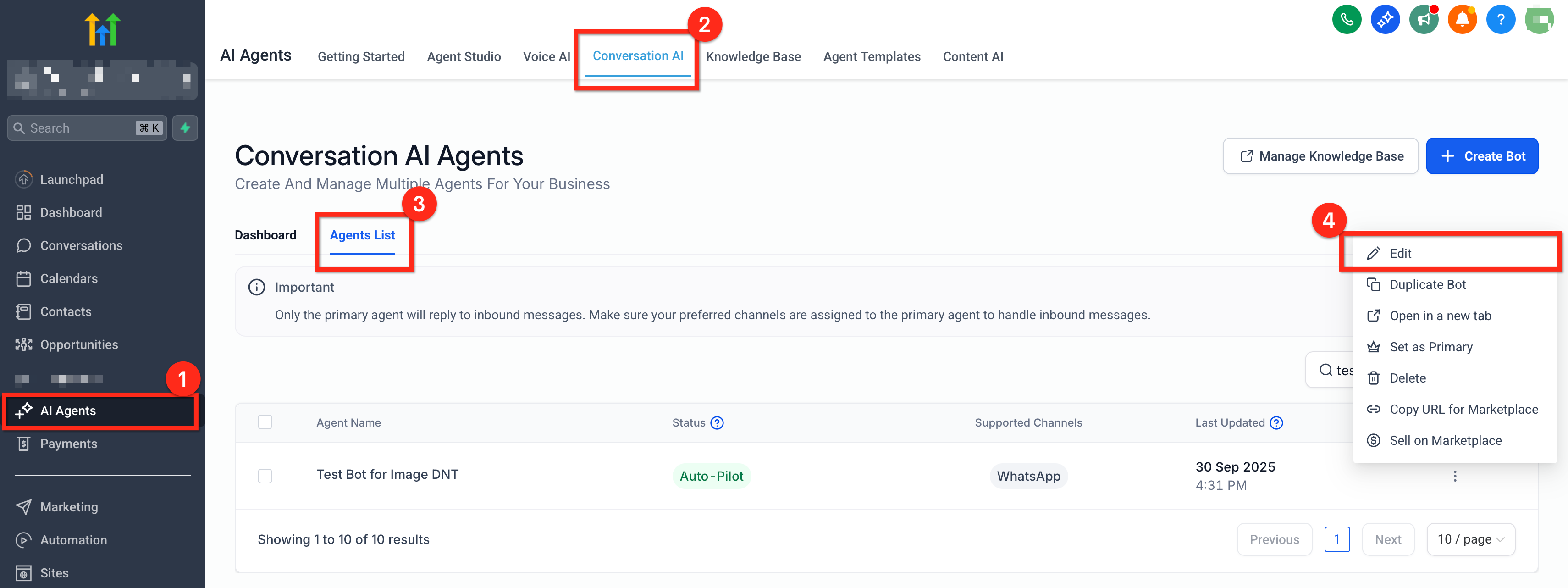
- Navigate from the subaccount to AI Agents > Conversation AI > Agent List.
- Open the three dot menu beside the chosen bot and select Edit.
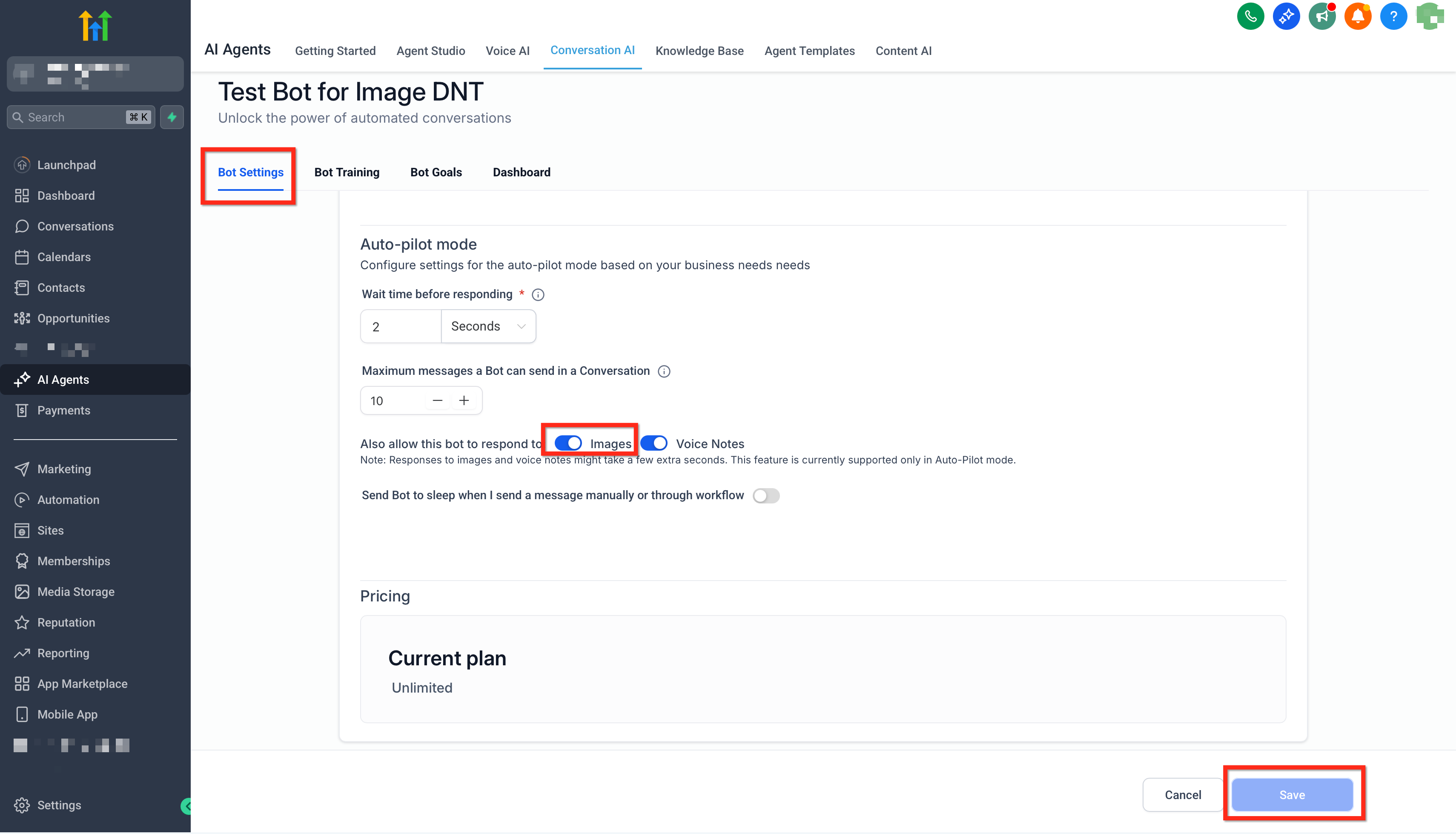
- Confirm the bot’s mode is Autopilot; image handling does not work in Suggestive Mode.
- In Bot Settings, locate the option labeled Also allow this bot to respond to.
- Turn on the toggle for Enable Images.
- Click Save to apply the change.
- Send a JPG, JPEG, or PNG from any connected channel to verify the bot replies using the image context.
07What it looks like in HighLevel
08Settings that matter
- Enable Images. Activates the bot’s ability to analyse supported image files and incorporate visual context into its replies.
09Things to know before you rely on it
- Only JPG, JPEG, and PNG formats are reliably processed; HEIC may work as a Live Chat attachment but is not guaranteed for image response.
- The feature only functions while the bot runs in Autopilot Mode; Suggestive Mode does not trigger image analysis.
- Supported channels are Live Chat, Facebook Messenger, Instagram Direct, WhatsApp, and SMS/MMS where MMS is allowed.
- No additional Labs add on is required; standard AI usage pricing applies.
10How it connects to the rest of HighLevel
- Set up a Conversation AI flow builder Flow builder guide
- View bot status for individual contacts Bot status
- Use the Conversation AI Agents dashboard Agents dashboard
Michael's take

Wondering if the image reading bot is worth the effort for your small business? It’s a practical way to cut down the endless “what does that screenshot show?” back and forth, especially when you field support tickets or appointment requests that include photos.
If I were setting it up, I’d first make sure the bot runs in Autopilot Mode, flip the Enable Images switch, and then run a quick test from each channel you use. A clear JPG will confirm everything is wired right, and you’ll see the bot reference the picture in its reply.