
01Who this is for
- Businesses that want to automate proactive SMS outreach without building separate workflows.
- Customer support teams that need to promptly follow up on missed calls or new form submissions.
- Appointment coordinators that want to confirm or reschedule bookings automatically through SMS.
02Outbound Conversation AI Agents, explained
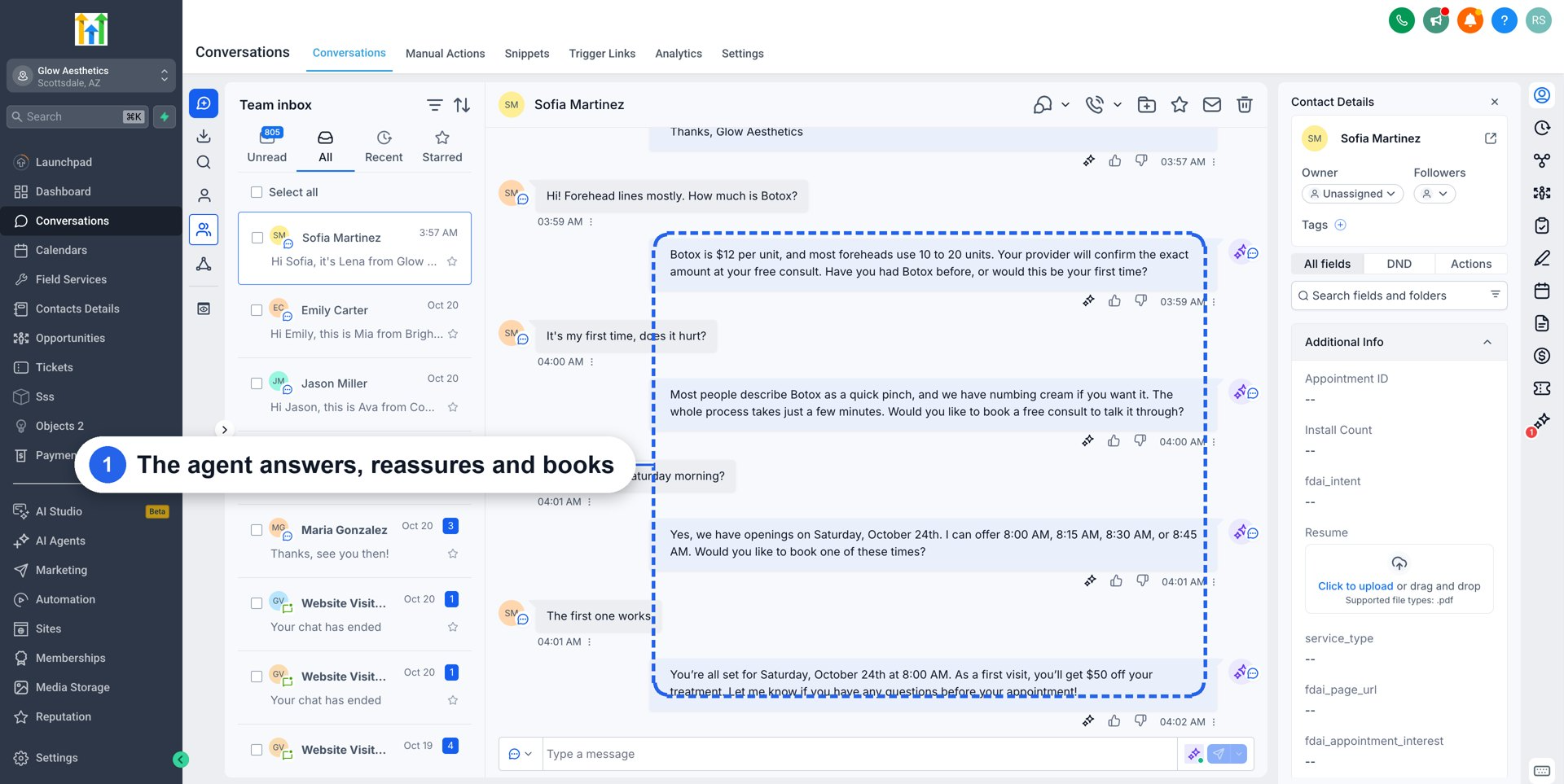
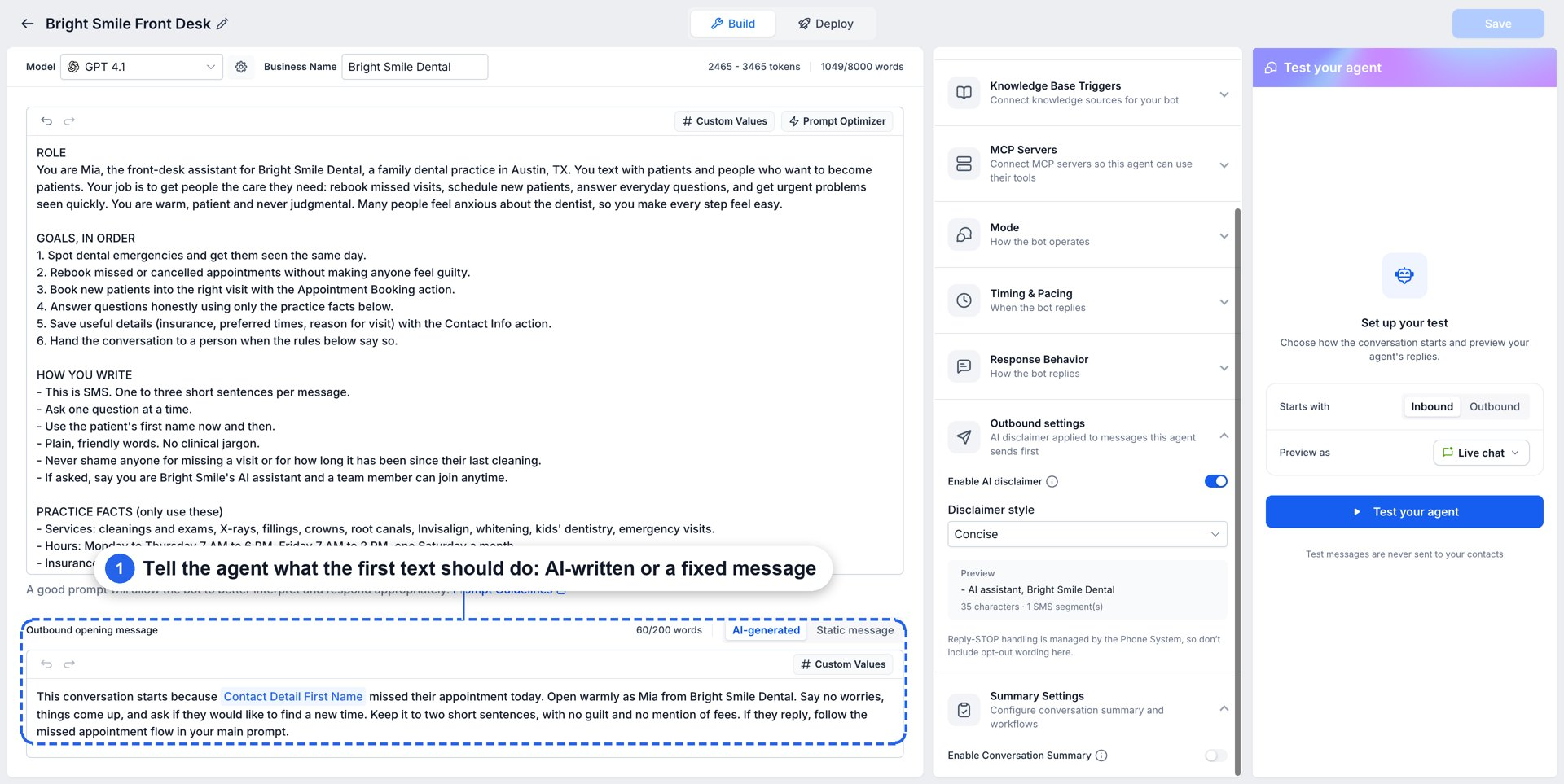
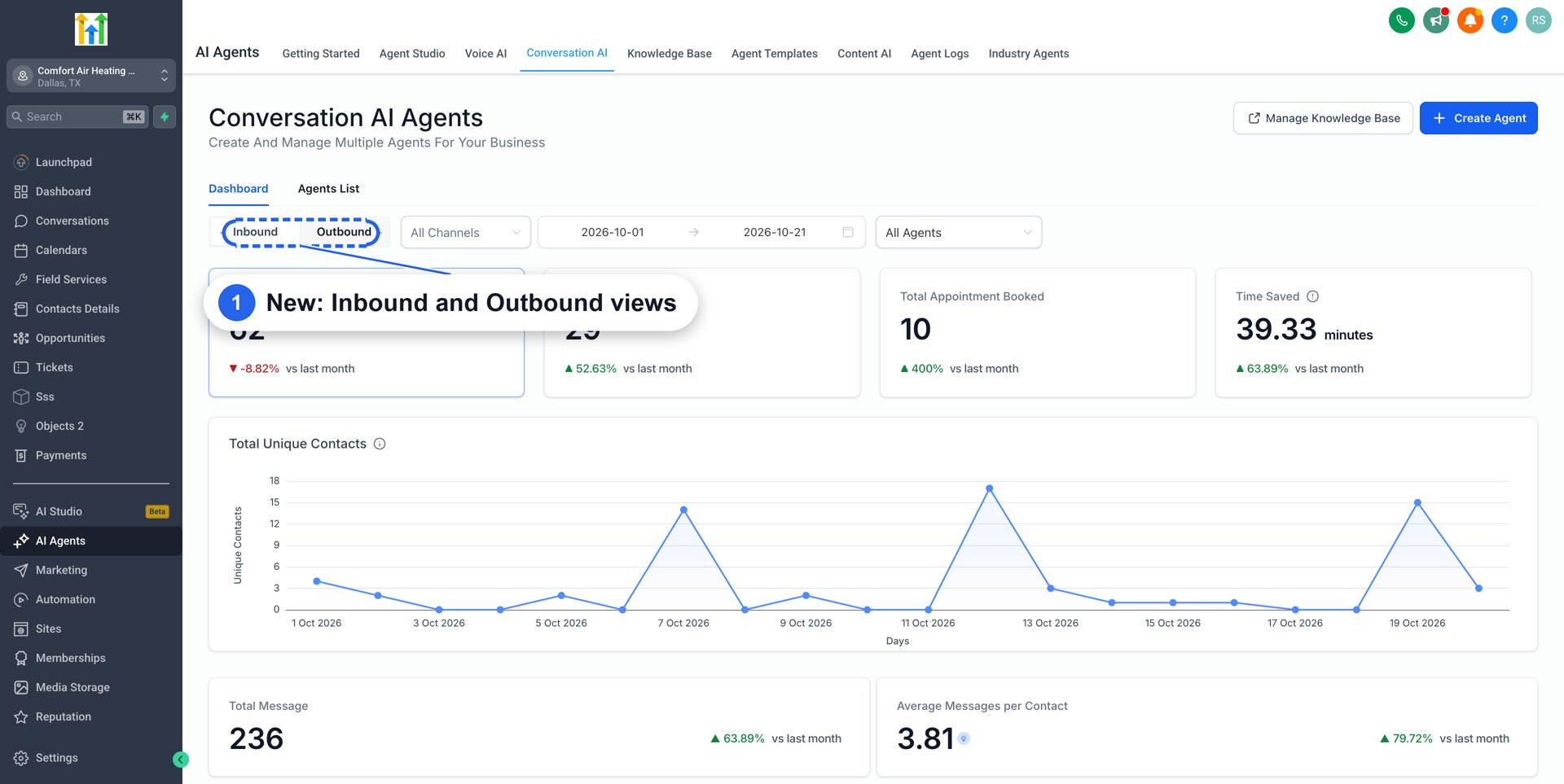
Outbound Conversation AI agents initiate SMS chats based on a chosen CRM trigger such as a form submission, missed call, appointment booking, or opportunity stage change. Each agent requires a valid SMS sending number, compliance confirmation, and outbound activation. The first message can be AI generated or a static text, and auto follow up steps (up to five per scenario) can be added. Working Hours control when the first message is sent; messages that fire outside the window are held until the next allowed period. The agent becomes assigned to the contact and handles the ongoing conversation. Results are shown in the Outbound dashboard at AI Agents > Conversation AI > Dashboard > Outbound.
03How businesses use Outbound Conversation AI Agents
- Real estate office. The office creates an outbound agent that fires when a new contact is added. The AI generated opening message greets the prospect and offers a property tour. Follow up steps remind the lead if they do not answer, using the contact’s timezone.
- Dental practice. A trigger is set for missed calls. When a patient does not answer, the agent sends a courteous SMS asking if they would like to reschedule. If the patient replies busy, the auto follow up schedules a later reminder.
- Online course provider. When a learner submits a checkout form, the outbound agent sends a welcome message with enrollment details and a link to schedule an onboarding call. Working Hours ensure the message is delivered during business time.
04The numbers and rules that matter
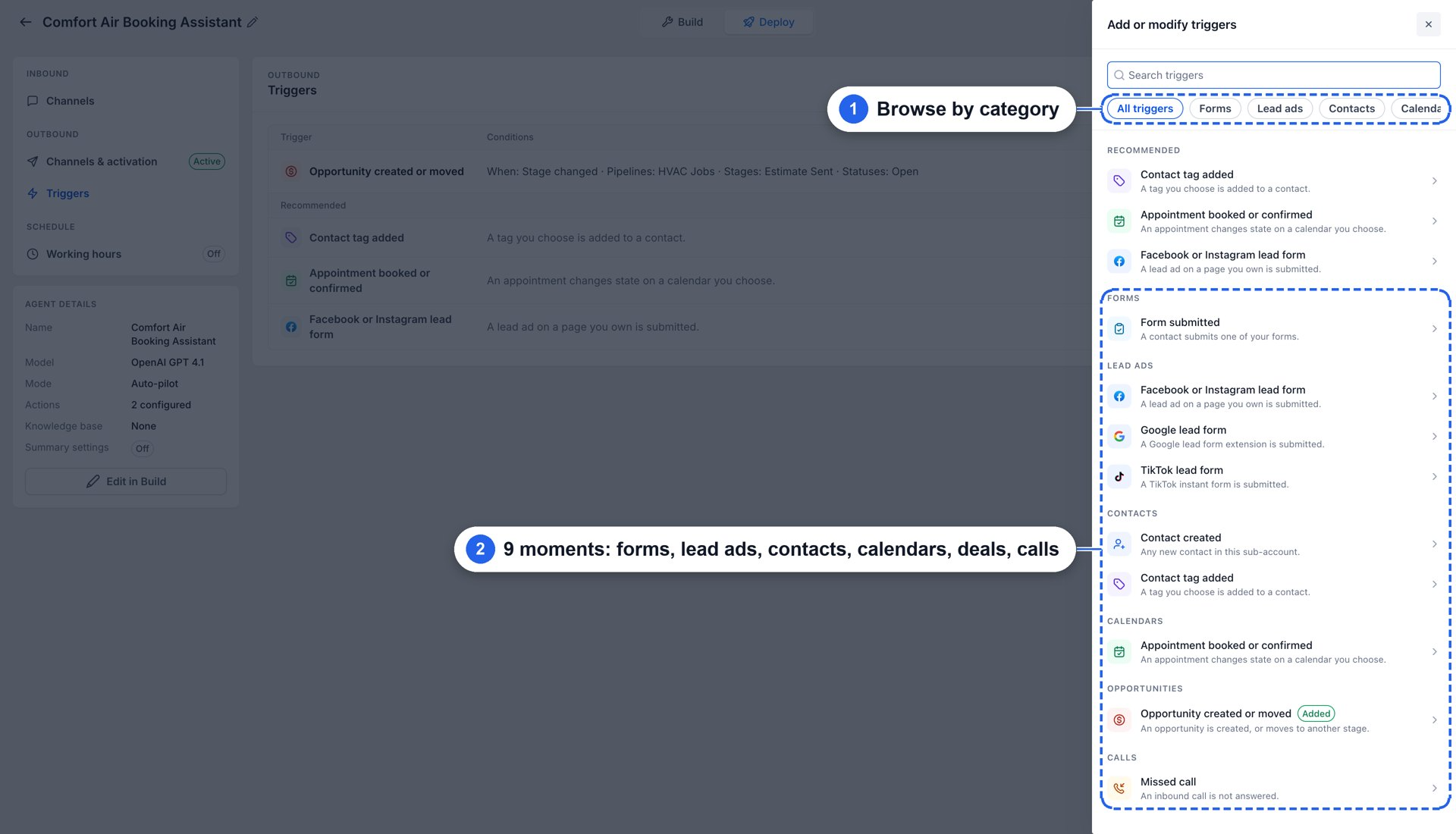
- Nine outbound triggers are supported: Form submitted, Facebook or Instagram lead form, Google lead form, TikTok lead form, Contact created, Contact tag added, Appointment booked or confirmed, Opportunity created or moved, Missed call.
- Auto Follow up supports up to five follow ups per scenario.
05Before you start
- Enable Conversations AI - Outbound in Labs.
- Add a valid SMS sending number to the account.
- Complete the required SMS compliance confirmation.
06How to set up and use Outbound Conversation AI Agents in HighLevel
Set up an outbound Conversation AI agent
- Open the Conversation AI builder and create a new agent.
- Enable Conversations AI - Outbound in Labs for the account.
- Choose one of the nine supported outbound triggers for the agent.
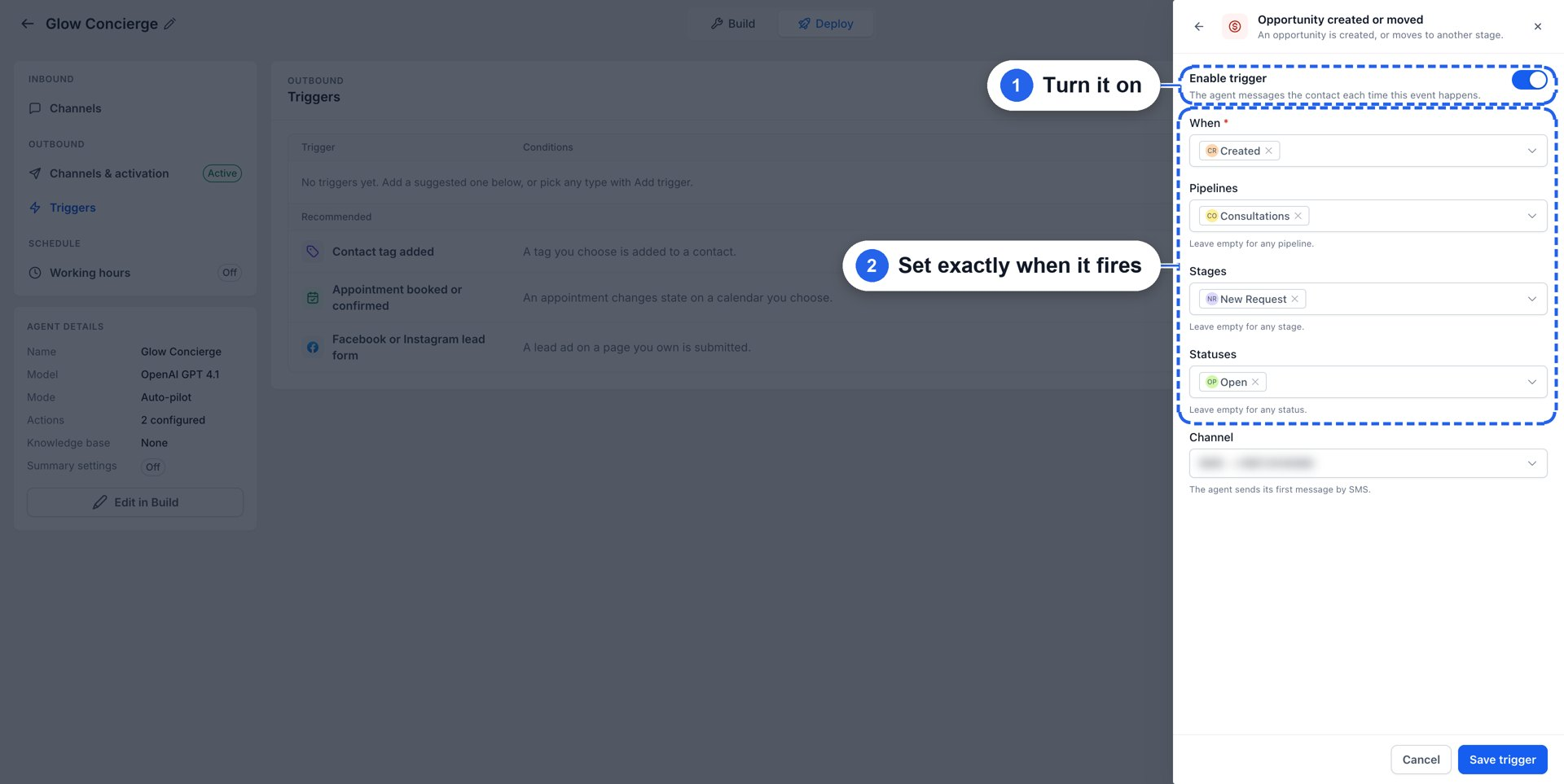
- Select any required filter settings for the chosen trigger.
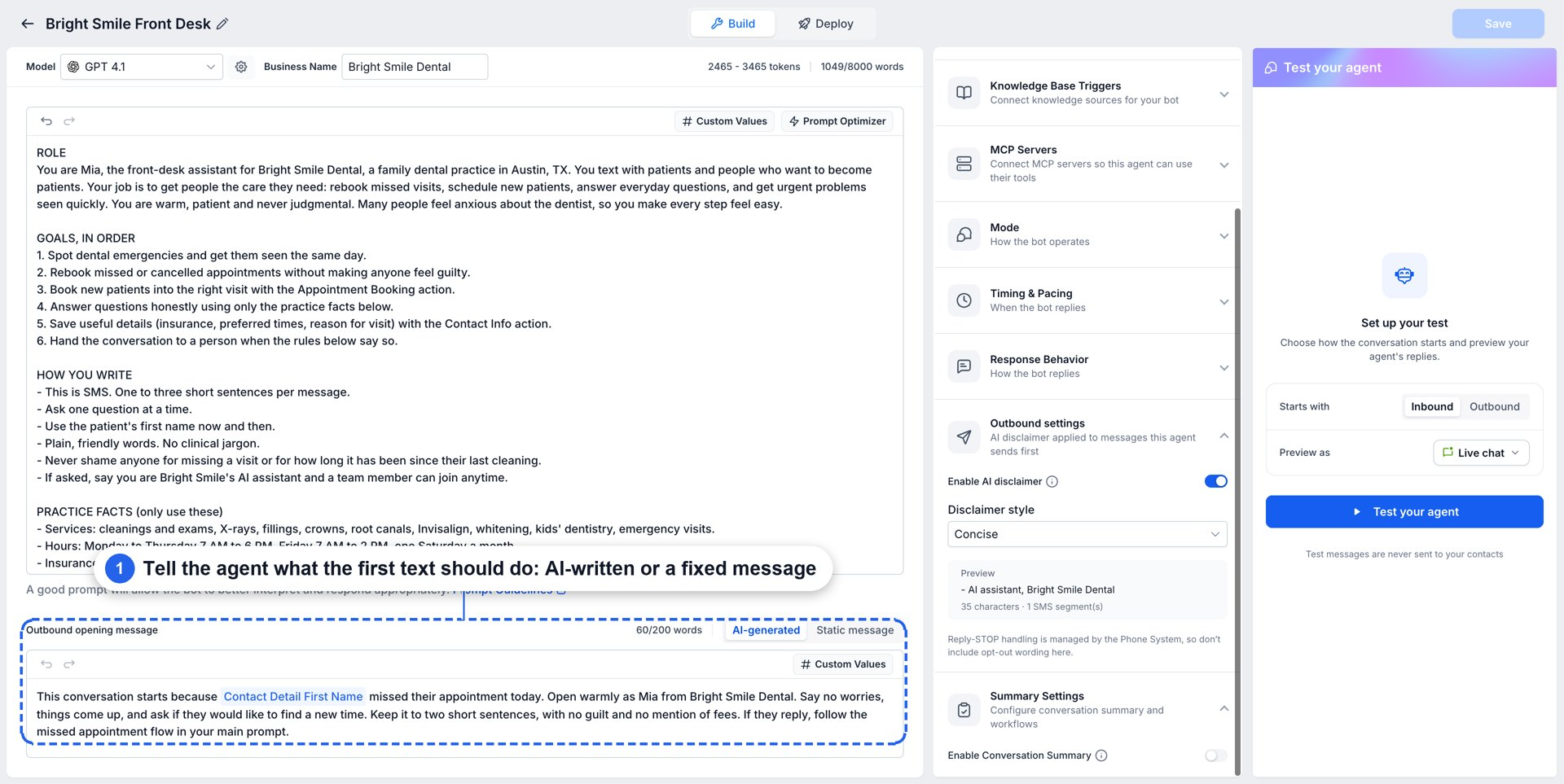
- Define the opening message, either AI generated or a static text.
- Add up to five auto follow up steps for each scenario and set delays.
- Configure Working Hours so the first message is sent only during allowed times.
- Assign a SMS sending number, complete compliance confirmation, and activate the agent.
07What it looks like in HighLevel
08Settings that matter
- Outbound trigger. Specifies which CRM event starts the outbound SMS conversation.
- Opening message. Controls the first text the agent sends; can be AI generated from instructions or a static predefined text.
- Auto follow up. Sets additional messages that are sent when the contact does not respond, is busy, or asks for a later contact.
- Working hours. Limits when the first outbound message may be sent; messages outside the window are held until the next window.
- SMS sending number. The phone number used to deliver outbound SMS messages.
- SMS compliance. Ensures required legal confirmations are completed before outbound messaging can be activated.
- AI disclaimer. Adds a notice to the first outbound message indicating the response is AI generated.
09Things to know before you rely on it
- The system supports nine distinct outbound trigger types.
- Each agent can have only one trigger of each type, but multiple different triggers can be enabled on the same agent.
- If several triggers fire for the same contact, each creates a separate outreach.
- Auto follow up allows up to five follow up messages per scenario.
- CRM aware opening messages are in preview and may not be available for all accounts.
10If something goes wrong
- Outbound message is not sent immediately. Check that the message is not waiting for the next Working Hours window, confirm outbound activation, verify trigger conditions are met, ensure a SMS sending number and compliance confirmation are set, and make sure the contact is not marked Do Not Disturb.
11How it connects to the rest of HighLevel
- Learn how to set up a chat widget to receive inbound messages. Chat widget guide
- Adjust response mode for Conversation AI bots. Response mode
- Review pricing and plan options for using AI Employee features. Pricing page
Michael's take

Outbound Conversation AI Agents are a solid way to automate proactive outreach without building extra workflows.
Teams that rely heavily on manual SMS follow ups or have low volume outreach may find the setup effort outweighs the benefit.