
01Who this is for
- Customer support teams that need to answer inbound emails quickly while keeping brand tone.
- Sales groups that want automated first response emails to capture leads without manual effort.
- Marketing departments that require consistent email formatting and personalization across campaigns.
02Conversation AI email channel support, explained
The feature lets a Conversation AI bot monitor a connected inbox and reply to incoming emails. Replies preserve the original subject line, keep the conversation in the same thread, and can be sent in the detected language of the inbound message. Bot actions such as workflow triggers, human handover or bot transfers remain available when email is used.
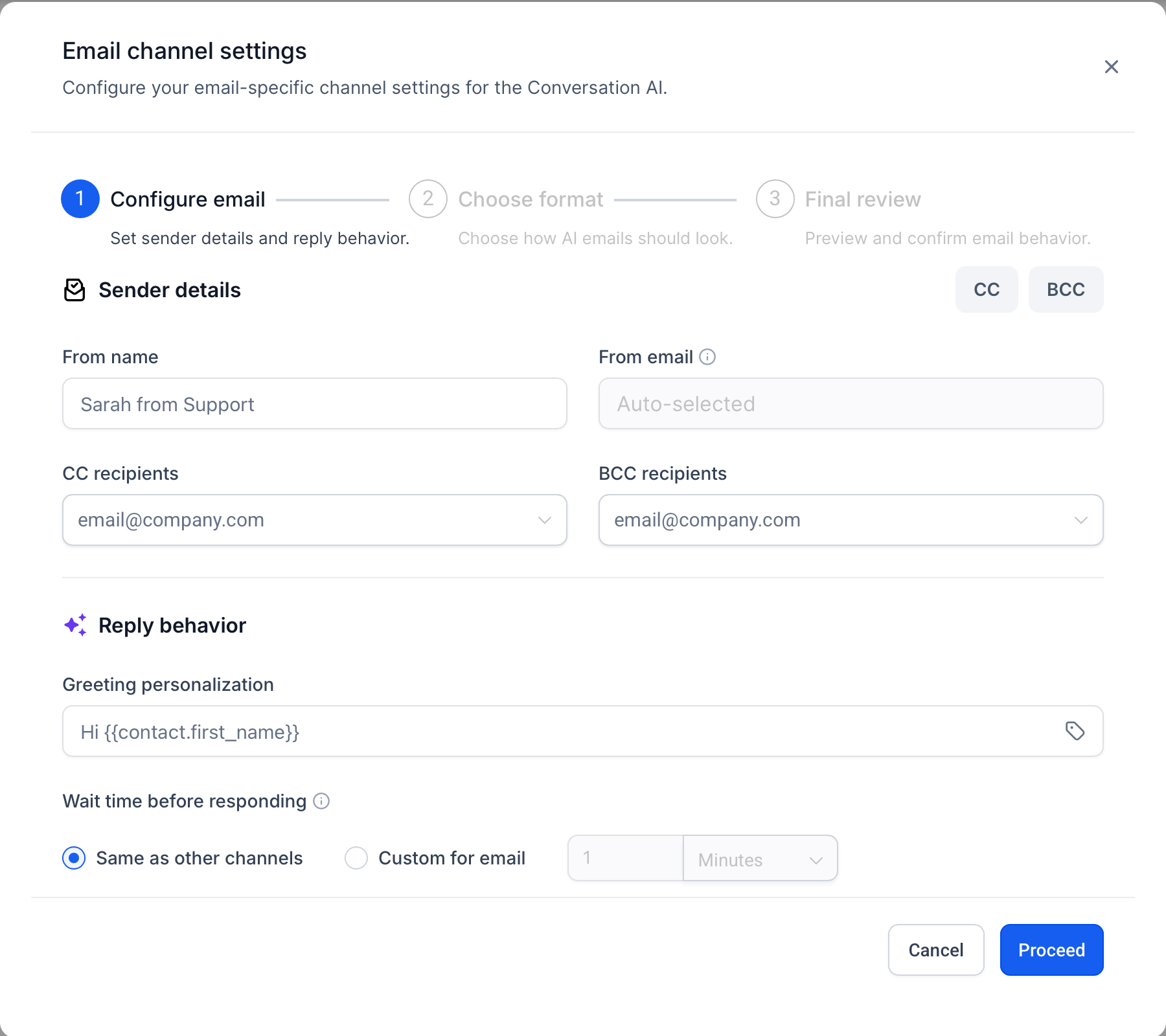
Settings for the email channel are configured inside the bot’s Channels section. You choose a sender name, a From address, default CC/BCC recipients, a greeting, sign off, response delay and whether the reply uses plain text or a branded HTML template. The configuration is saved at the bot level and applies to all emails received on the selected inbox.
03How businesses use Conversation AI email channel support
- Real estate agency. The agency enables the email channel for its primary bot, sets the office address as the From address and adds the broker’s signature. When a prospect emails an inquiry, the bot replies with a personalized greeting and a link to schedule a showing, keeping the email thread intact.
- Dental practice. The practice configures default CC recipients to include the office manager and chooses a branded HTML template. Incoming appointment requests trigger an automatic reply that confirms receipt and provides a link to the booking calendar, while the bot remains ready for follow up actions.
- SaaS startup. The startup sets a short response delay of 15 minutes, adds a custom greeting that pulls the contact’s first name, and selects plain text format for deliverability. New trial sign up emails receive an instant acknowledgement and a link to onboarding resources.
04The numbers and rules that matter
- Supported Email channels: LC Email, Custom Email SMTP, Custom Conversation Email providers.
- Response delay can be set up to 12 hours.
- Settings include sender name, from address, default CC/BCC, greeting personalization, sign off and signature, response delay, and formatting option.
05Before you start
- A supported email inbox or provider must be connected in the subaccount.
- The Conversation AI bot must be set to Auto Pilot for automatic replies.
- Email must be assigned as a supported channel for the bot.
- The bot must be designated as the primary bot if it should answer general inbound emails.
- The selected From address must be active and allowed to send messages.
06How to set up and use Conversation AI email channel support in HighLevel
Enable the email channel for a Conversation AI bot
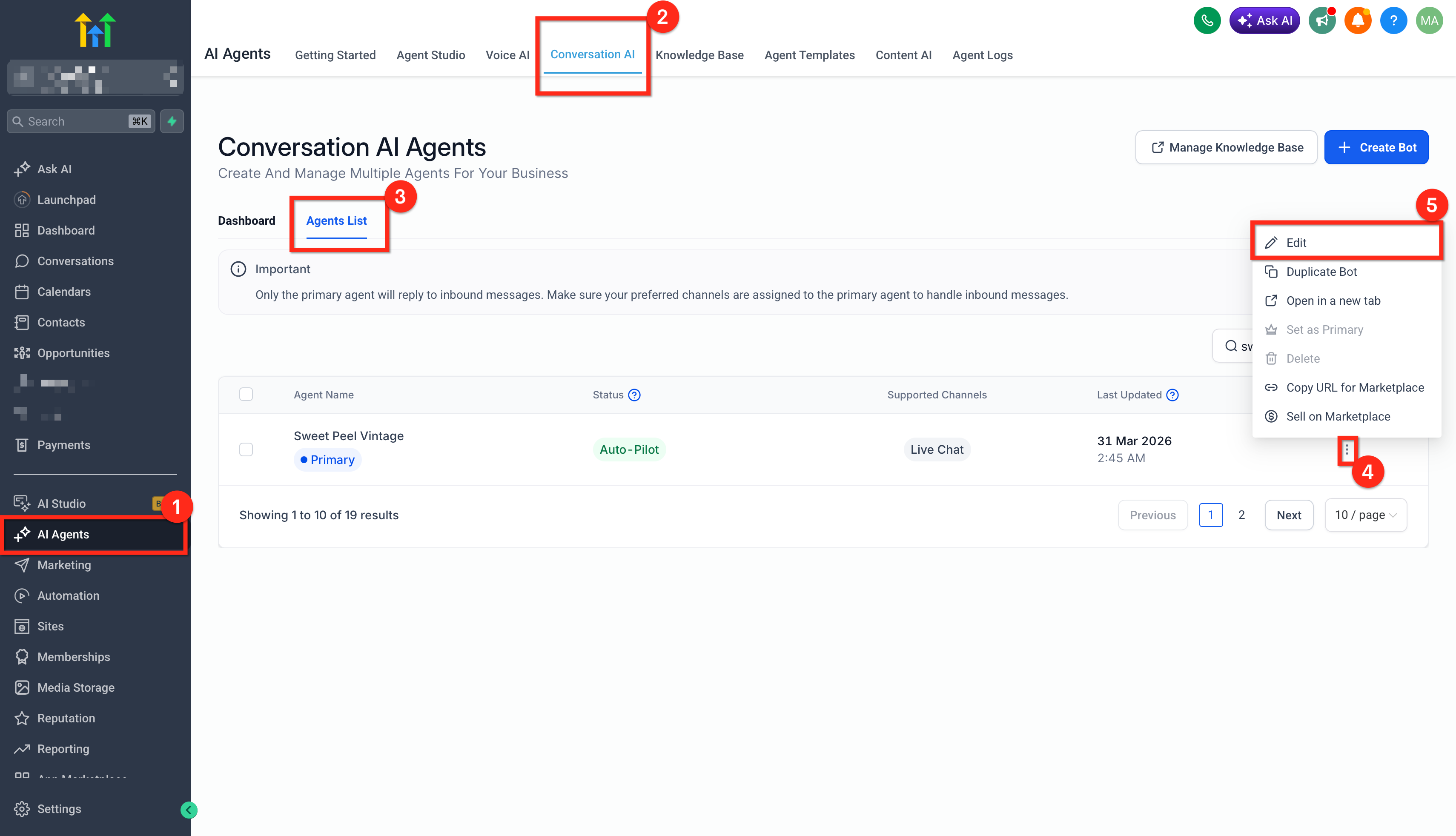
- Navigate to AI Agents > Conversation AI > Agent List.
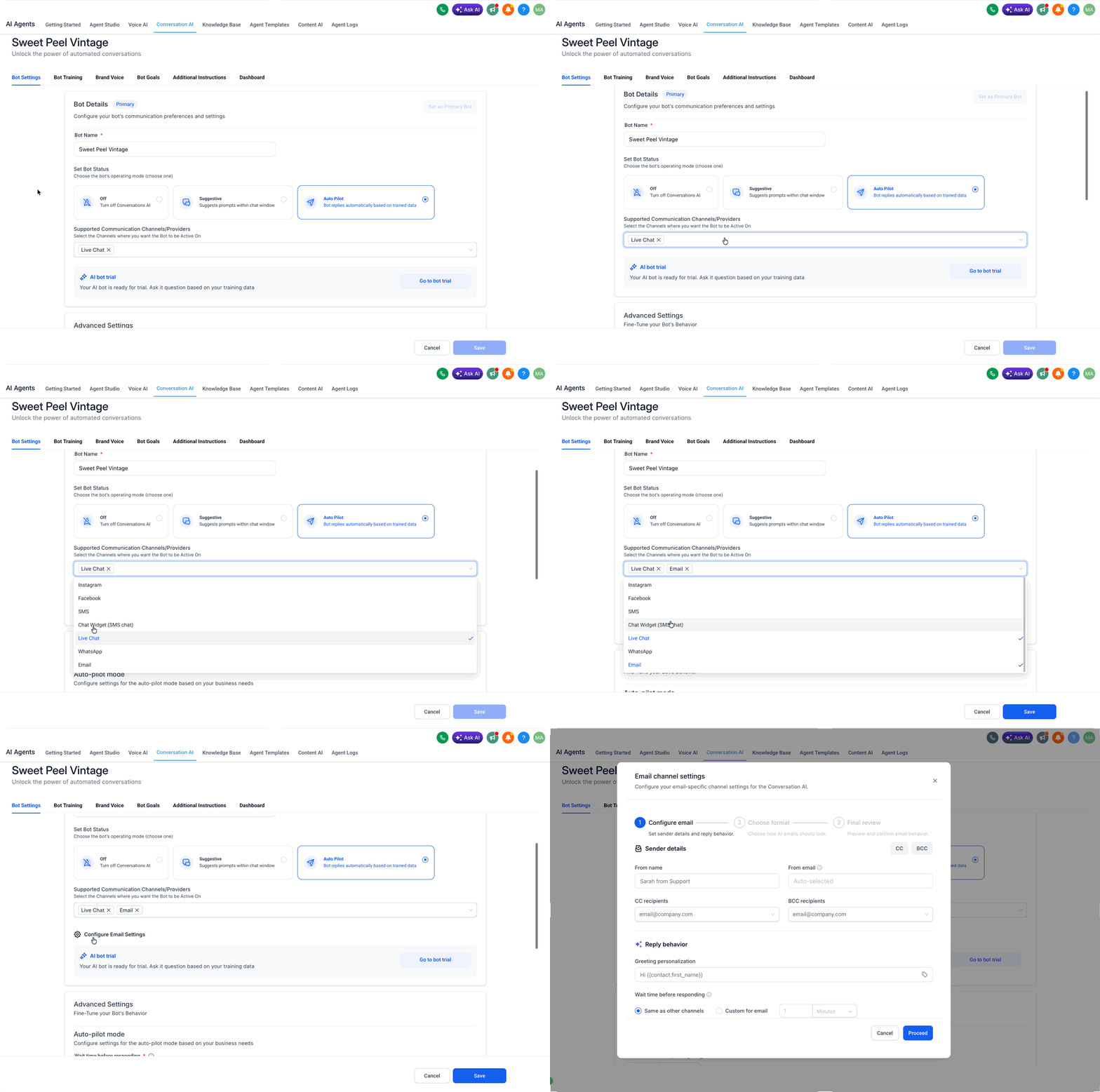
- Locate the desired bot, open its three dot menu, and choose Edit.
- In the bot settings, open the Channels section and toggle Email on.
- Click Configure Email Settings to launch the three step email setup wizard.
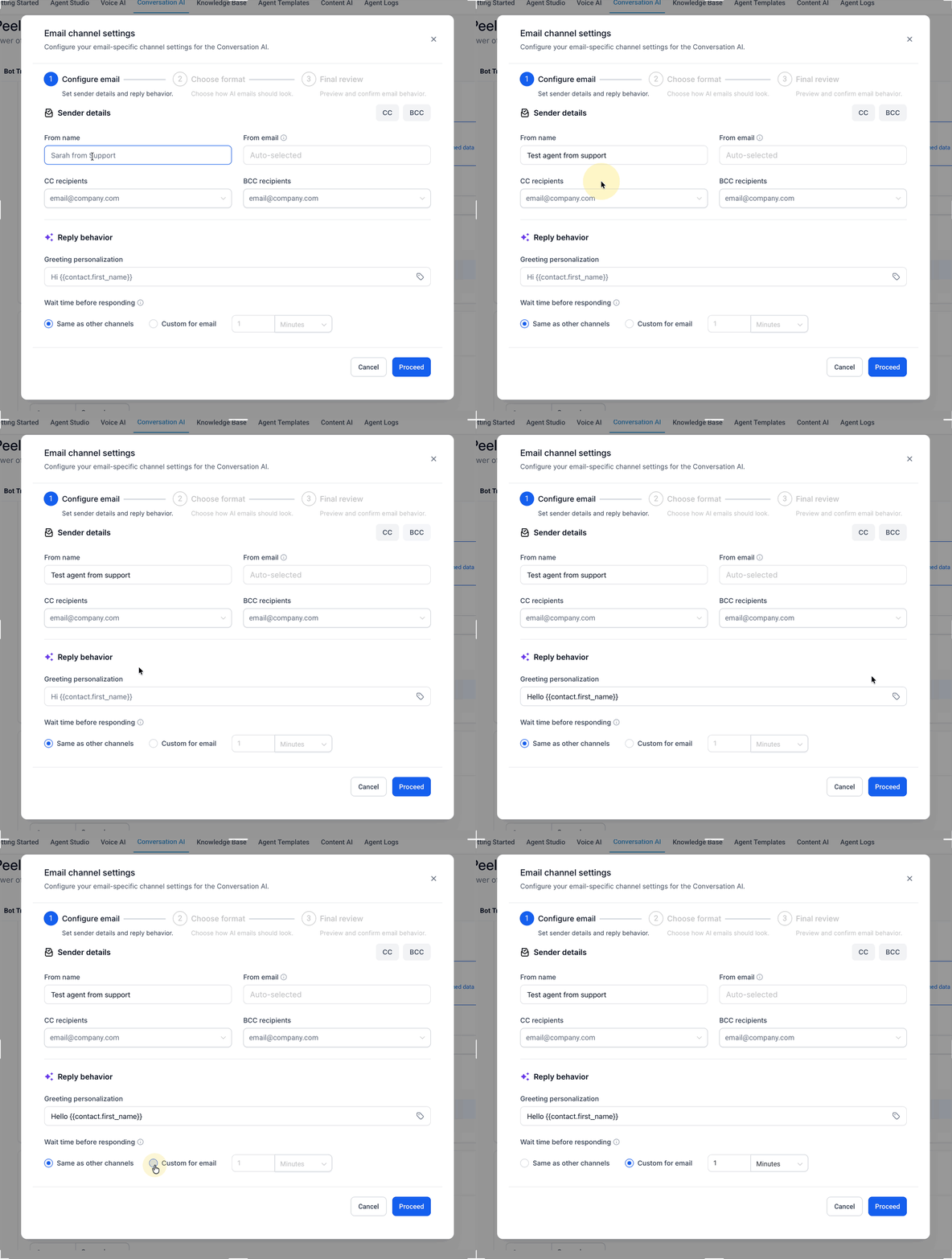
- Enter the Sender Name and select the From Address the bot will use.
- Add any default CC and BCC recipients for outgoing replies.
- Set the Wait Time for the bot’s reply delay, up to 12 hours.
- Define the Greeting Personalisation message using custom fields.
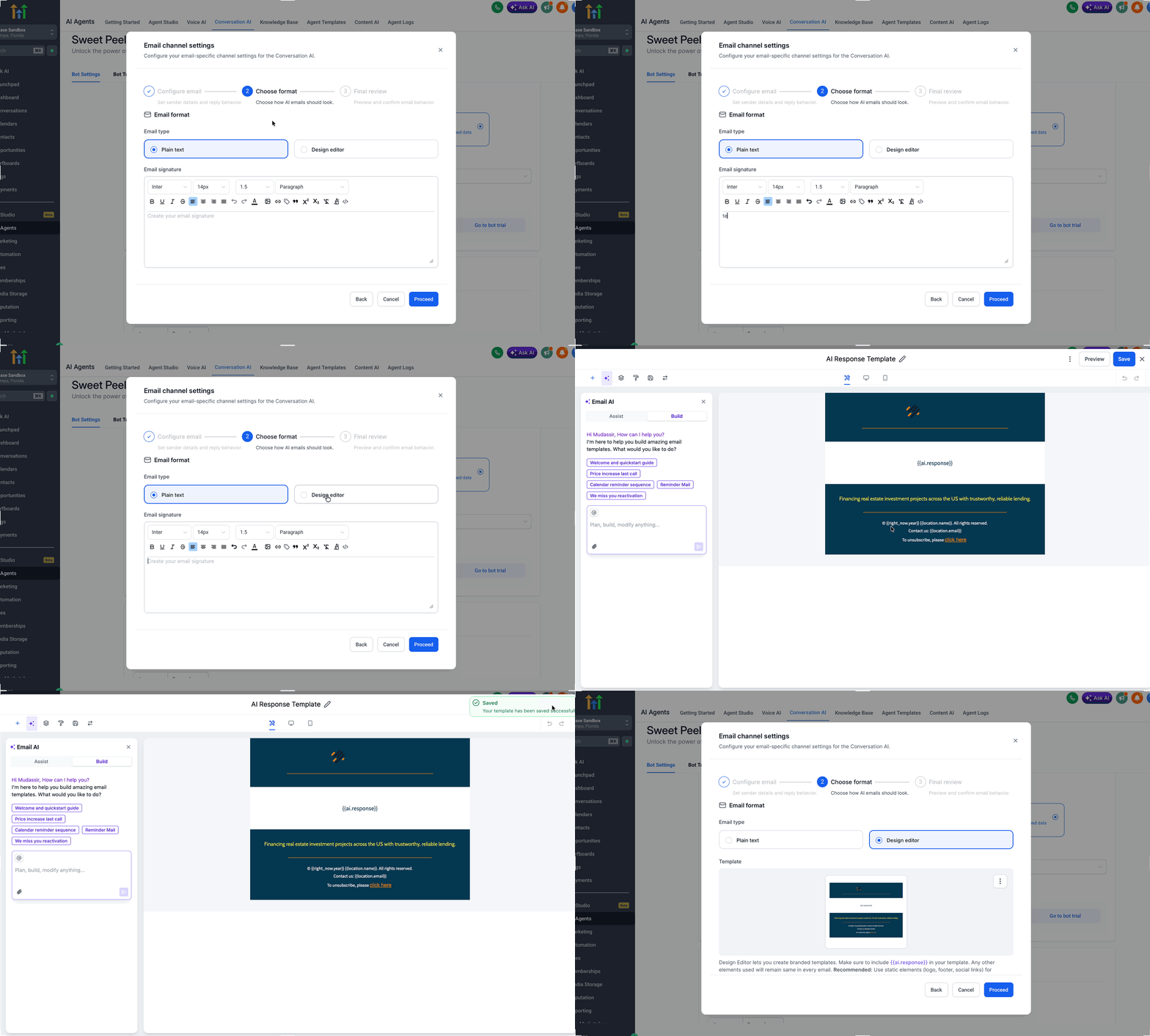
- Choose either Plain Text or Design Editor as the email format.
- If Design Editor is chosen, open or create the template, add branding, and place the required AI response placeholder.
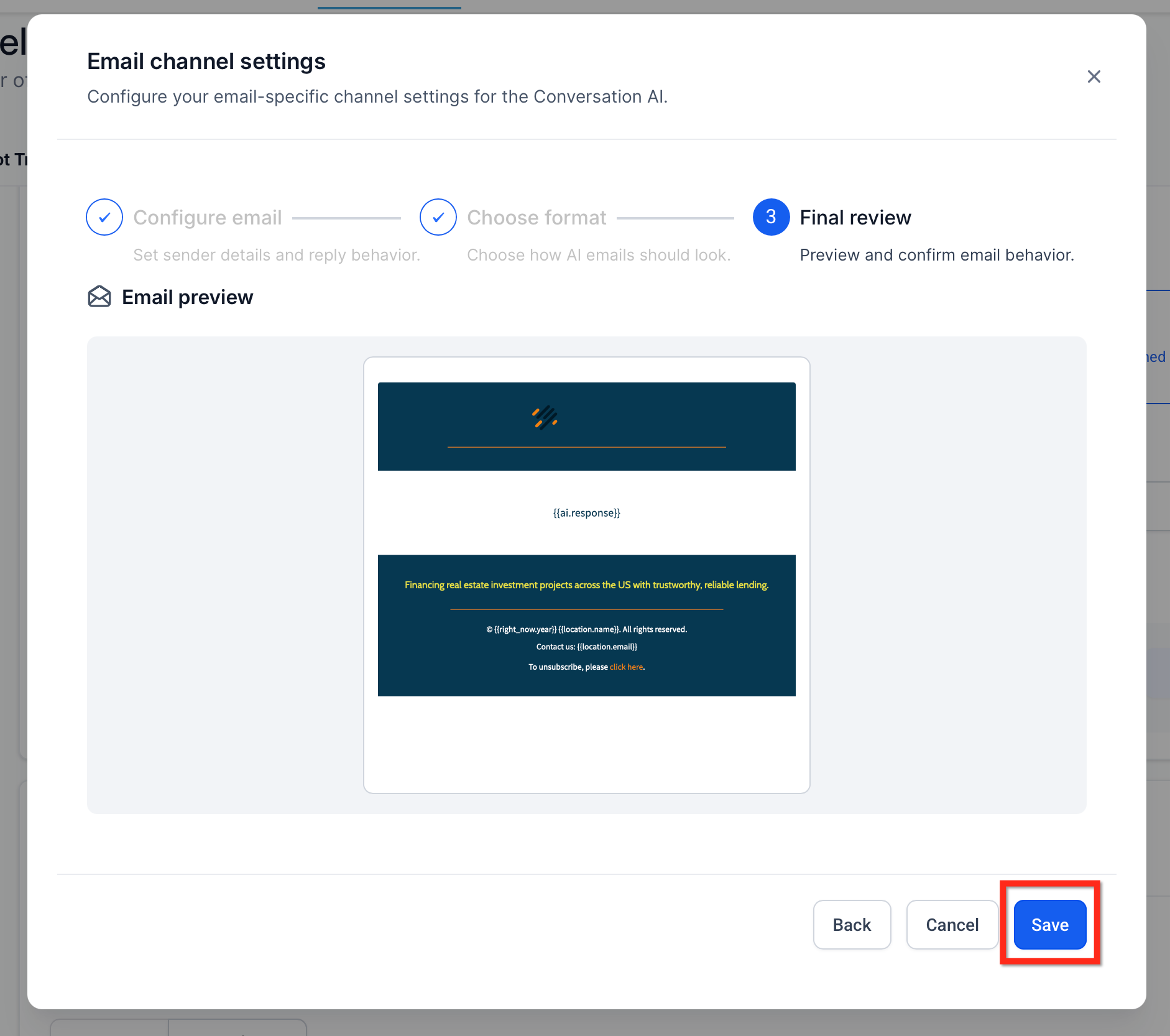
- Review the email preview to ensure correct layout and content.
- Click Save, then send a test email from an external address to confirm the bot replies in the correct thread.
07What it looks like in HighLevel
08Settings that matter
- Sender Name. Specifies the name displayed as the email sender for bot replies.
- From Address. Determines the email address used when the bot sends a response.
- Default CC and BCC recipients. Lists contacts that automatically receive copies of each bot reply.
- Greeting Personalisation. Allows dynamic greetings that can include custom fields such as the contact’s name.
- Sign, off and signature. Adds a closing line and optional branding details to each email.
- Response delay. Sets how long the bot waits before sending a reply, with a maximum of 12 hours.
- Plain Text or Design Editor formatting. Chooses between a simple text only email or a branded HTML template that must contain the AI response placeholder.
09Things to know before you rely on it
- Wait Time can be set only up to 12 hours.
- Design Editor format requires the AI response placeholder to be placed in the template body.
- Email is not supported in the Conversation AI Workflow Action; it only applies to direct bot replies.
- Non primary bots will not reply to general inbound emails unless routed via a workflow.
10If something goes wrong
- Bot does not reply to inbound emails even though Email is enabled.. Ensure the bot is set as the primary bot or route the conversation through a workflow to a non primary bot.
- AI reply is missing from a branded template.. Add the required AI response placeholder to the template body where the generated reply should appear.
11How it connects to the rest of HighLevel
- Learn how to build a Conversation AI flow Conversation AI flow builder
- View bot status for individual contacts Bot status
- Manage granular permissions for Conversation AI agents Granular permissions
Michael's take

Wondering if adding email to your bot actually saves time? The short answer is yes. It lets you answer new leads and support tickets automatically while keeping your branding tight and the email thread intact. You set up the inbox, pick plain text or a branded template, and let the bot handle the first reply.
If I were rolling this out, I’d start with a simple plain text reply and run a few test emails to confirm the thread stays consistent. Once the basics work, I’d switch to a design editor template so every outgoing message carries the company logo and signature.