
01Who this is for
- Customer support teams can trace how the AI answered tickets and where it handed off to a human.
- Marketing managers can verify that AI actions match campaign guidelines and respond correctly to lead queries.
- Product owners can audit tool usage and response latency to ensure the bot meets performance expectations.
02Agent logs, explained
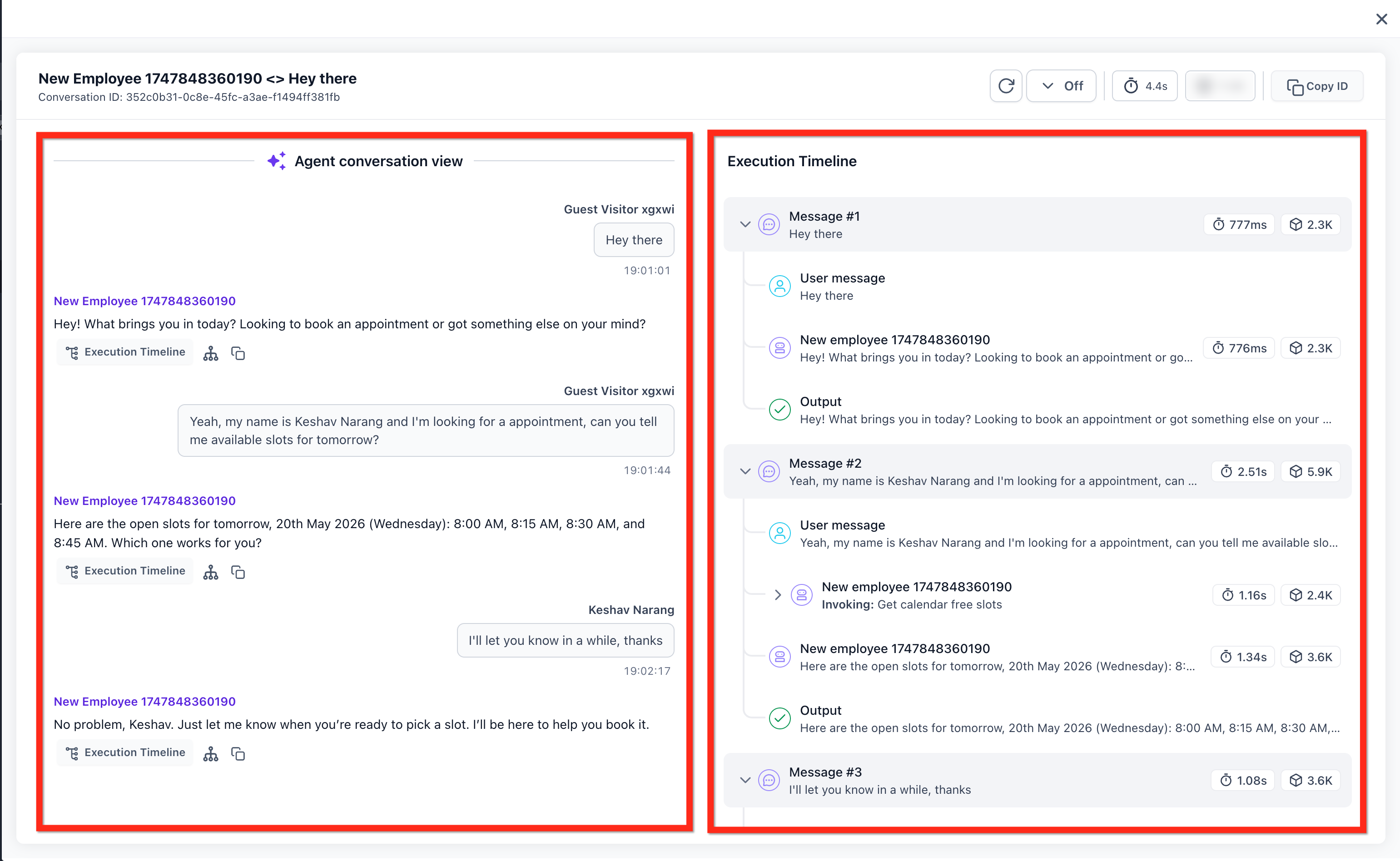
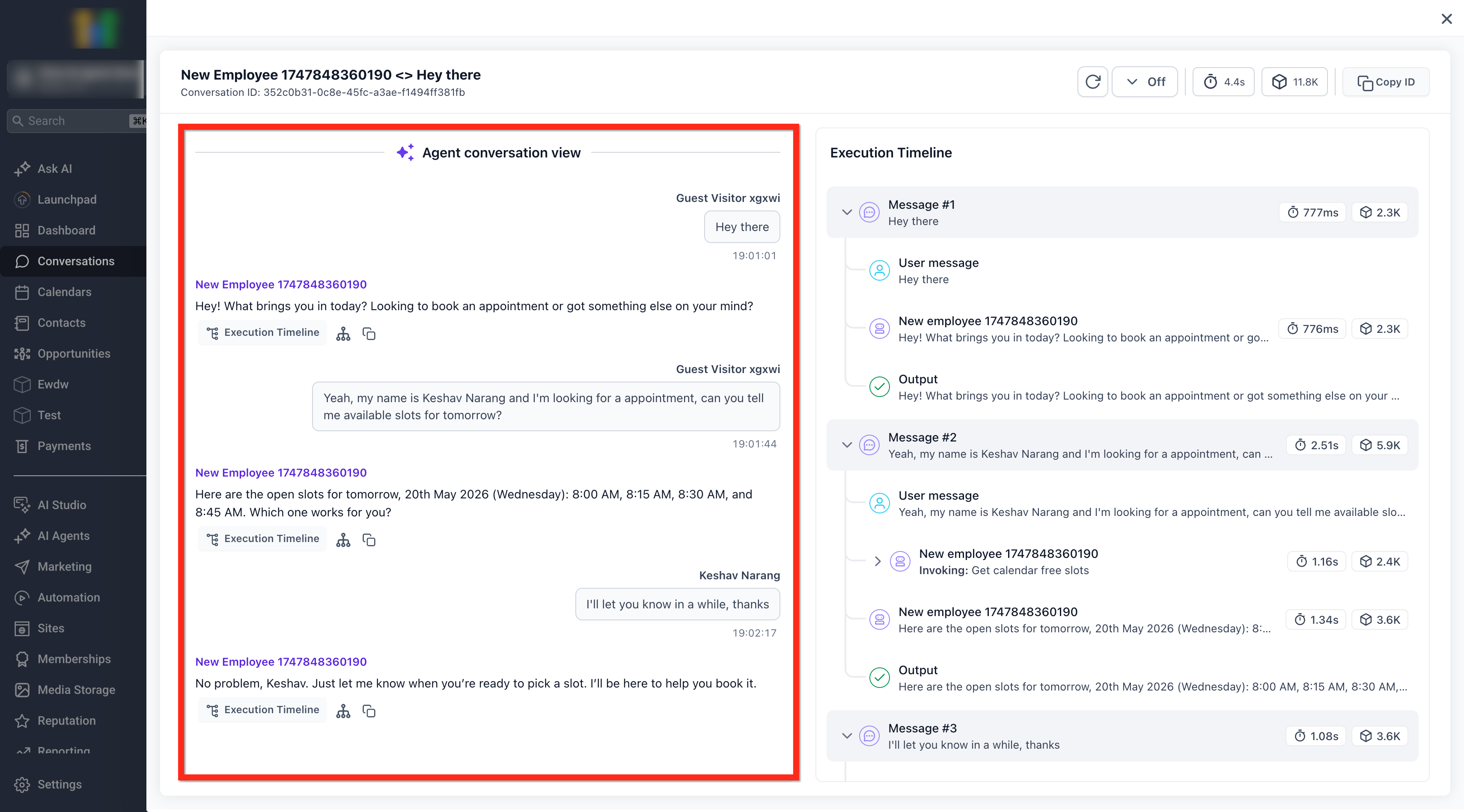
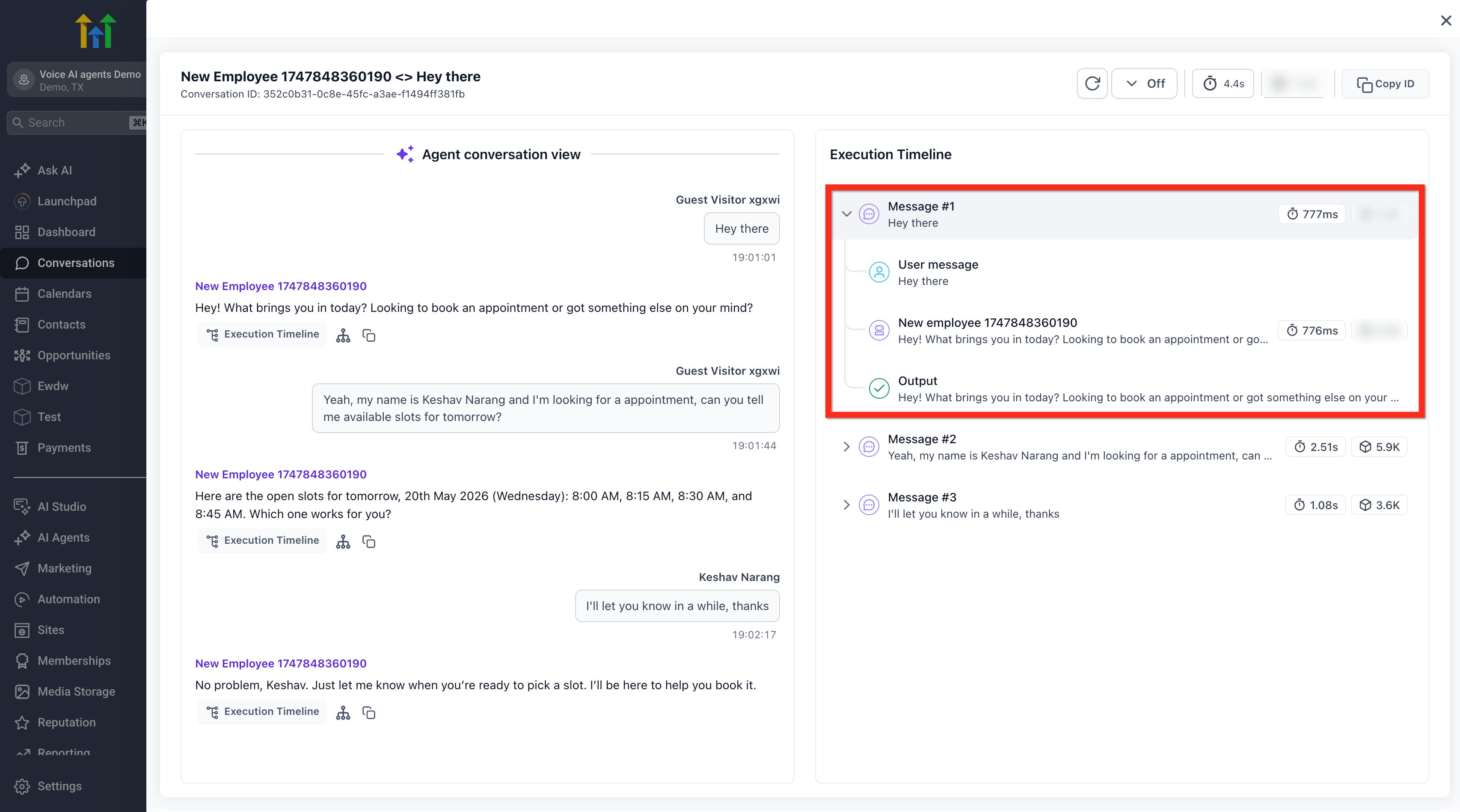
Agent Logs provide a detailed replay of a Conversation AI session. After a contact exchanges messages with the AI, the log records each turn, the actions selected, the data passed to tools, and the time each step took. This information appears in a raw conversation pane and an execution timeline that visualizes the path taken.
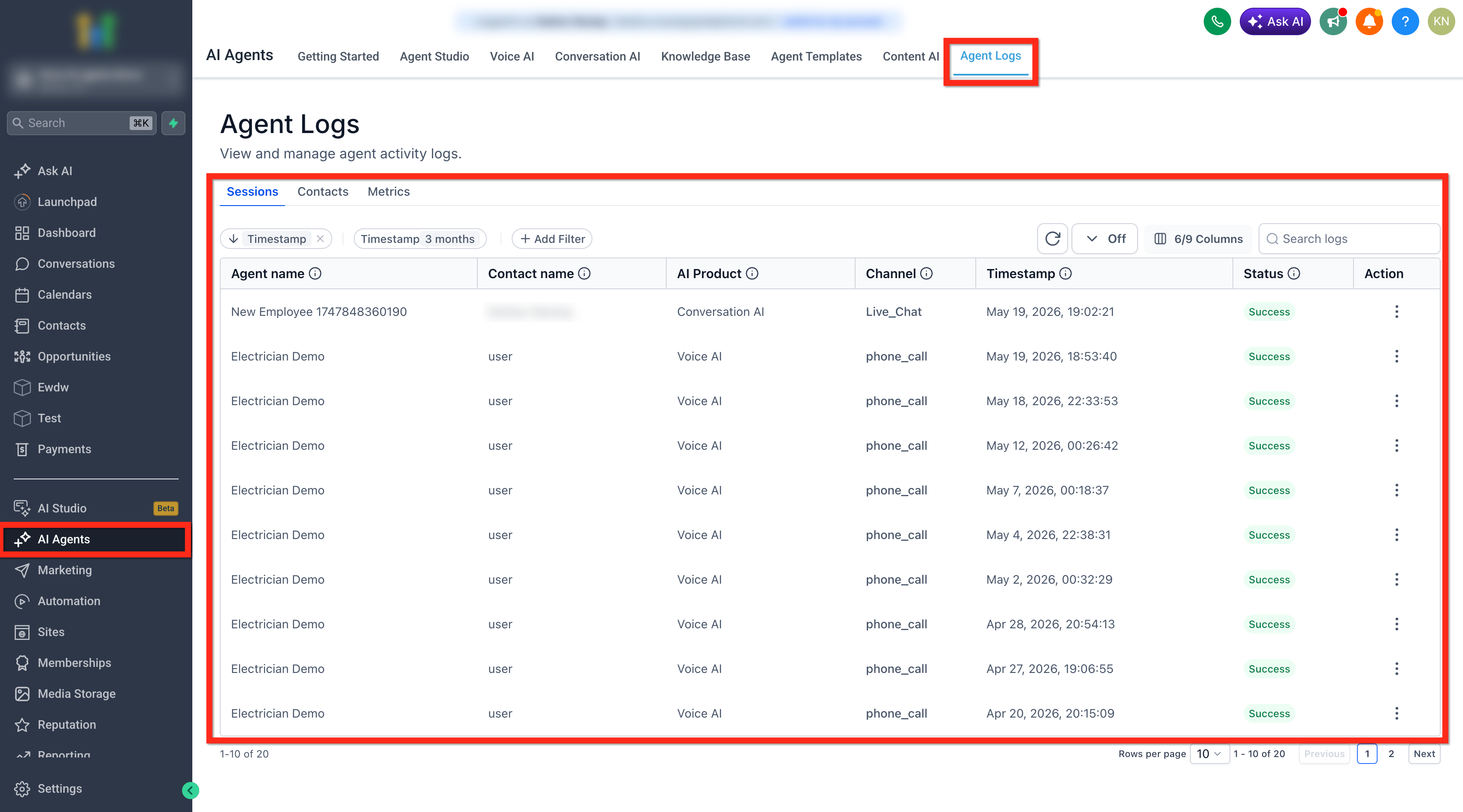
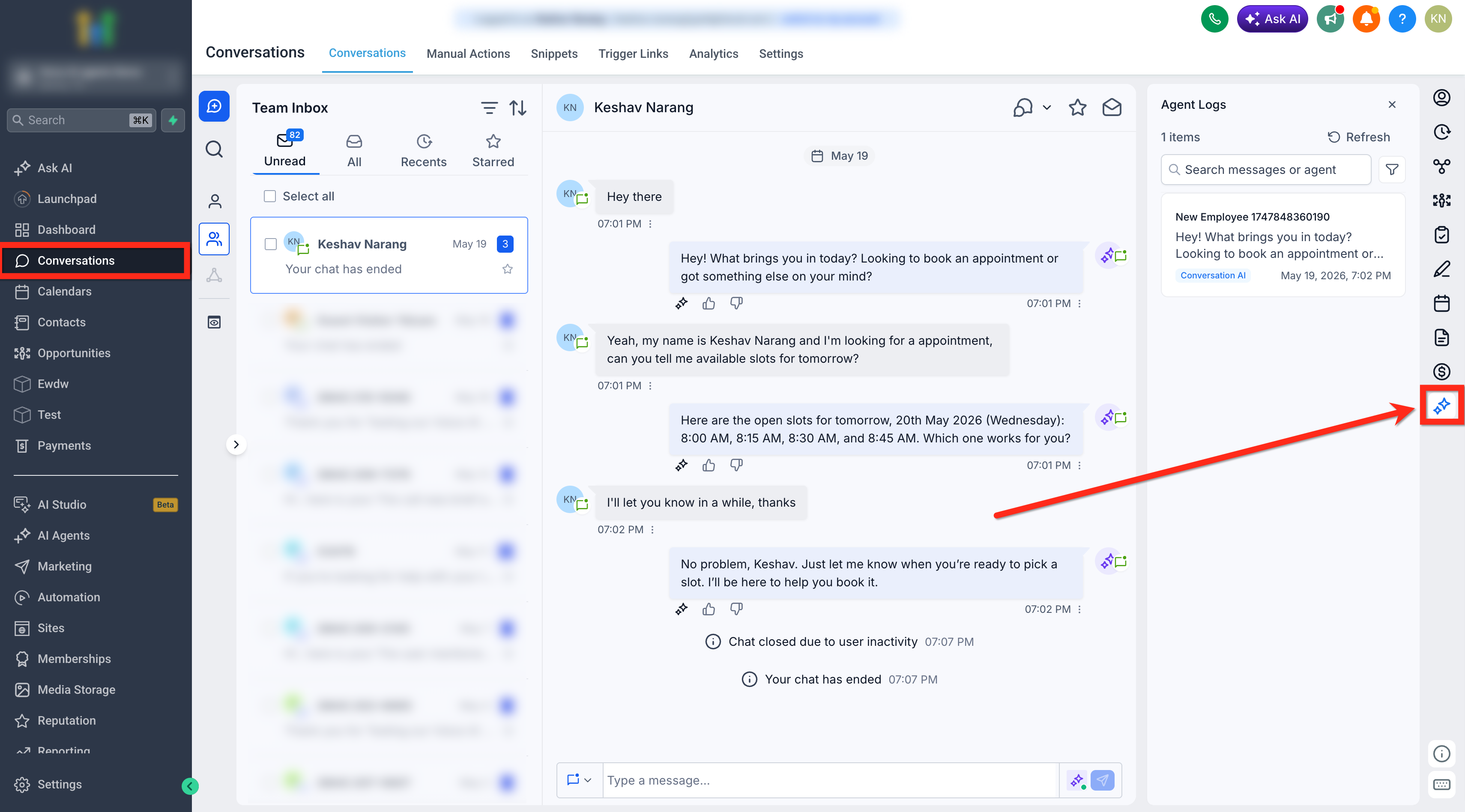
The logs are reachable from three places in the platform. The primary entry point is AI Agents > Agent Logs, which shows a Sessions view and a Contacts view. Users can also open a log directly from a conversation thread or from a contact record side panel. Within the log detail view, users may switch between parsed and raw data representations and use the search icon to find specific keywords or tool names.
Filters let users limit the list of sessions by AI product, channel, contact, time range or agent. The Metrics tab aggregates data across sessions, offering widgets such as total conversations handled, average response time and top actions. Layouts for metrics can be customized to prioritize the most relevant widgets.
03How businesses use agent logs
- Ecommerce store. A support agent opens the Agent Logs tab, selects a session where a buyer asked about order status, and reviews the tool call that retrieved shipping details. This confirms the AI fetched the correct information before replying.
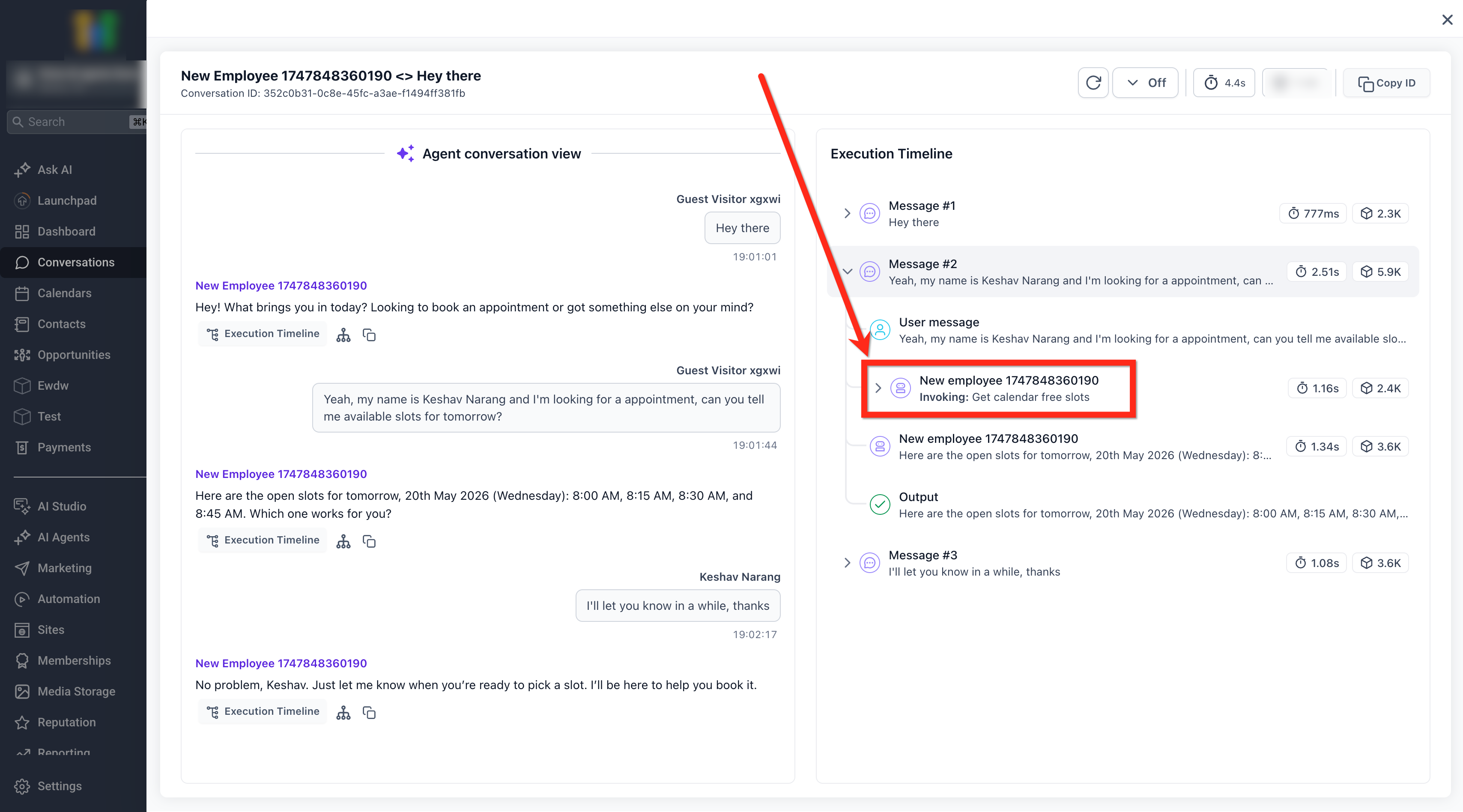
- Healthcare clinic. The clinic manager filters sessions by the appointment booking channel, opens a specific log, and checks the step where the AI queried calendar availability. This verifies the correct time slots were offered to the patient.
- Real estate office. A realtor uses the Contacts view to locate all AI interactions with a lead, opens each session, and examines the knowledge base search steps to ensure property details were provided accurately.
04The numbers and rules that matter
- Filters may include AI product, channel, contact, time range, agent.
- Metrics may include conversations handled, contacts reached, AI messages, average messages per conversation, average response time, top actions, top agents, top channels, most active contacts, activity over time, busiest hours, channel usage over time.
- Log detail view shows raw conversation, execution timeline, user messages, AI responses, tool or action calls, inputs and outputs, latency, status, copy or expand options, visual graph where available.
05How to set up and use agent logs in HighLevel
Open a session log
- Navigate to AI Agents > Agent Logs.
- Locate the desired session row in the Sessions view.
- Click the row or its action menu to open the log detail view.
Filter sessions
- In the Agent Logs page, select the Filters option.
- Choose criteria such as AI product, channel, contact, time range or agent.
- Apply the filters to refresh the session list.
Navigate the Log Detail View
- Use the header to identify the AI product and access session navigation controls.
- Select a completed action in the Business actions area to jump to its execution step.
- Click the search icon, enter keywords or tool names, and select a result to open the matching message or step.
06What it looks like in HighLevel
07How it connects to the rest of HighLevel
- Use the Conversation AI Agents dashboard for an overview of agent performance. Agents dashboard
- Create or edit a Conversation AI flow to generate the logs you will review. Flow builder
- Check a contact's real time AI status without leaving the contact record. Bot status
Michael's take

Agent logs are a clear window into what your AI did during a chat. Skip it if you never need to investigate AI actions or performance.