
01Who this is for
- Agency owners who sell AI Agent templates benefit because they can ship ready made source content together with the agent.
- Founders of service based businesses gain faster onboarding by receiving pre loaded FAQs and policy articles with the agent.
- Marketing teams that run support bots get standardized answers out of the box, reducing the need to rebuild knowledge from scratch.
02Knowledge Base bundling, explained
Knowledge Base bundling lets a template creator attach a set of Knowledge Base folders and articles to an AI Agent Marketplace template. When a buyer installs the template, the platform copies those folders into the buyer’s subaccount under AI Tools > Knowledge Base. The copied content is independent; edits by the buyer do not affect the original source.
The bundled content includes rich text pages, supported file attachments such as PDFs or images, table or CSV resources, and trained web links. It does not transfer private integrations, credentials or account specific items. After installation, the buyer can rename, replace or add new folders and must ensure the agent’s Knowledge Base node references the correct folders or tags.
The feature lives in the Marketplace publishing workflow for agents and in the AI Tools > Knowledge Base area for installed templates. Builders toggle the Include Knowledge Base option during publishing, and agencies locate the imported folders after installation.
03How businesses use Knowledge Base bundling
- Digital marketing agency. The agency creates a support chatbot template, bundles a Knowledge Base of common client FAQs, and publishes it. When a client installs the template, the pre loaded FAQ articles appear in their Knowledge Base, which they then customize with their branding.
- Ecommerce store. The store owner installs a sales assistant template that includes a Knowledge Base of product specifications and return policies. They replace placeholder tokens with their store name and URLs, upload additional product sheets, and verify the agent references the updated folders.
- Healthcare clinic. The clinic adopts a policy assistant template bundled with a Knowledge Base of privacy guidelines and appointment procedures. They duplicate the imported folder, edit the placeholders for clinic contact details, add their own consent forms, and re point the agent’s Knowledge Base node to the new folder.
04The numbers and rules that matter
- Supported file attachments (e.g., PDFs, images) that belong to included folders are copied.
05Before you start
- A Knowledge Base must already be attached to the AI Agent in AI Agent Studio before toggling Include Knowledge Base during publishing.
- The target subaccount must exist for installing a Marketplace template.
06How to set up and use Knowledge Base bundling in HighLevel
Install & locate the bundled Knowledge Base
- Install the Marketplace template into the chosen subaccount.
- Confirm that the installer shows Knowledge Base Included and complete the installation.
- Open AI Tools > Knowledge Base and find the imported folders, which may be prefixed with the template name or install date.
Customize & replace content
- Duplicate the imported folder before making extensive edits to keep an original copy.
- Search for placeholder tokens such as {{Brand}}, {{Phone}} or {{URL}} and replace them throughout the articles.
- Upload your own policies, FAQs and product sheets, preferring text first sources for better retrieval.
- If new folders were created, update the agent’s Knowledge Base node in AI Agent Studio to include the new folders or tags.
Include Knowledge Base during marketplace publishing
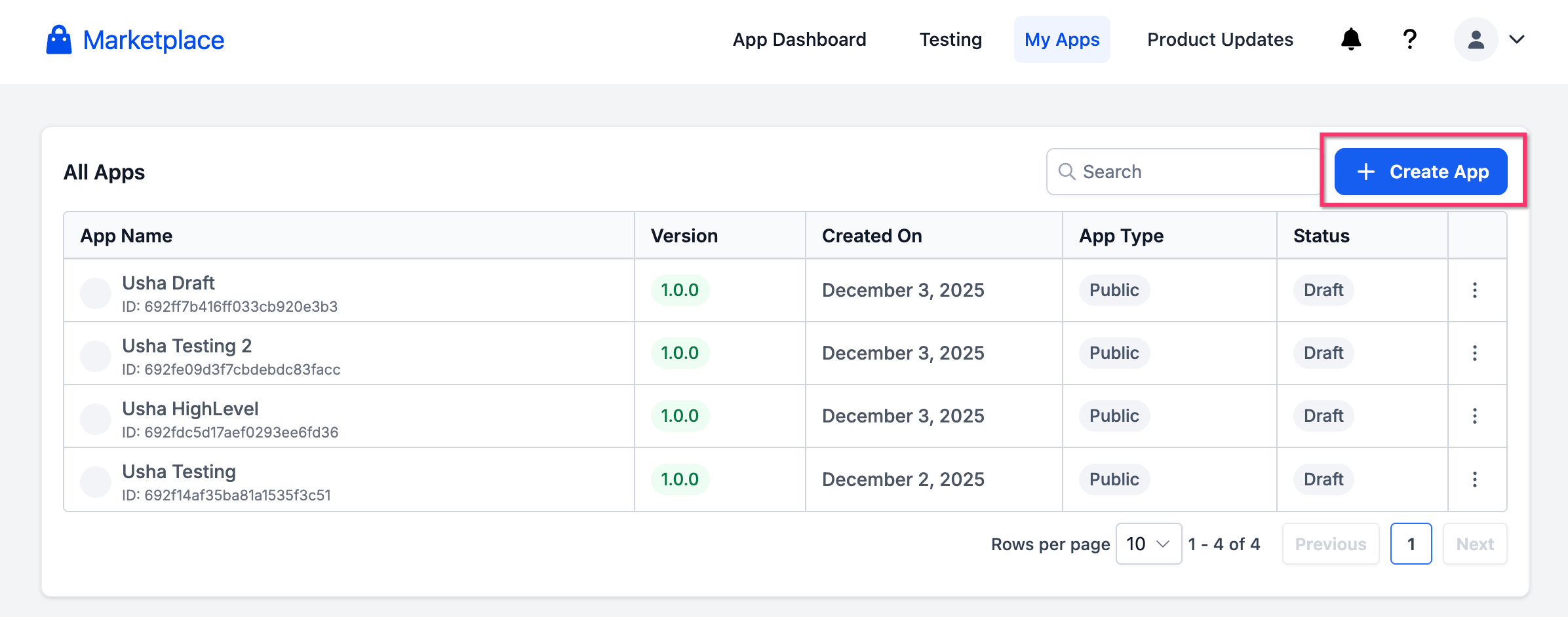
- Open the Marketplace Developer Portal and navigate to My Apps.
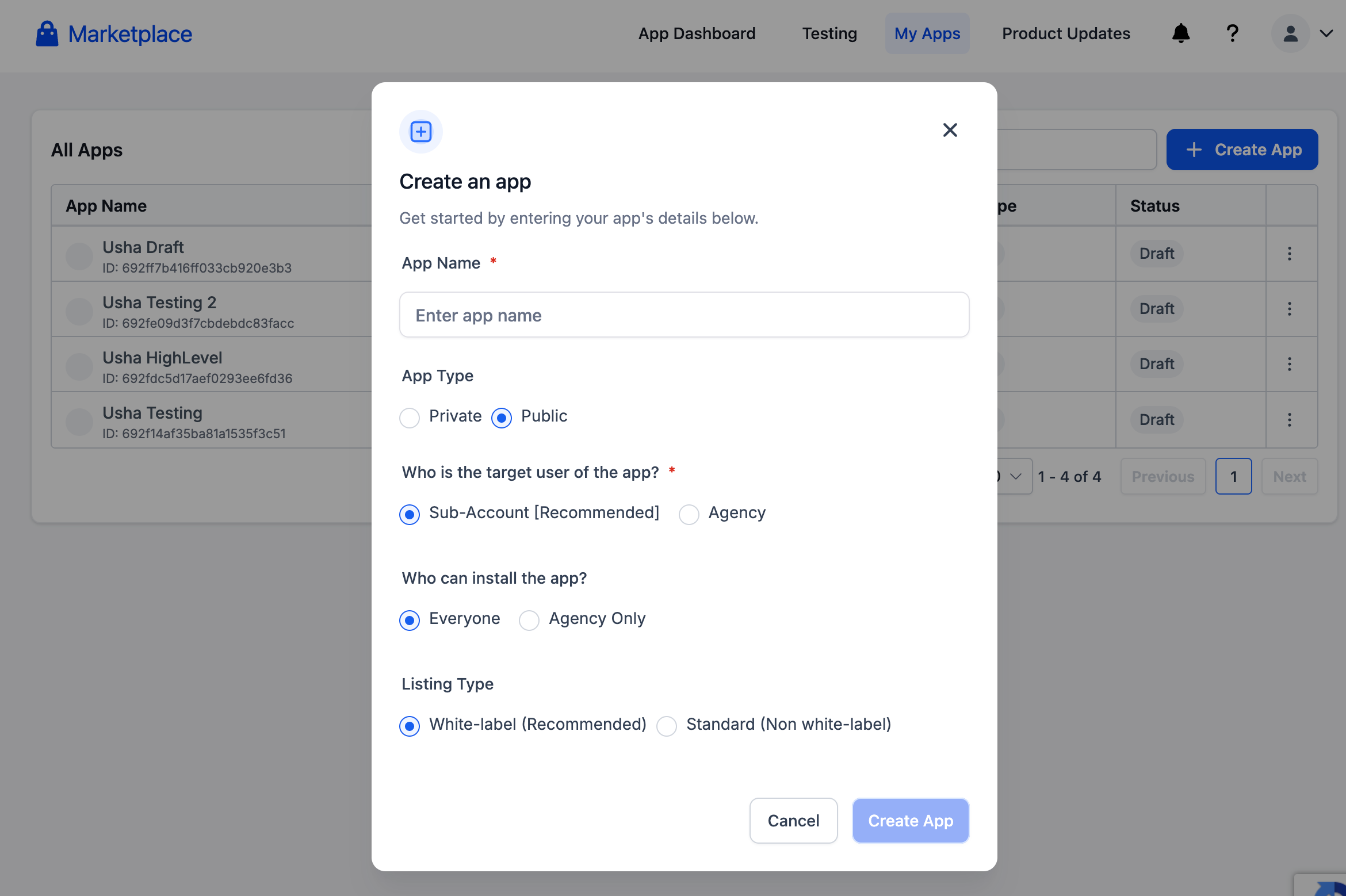
- Click Create App to start a new application.
- Enter all required basic application details.
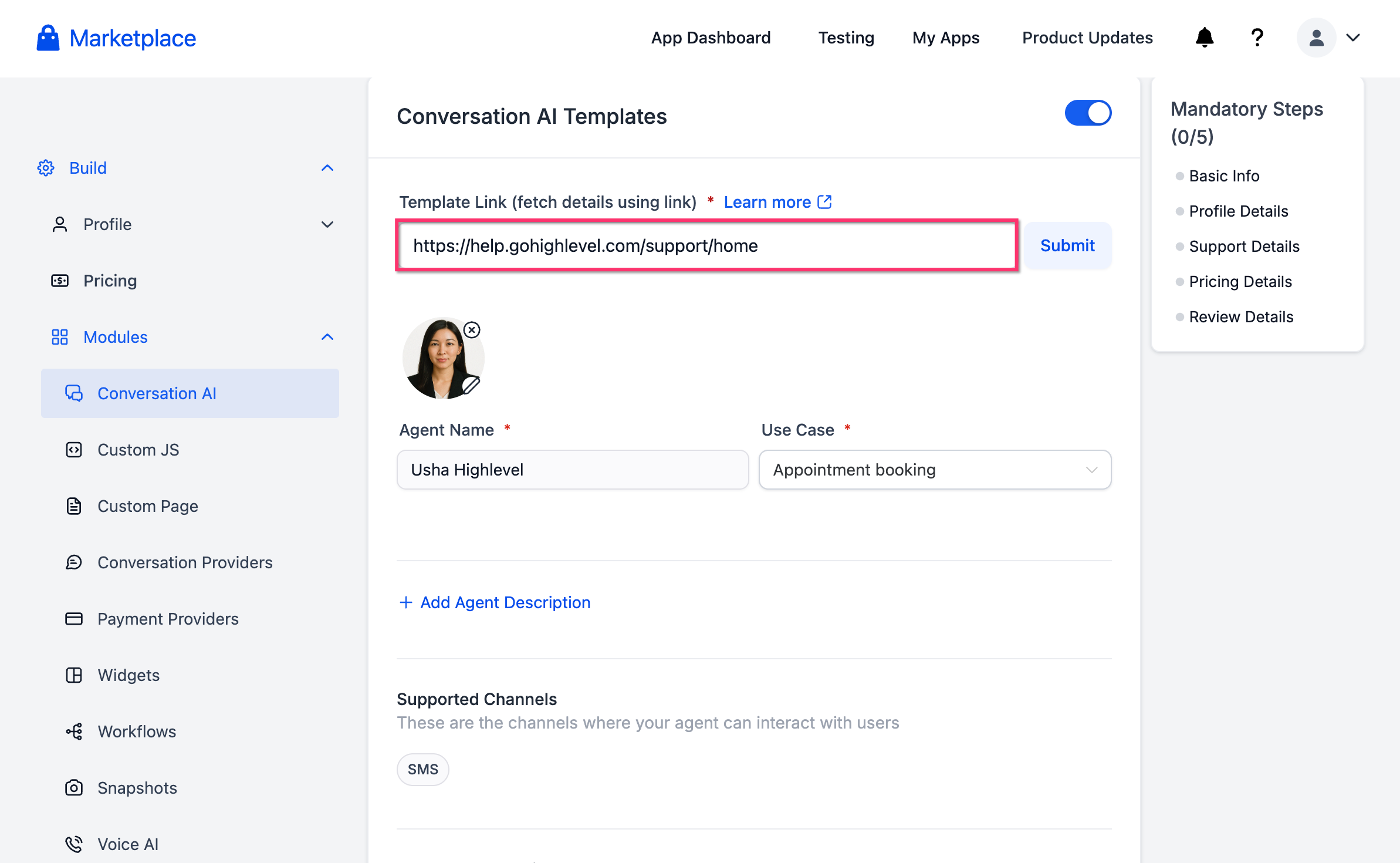
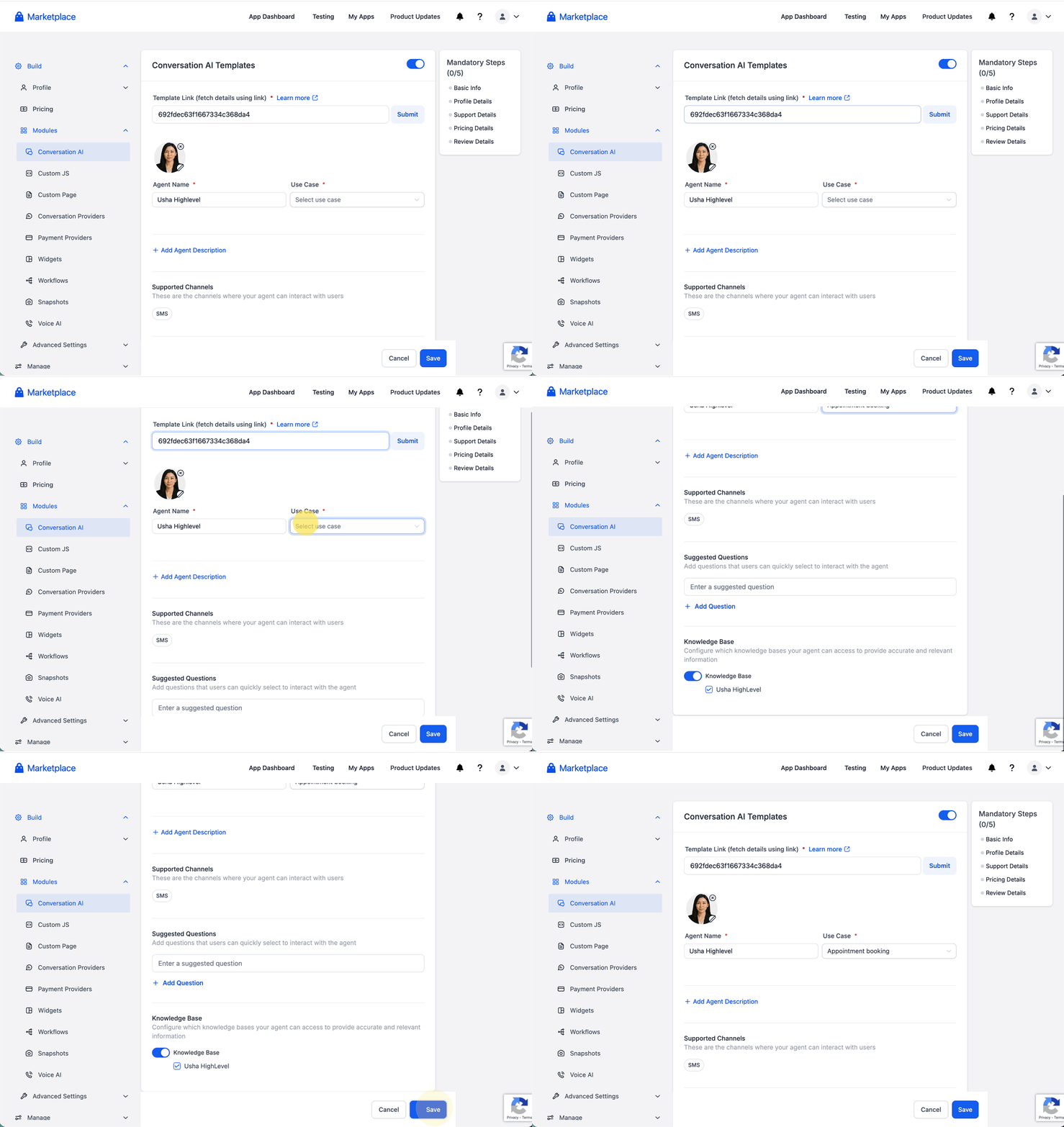
- In the app builder, open Modules > Conversation AI, paste the knowledge base link, and scroll to the Knowledge Base section.
- Toggle Include Knowledge Base on, confirming the correct Knowledge Base is attached in AI Agent Studio; add one if missing.
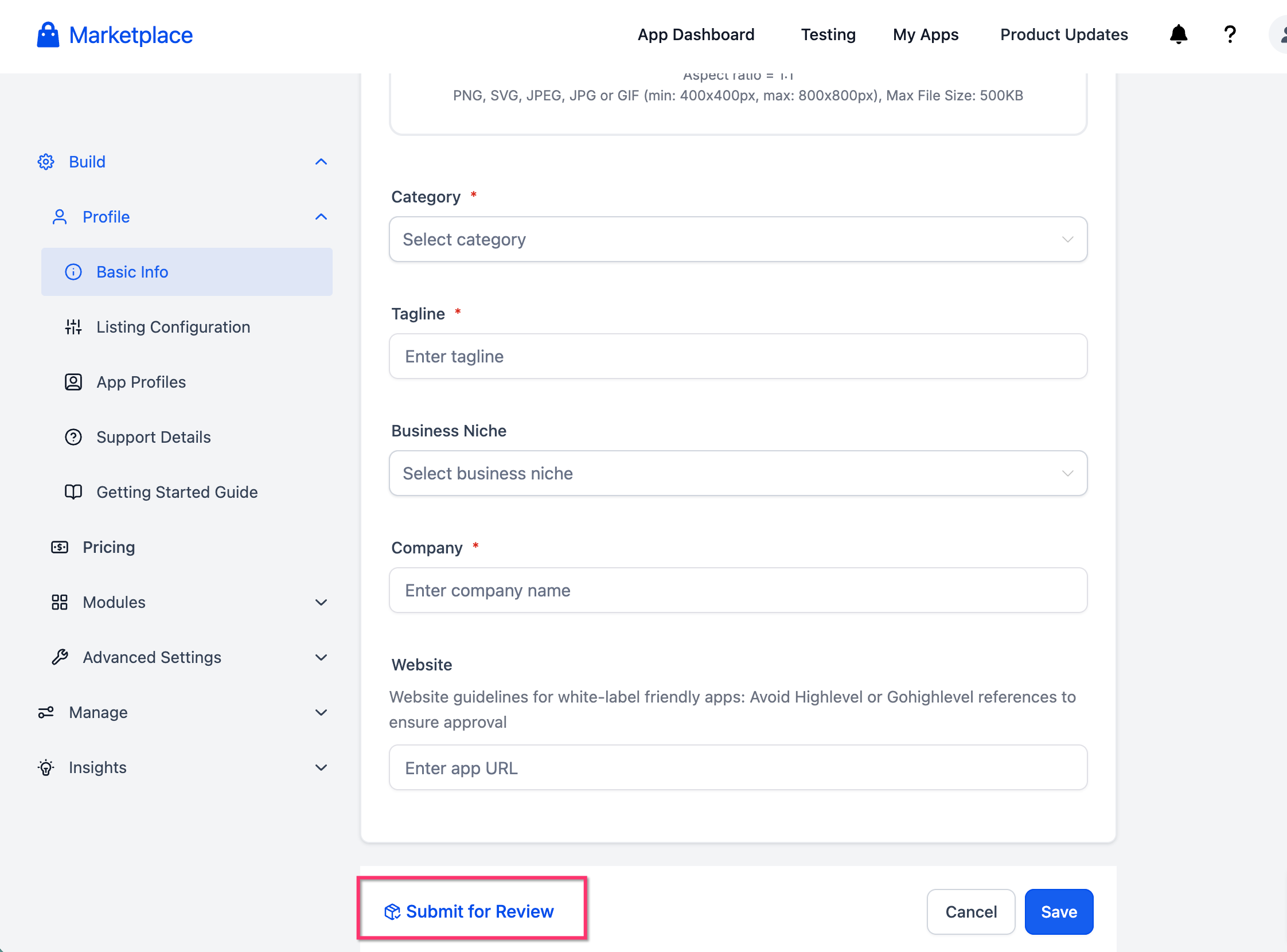
- Complete the listing information (name, description, category, pricing/visibility) and submit for review.
- After approval, install the template in a test subaccount and verify the agent retrieves answers from the bundled Knowledge Base.
07What it looks like in HighLevel
08Settings that matter
- Include Knowledge Base. Controls whether the selected Knowledge Base is packaged with the AI Agent template during marketplace publishing.
09Things to know before you rely on it
- The bundled Knowledge Base is copied into the installing account; edits made by the buyer do not affect the original source.
- Future changes to the creator’s original Knowledge Base are not automatically synced to already installed templates; a new template version must be released for updates.
- If multiple templates with similarly named folders are installed, the system creates separate copies to avoid naming collisions; agencies can merge or rename them later.
- Large file attachments should remain within platform size limits, and text first sources are preferred for optimal retrieval.
10How it connects to the rest of HighLevel
- Manage Knowledge Base sources with the new UI Knowledge Base overview
- Use document and rich text support in Knowledge Base articles Document support
- Import and re sync Google Drive files into the Knowledge Base Google Drive integration
Michael's take

Wondering if you need to bundle a Knowledge Base with every AI agent you sell? If the agent relies on FAQs, policies, or product details to respond accurately, packaging a ready made KB saves the buyer time and reduces back and forth questions.
If I were creating a template, I would first build a clean, placeholder filled Knowledge Base that matches the agent’s use case. Then I’d test the agent in a fresh subaccount to make sure the bundled articles are being pulled correctly before I push it to the Marketplace.