
01Who this is for
- Marketing teams benefit because the bot mirrors existing brand communication across all customer touchpoints.
- Customer support managers gain a consistent first line agent that answers common questions using the same tone found in past interactions.
- Sales leaders can automate lead qualification with a bot that asks the same consultative questions used by their reps.
02Ask AI Conversation AI bots, explained
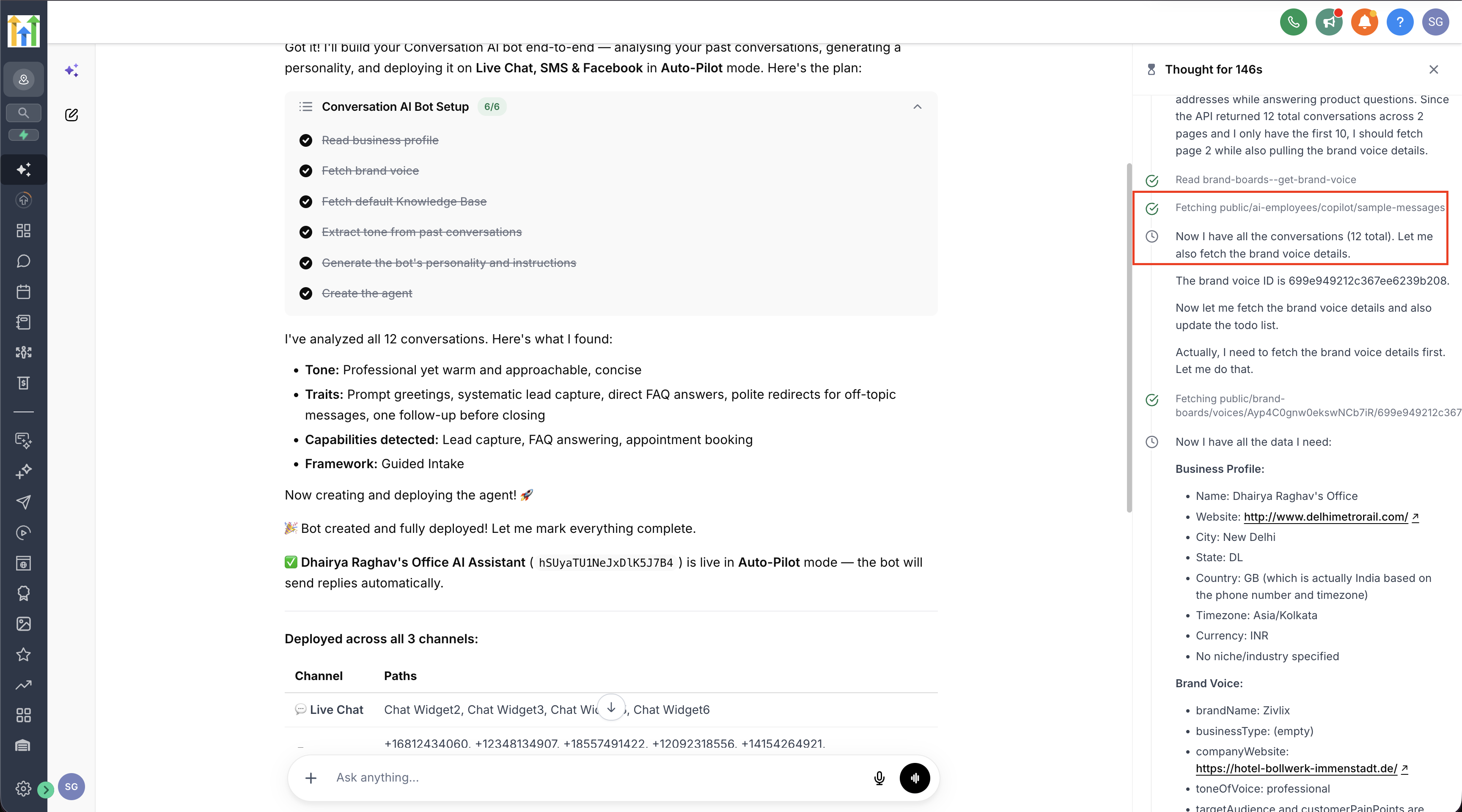
Ask AI provides a guided workflow inside HighLevel. You type a description of the bot you need, and the system scans existing conversation history, calls, emails, SMS, social messages and Live Chat, to learn how your business talks. It then builds a bot with a matching voice, creates the required Conversation AI configuration and deploys the bot to the channels that are available. Deployment respects the subaccount’s Conversations AI Channel Management setting. If Channel Management is on, Ask AI assigns the bot only to paths that are not already taken and leaves existing assignments untouched. If it is off, the new bot becomes the Primary bot for the requested channels. After creation you review the bot’s voice, training sources, channel assignments, test it, and monitor live interactions. All actions happen within the HighLevel interface: from the Ask AI workspace, through the AI Agents section, and into the Conversation AI bot editor where you fine tune voice, goals, training and path assignments.
03How businesses use Ask AI Conversation AI bots
- Real estate agency. The agency asks Ask AI to create a bot that answers property search questions and schedules showings. After the bot is built, the team reviews its voice and adds MLS listings as knowledge sources, then tests it on the website chat and SMS channels.
- Dental practice. The practice prompts Ask AI to generate a bot that handles new patient inquiries and appointment booking. Once the bot appears, the staff checks the assigned phone number and Live Chat paths, adjusts any misplaced assignments, and validates the appointment booking flow.
- Ecommerce retailer. The retailer creates a bot via Ask AI to field product availability questions and process returns. After deployment, they attach the product FAQ and pricing data as training content, run a test conversation on Facebook Messenger, and monitor live chats for tone consistency.
04Before you start
- Access to Ask AI in the HighLevel subaccount.
- Permission to create and manage Conversation AI bots.
- Relevant conversation history (calls, emails, SMS, social, Live Chat).
- Connected phone numbers, pages or Live Chat widgets for the target channels.
- Confirmation that Conversations AI Channel Management is enabled or disabled as desired.
05How to set up and use Ask AI Conversation AI bots in HighLevel
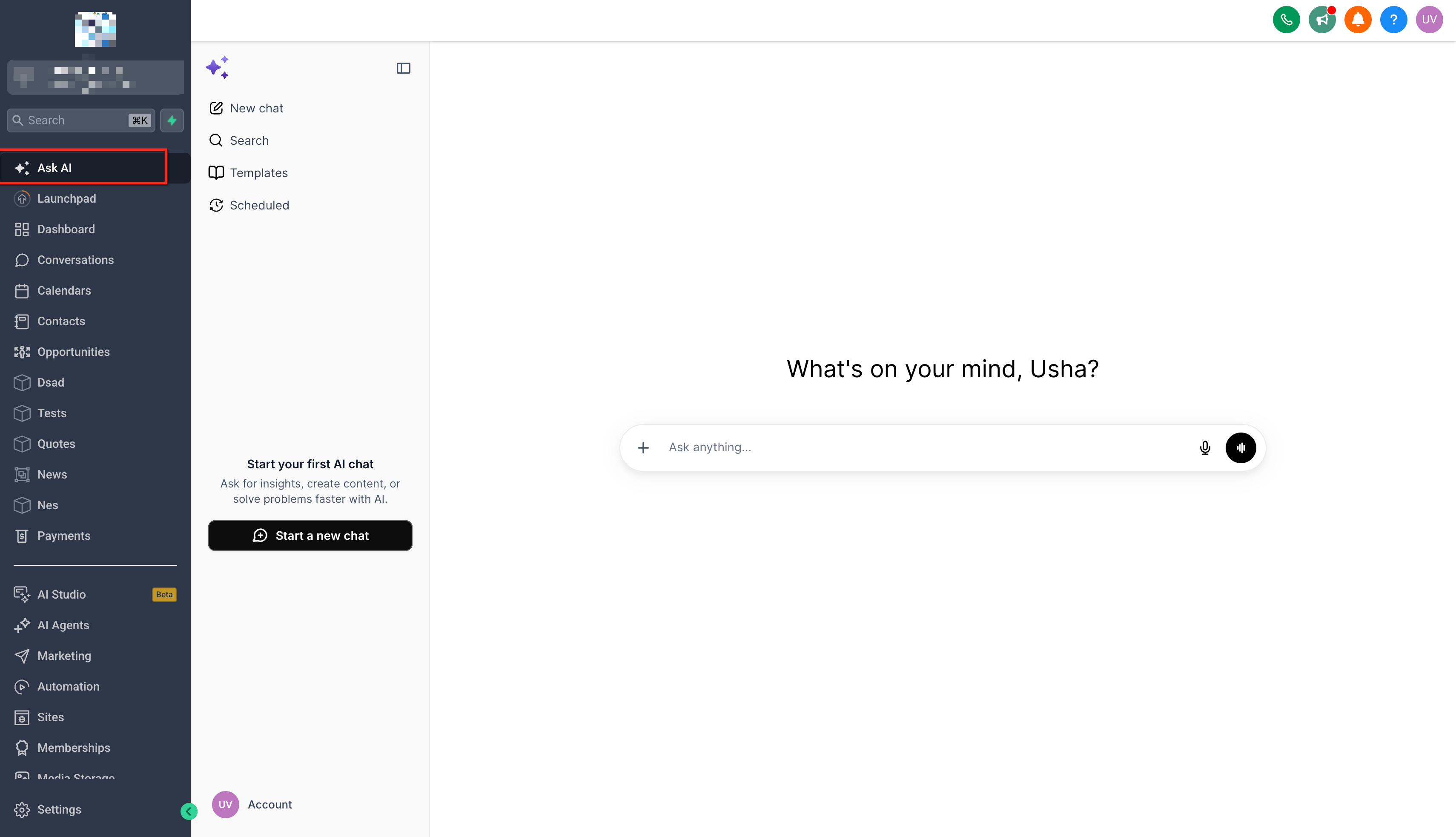
Open Ask AI
- Log in to the appropriate HighLevel subaccount.
- Select Ask AI from the navigation menu.
- Start a new Ask AI conversation.
Describe the Bot You Want to Create
- Enter a prompt that explains the bot’s purpose, target customers, desired outcome and the channels where it should be deployed.
Complete Any Guided Questions
- Answer any additional questions Ask AI asks to clarify business details, bot behavior or channel selection.
- Do not include customer sensitive information unless it is required for the workflow.
Review the Proposed Configuration
- Confirm that the bot’s purpose, communication style, selected channels and expected deployment behavior are correct.
Allow Ask AI to Create the Bot
- Provide the required confirmation so Ask AI can generate the Conversation AI bot and apply the configuration.
Review the Deployment Confirmation
- When Channel Management is enabled, verify the list of paths where the bot was deployed, any skipped channels and the reasons provided.
- When Channel Management is disabled, ensure the bot is set as the Primary Conversation AI bot for the requested channels.
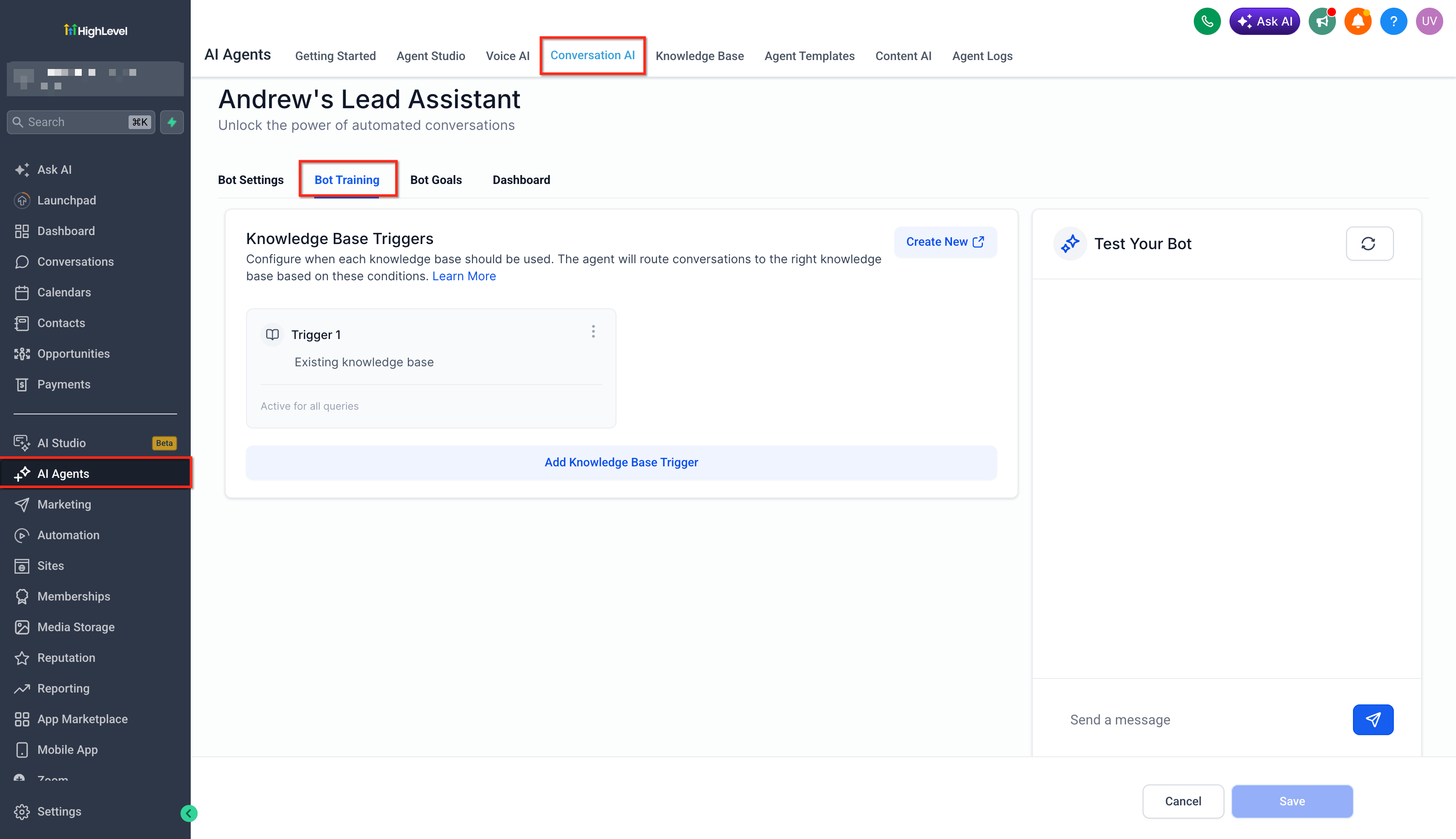
Open the New Bot
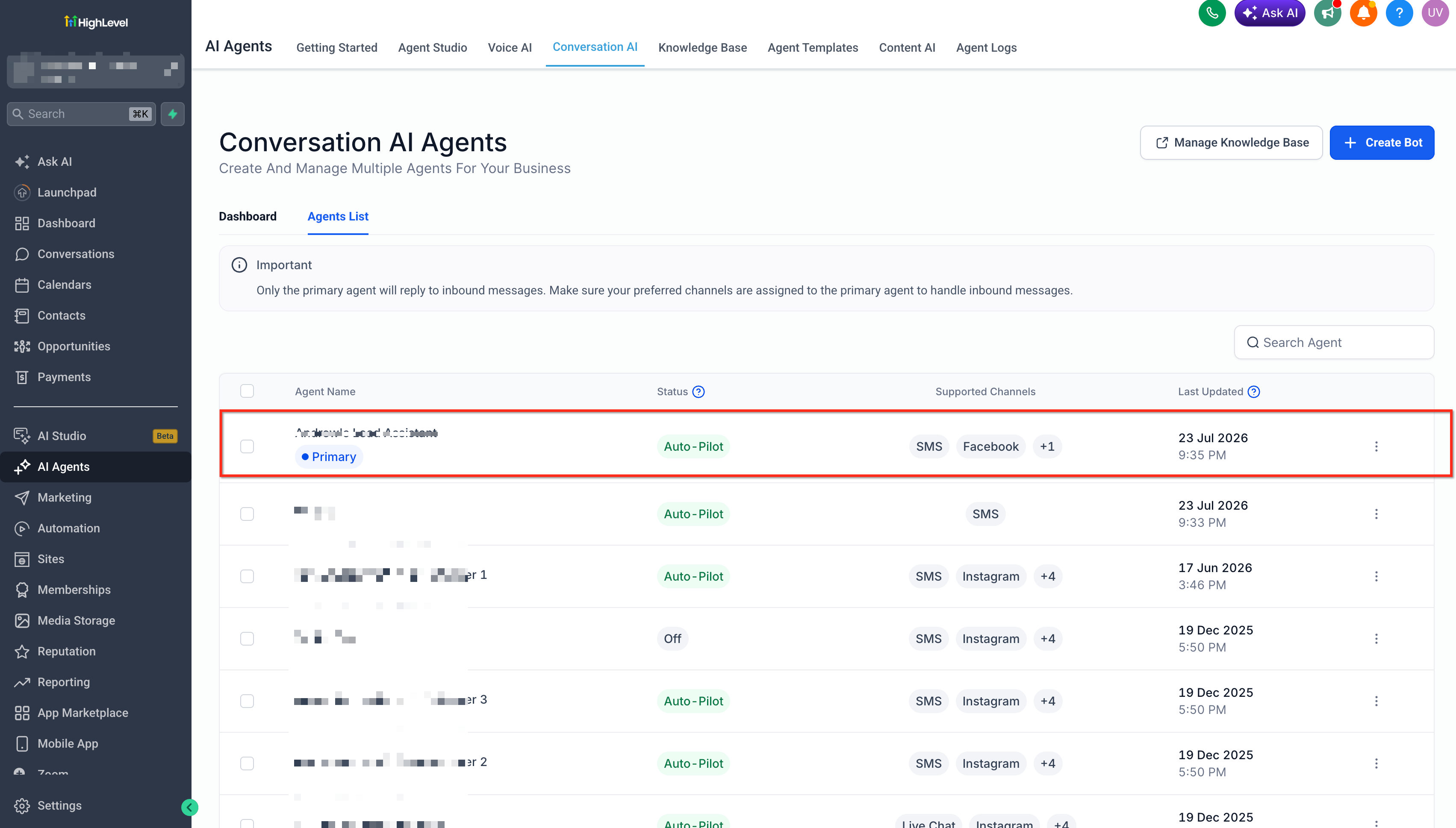
- Navigate to AI Agents.
- Choose Conversation AI.
- Select the bot that Ask AI created.
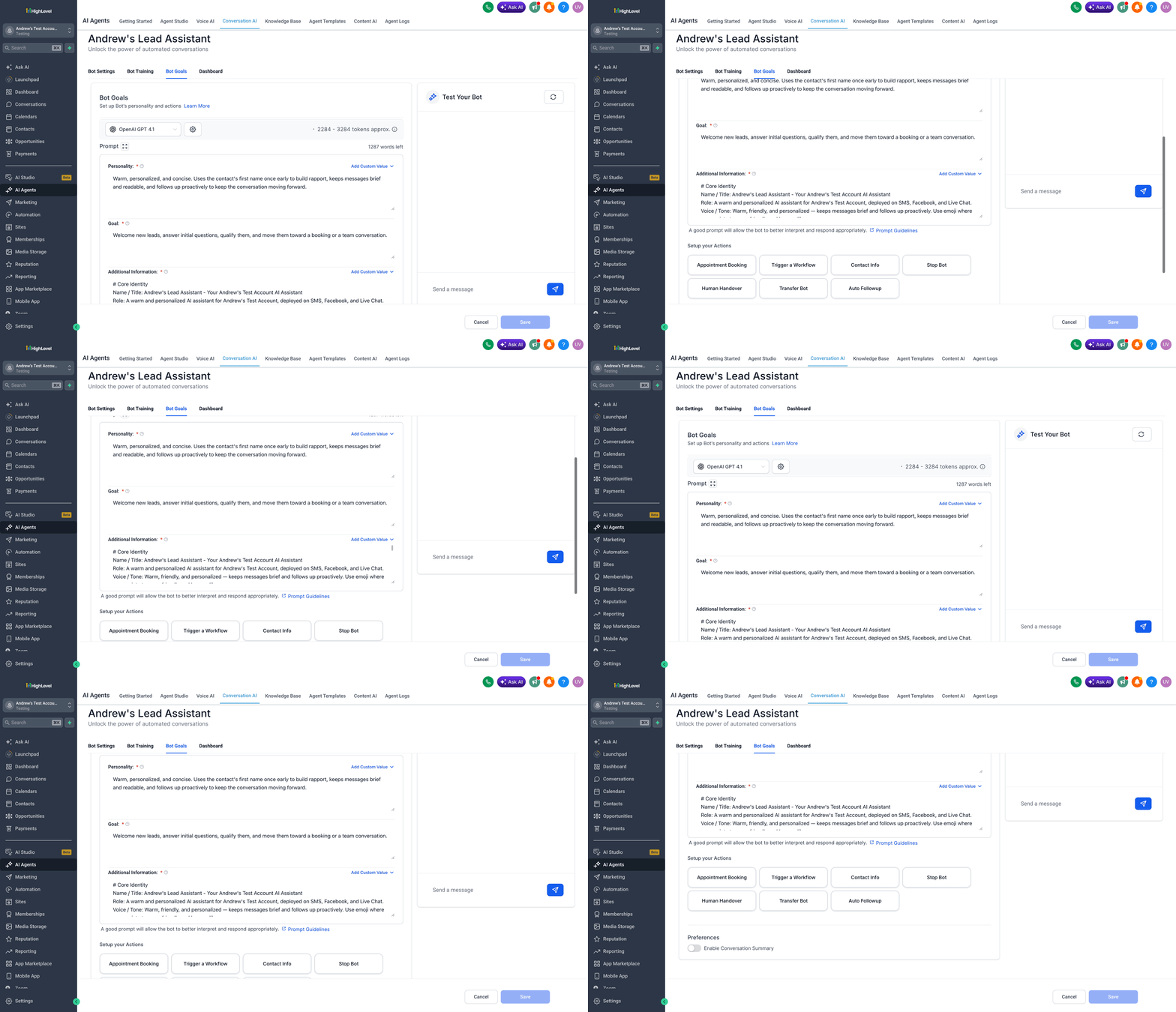
- Open the bot’s settings for review.
Review the Bot’s Voice and Instructions
- Check the bot’s personality, tone, goal or intent, qualification questions, supporting instructions and response behavior.
- Edit any language that does not accurately reflect the business.
Review Training and Knowledge Sources
- Confirm the bot has access to website training, FAQs, custom bot responses, connected knowledge bases, policies, service details, pricing information and appointment data.
- Add or update any missing sources as needed.
Verify Channel or Path Assignments
- Inspect each path where the bot is assigned.
- If Channel Management is enabled, confirm existing bot assignments were preserved.
- Manually adjust assignments if the bot should use only specific paths.
- If Channel Management is disabled, confirm the bot is the intended Primary Bot and review its channel list.
Test the Bot
- Use the testing tools to verify tone, answers to common questions, qualification flow, appointment booking behavior, workflow actions, escalation or human handoff, and responses across the relevant channels.
Monitor Live Conversations
- Regularly review the bot’s responses in active chats.
- Check that the tone stays consistent with the brand voice.
- Identify any unanswered or inaccurate questions.
- Update training content or prompts to correct issues.
- Confirm the bot remains assigned to the correct channels or paths.
06What it looks like in HighLevel
07Settings that matter
- Conversations AI Channel Management. Controls whether Ask AI deploys the new bot to all available paths in a channel or respects existing bot assignments. When enabled, the bot is added only to free paths; when disabled, it becomes the Primary bot for the selected channels.
08Things to know before you rely on it
- Ask AI cannot target a single phone number or Facebook page; it deploys to every open path in the chosen channel.
- If a channel has no connected number, page or Live Chat, the bot is skipped for that channel.
- When every path in a selected channel is already assigned, Ask AI skips the channel and notes the reason in the completion message.
09How it connects to the rest of HighLevel
- Set up a Conversation AI flow builder to define bot interactions. Conversation AI flow builder
- View the status of bots for individual contacts. Bot status per contact
- Explore the Conversation AI Agents dashboard for overall bot management. Agents dashboard
Michael's take

Ask AI creates an on brand assistant using existing conversation history, so you don’t have to build everything from scratch.
A business that handles appointments via phone, email and SMS can benefit; the bot can answer common intake questions, confirm availability and keep a consistent tone, allowing staff to focus on higher touch tasks.