
01Who this is for
- Founders who want a quick way to give website visitors instant answers without hiring live support.
- Marketing teams that need an automated chat presence that reflects the brand tone and business hours.
02Conversation AI and chat widgets, explained
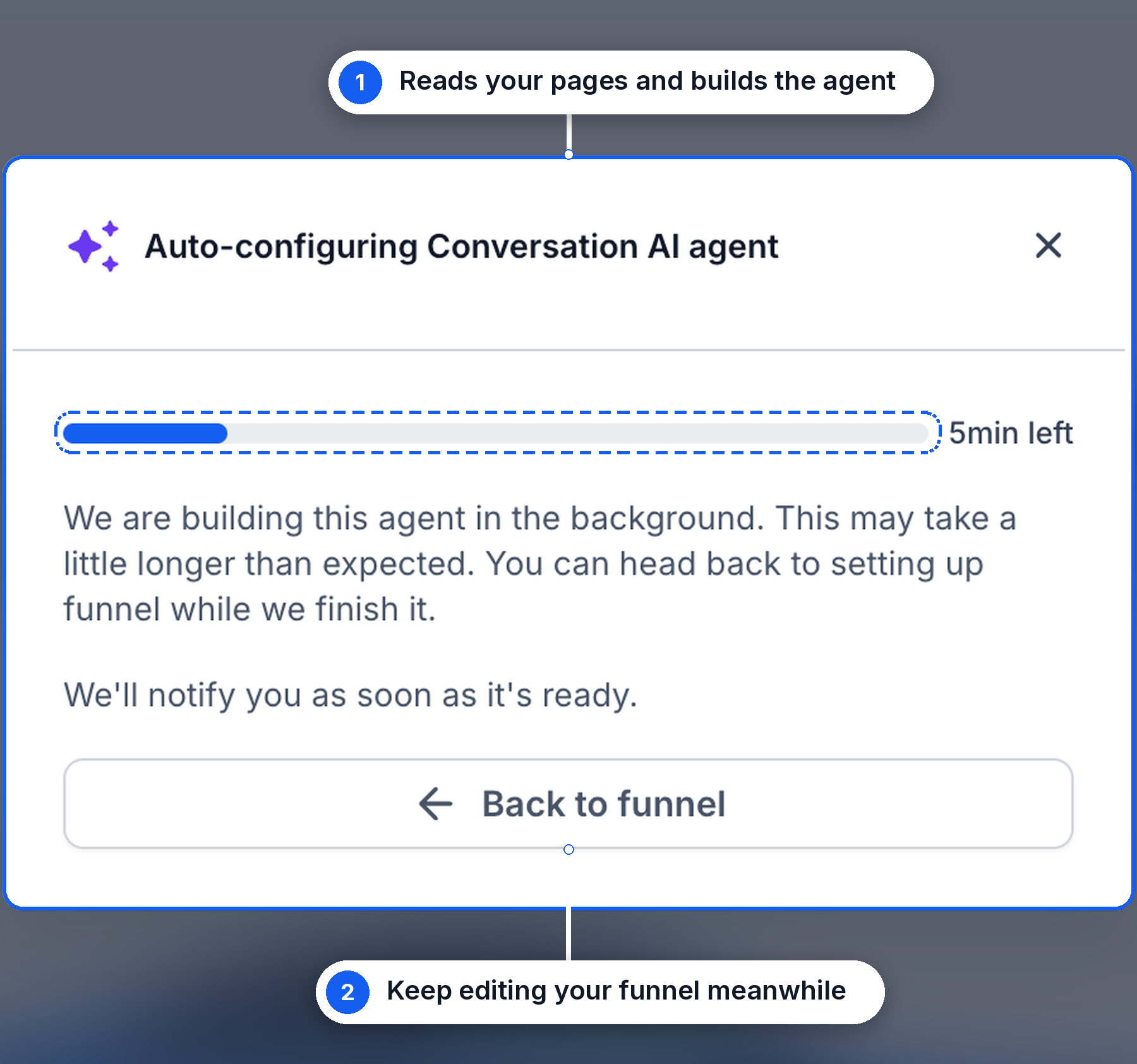
The AI And Chat Widget element merges chat widget placement with Conversation AI configuration. When you add the element, you can either pick an existing widget or create a new Live Chat widget that will host the AI agent. The system then scans every page in the funnel, gathers the text, and builds an agent that knows your business information.
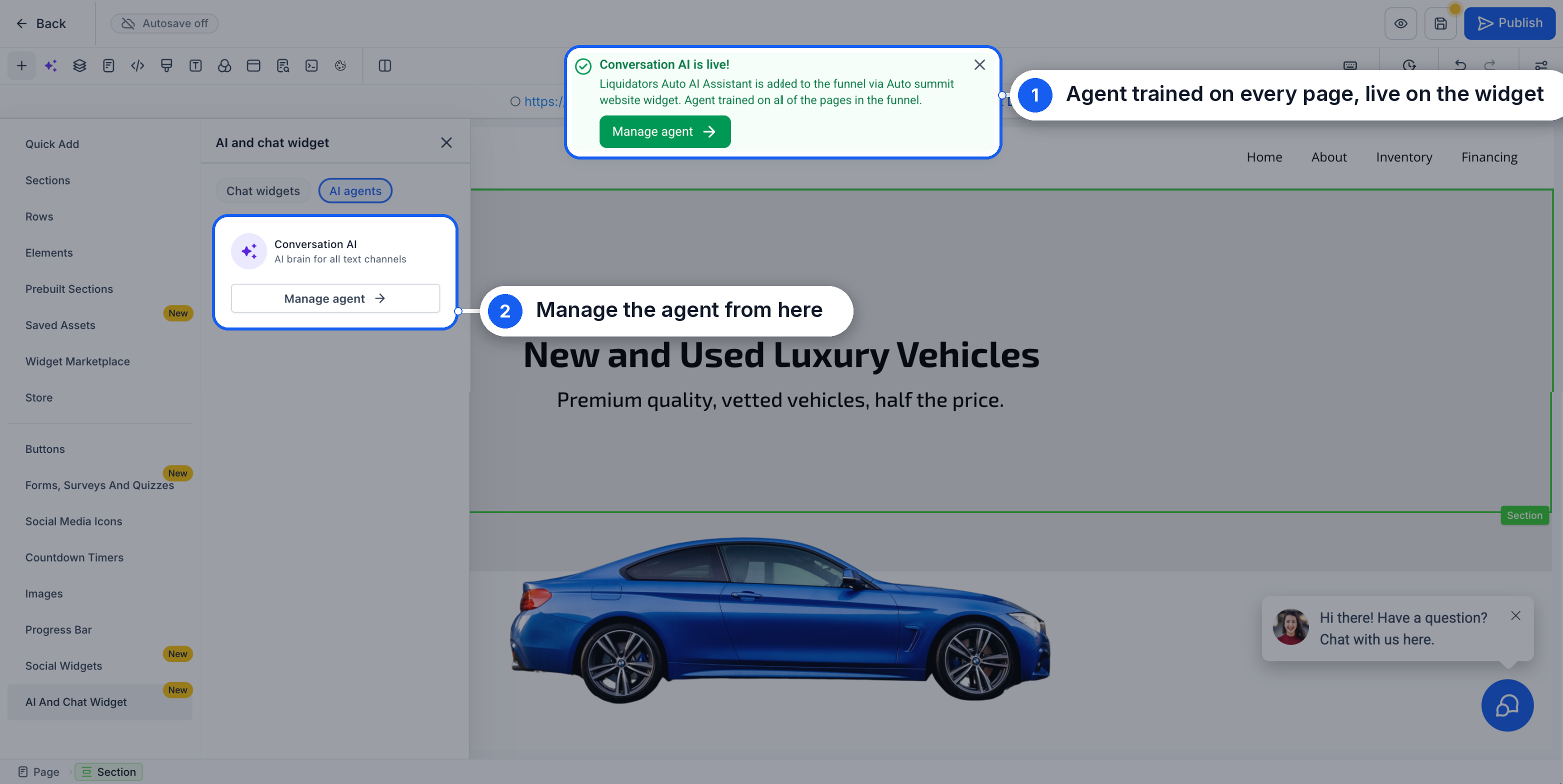
The generated agent receives a knowledge base built from the funnel content, a personality that matches your brand, goals that steer the conversation, instructions such as operating hours, and an opening message. After the background setup finishes, the agent is attached to the widget and ready for visitors.
All of this happens inside the funnel or website builder, so you never need to leave the editor or write code. You can later edit the agent’s settings, test responses, and publish the updated funnel.
03How businesses use Conversation AI and chat widgets
- Dental practice. The practice adds a Live Chat widget to its appointment booking funnel, runs Scan & auto configure, and gets an AI agent that can answer common dental questions and show office hours. The staff reviews the personality and opening message before publishing.
- Online retailer. The retailer creates a new chat widget on its product showcase site, lets HighLevel scan the product pages, and receives an AI agent that can describe items, explain return policies, and guide shoppers to checkout. The retailer fine tunes the goals and knowledge base as inventory changes.
- Consulting agency. The agency selects an existing widget on its service landing page, connects a pre built Conversation AI agent, and updates the agent’s instructions to reflect consulting packages and availability. The agency tests the agent before making the page live.
04How to set up and use Conversation AI and chat widgets in HighLevel
Add a chat widget and set up Conversation AI
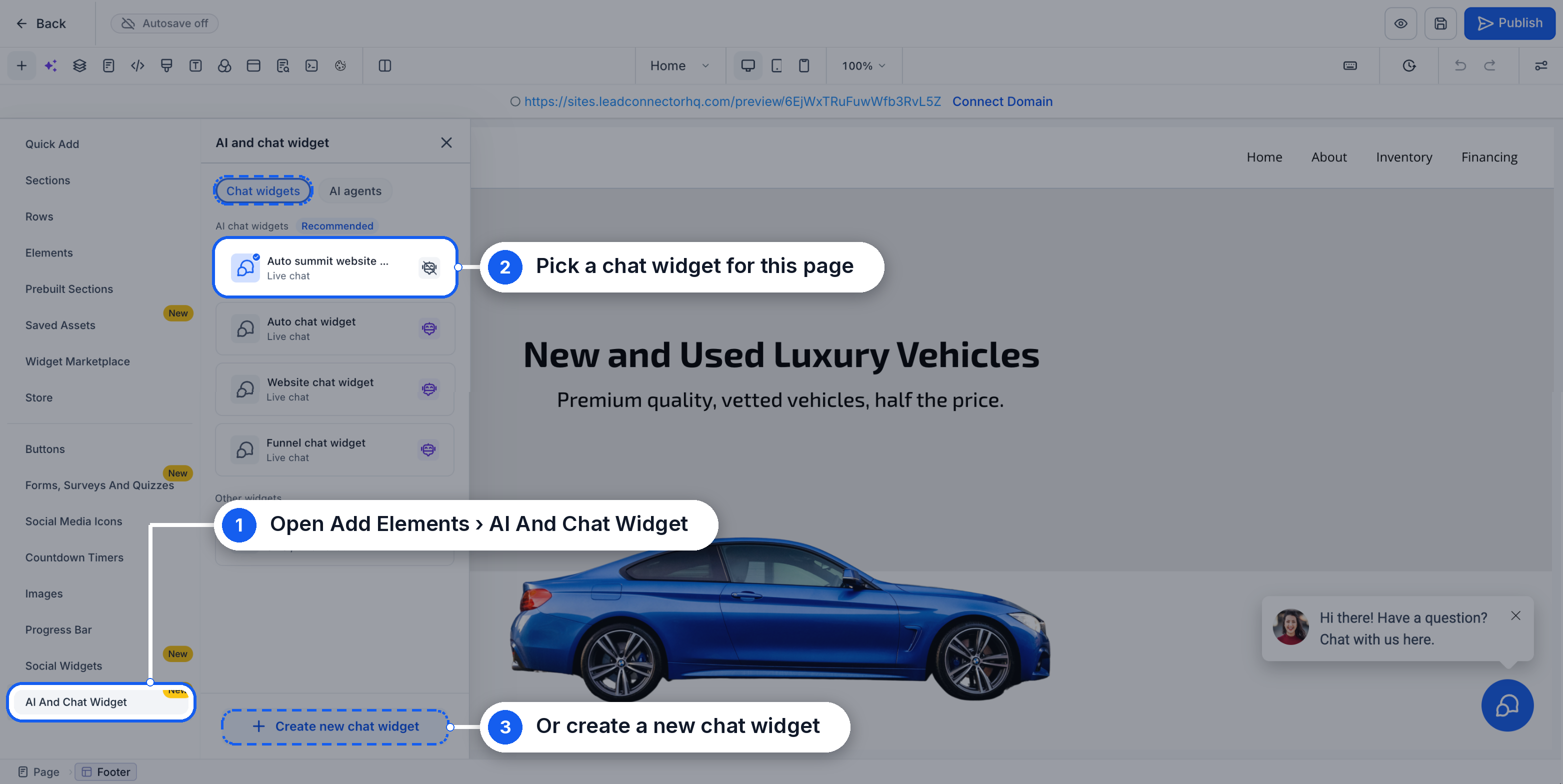
- Open the funnel or website in the builder and go to Add Elements > AI And Chat Widget.
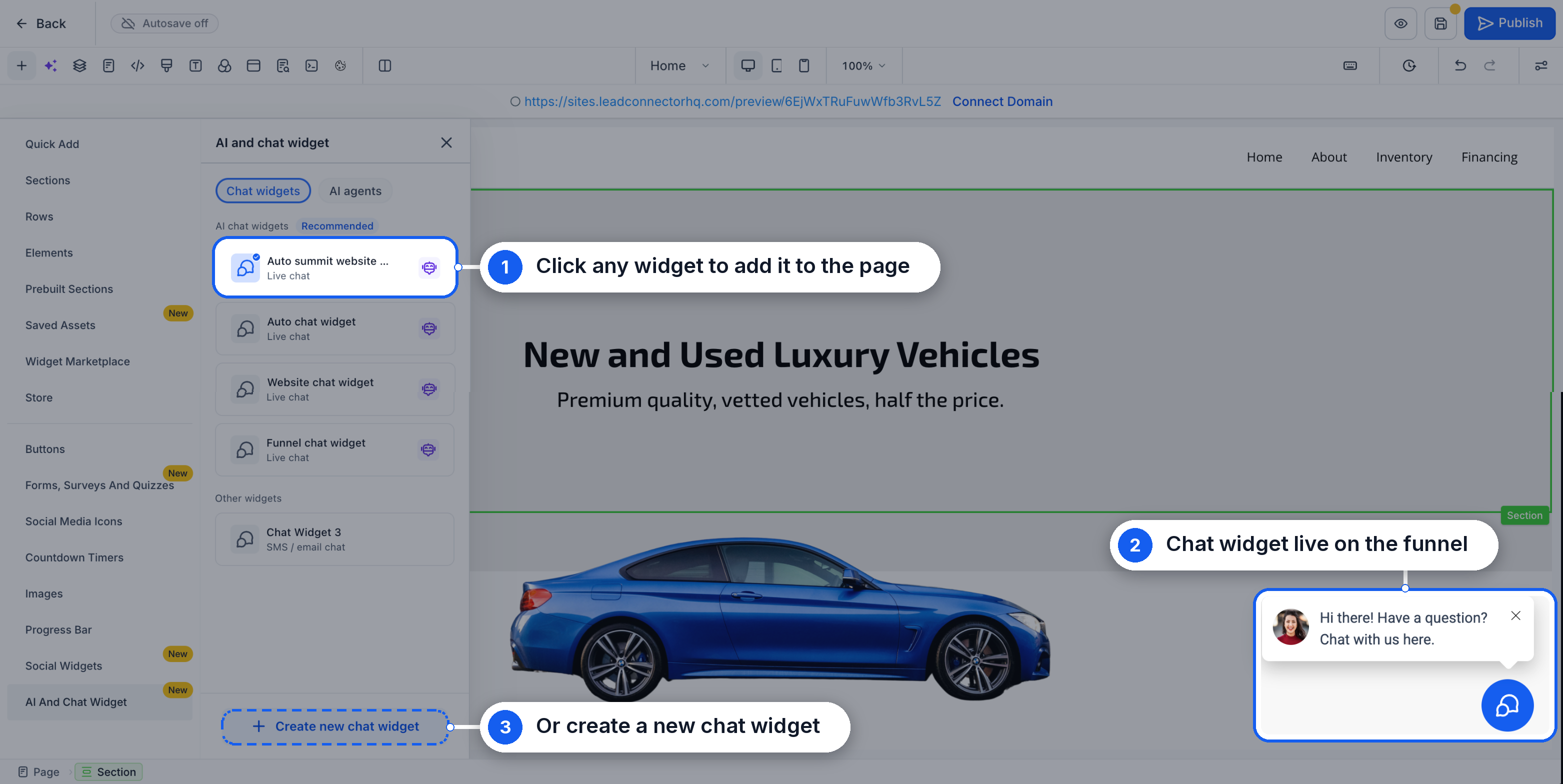
- In the Chat widgets tab, choose an existing widget or click Create new chat widget and select Live Chat.
- Click the selected chat widget again if you need to remove it from the page.
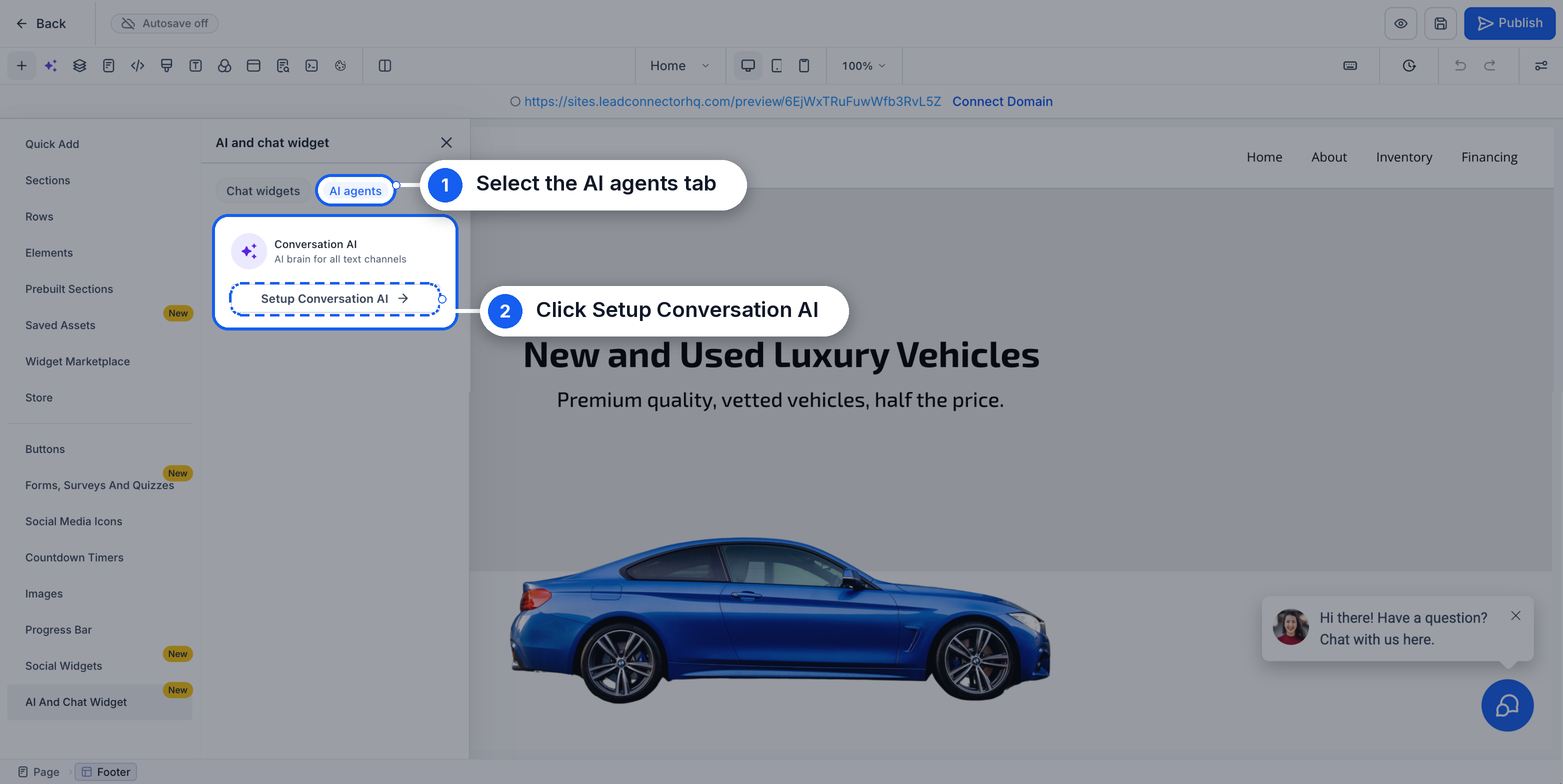
- Open the AI agents tab and click Setup Conversation AI (or connect an existing agent).
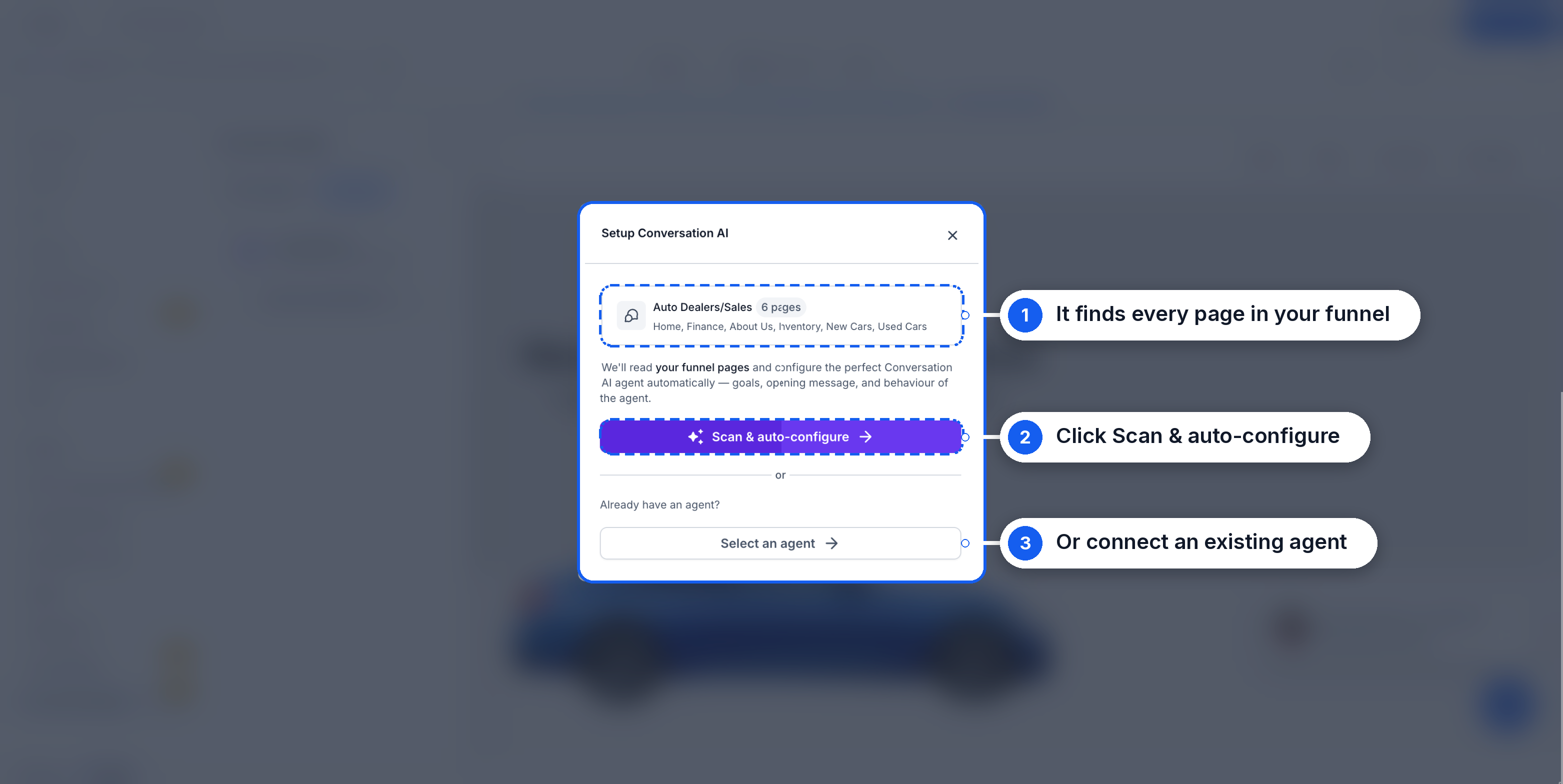
- Review the detected funnel pages and click Scan & auto configure to generate a new agent.
- Return to the builder while HighLevel configures the agent in the background.
- When the “Conversation AI is live.” notice appears, click Manage agent, review the settings, save any changes, and publish the funnel or website.
05What it looks like in HighLevel
06Settings that matter
- Knowledge Base. Contains content collected from funnel pages that the agent uses to answer visitor questions.
- Personality. Defines the communication style and tone the agent adopts when chatting.
- Goals. Sets the objectives that guide the agent’s conversation flow.
- Instructions. Provides behavioral guidelines and business details such as operating hours.
- Opening Message. Generates the greeting shown to visitors when the chat starts.
07How it connects to the rest of HighLevel
- Set up a chat widget on your website Chat widget setup
- Customize chat widget appearance and video avatar Widget customization
- Configure response mode for a Conversation AI bot AI response mode
Michael's take

Once the widget is in place, let the Scan & autoconfigure run. It pulls your funnel text, builds the Knowledge Base, personality, goals, instructions and opening message. You can test the agent’s responses, adjust its settings, and then publish the funnel.