
01Who this is for
- Agency owners can automate prospect handling to reduce manual follow up.
- Sales managers gain instant visibility of high conversion leads for quicker assignment.
- Marketing teams can trigger welcome messages for widget generated prospects, keeping engagement consistent.
02Prospect generated triggers, explained
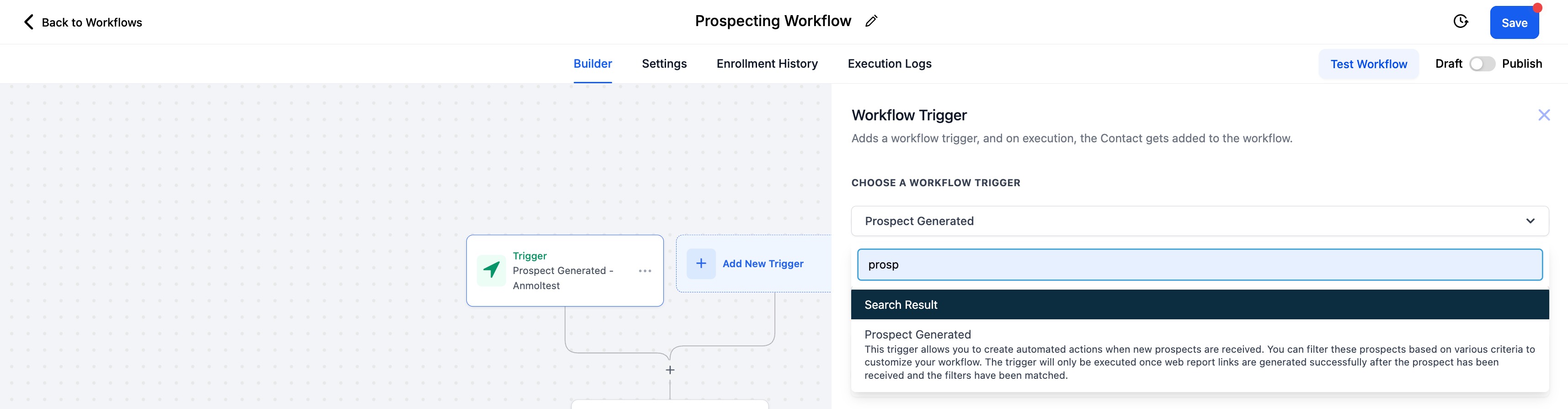
The Prospect Generated trigger lives inside HighLevel’s Workflow Builder. It activates when a prospect appears in the Prospecting Tool, whether the record is entered directly in the app, captured through an embedded widget, or produced by Prospect AI. Once fired, the workflow can evaluate prospect attributes and run predefined actions.
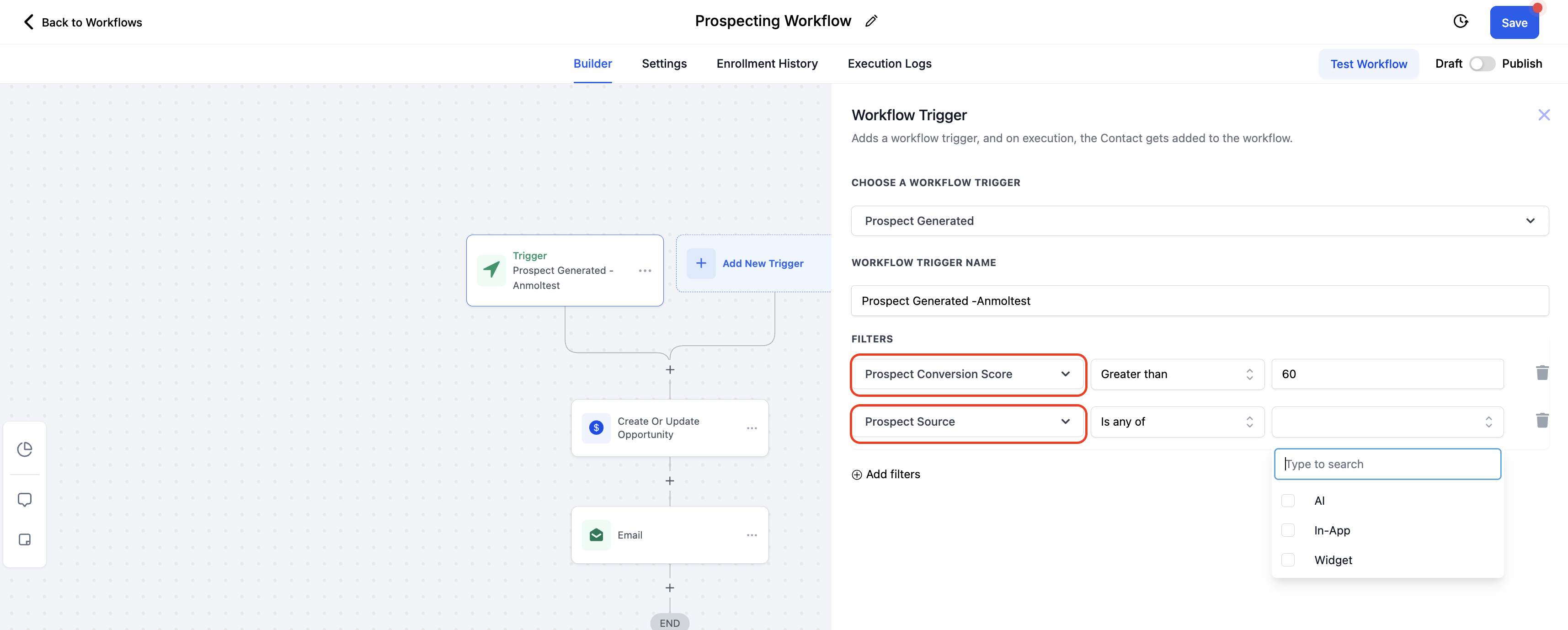
Filters let you narrow the automation by prospect source, In App, Widget, or Prospect AI, and by conversion rate, so you can separate high potential leads from those needing nurturing. After the trigger and filters are set, you map prospect fields to actions such as assigning to a sales pipeline, sending welcome emails or SMS, notifying team members, or applying tags.
03How businesses use prospect generated triggers
- Digital marketing agency. The agency creates a workflow that triggers on prospects from embedded widgets, filters for a conversion rate above a set threshold, and automatically sends a welcome email while notifying the account manager.
- Real estate brokerage. The brokerage sets the trigger to fire for in app generated prospects, applies a low conversion filter, and routes those leads into a nurturing campaign workflow that tags them for later follow up.
- SaaS startup. The startup uses the Prospect Generated trigger for AI created prospects, assigns each new lead to the appropriate sales pipeline stage, and tags them by product interest for targeted outreach.
04How to set up and use prospect generated triggers in HighLevel
Create or edit a workflow and select the trigger
- Click “Create Workflow” or open an existing workflow to edit.
- In the trigger section, choose “Prospect Generated” as the workflow trigger.
Add filters for prospect source and conversion rate
- Add a Prospect Source filter and select In App, Widget, or Prospect AI as needed.
- Add a Conversion Rate filter to segment high or low conversion prospects.
Map prospect details to automated actions
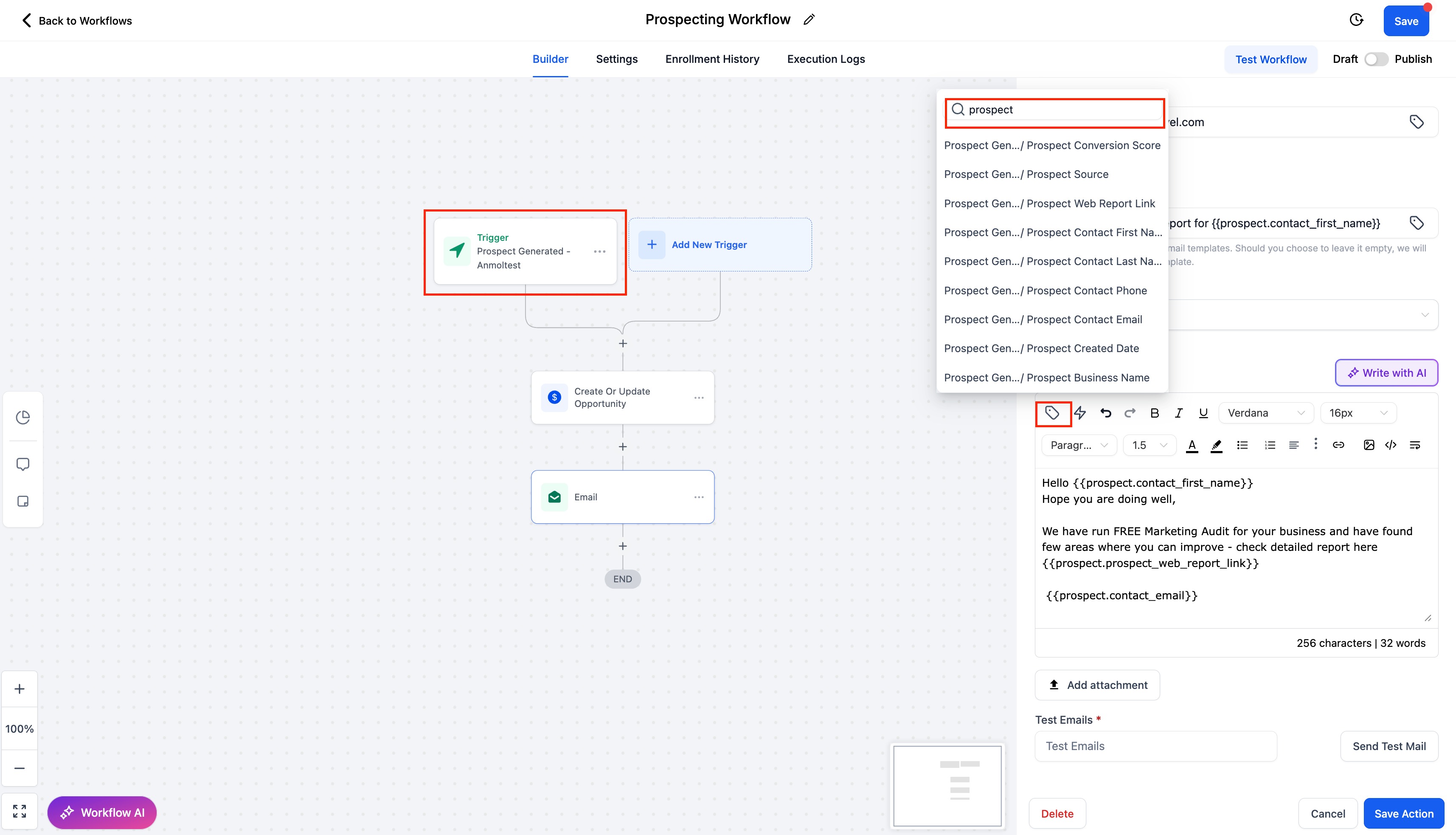
- Configure actions such as assigning prospects to sales pipelines, sending welcome emails or SMS, notifying team members, or applying tags.
Save and test the workflow
- Click Save to store the workflow.
- Simulate a new prospect creation from the app or a widget to verify the automation runs.
- If the workflow does not fire, adjust filter conditions or actions accordingly.
05What it looks like in HighLevel
06Settings that matter
- Prospect Source. determines whether the prospect originated in the app, via an embedded widget, or through Prospect AI
- Conversion Rate. filters prospects based on their likelihood to convert, enabling separate workflows for high or low conversion leads
07If something goes wrong
- Workflow does not trigger for new prospects. Review the selected trigger and filter conditions to ensure they match the prospect data, then test again.
08How it connects to the rest of HighLevel
- Compare free and premium prospecting options Prospecting plans
- Customize prospect reports and branding Report builder
- Generate leads using the prospecting tool Lead generation guide
Michael's take

The Prospect Generated trigger moves new prospects directly into an automated workflow, helping keep data organized.
The first setting I would lock down is the source filter. Making sure I separate widget leads from in app entries. That way I can send the right welcome message to the right audience right away.