
01Who this is for
- Agency owners who manage virtual service area clients need accurate location data for reporting.
- Marketing Founders running online only businesses benefit from precise prospect insights.
02Business Maps URLs, explained
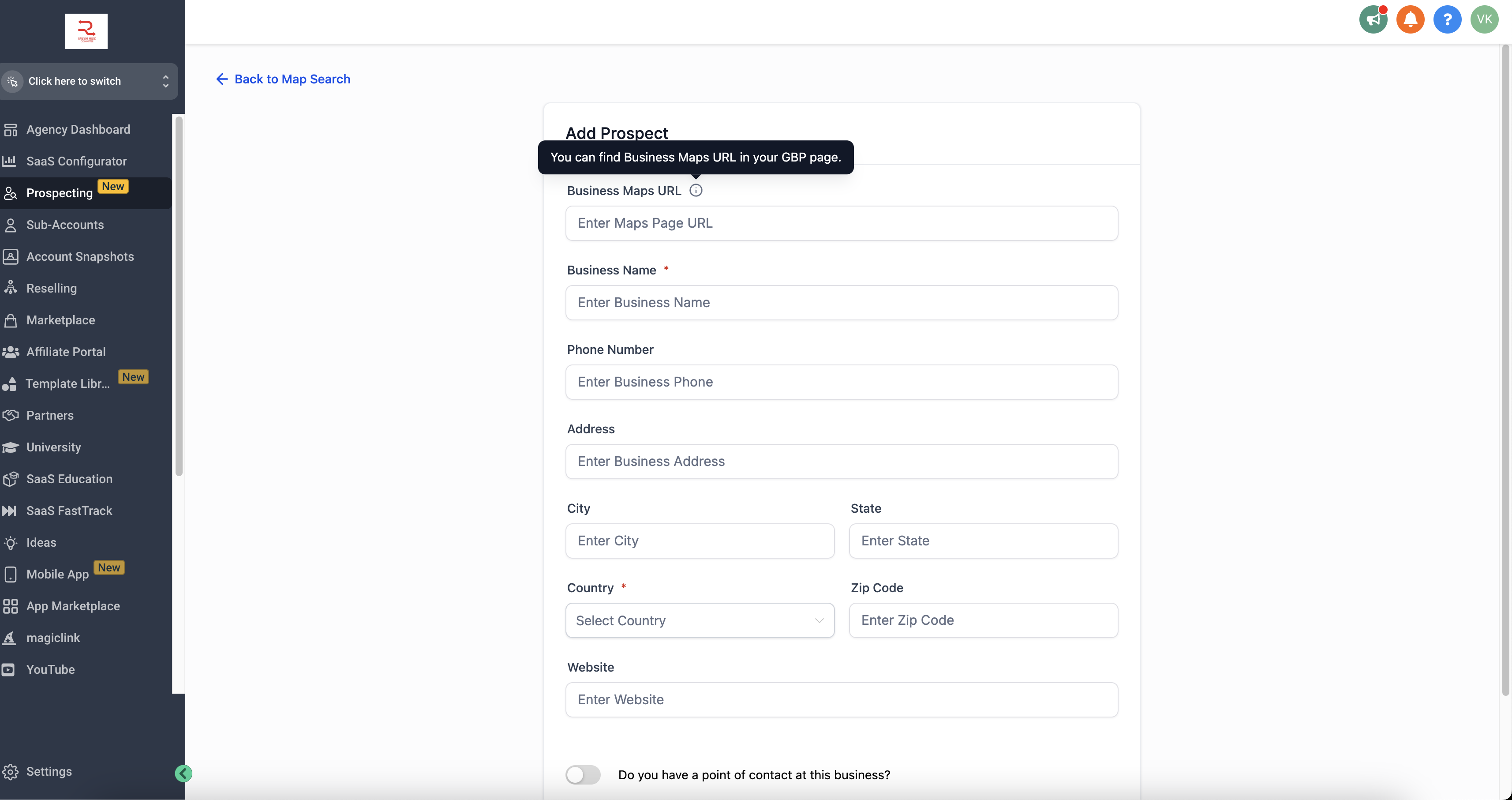
The feature lets you input a Google Maps URL that represents a virtual or service area business. When the URL is entered, the Prospecting Tool uses that reference to generate a prospecting report that reflects the correct business footprint. The URL field appears in the virtual business search form inside the Prospecting Tool. First obtain the URL from Google Maps, either copy it from the browser address bar or use the Share > Copy link option, then paste it into the Business Maps URL section, complete the remaining fields and submit to receive the report.
03How businesses use Business Maps URL
- Digital marketing agency. The agency retrieves the Google Maps link for each client’s service area business, pastes it into the Prospecting Tool, and runs reports that reflect the correct geographic focus for campaign planning.
- Online tutoring service. The tutoring company copies its virtual Google Maps URL, enters it in the Prospecting Tool, and generates reports that accurately target prospective students within the defined service area.
- Home repair franchise. The franchise manager obtains the Maps URL for the franchise’s service zone, adds it to the Prospecting Tool, and produces reports that align prospect data with the franchise’s operating region.
04The numbers and rules that matter
- URL format example: Https://www.Google.com/maps/place/Your+Business+Name/@XX.XXXXXX,-YY.YYYYYY,17z/data=.
05Before you start
- The business must be listed on Google My Business as a service area business and verified.
- You must have access to HighLevel’s Prospecting Tool.
06How to set up and use Business Maps URL in HighLevel
Search for your business on Google Maps
- Open Google Maps in a web browser.
- Enter your business name into the search bar.
- Click the listing that appears in the results.
Obtain the Maps URL
- When the business listing opens, copy the URL from the browser address bar, or click the Share button and choose Copy link.
Use the URL in the Prospecting Tool
- Open the Prospecting Tool inside your HighLevel account.
- Navigate to the “Search for Virtual Businesses” section.
- Locate the “Business Maps URL” field within the form.
- Paste the copied Google Maps URL into that field.
- Submit the form to generate the prospecting report.
07What it looks like in HighLevel
08Settings that matter
- Business Maps URL. Specifies the Google Maps link for a virtual or service area business, which the Prospecting Tool uses to improve report accuracy.
09Things to know before you rely on it
- If the URL does not correspond to a virtual or service area business, the accuracy of the prospecting results may not improve.
10How it connects to the rest of HighLevel
- Overview of HighLevel prospecting features Prospecting overview
- Customize prospect reports with HighLevel’s report builder Report builder
- Start a 30 day HighLevel trial Free trial
Michael's take

Michael ReimerFounder of CRM Pros, HighLevel Commander and Certified Admin
This feature is handy for agencies that need precise location data for virtual businesses.
Get More InformationOpens on HighLevelPublished November 2, 2026 · Updated November 17, 2026