
01Subaccount settings filters, explained
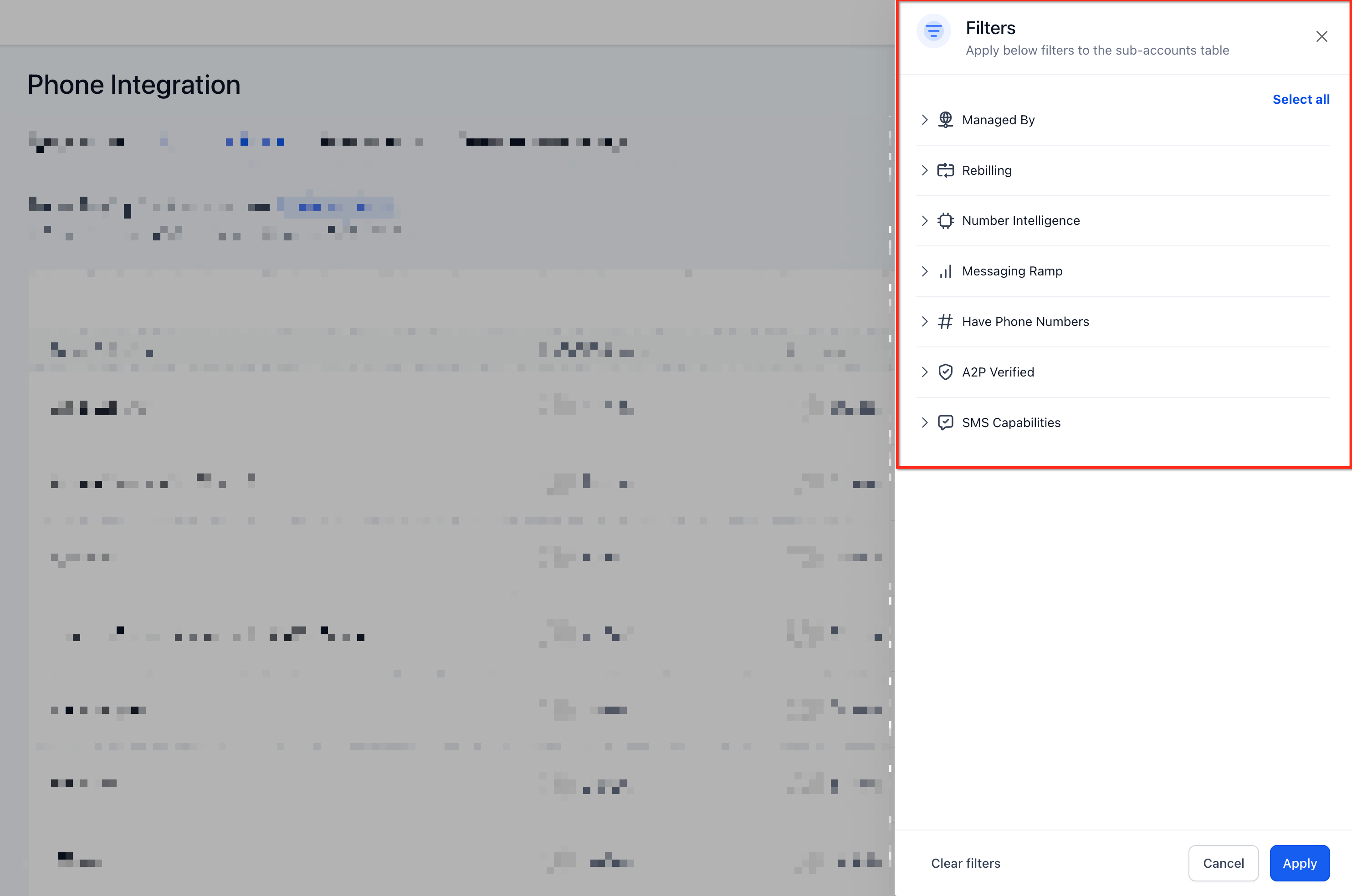
Subaccount settings filters are a set of criteria you can apply in the Phone Integration area to limit the list of subaccounts shown. Each filter corresponds to a phone or messaging attribute such as the provider used, rebilling status, Number Intelligence, Messaging Ramp, phone number availability, or A2P verification.
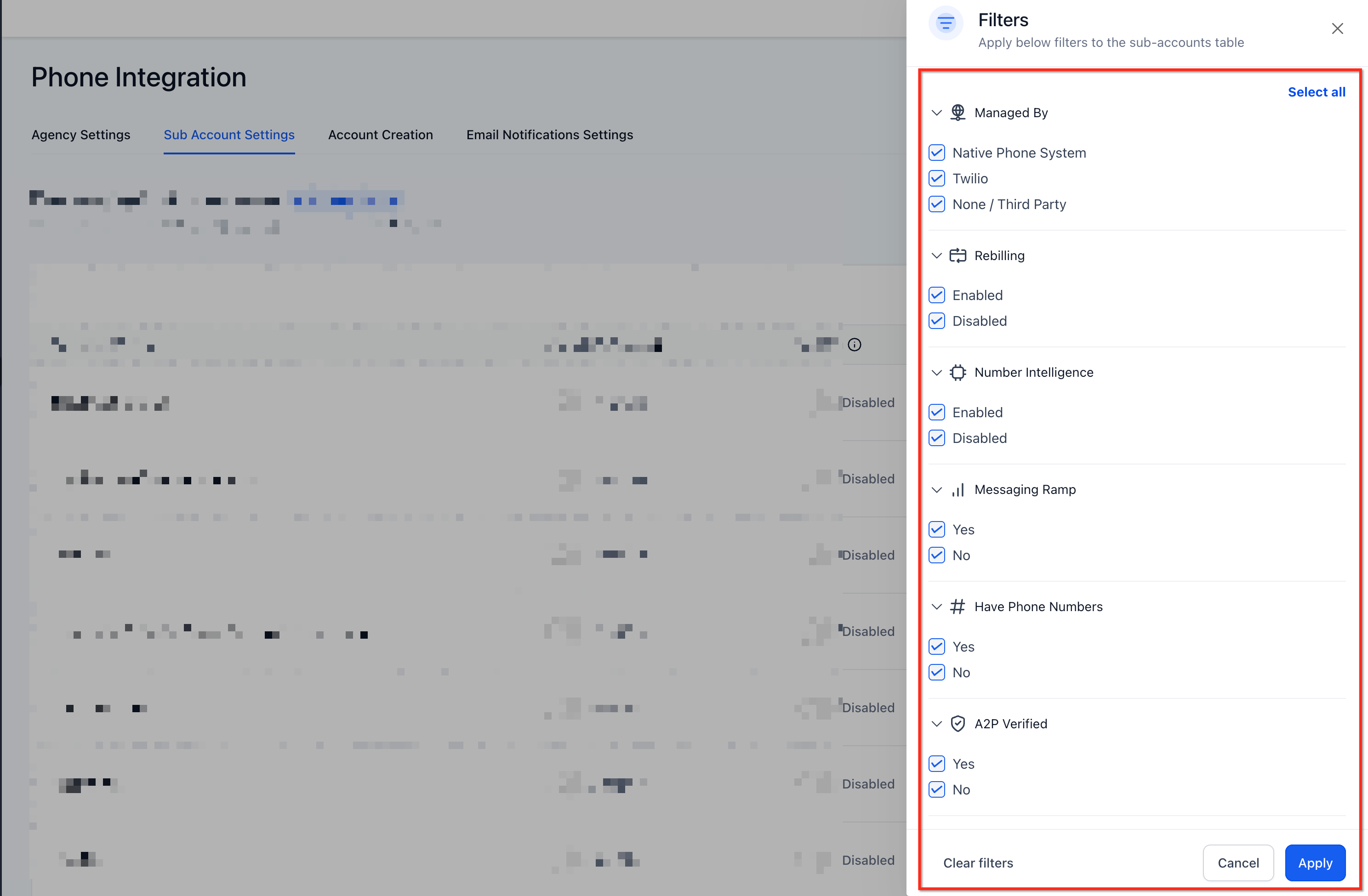
All filter options are selected by default, so the full list appears initially. As you select different values, the table updates in real time, letting you focus on the accounts that match the chosen configuration without opening each subaccount individually.
02How businesses use subaccount settings filters
- Find specific telephony providers. Select a value in the Managed By filter, such as Twilio, to see only subaccounts using that provider. This helps when planning migrations or reviewing provider settings.
- Review rebilling configurations. Choose Enabled or Disabled under the Rebilling Status filter (available on $297 and $497 plans) to isolate accounts with rebilling turned on or off, making billing audits faster.
- Audit messaging readiness. Combine Number Intelligence, Messaging Ramp, and A2P Verified filters to identify accounts that meet or lack required messaging settings before sending SMS.
- Identify accounts without phone numbers. Select No under the Have Phone Numbers filter to list subaccounts lacking a phone number, so you can add the necessary numbers or investigate why they are missing.
03The numbers and rules that matter
- Filter categories: Managed By, Rebilling Status, Number Intelligence, Messaging Ramp, Have Phone Numbers, A2P Verified.
- Rebilling Status options: Enabled, Disabled. Available only on $297 and $497 agency plans.
- A2P Verified options: Yes, No.
04Before you start
- Log in to a HighLevel agency account.
- Switch to Agency View if not already there.
- Be on an eligible plan ($297 or $497) to see the Rebilling Status filter.
05How to set up and use subaccount settings filters in HighLevel
Filter subaccounts in Phone Integration
- Open Phone Integration in Agency View: Log in, switch to Agency View, navigate to Settings, select Phone Integration, open the SubAccount Settings tab.
- Open the Filters panel: Click the Filters button in the top right corner of the Phone Settings for SubAccounts table.
- Select your filtering criteria: Locate a filter category, choose the values that match the subaccounts you want, and review the updated list.
- Combine multiple filter criteria: Keep the Filters panel open, select additional categories, and adjust selections to refine results.
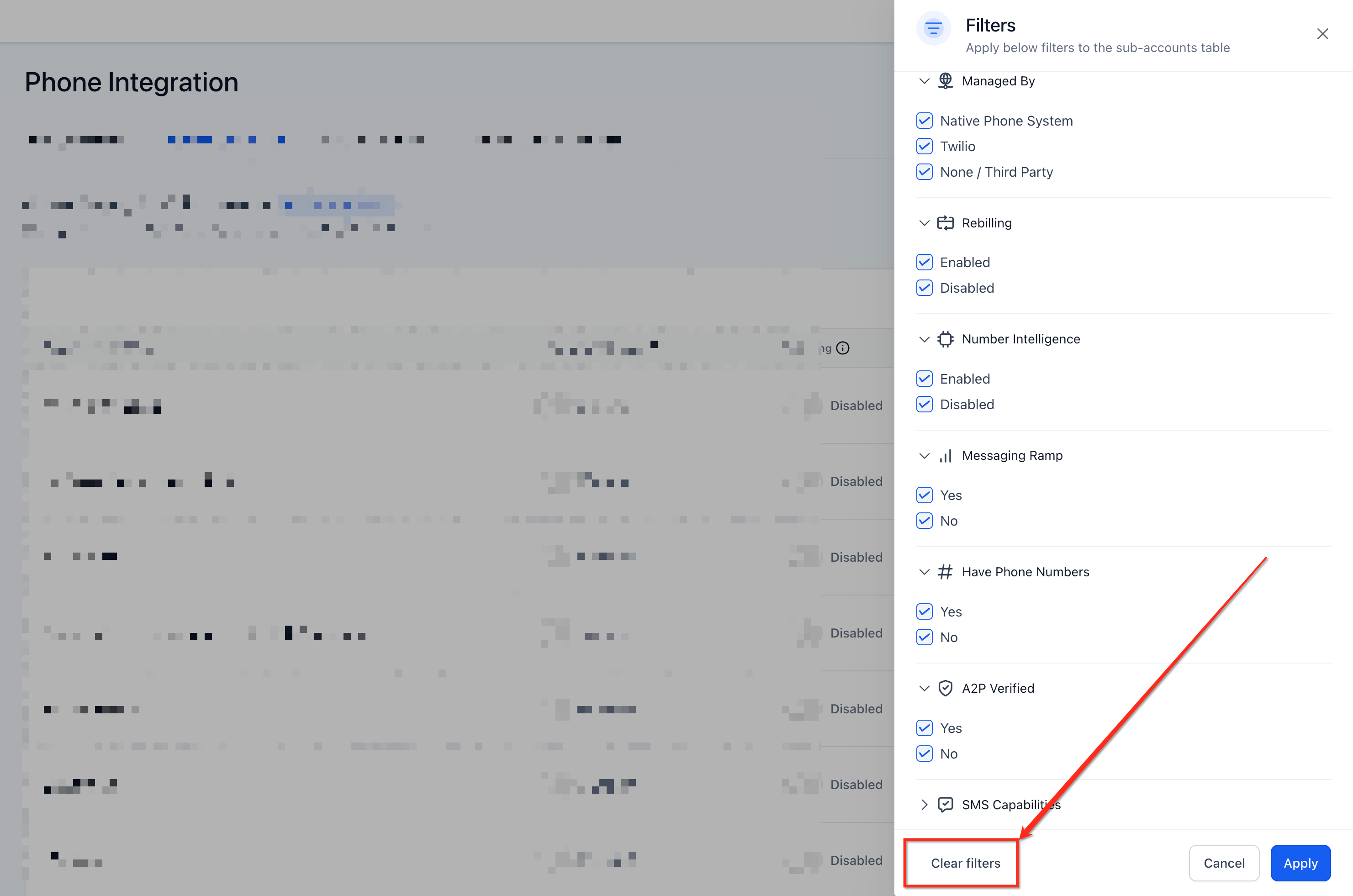
- Clear Filters and restore the full account list: Open the Filters panel if needed, click Clear Filters, and the full list returns with default selections.
06What it looks like in HighLevel
07Settings that matter
- Managed by filter. Identifies which telephony system, Native Phone System, Twilio, or None / Third Party. Is associated with each subaccount.
- Rebilling Status filter. Shows whether rebilling is enabled or disabled for a subaccount; only visible on eligible agency plans.
- Number Intelligence filter. Indicates if Number Intelligence is turned on or off for a subaccount.
- Messaging Ramp filter. Marks subaccounts as having Messaging Ramp enabled (Yes) or not (No).
- Have Phone Numbers filter. Shows whether a subaccount currently has any phone numbers assigned.
- A2P Verified filter. Shows if a subaccount’s A2P verification status is Yes or No.
08Things to know before you rely on it
- Rebilling Status filter is available only on the $297 and $497 agency plans.
- Clear Filters restores the default selected state; it does not leave every filter option unselected.
- Filters only identify subaccounts; they do not enable, disable, or modify any phone or messaging settings.
09If something goes wrong
- Rebilling Status filter is not visible. The filter appears only for agencies on the $297 or $497 plans. Upgrade or switch to an eligible plan to access it.
Michael's take

The filters are handy for quickly spotting accounts that match specific phone or messaging setups.
If you rarely audit subaccount configurations, you can skip this feature.