
01Who this is for
- Agencies that manage multiple rental client accounts benefit by reusing a pre built Rentals configuration.
- Franchise owners with many locations can keep Rental Categories consistent across each site.
- Rental businesses that offer several types of assets can speed up onboarding of new locations.
02Rental listings and categories, explained
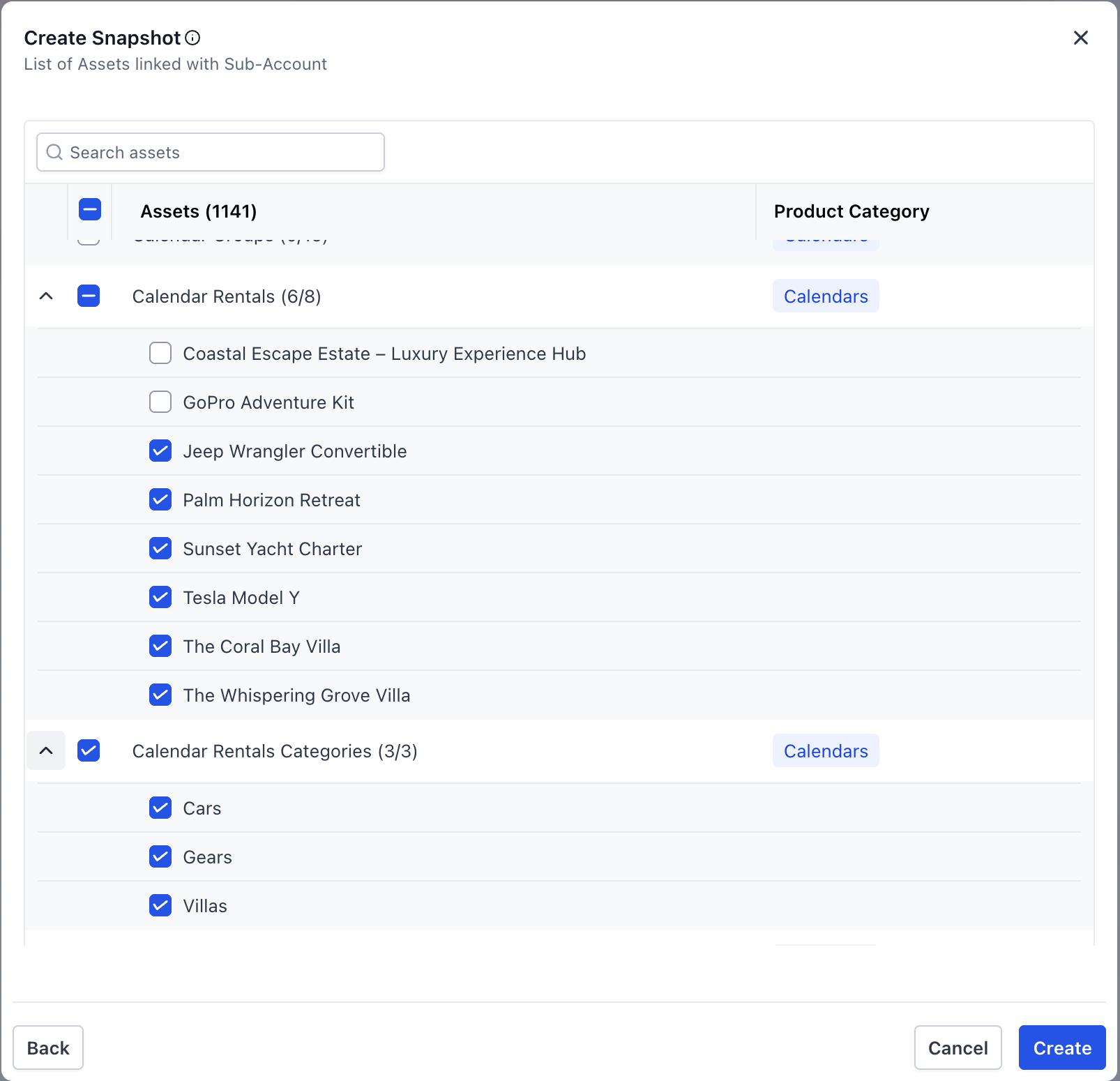
Snapshots let you bundle selected parts of a source subaccount into a portable package. With the recent update, Rental Listings and Rental Categories are available as selectable assets. When you create or load a Snapshot, you can pick either or both of these asset types.
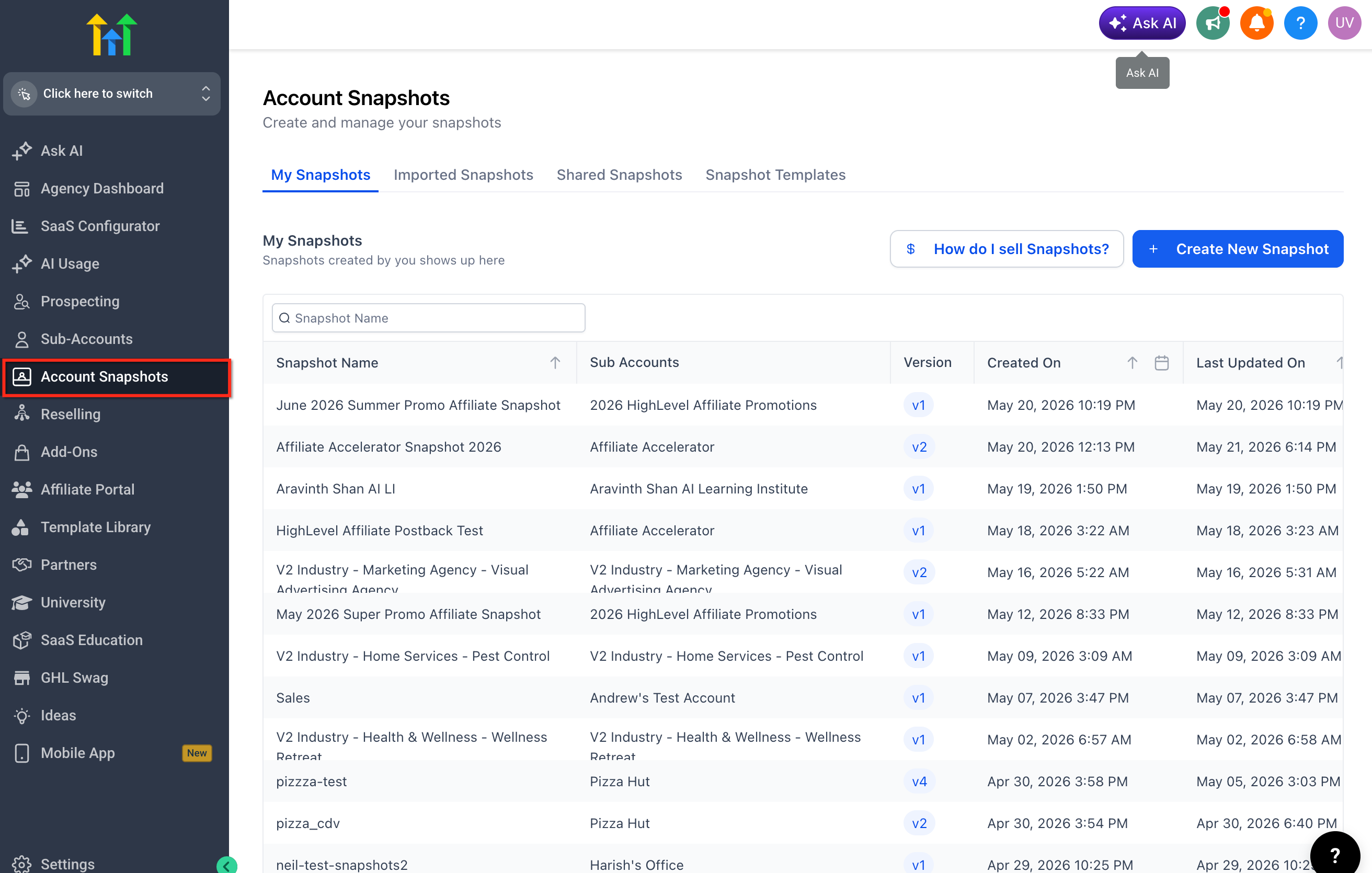
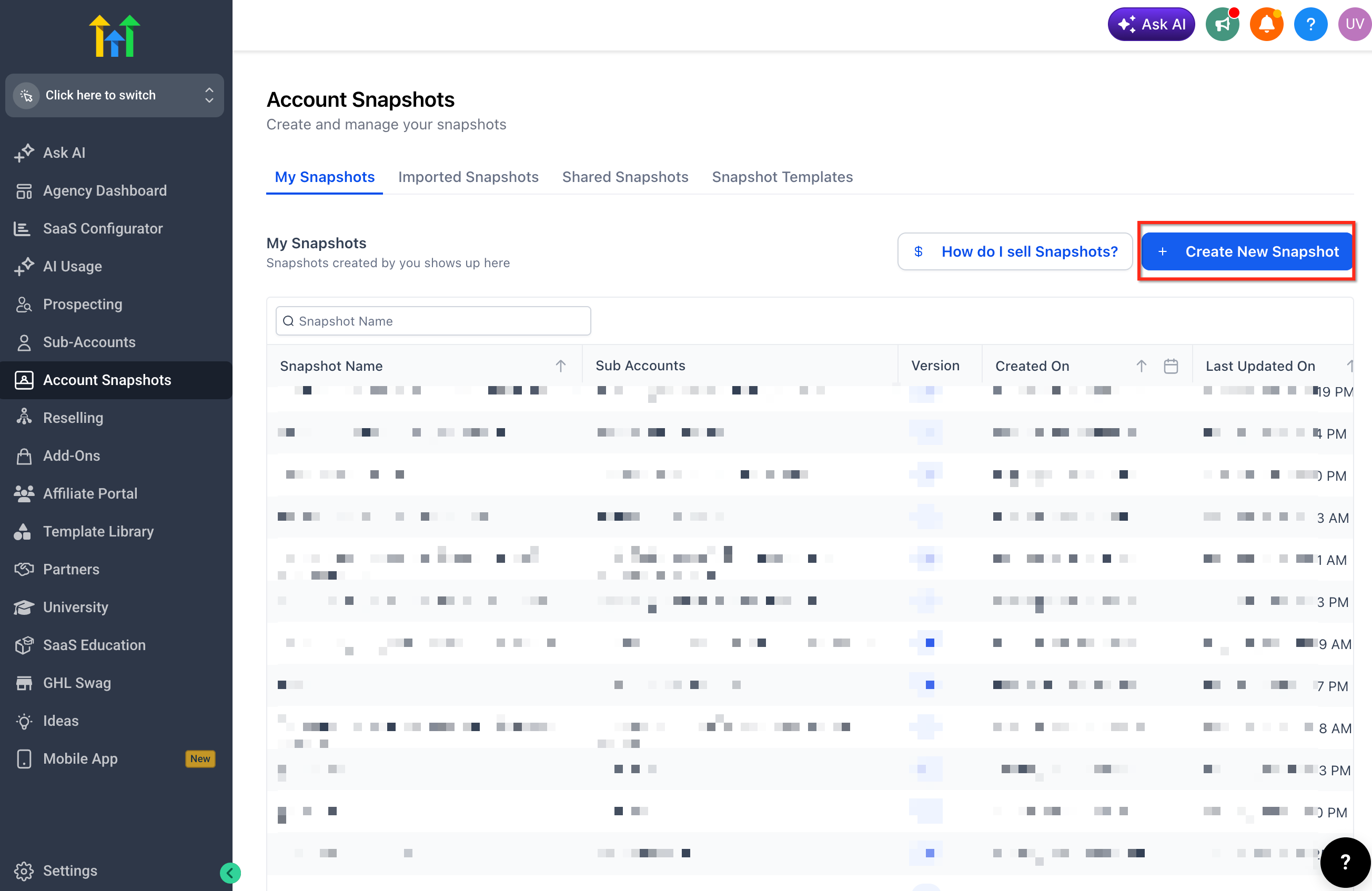
The feature lives inside the Account Snapshots section of the Agency View. During Snapshot creation you choose which Rentals assets to include. When loading, the same selection screen appears, allowing you to confirm or skip the assets. The process also shows conflict screens for existing subaccounts.
Only the Rental Listings and Rental Categories themselves are copied. Other assets such as workflows, forms, calendars, or payment settings are not included unless you select them separately in the Snapshot workflow.
03How businesses use rental listings and categories
- Vehicle rental franchise. The franchisor builds a master subaccount with cars, trucks, and SUVs organized into categories. They create a Snapshot that includes both Listings and Categories, then load it into each new franchisee subaccount, reproducing the same inventory structure.
- Property management company. A manager defines cabins, apartments, and event spaces as Rental Listings under separate Categories. By selecting only the Categories when creating a Snapshot, they can apply a consistent organization to a new regional office without copying the individual listings.
- Equipment lease agency. The agency prepares a template subaccount with standard equipment listings. They generate a Snapshot containing just the Rental Listings and load it into a newly onboarded client subaccount, right away providing the full catalog of lease items.
04Before you start
- A source subaccount must already contain the desired Rental Listings and/or Rental Categories.
- Ensure the source subaccount has a clean Rentals setup to avoid copying unwanted data.
05How to set up and use rental listings and categories in HighLevel
Create and load a Snapshot with Rental Listings and Categories
- Open Agency View and go to Account Snapshots.
- Start a new Snapshot using the subaccount that holds the Rentals assets you want to copy.
- In the asset selection screen, choose Rental Listings, Rental Categories, or both.
- Save the Snapshot to store the selected assets.
- Select a destination subaccount and begin loading the Snapshot.
- During loading, confirm the Rental Listings and/or Rental Categories you wish to import.
- If loading into an existing subaccount, review any conflict or asset confirmation screens before completing the load.
- Finish the load process to copy the assets into the destination subaccount.
- Open the destination subaccount and navigate to the Rentals area to verify the copied Listings and Categories.
06What it looks like in HighLevel
07Things to know before you rely on it
- Only Rental Listings and Rental Categories are supported in this release; related assets must be selected separately if needed.
- When loading into an existing subaccount, conflict or asset confirmation screens may appear and must be reviewed before completing the load.
08How it connects to the rest of HighLevel
- Snapshot overview and concepts Snapshots overview
- Step by step guide to create a new Snapshot Create new Snapshot
- Instructions for loading a Snapshot into an existing subaccount Load Snapshot
Michael's take

Snapshot support for rentals is a useful shortcut for agencies that need to replicate the same inventory across many client accounts.
If you only manage a single rental location or never reuse listings, you can skip this feature.