
01Who this is for
- Agency owners who manage multiple client subaccounts can reuse proven voice flows without rebuilding each time.
- Franchise operators can deliver a consistent call experience across locations by cloning the same Flow Based agent into each branch.
- Call center managers can quickly provision new teams with a pre configured voice AI template, reducing setup effort.
02Flow based Voice AI Agents, explained
The feature places Flow Based Voice AI agents in the Voice AI asset category of a Snapshot. When you create a Snapshot, you can select any Flow Based agent to be included alongside other assets such as workflows or calendars. Loading the Snapshot into another subaccount recreates the full flow graph, nodes, branches and connected actions, using the destination account’s IDs.
The agent’s configuration, name, description and active version travel with the Snapshot. Phone numbers are not copied; they must be assigned in the target account. Live data like contacts and call histories remain in the source account.
03How businesses use flow based Voice AI Agents
- Dental practice. The practice builds a Flow Based Voice AI that schedules appointments and handles reminders. By adding the agent to a Snapshot, the same flow can be copied to each new office location, then a local clinic phone number is attached before testing the call experience.
- Real estate agency. An agency creates a voice flow that qualifies leads and routes calls to agents. The flow is saved in a Snapshot with its dependent workflows. When a new regional office is added, the Snapshot is loaded, a Twilio number is assigned, and the office immediately uses the same lead capture logic.
- Property management company. The company designs a flow that handles maintenance requests and tenant inquiries. It bundles the flow, related calendars and triggers into a Snapshot. Loading the Snapshot into each property’s subaccount lets managers assign a local number and run a few test calls to verify operation.
04Before you start
- Both source and destination subaccounts must have Voice AI enabled.
- The destination account needs an LC Phone or Twilio number ready for assignment.
- Any workflows, triggers, or calendars referenced by the flow should be included in the same Snapshot or already exist in the destination account.
05How to set up and use flow based Voice AI Agents in HighLevel
Set up snapshot support for Flow Based Voice AI agents
- Open the subaccount that contains the Flow Based Voice AI agent.
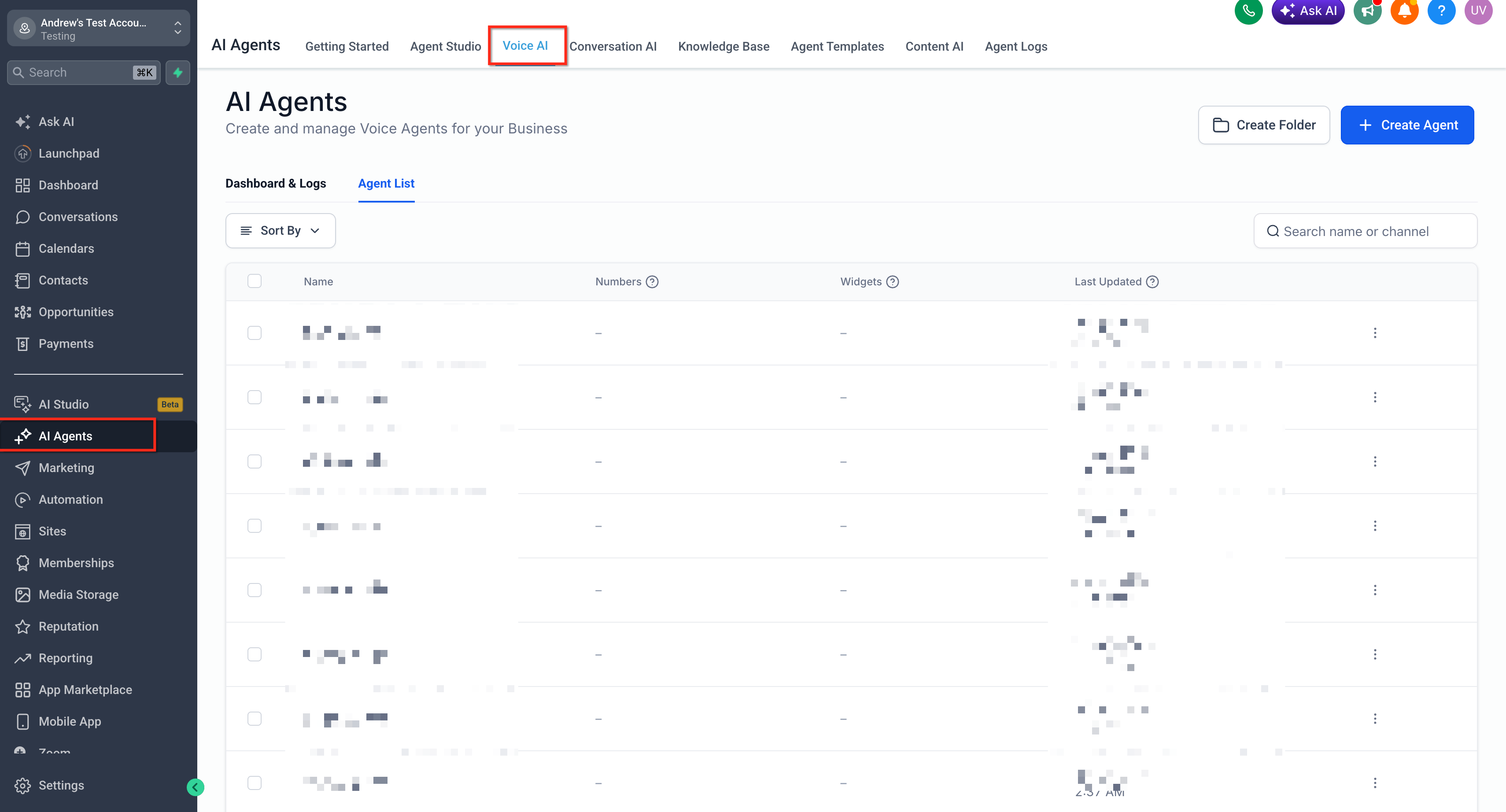
- Navigate to Voice AI and launch the Flow Based Builder for that agent.
- Confirm the flow runs correctly and all linked assets are active.
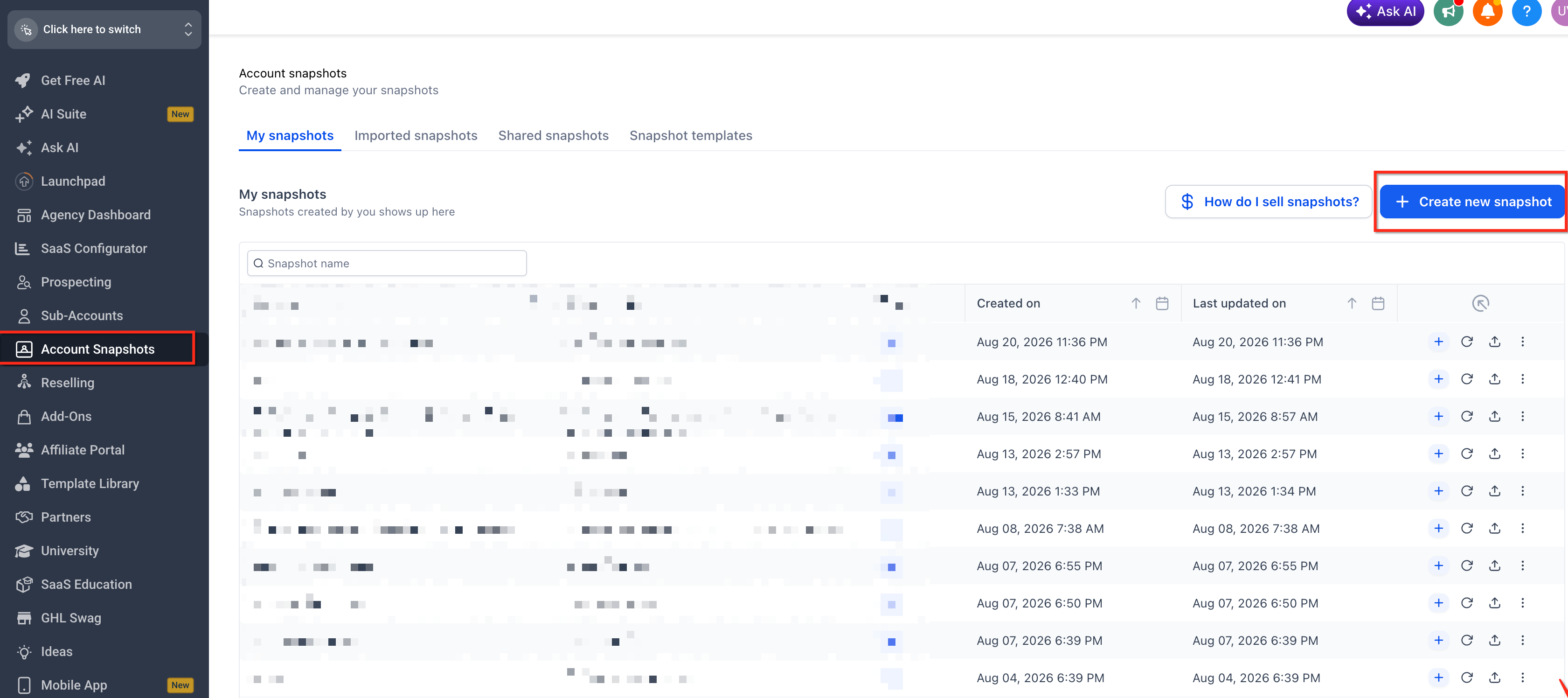
- Switch to Agency View and open Account Snapshots.
- Click + Create New Snapshot and select the source subaccount.
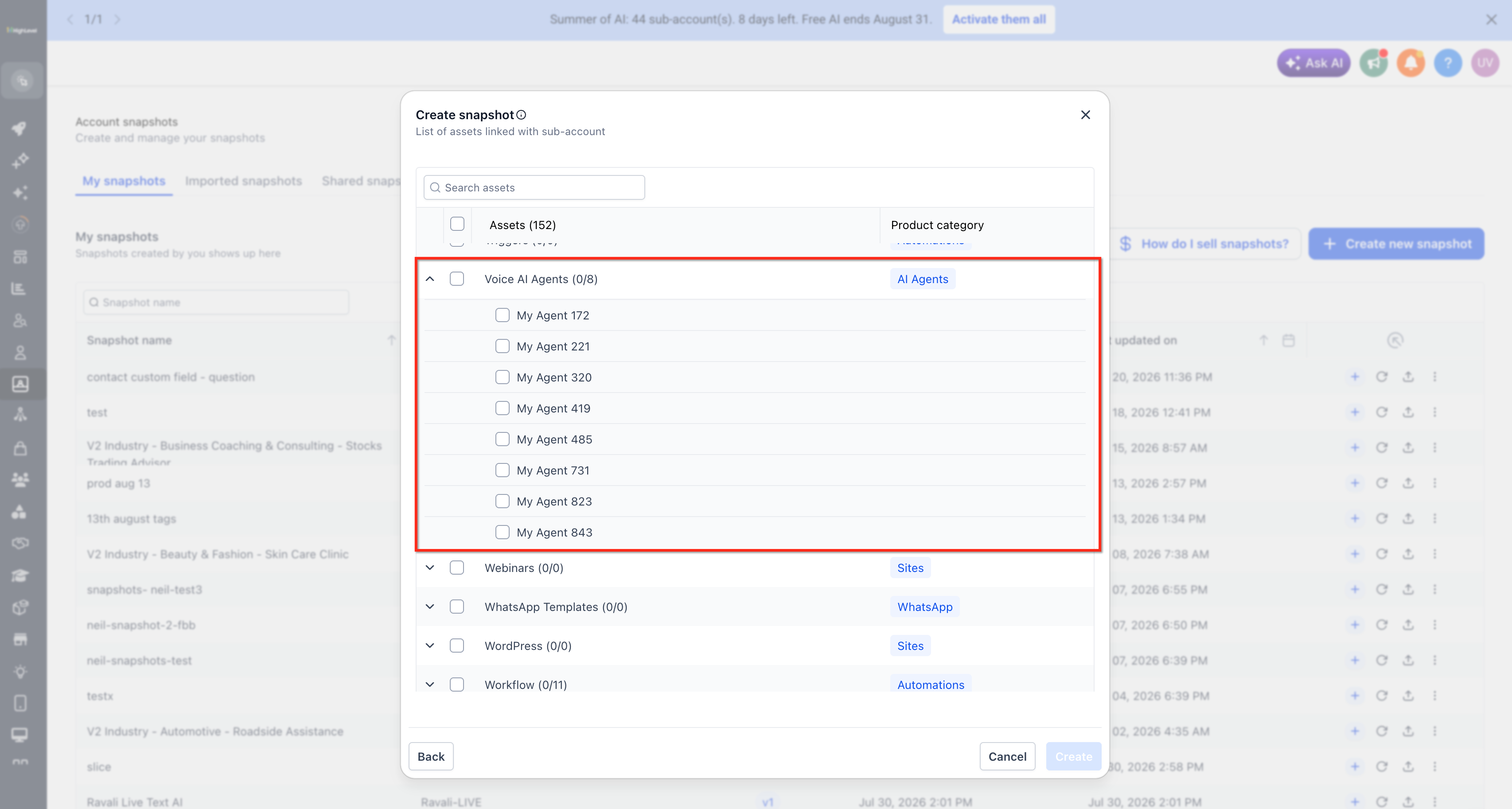
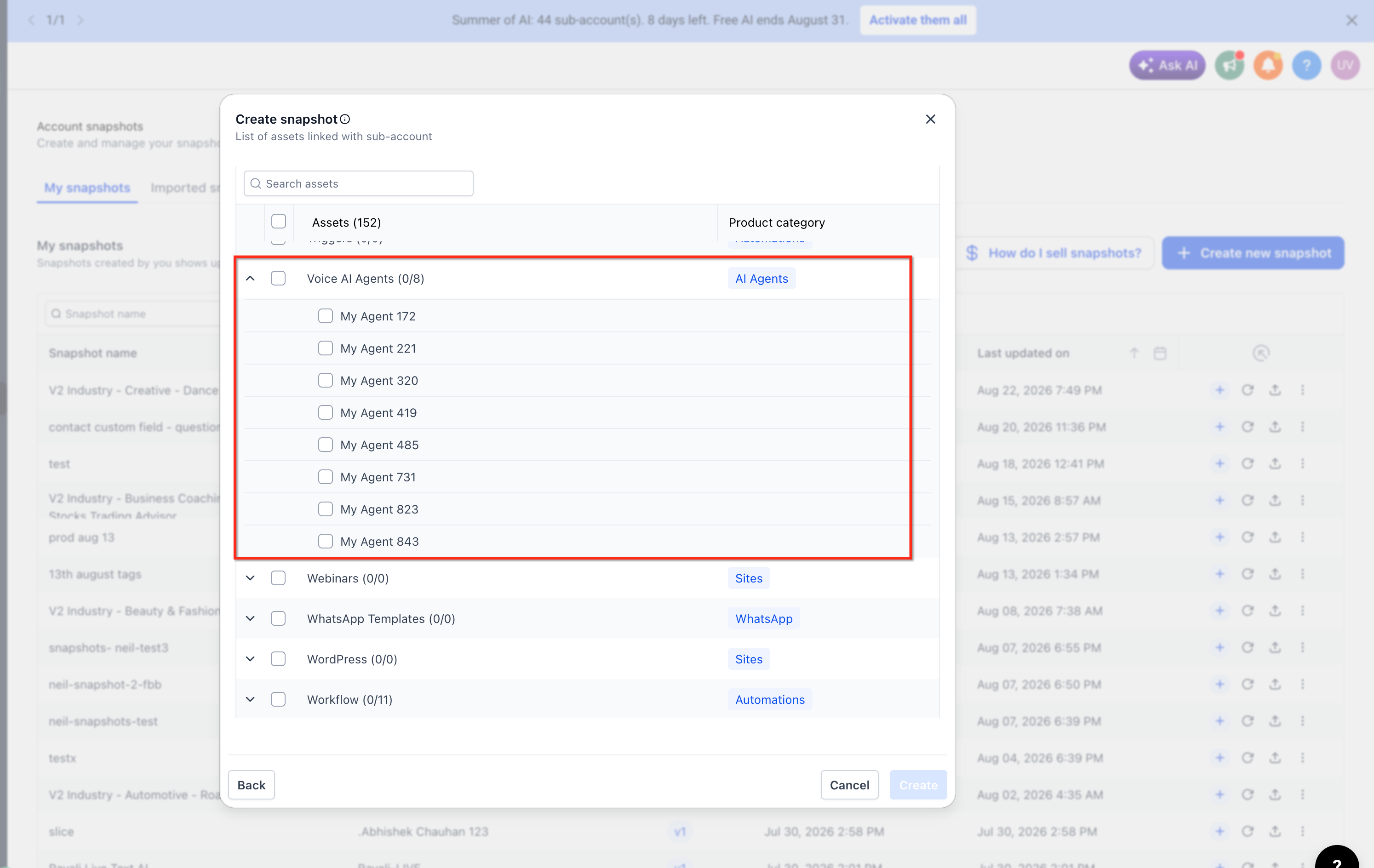
- In the asset picker, expand Voice AI and tick each Flow Based agent to include.
- Optionally add related workflows, triggers or calendars, then save the Snapshot.
- Locate the saved Snapshot in Agency View and click Load.
- Choose the destination subaccount and ensure the desired Voice AI agent is selected.
- Confirm the load to recreate the agent in the destination account.
- In the destination subaccount, assign a compatible LC Phone or Twilio number.
- Update any location specific details such as business hours, addresses or local offers.
- Place a few test calls to verify the agent behaves as expected.
06What it looks like in HighLevel
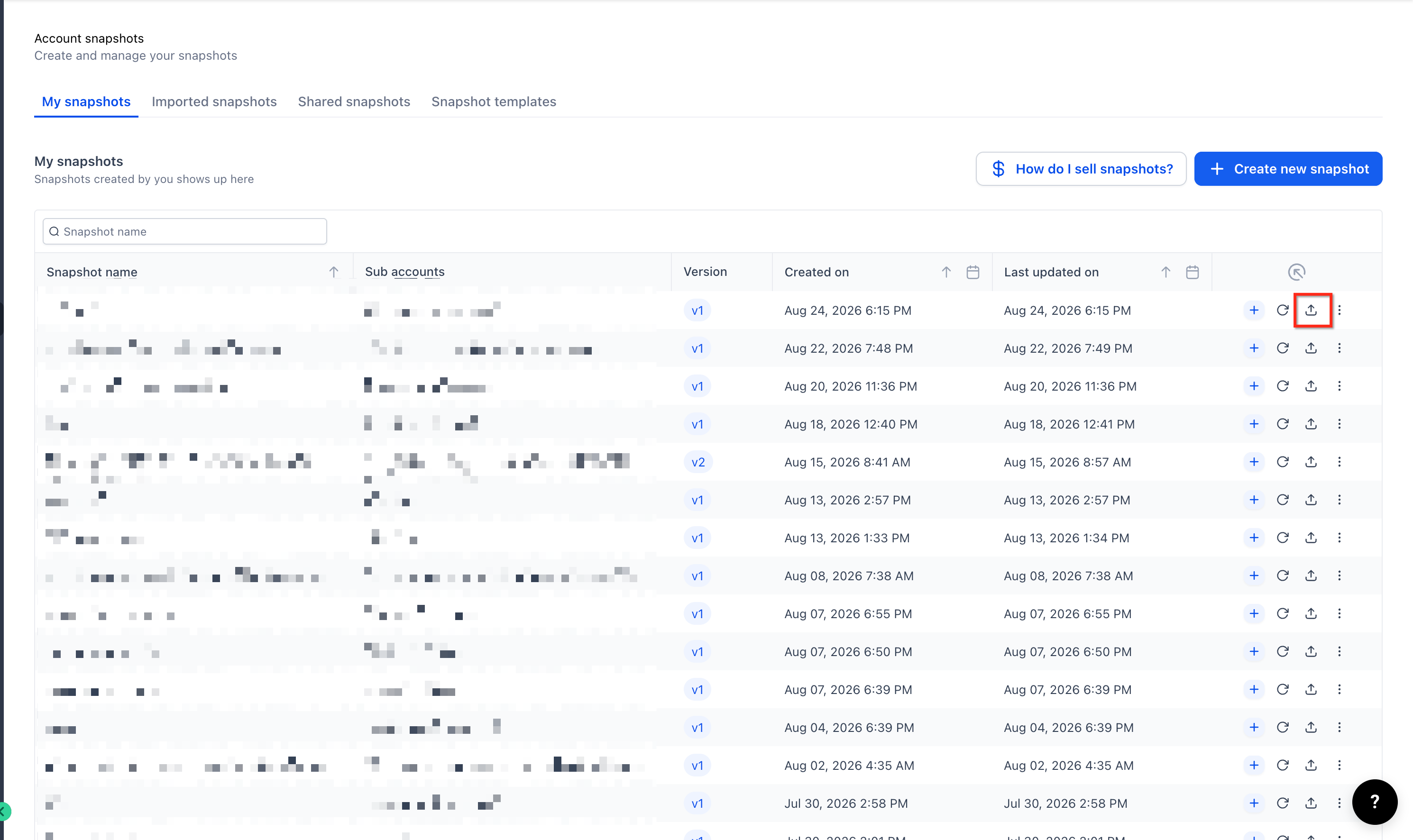
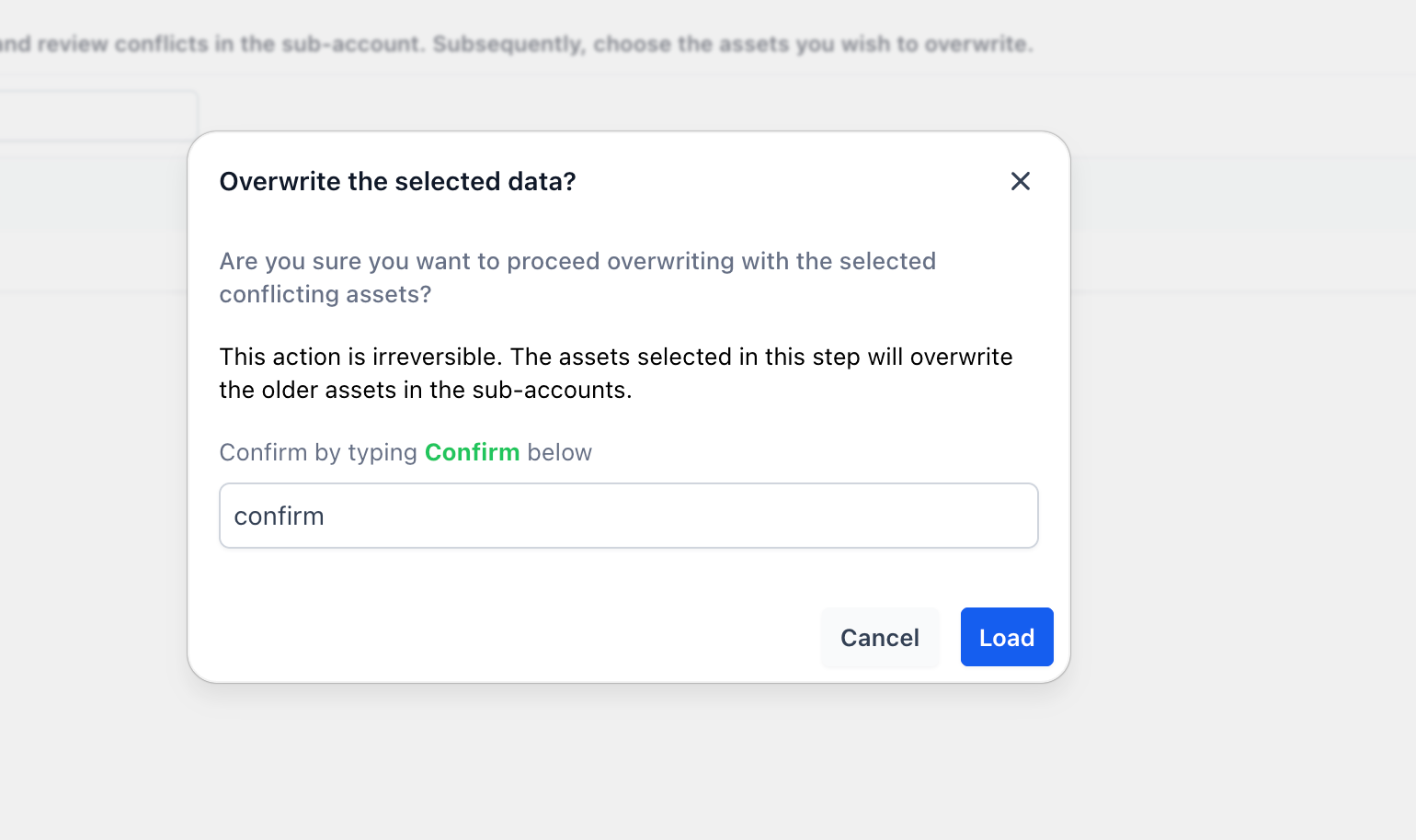
07Settings that matter
- Assets Protected Snapshots. Controls whether recipients of a shared Snapshot can edit or export the included Flow Based Voice AI agents and other protected assets.
08Things to know before you rely on it
- Phone numbers assigned to Voice AI agents are not transferred by a Snapshot; they must be set in each destination account.
- Live data such as contacts, call history and transcripts stay in the source account and are not copied.
- After import you may need to adjust local details like phone numbers, business hours or location specific messages.
- If a Snapshot is protected, editing or exporting of protected assets may be restricted according to the protection settings.
09How it connects to the rest of HighLevel
- Overview of account snapshots and how assets are copied Snapshots overview
- Guide to create a new snapshot in HighLevel Create snapshot
- Instructions for loading a snapshot into an existing subaccount Load snapshot
Michael's take

Pulling together a full call journey for each client can be a huge time sink. The ability to snapshot a Flow Based Voice AI agent means you can build a master flow once and push it to dozens of subaccounts with just a few clicks.
That way the only thing you have to do after the load is assign a local phone number and tweak any location specific messaging.