
01Who this is for
- Agency owners who push snapshots to multiple subaccounts and need to verify each deployment.
- Team members who monitor snapshot pushes for errors and confirm that all required assets are present.
02Snapshot push update history, explained
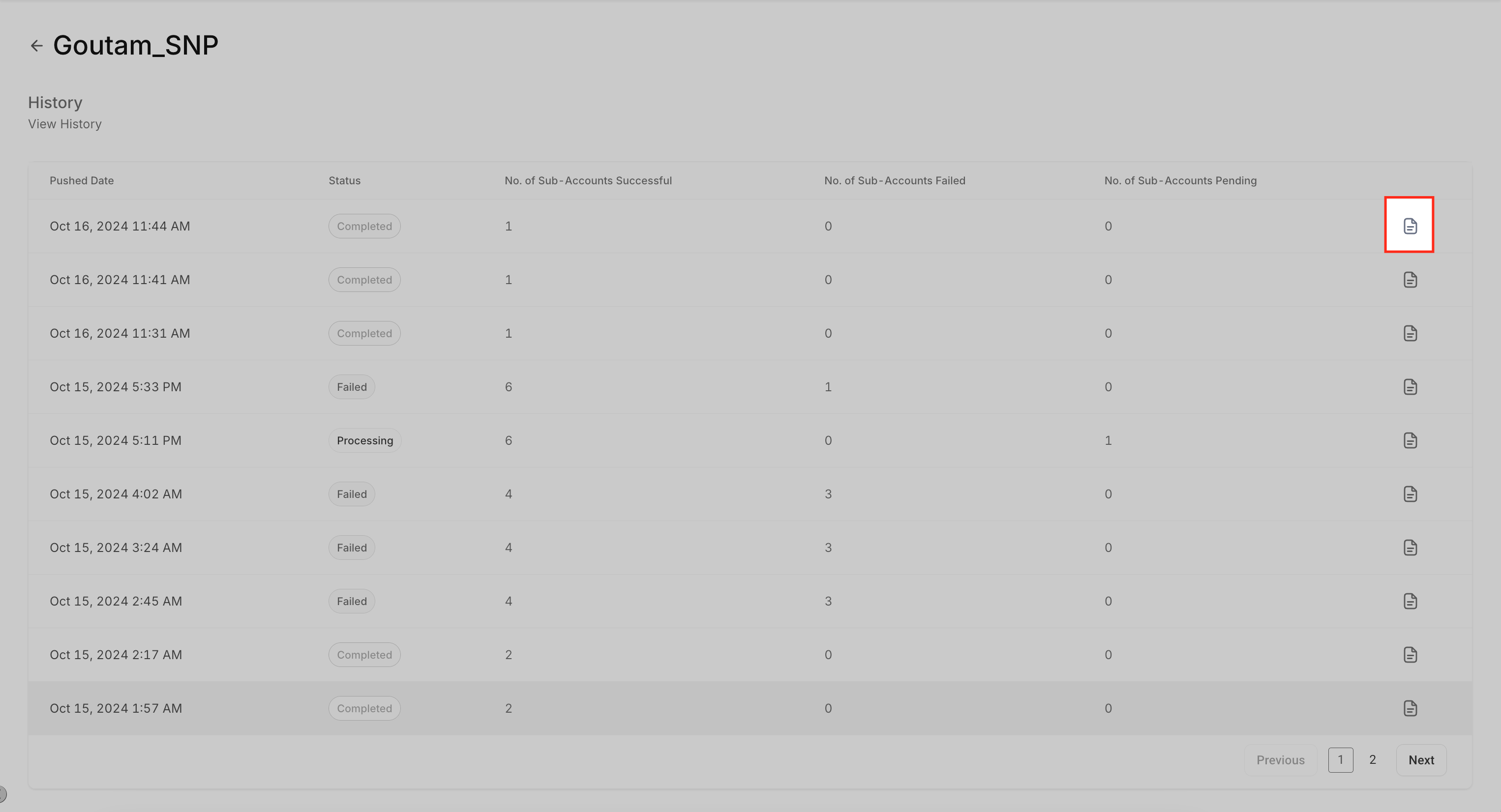
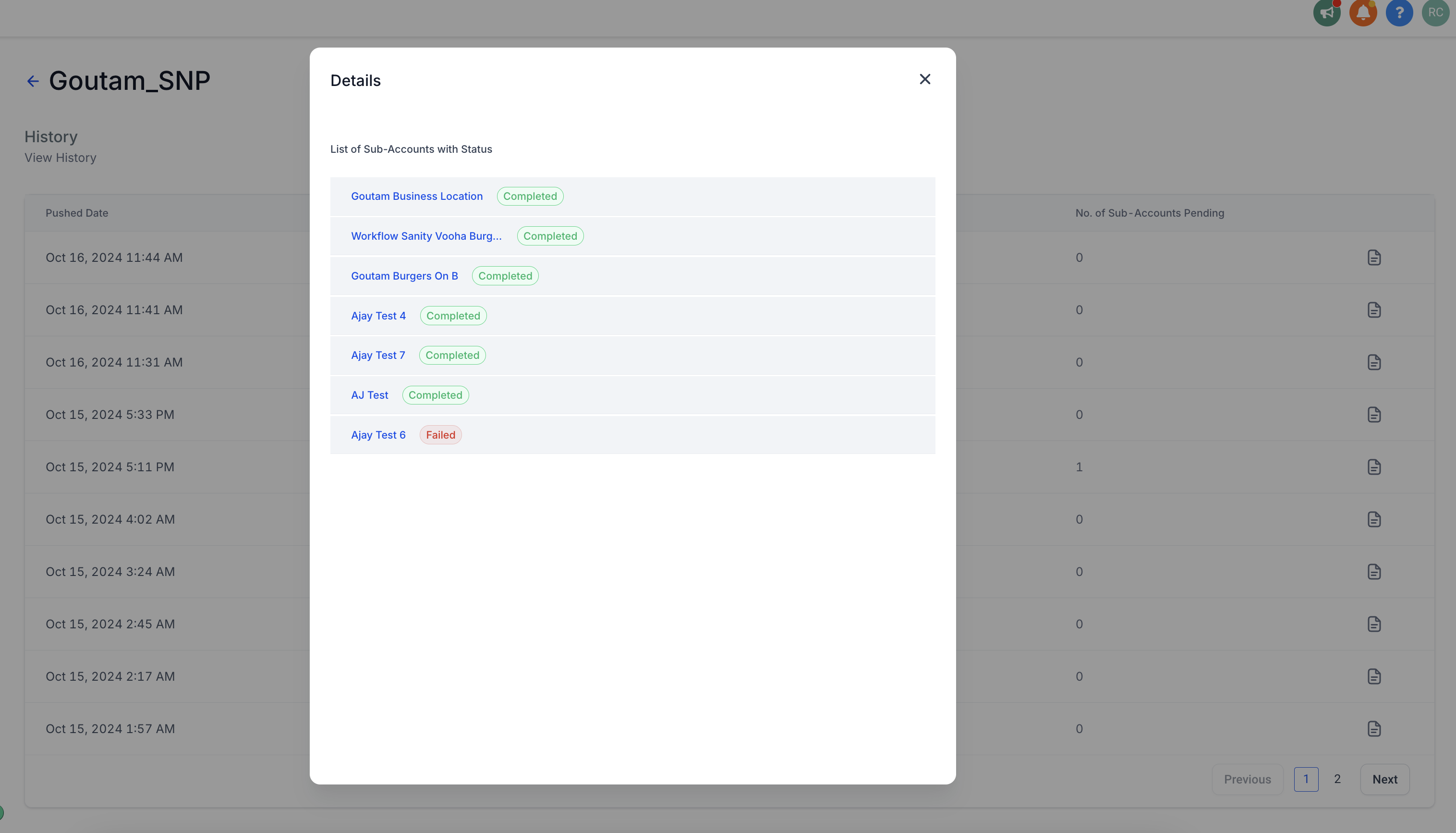
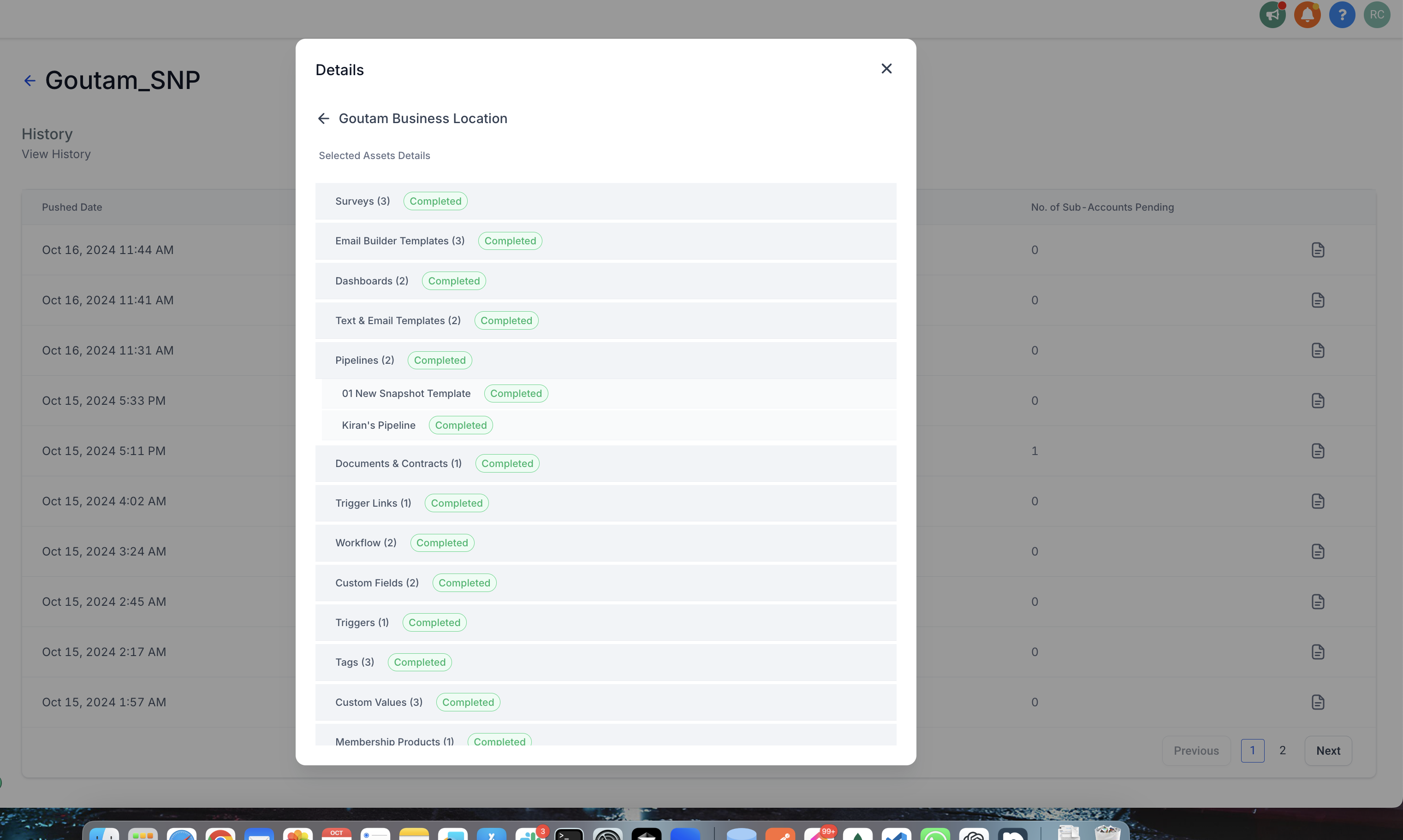
The Snapshot Push History feature logs each occasion a snapshot update is pushed to one or more subaccounts. It displays a table that groups subaccounts by their outcome: successful, failed, or pending. For every push you can also open a subaccount entry and see which assets, such as funnels, forms or pipelines, were transferred.
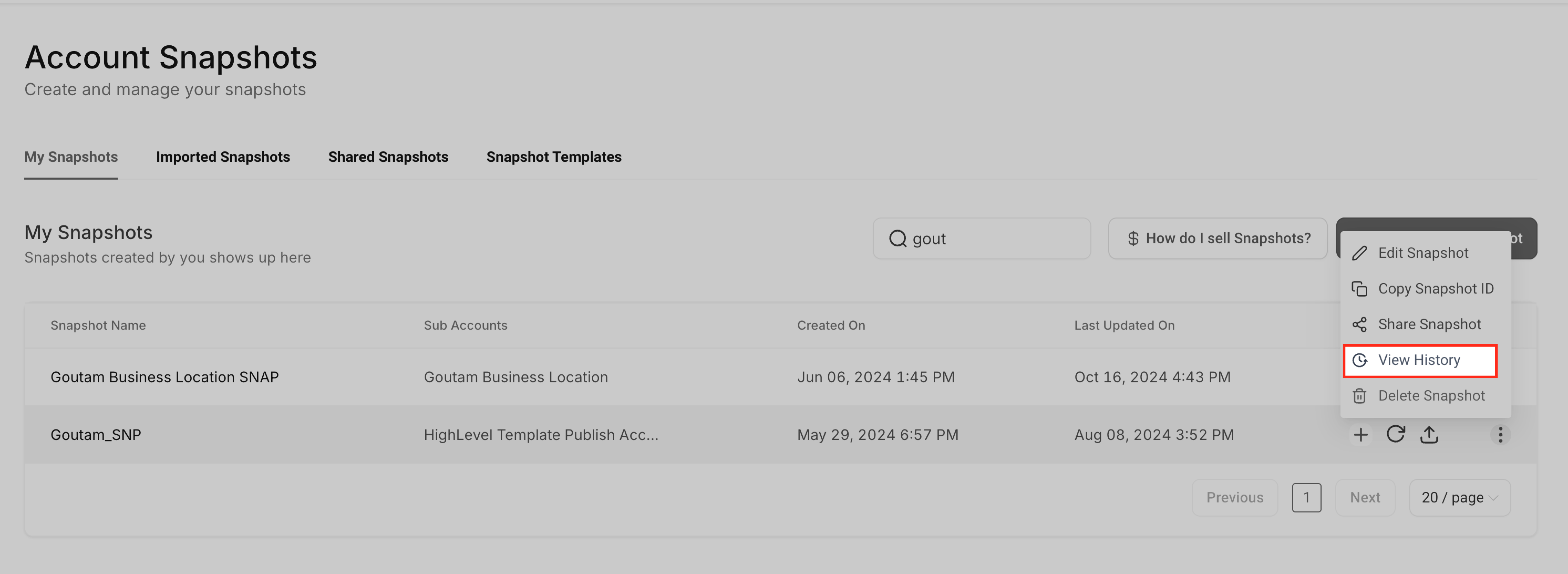
The log resides inside the Account Snapshots area. From My Snapshots you open the three dot menu on a snapshot and select View History. The resulting screen shows the status rows and a details icon on each line. Clicking the icon expands the subaccount view, then further clicks reveal each individual asset that was part of the push.
This view helps you audit the deployment of configurations across your network of subaccounts, ensuring that each component was correctly applied and allowing you to investigate any failures directly from the platform.
03How businesses use snapshot push update history
- Digital marketing agency. The agency opens the history to confirm that all client subaccounts received the latest funnel templates. By expanding each subaccount row, the team checks that every required asset appears before launching new ad sets.
- Consulting firm with client portals. Consultants view the push log after applying a new onboarding snapshot. They look for any subaccounts marked as Failed and drill into the asset list to see which forms or automations did not load, then plan a manual fix.
- Ecommerce brand managing multiple store subaccounts. The brand’s operations manager reviews the history after a seasonal promotion snapshot is pushed. They verify that each store’s subaccount shows a Successful status and expand the rows to ensure all checkout funnels were included.
04The numbers and rules that matter
- As of 2024 Nov 12 the asset level details might say Completed even if less than 100% of the assets loaded (ex: Only 5 out of 10 funnels were loaded). This is being improved.
05How to set up and use snapshot push update history in HighLevel
View snapshot push history
- Navigate to Account Snapshots then select My Snapshots.
- Open the three dot menu on the desired snapshot and choose View History.
- In the history table, locate the desired push row and click the details icon at the far right.
- Expand the subaccount entry to reveal each individual asset that was transferred.
06What it looks like in HighLevel
07Things to know before you rely on it
- As of 2024 Nov 12 the asset level detail may show Completed even when fewer than all assets were loaded (per HighLevel's help center, checked November 2026).
08How it connects to the rest of HighLevel
- Refresh or push updates to snapshots Refresh snapshots
- Load a Snapshot into an existing subaccount Load snapshots
- Create a new snapshot in HighLevel Create snapshot
Michael's take

When managing many client accounts, the history view provides visibility into which snapshots were pushed and which subaccounts had failures.
If you only push snapshots occasionally and never encounter failed updates, you may choose not to review the history and rely on manual checks instead.