
01Who this is for
- Agency Admins who need immediate visibility of snapshot deployment results across client subaccounts.
- Agency Users who require view only access to snapshot notification settings.
02Snapshot notification preferences, explained
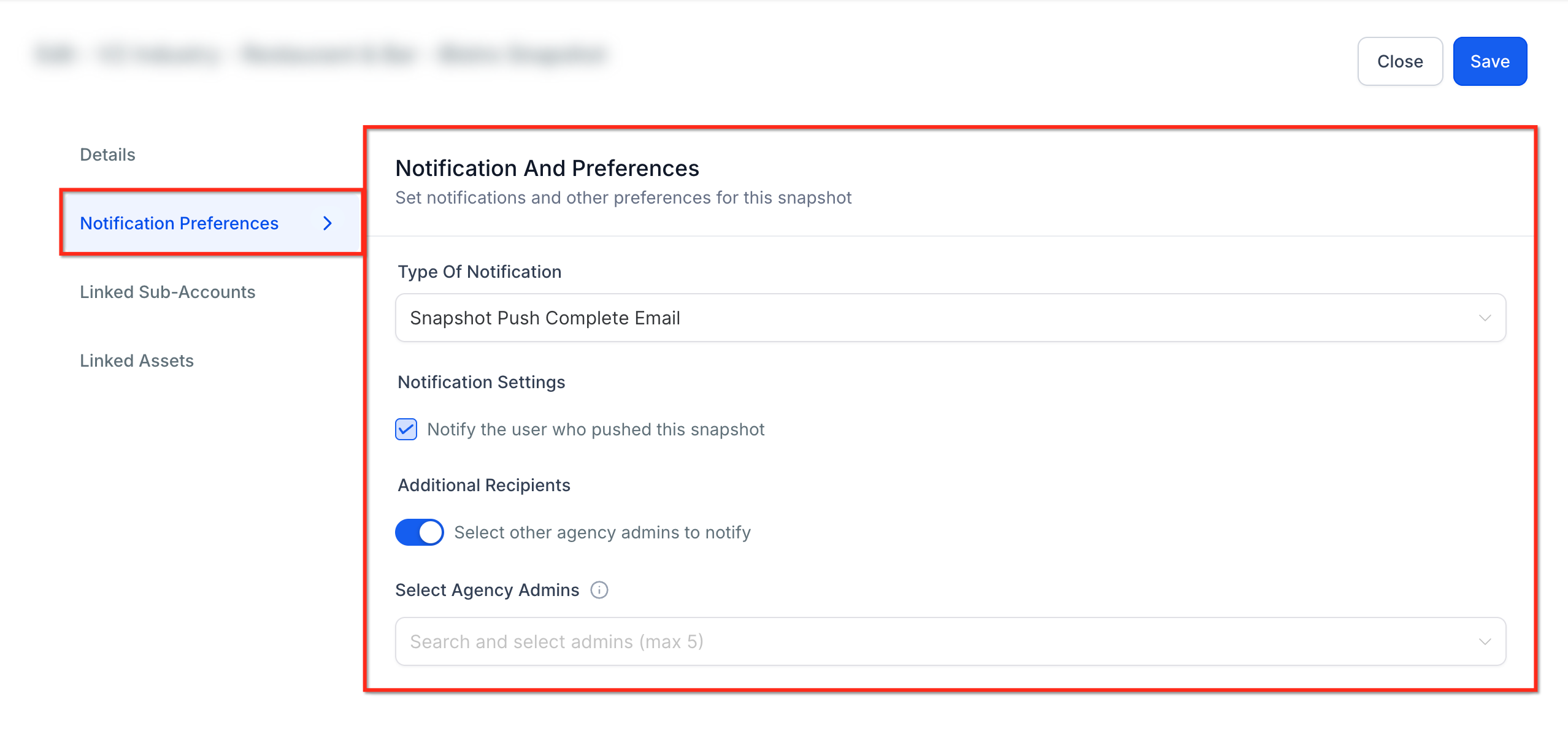
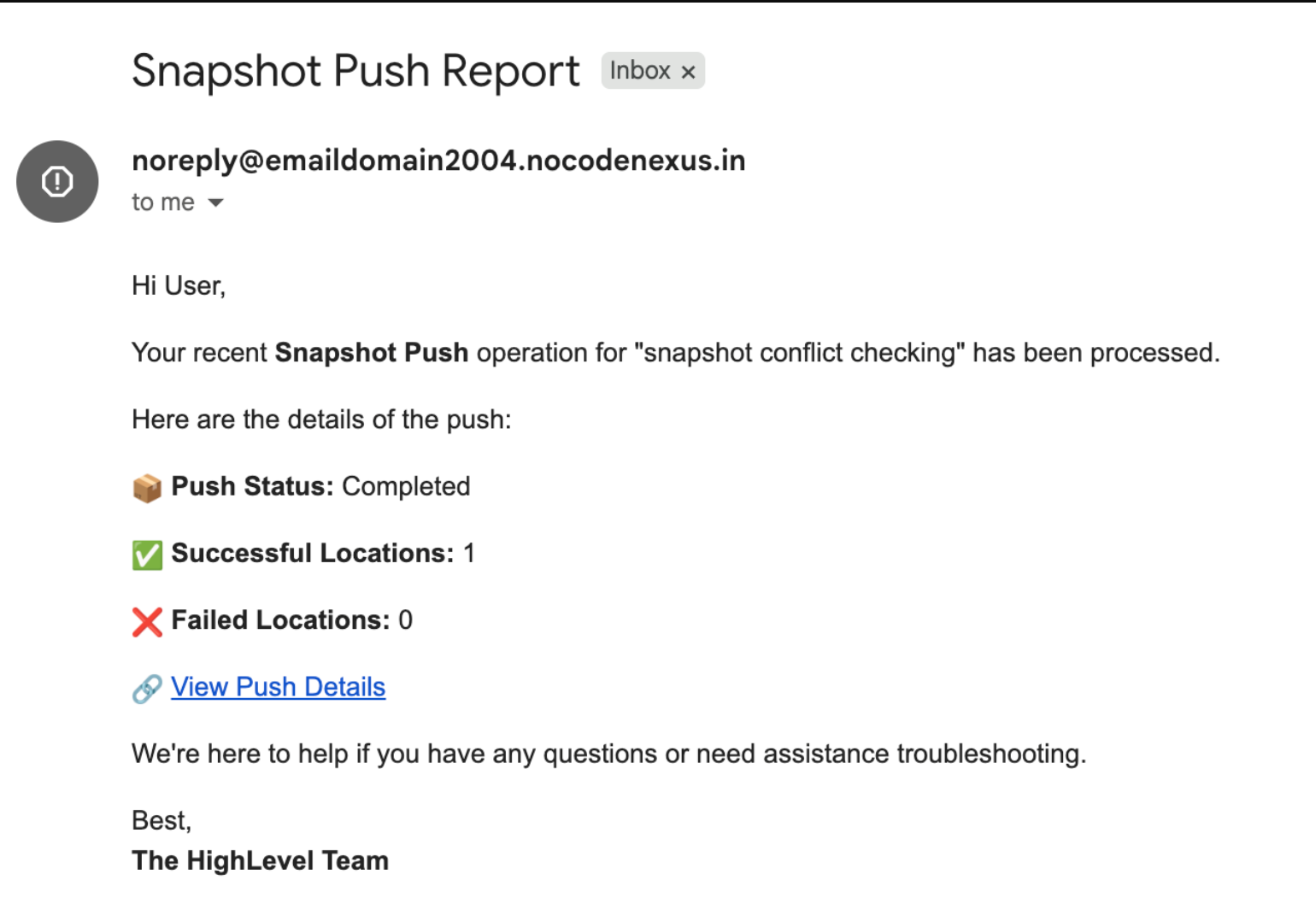
The feature adds a Notification Preference tab to each snapshot configuration. From this tab, an Agency Admin can enable or disable an email to the user who initiated the push and add up to five other Agency Admins as recipients. The email is sent only after the snapshot push completes and includes the number of completed and failed subaccounts plus a direct link to the full push history.
These preferences are set per snapshot, so each snapshot can have its own list of recipients. Agency Users can view the settings but cannot edit them, preserving administrative control while keeping the team informed.
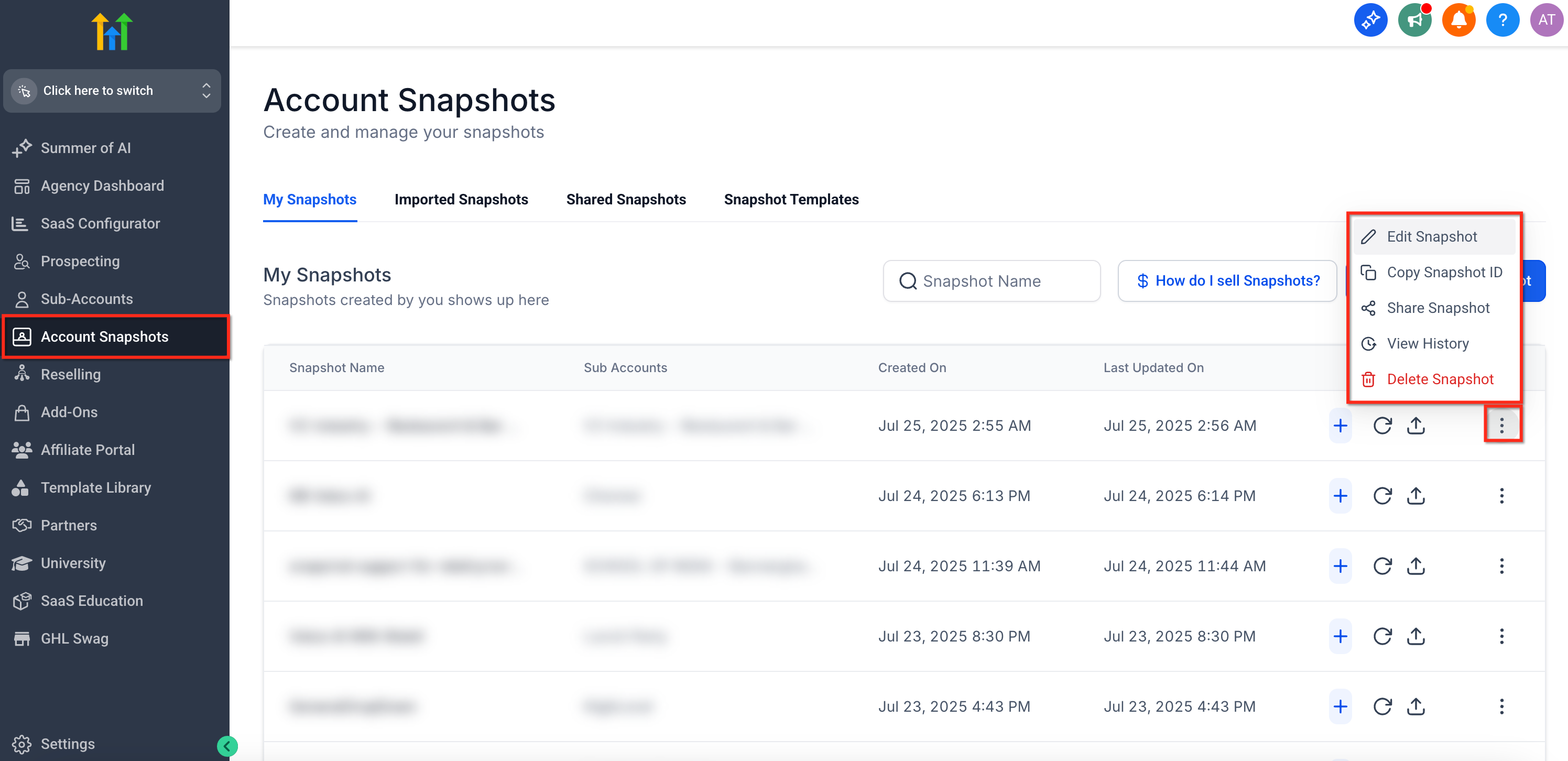
You find the controls in the agency view under Snapshots > My Snapshots. After selecting the three dot menu for a snapshot, choose Edit Snapshots (now called Snapshot Settings) and open the Notification Preference tab to adjust the options.
03How businesses use snapshot notification preferences
- Digital marketing agency. The agency admin toggles the push notification for themselves and adds the account manager and senior strategist as extra recipients. When a client snapshot is pushed, the chosen admins receive an email with success and failure counts and a link to investigate any issues.
- Web design studio. The studio’s lead developer disables the initiator’s email and selects the project manager and QA lead as the five allowed recipients. After each website snapshot deployment, those admins are right away notified of the outcome.
- Consulting firm. The consulting firm’s senior partner opts out of receiving their own notifications but adds three other partners. Once a snapshot of a client’s workflow tools is pushed, the three partners get the completion report via email.
04The numbers and rules that matter
- Up to five additional Agency Admins can be added as recipients.
05Before you start
- You must be logged in as an Agency Admin to edit snapshot notification settings.
06How to set up and use snapshot notification preferences in HighLevel
Set up snapshot notification preferences
- In the agency view, go to Snapshots > My Snapshots.
- Click the three dot icon next to the snapshot you want to modify.
- Select Edit Snapshots (shown as Snapshot Settings) to open the snapshot’s settings page.
- Open the Notification Preference tab.
- Toggle the Push Notification option to decide whether the initiator receives an email.
- Add up to five additional Agency Admins to the recipient list.
- Save the changes to activate the new notification preferences.
07What it looks like in HighLevel
08Settings that matter
- Push Notification. Controls whether the user who started the snapshot push receives an email once the push finishes.
- Admin Control. Allows an Agency Admin to add up to five other Agency Admins who will receive snapshot push email notifications.
09Things to know before you rely on it
- Only Agency Admins can edit the notification preferences.
- Agency Users have view only access to these settings.
- Notifications are sent only when a push completes, not when it starts or fails mid process.
- Up to five additional Agency Admins can be added as recipients per snapshot.
10How it connects to the rest of HighLevel
- Learn how to create new snapshots to use with these notification settings. Create new snapshots
- Find out how to load a snapshot into an existing subaccount for testing. Load snapshots
- Review the full list of snapshot features and their capabilities. All snapshots features
Michael's take

Skipping the notification step means you won’t receive an email when the snapshot fails, since notifications are only sent when the push completes.
When I’m setting up a new snapshot, I make sure the initiator and the key decision makers get the email.