
01Who this is for
- Agency owners who build reusable client setups, because the feature bundles required assets automatically, reducing manual selection.
- Marketing teams that rely on Workflows and Email Templates, as dependencies are captured to keep automations functional after transfer.
- Product managers deploying standard configurations across multiple subaccounts, because the feature lowers the risk of missing linked assets.
02Snapshot Asset Dependencies, explained
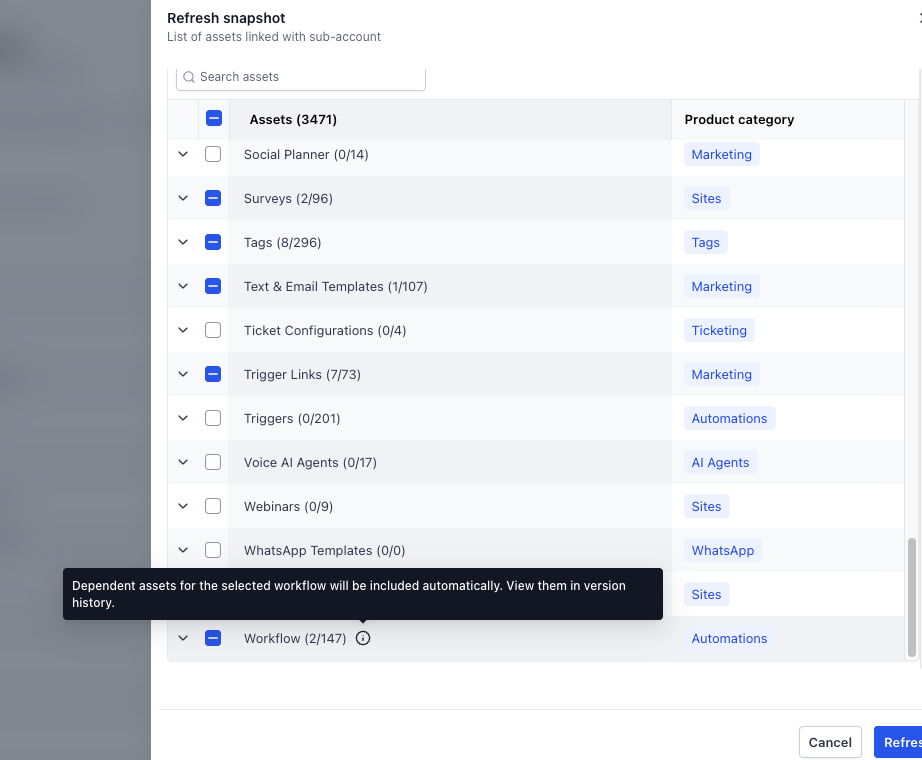
The feature scans selected Workflows and Email Templates for any referenced assets such as Email Builder Templates, Custom Fields, Tags, Pipelines, and Brand Colors. When you create or refresh a Snapshot, HighLevel adds those referenced items automatically. During the load process, turning on a toggle will automatically select those dependencies for transfer.
Dependency handling occurs at two moments: snapshot creation or refresh, and snapshot loading. In the creation and refresh steps, HighLevel detects and includes available supporting assets. When loading, the Auto include dependent assets control determines whether those assets are selected alongside the primary ones.
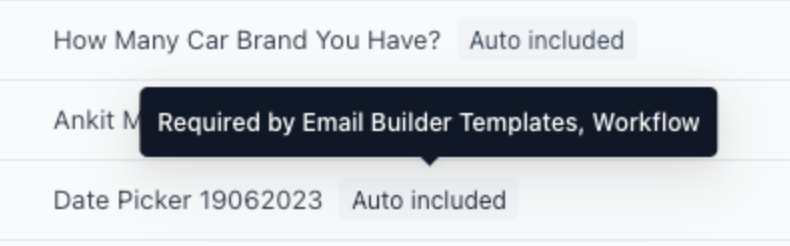
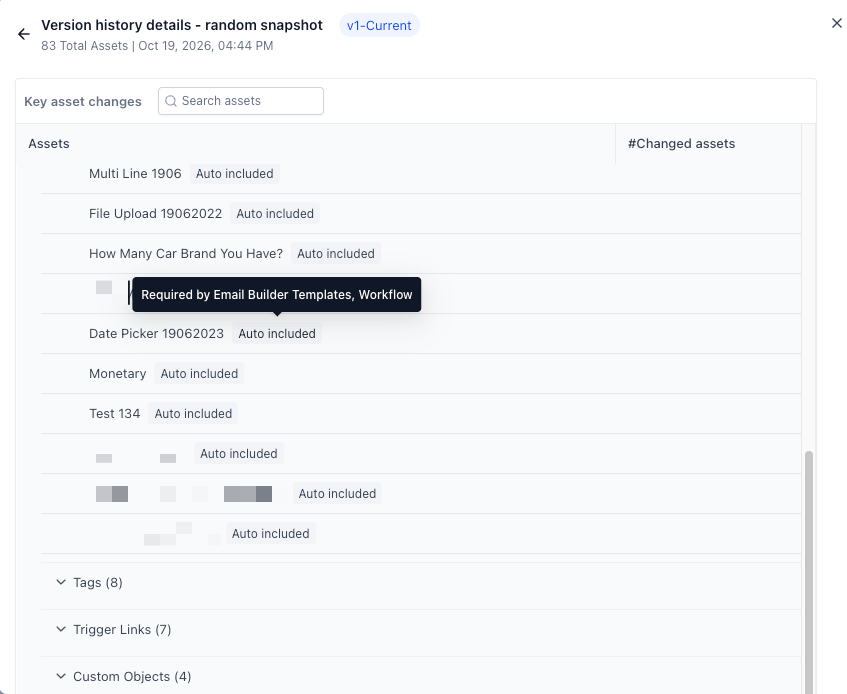
You find the controls on the asset selection screen within the Snapshot workflow, and Version History labels automatically included assets for review.
03How businesses use Snapshot Asset Dependencies
- Digital marketing agency. The agency creates a Snapshot of a client’s automation set, letting HighLevel automatically pull in the email templates and custom fields each Workflow uses. When the agency rolls out the same setup to a new client subaccount, they enable Auto include dependent assets so all needed pieces arrive together.
- Ecommerce store. The store selects its order confirmation Workflow and related email template, then refreshes the Snapshot after adding a new tag for VIP customers. HighLevel adds the new tag as a dependency, ensuring the refreshed Snapshot contains the latest configuration before loading it to another store.
- SaaS startup. During onboarding, the startup loads a Snapshot into a fresh subaccount. By turning on Auto include dependent assets, the system automatically selects the required pipelines and custom objects tied to the chosen Workflows, simplifying the initial setup.
04The numbers and rules that matter
- Supported dependency types: Email Templates, Custom Fields, Custom Values, Tags, Pipelines and pipeline stages, Custom Objects, Trigger Links, Brand Colors.
05How to set up and use Snapshot Asset Dependencies in HighLevel
Create a Snapshot with Dependencies
- Navigate to Agency View > Account Snapshots.
- Click the + Create New Snapshot button.
- Enter a name for the Snapshot and choose the source subaccount.
- Select the Workflows, Email Templates, and any other assets you want to capture.
- Press Create; HighLevel will automatically add any detected dependencies.
Refresh a Snapshot to Recheck Dependencies
- Go to Agency View > Account Snapshots.
- Find the desired Snapshot and click its Refresh icon.
- Pick the assets you wish to add or update in the refresh selector.
- Click Refresh so HighLevel reassesses the assets and includes new dependencies.
Include Dependencies When Loading a Snapshot
- Open the load flow from Agency View > Account Snapshots by selecting Load Updates to Subaccount, then choose the destination subaccount(s) and continue.
- Or start from Agency View > Subaccounts, open the three dot menu of the target subaccount, pick Manage Client > Actions > Load Snapshot, and select the Snapshot.
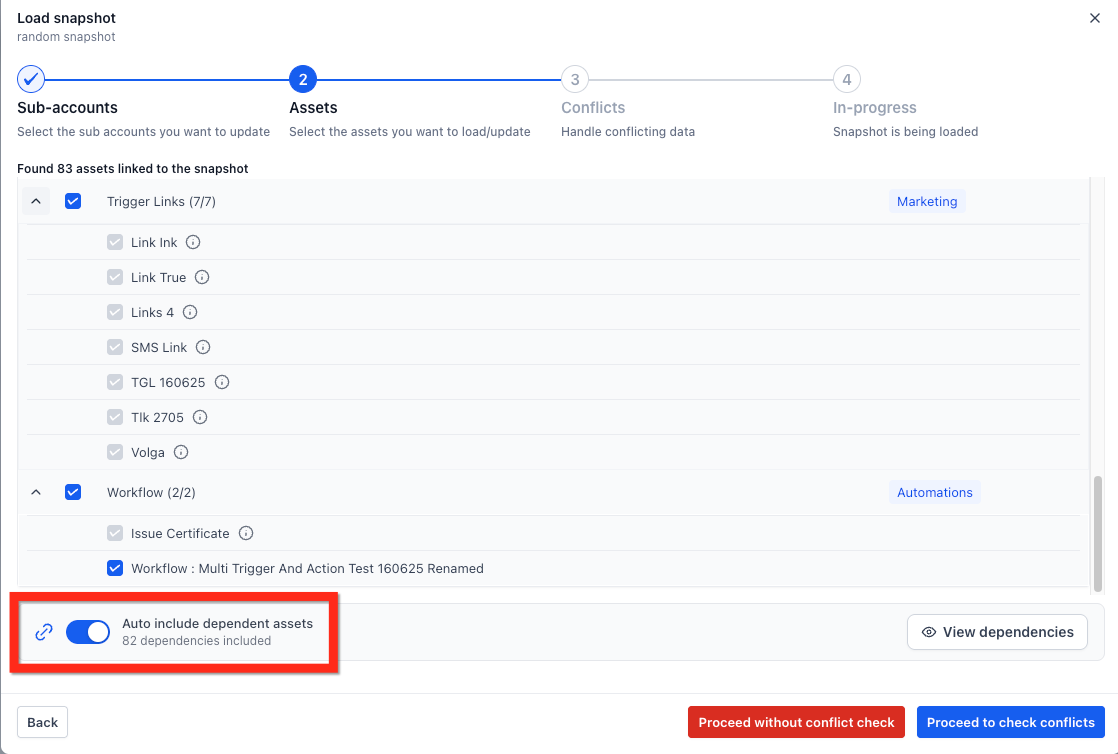
- In the Assets step, expand the categories and tick the Workflows or Email Templates you want to import.
- Enable the Auto include dependent assets toggle located beneath the asset list.
- Click View dependencies to filter the list and see the automatically selected supporting assets.
- Use Show all assets to return to the full asset list if needed.
- Press Proceed, resolve any conflict prompts, and confirm the load to finish.
06What it looks like in HighLevel
07Settings that matter
- Auto include dependent assets. Controls whether dependencies are automatically selected during the Snapshot load process.
08Things to know before you rely on it
- Automatic detection currently works only for Workflows and Email Templates.
- Dependencies for other asset types are not identified automatically and must be added manually.
- Auto inclusion can be turned off during loading, which may leave required assets unselected.
- If a referenced dependency cannot be found, HighLevel skips it without stopping the rest of the Snapshot processing.
09How it connects to the rest of HighLevel
- How to create a new Snapshot in HighLevel Create Snapshot guide
- How to refresh or update Snapshots Refresh Snapshot guide
- How to load Snapshots into an existing subaccount Load Snapshot guide
Michael's take

Moving automations between accounts can be frustrating when templates or fields are missing. In my experience, Snapshot Asset Dependencies saves time by gathering related assets automatically, so I can focus on strategy rather than hunting for missing pieces.
If you only need a single workflow and you’re confident every piece it touches is already in the destination, the extra step of turning on autoinclude may feel like overhead. In that case the feature adds little value and you might prefer a leaner manual selection.