
01Who this is for
- Agency owners, they can monitor large deployments without a flood of alerts.
- Product managers overseeing multiple client setups, grouped updates keep their dashboards tidy.
- Support leads, individual failure alerts ensure they can act quickly on problems.
02Rolling notifications, explained
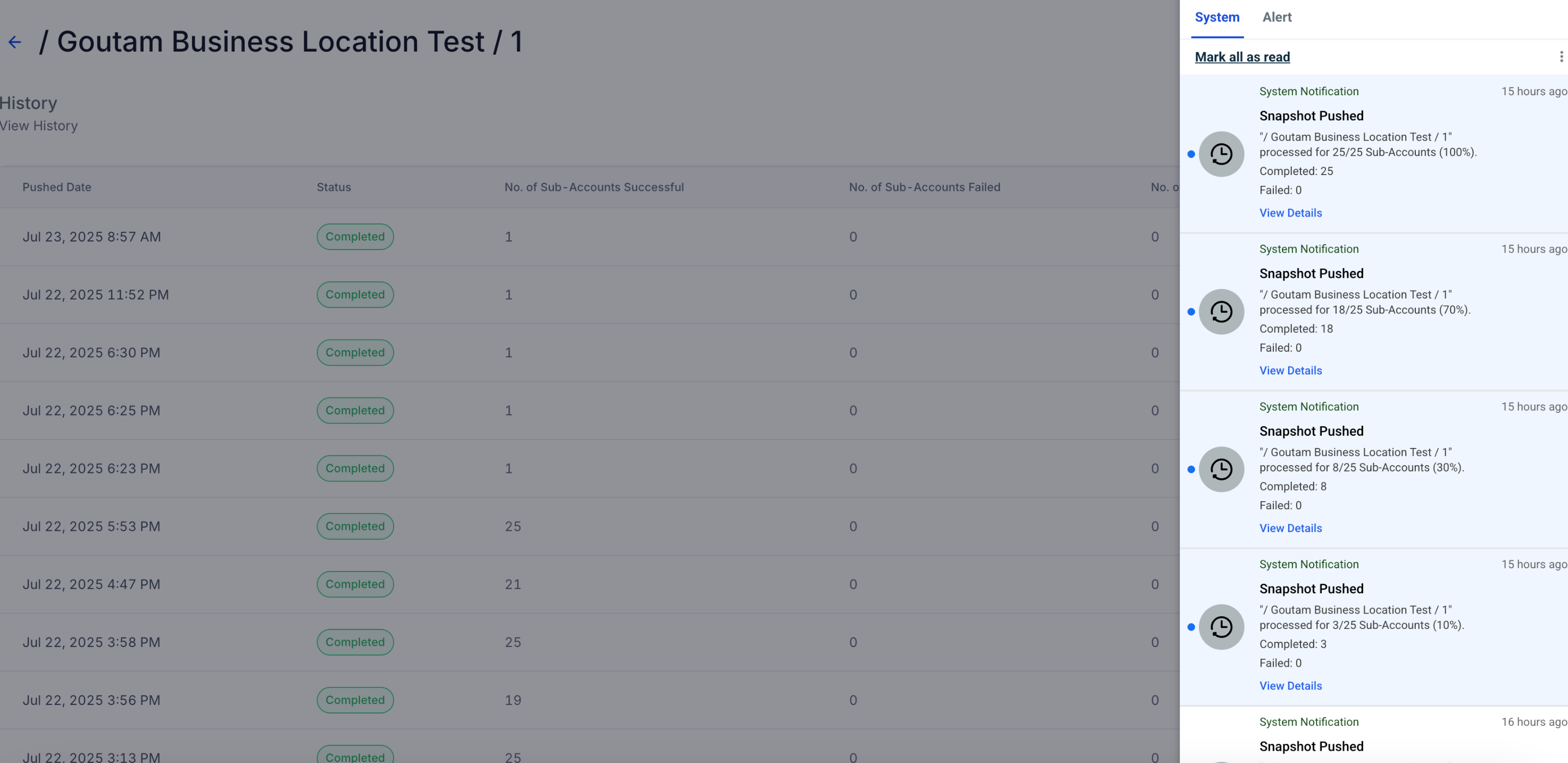
Rolling notifications modify how the platform reports the status of a snapshot push. When a snapshot is pushed to ten or more subaccounts, the system stops sending a separate in app notice for each location. Instead it creates four grouped alerts that correspond to progress milestones of 10%, 30%, 70% and 100% of the total subaccounts being processed.
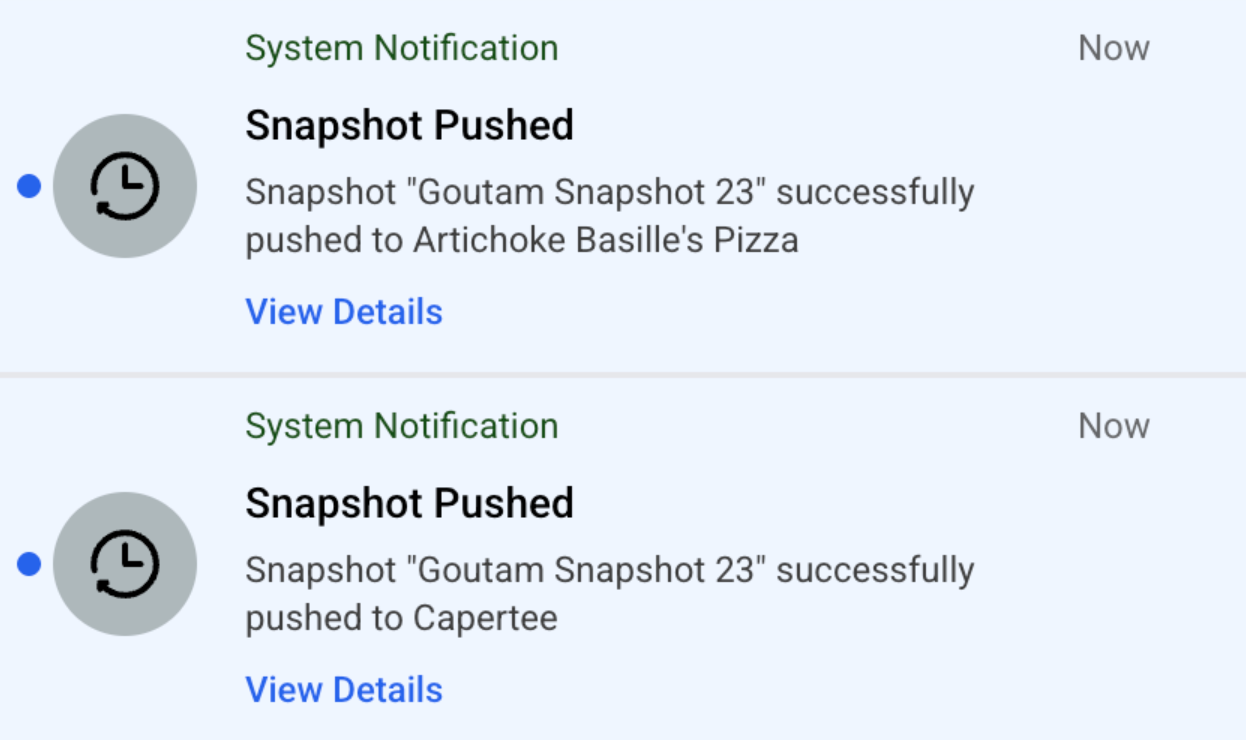
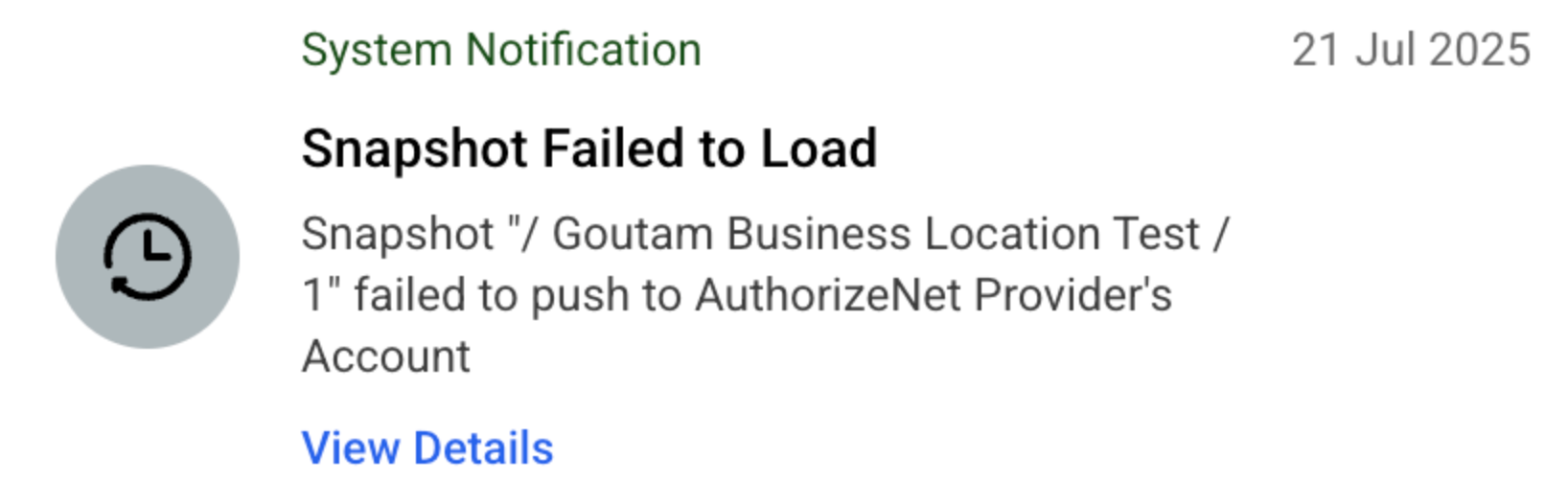
If the push targets fewer than ten subaccounts, the platform behaves as before and sends an individual notification for each location. Failure alerts are never combined; every failed snapshot push generates its own notification with a link to view detailed history. The feature is enabled automatically and cannot be disabled.
The notifications appear in the HighLevel in app notification center. Each alert includes a blue “View Details” link that opens the Snapshot > Push History page pre filtered to the specific deployment, saving additional navigation.
03How businesses use rolling notifications
- Marketing agency. The agency pushes a lead capture funnel snapshot to all client subaccounts. Rolling notifications let the agency see four summary alerts as the deployment reaches each milestone and click the provided “View Details” link for any failure, keeping the process clear.
- SaaS startup with multiple client portals. The startup deploys a user onboarding workflow snapshot across dozens of client portals. Grouped alerts show progress at the key percentages, while any portal that fails receives its own alert, allowing the team to investigate directly from the notification.
- Real estate brokerage. The brokerage uses a property listing snapshot for each agent’s subaccount. When the snapshot is pushed to more than ten agents, rolling notifications provide concise updates, and any agent’s failed push appears as an individual alert for immediate follow up.
04The numbers and rules that matter
- Notifications are grouped when pushing to 10 or more subaccounts.
- Grouped alerts are sent at 10%, 30%, 70% and 100% progress.
- Individual notifications are sent for pushes to fewer than 10 subaccounts.
05How to set up and use rolling notifications in HighLevel
Push a snapshot and receive rolling notifications
- Initiate a snapshot push to ten or more subaccounts; HighLevel automatically groups in app notifications at the 10%, 30%, 70% and 100% milestones and keeps separate alerts for any failures.
- If a snapshot push fails, an individual failure notification is sent for that location.
- Click the blue “View Details” link in any notification to open Snapshot > Push History pre filtered to that deployment.
06What it looks like in HighLevel
07Things to know before you rely on it
- Rolling notifications only activate when a snapshot push targets ten or more subaccounts.
- For pushes to fewer than ten subaccounts, the platform continues to send individual notifications for each location.
- Grouped alerts are sent exactly at the 10%, 30%, 70% and 100% progress points.
- Failure alerts are never merged; each failed snapshot push generates its own individual notification.
- The grouping behavior is a system level enhancement and cannot be turned off.
08How it connects to the rest of HighLevel
- Create a new snapshot to use as a template Create snapshot
- Refresh or update snapshots after changes Refresh snapshots
- Share snapshots with other agencies Share snapshots
Michael's take

Most people assume they can switch off the grouped alerts and end up confused when the inbox stays quiet during a big rollout. The system doesn’t let you toggle it, so the best approach is to rely on the milestone messages and use the “View Details” links to dive in when you need specifics.
If I were setting up a new agency template, I’d push it to a few test accounts first, watch the 10% and 30% alerts, and verify that any failure pops up individually. That gives confidence the notifications are behaving as expected before scaling to dozens of clients.