
01Who this is for
- Agency owners who run multiple client subaccounts benefit from clearer asset grouping to avoid missing items.
- Marketing teams handling large libraries of workflows and templates save time by selecting whole folders at once.
02Organized nested asset selection, explained
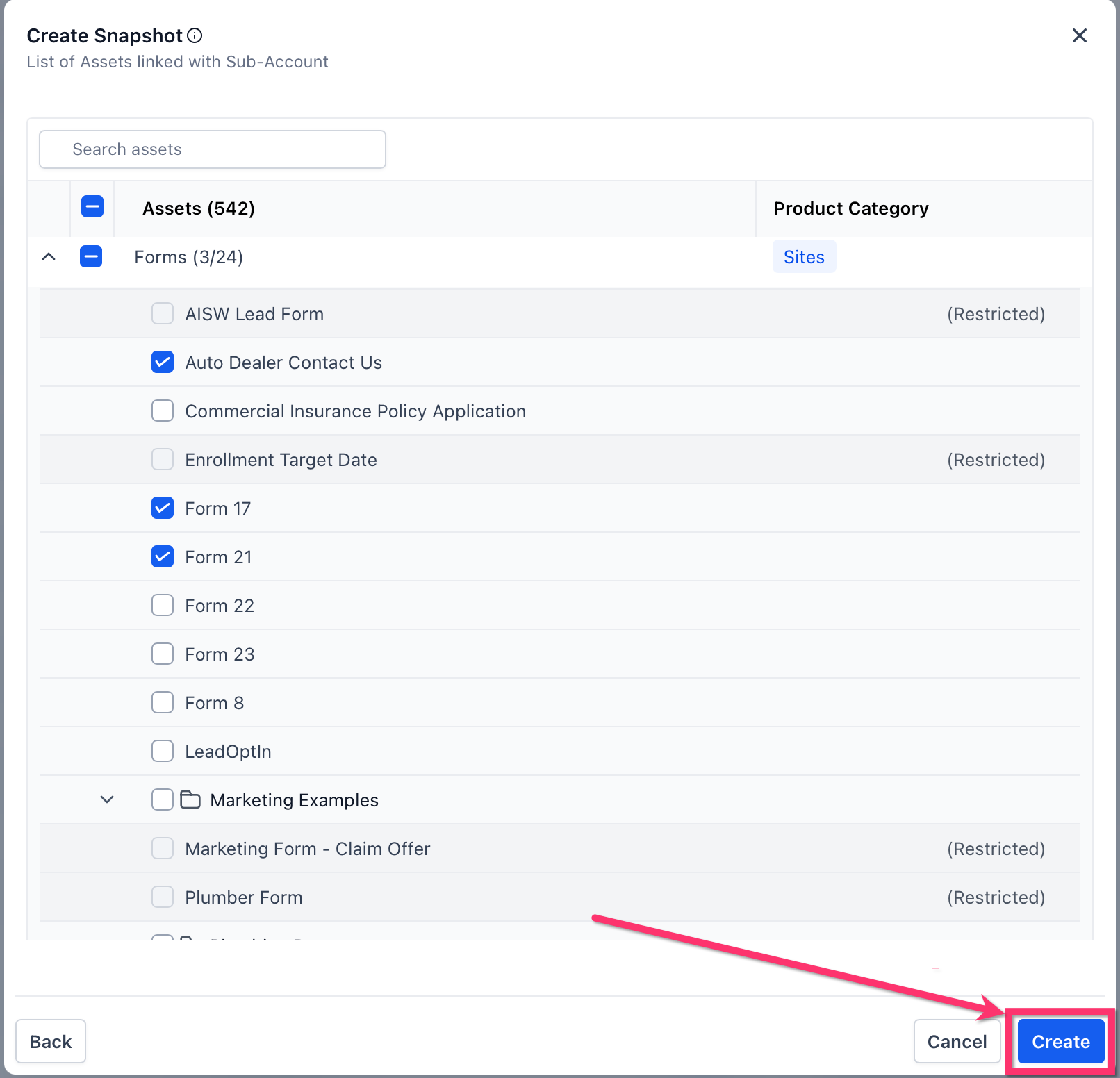
The feature replaces the flat list of assets with a hierarchical selector that mirrors the folder structure of the source subaccount. Folders, sub folders and individual assets appear together, letting you see where each item belongs before you add it to a snapshot.
You can expand a folder layer by layer, select an entire folder to include all its sub folders and assets, or drill down to pick specific items. Selecting a folder automatically picks everything inside it, while expanding lets you fine tune the selection.
The nested selector is built into the Create Snapshot, Refresh Snapshot and Load Snapshot workflows. Access it from Agency View, launch the appropriate snapshot action, and the selector appears automatically.
03How businesses use organized nested asset selection
- Digital marketing agency. When building a snapshot of a client account, the agency expands the folder containing email templates and selects the whole folder to capture every template at once, or expands it to pick only the newest campaign assets.
- Large client account team. The team uses the selector to load booking workflow assets from a snapshot, expanding the workflows folder and selecting the specific booking flow needed to keep the appointment system consistent.
- Product configuration manager. During a snapshot refresh, the manager opens the selector, expands the policies folder, and selects only the updated claim form assets, updating the snapshot without overwriting unchanged templates.
04Before you start
- Be logged into HighLevel Agency View.
- Have permission to use Snapshot workflows.
- Identify a source subaccount that contains the assets you want to select.
05How to set up and use organized nested asset selection in HighLevel
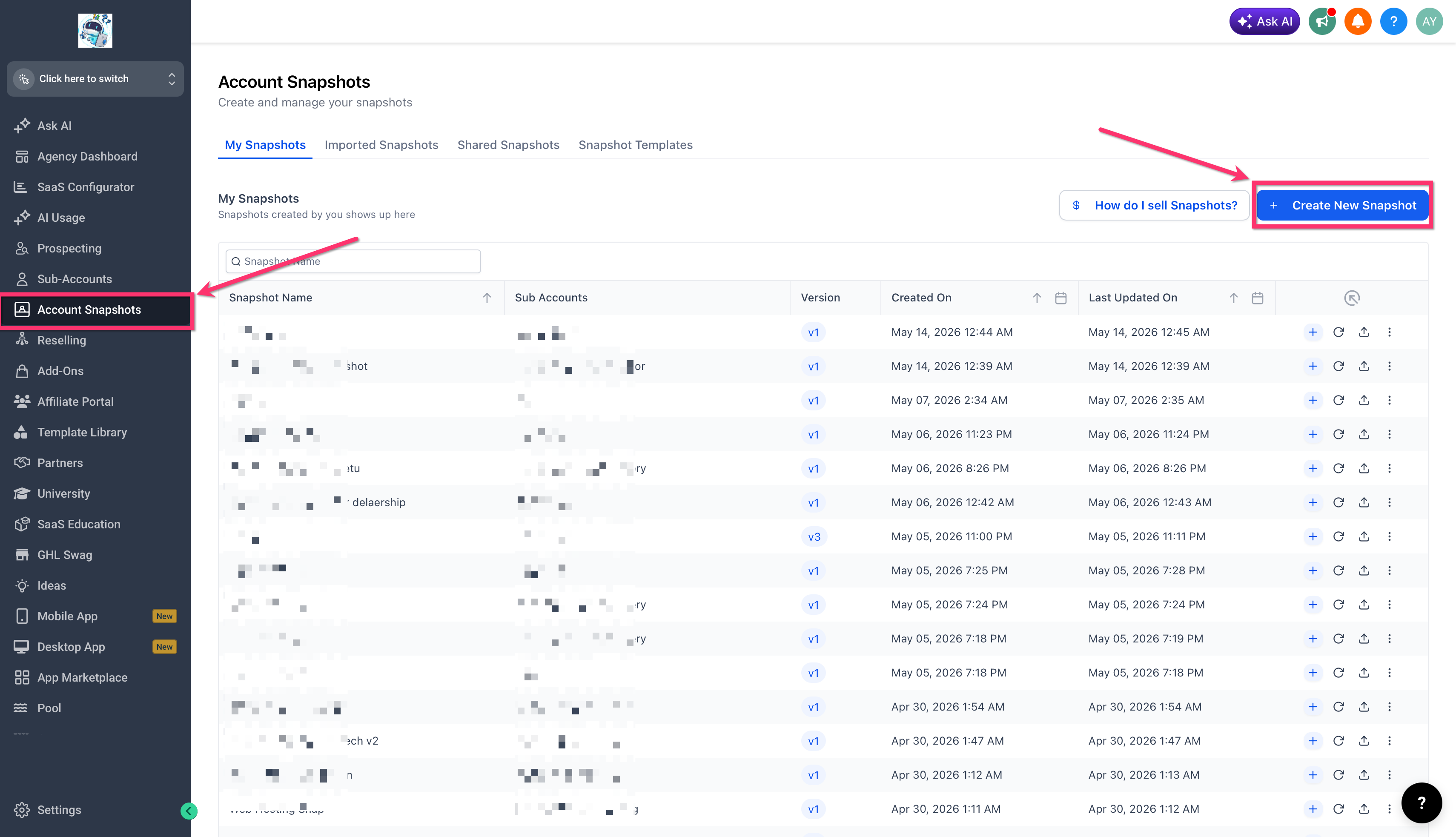
Create snapshot with nested selection
- Open the Snapshot creation flow in HighLevel.
- Choose the source subaccount.
- Open the asset selector.
- Expand folders to view their contents.
- Select the desired folder or individual assets.
- Continue the Snapshot creation process.
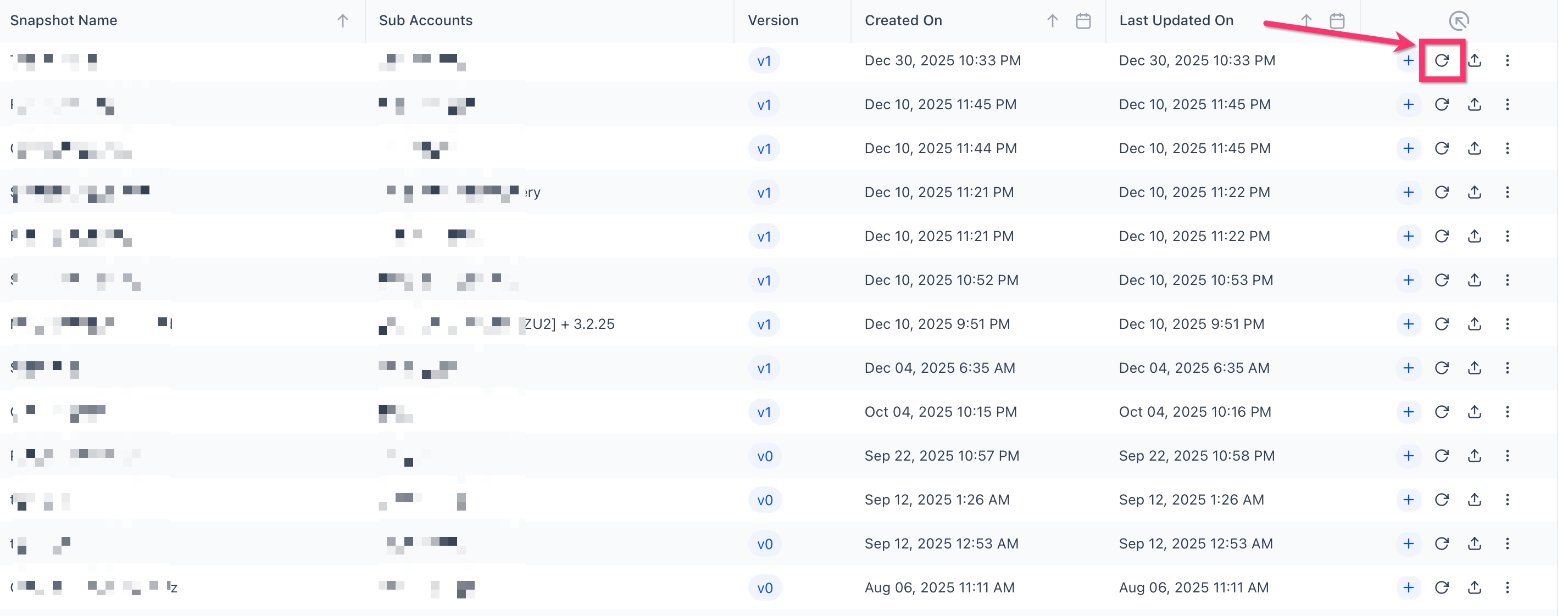
Refresh snapshot with nested selection
- Open the Snapshot refresh flow.
- Open the asset selector for the Snapshot being refreshed.
- Expand the relevant product category or folder.
- Select the desired folder or individual assets.
- Review the selected assets.
- Click Refresh.
Load snapshot with nested selection
- Open the Load Snapshot flow for the target subaccount.
- Review the available Snapshot assets.
- Expand folders to inspect nested assets.
- Select the folder or individual assets you want to load.
- Review any restricted or unavailable assets if they appear.
- Proceed to conflict checking when applicable.
- Continue with the Snapshot load process.
06What it looks like in HighLevel
07Things to know before you rely on it
- Some assets may appear as restricted or unavailable depending on account permissions or snapshot configuration.
- Folder selection does not replace linked asset management; dependencies still need review.
- The nested selector is only available in Create, Refresh and Load Snapshot workflows; other parts of the platform remain unchanged.
08If something goes wrong
- Asset appears restricted or unavailable. Review the asset details and confirm whether it can be selected or loaded in the current workflow.
09How it connects to the rest of HighLevel
- Snapshot overview Snapshot overview
- Create a new snapshot Create snapshot guide
- Load snapshot into subaccount Load snapshot guide
Michael's take

I find that using the hierarchy as the primary way to pick assets, expanding only the folders I need and relying on the parent folder selection to include its contents, works well for me.
When setting up a Snapshot for a large subaccount, I start by expanding the top level folders, pick whole sections that belong together, and only dive into a folder when I need a specific element.