
01Who this is for
- Agency owners who manage many subaccounts need a quick way to apply standard configurations across them.
- Marketing firms that receive pre built client setups can deploy those assets without opening each client account.
- Consultants who share restricted snapshots can ensure only approved subaccounts receive the content.
02Imported snapshots, explained
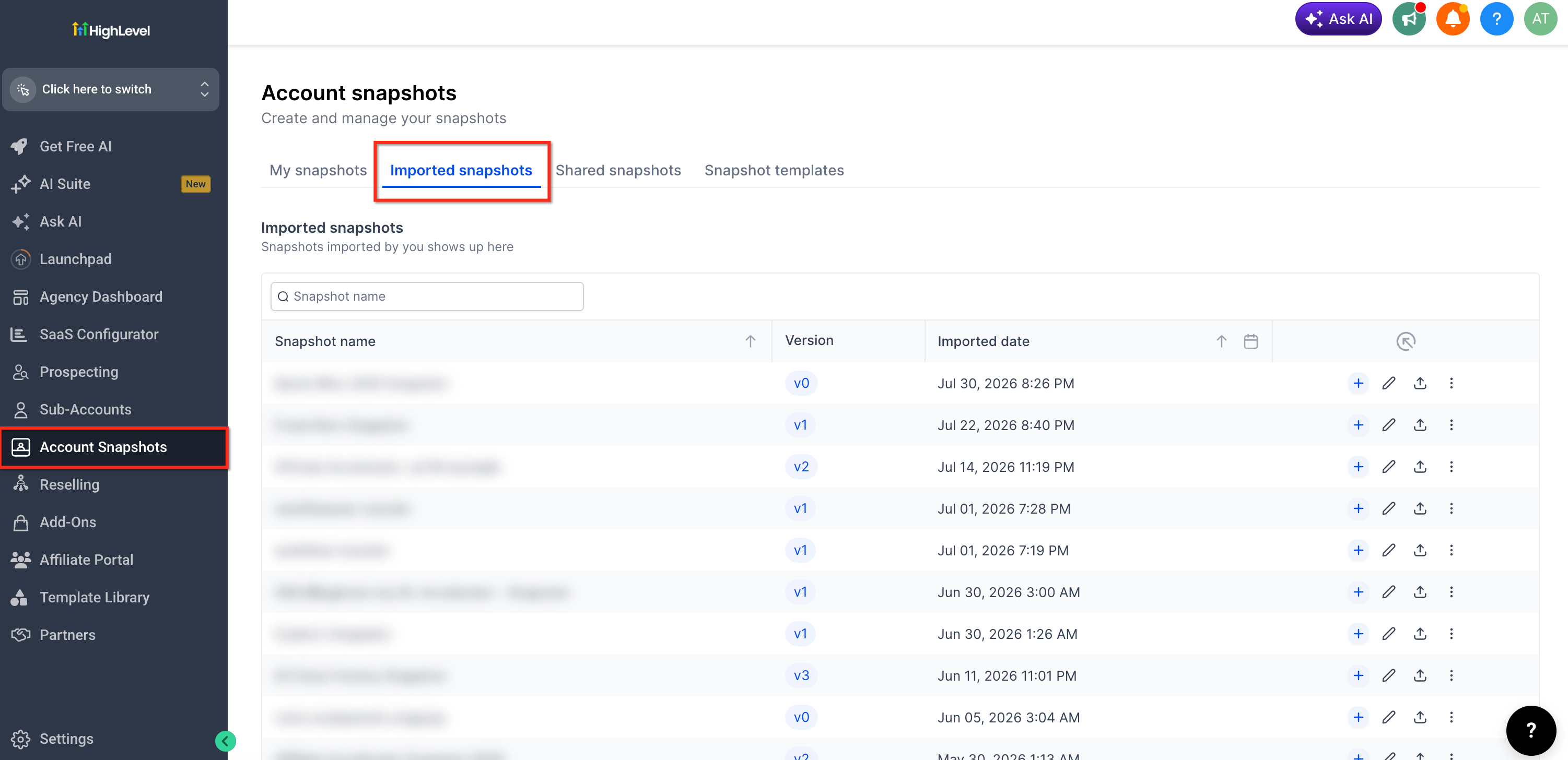
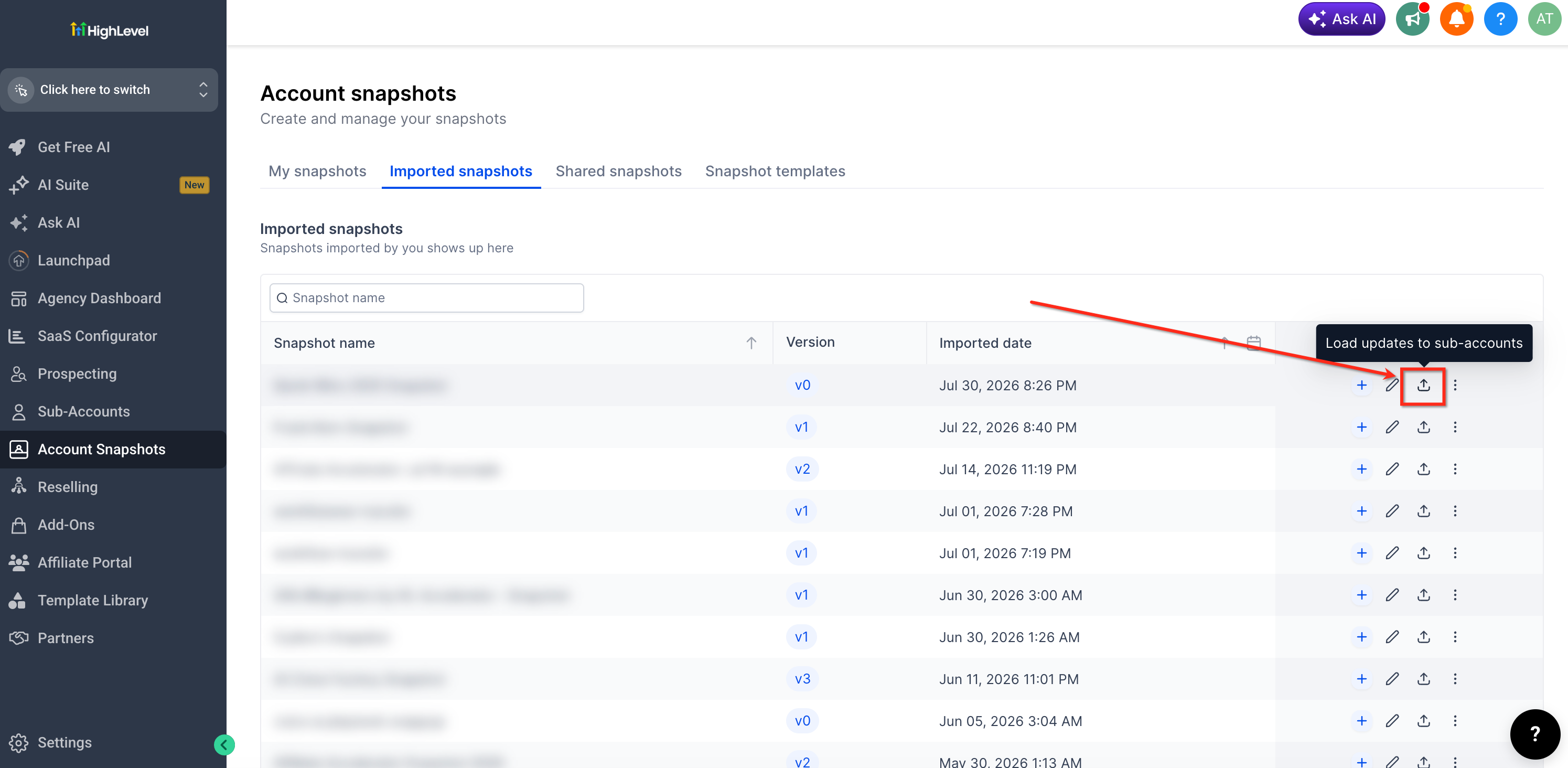
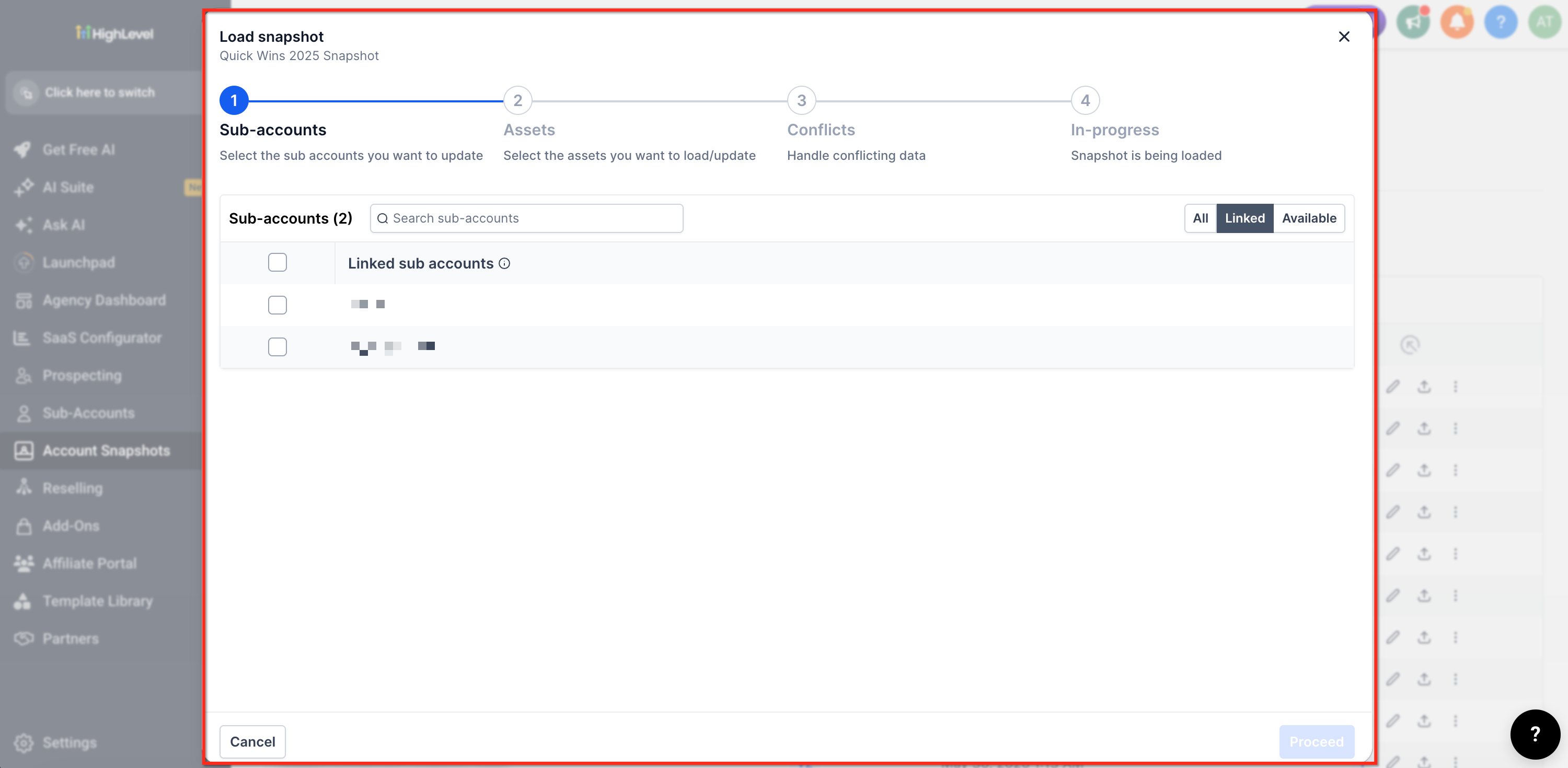
The new Load modal appears on each snapshot listed under the Imported Snapshots tab. By opening the modal you can pick one or several of your existing subaccounts and start the deployment without entering each subaccount separately. The system respects any sharing restrictions, showing only the subaccounts that the sharing agency allowed.
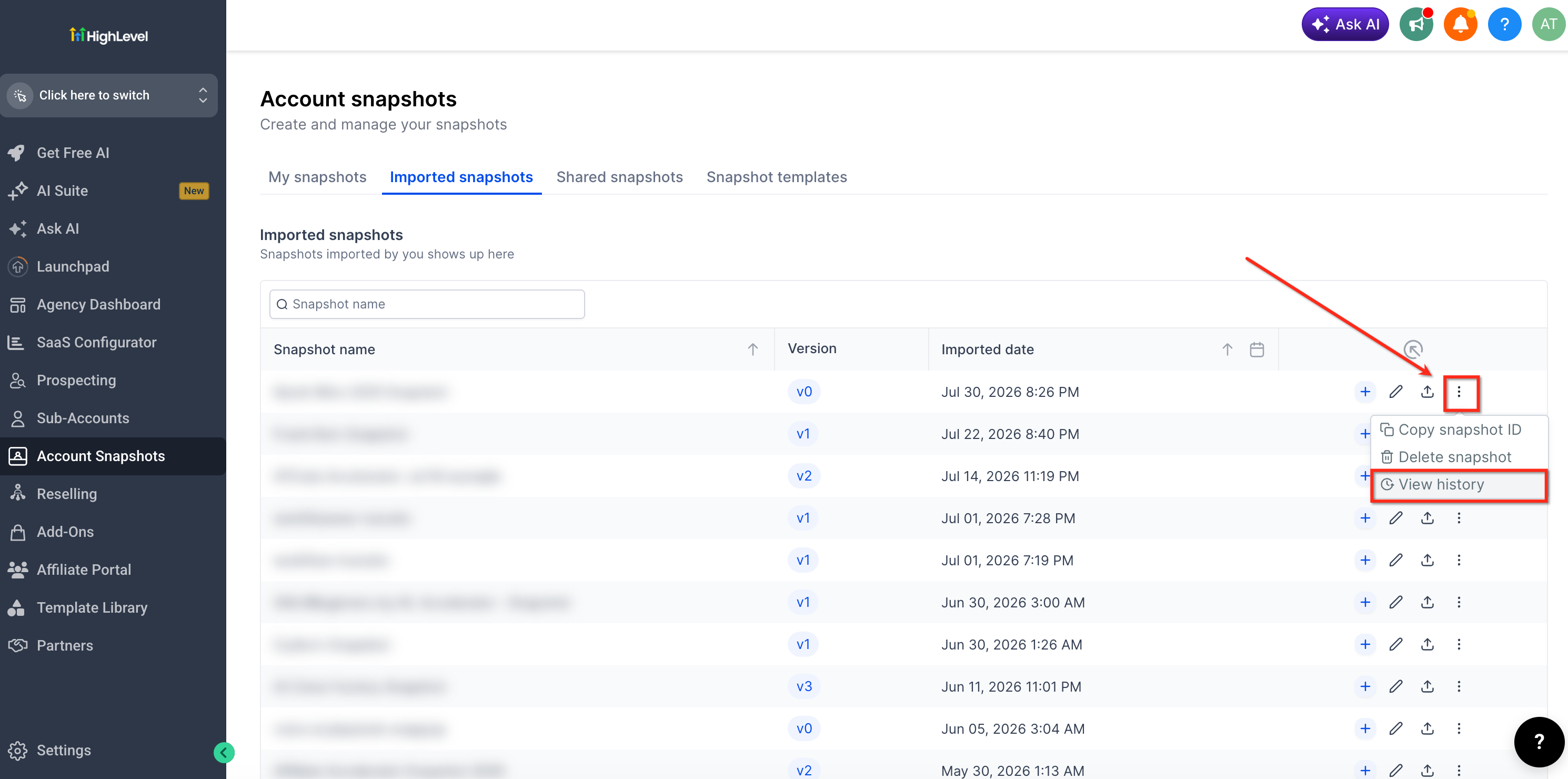
Every imported snapshot also contains a View History tab. This view lists every time the snapshot was loaded, the date, version, the subaccounts involved, and the specific assets that were pushed. Expanding an entry reveals a detailed asset breakdown, giving full visibility into past deployments.
Both the Load modal and View History tab are accessed from the Imported Snapshots section of agency settings, providing a central hub for snapshot management.
03How businesses use the Imported Snapshots Load Feature
- Digital marketing agency. The agency selects a shared campaign snapshot from the Imported Snapshots list and uses the Load modal to deploy it to all client subaccounts that need the same funnel setup. Afterwards, the team checks the View History tab to confirm which clients received the assets and what was installed.
- Franchise support firm. The firm receives a standard operations snapshot from the franchisor. Using the Load modal, it pushes the snapshot to the subaccounts representing each franchise location that the franchisor approved. The firm then reviews the View History tab to verify each franchise received the correct configuration.
- Software reseller. When a vendor shares a product onboarding snapshot, the reseller loads it into the subaccounts of customers that purchased the product. If the vendor restricted the snapshot, only the authorized customer subaccounts appear in the modal. The reseller can later inspect the View History tab to see which customers got the onboarding assets.
04Before you start
- You must already have snapshots shared with your agency.
- Your agency needs existing subaccounts to receive the snapshot.
05How to set up and use the Imported Snapshots Load Feature in HighLevel
Load an imported snapshot into existing subaccounts
- Open agency settings and select the Imported Snapshots tab.
- Find the desired snapshot and click its Load option.
- In the Load dialog, choose the subaccounts that will receive the snapshot; restricted snapshots limit the choices.
- Confirm the selection and start the load, monitoring progress via the status indicator.
View snapshot load history
- From the Imported Snapshots tab, locate the snapshot and open its View History view.
- Read the chronological list of load events, which includes timestamps and version numbers.
- For each event, see the full set of subaccounts that were targeted.
- Expand an entry to display the exact assets that were deployed to each subaccount.
06What it looks like in HighLevel
07Things to know before you rely on it
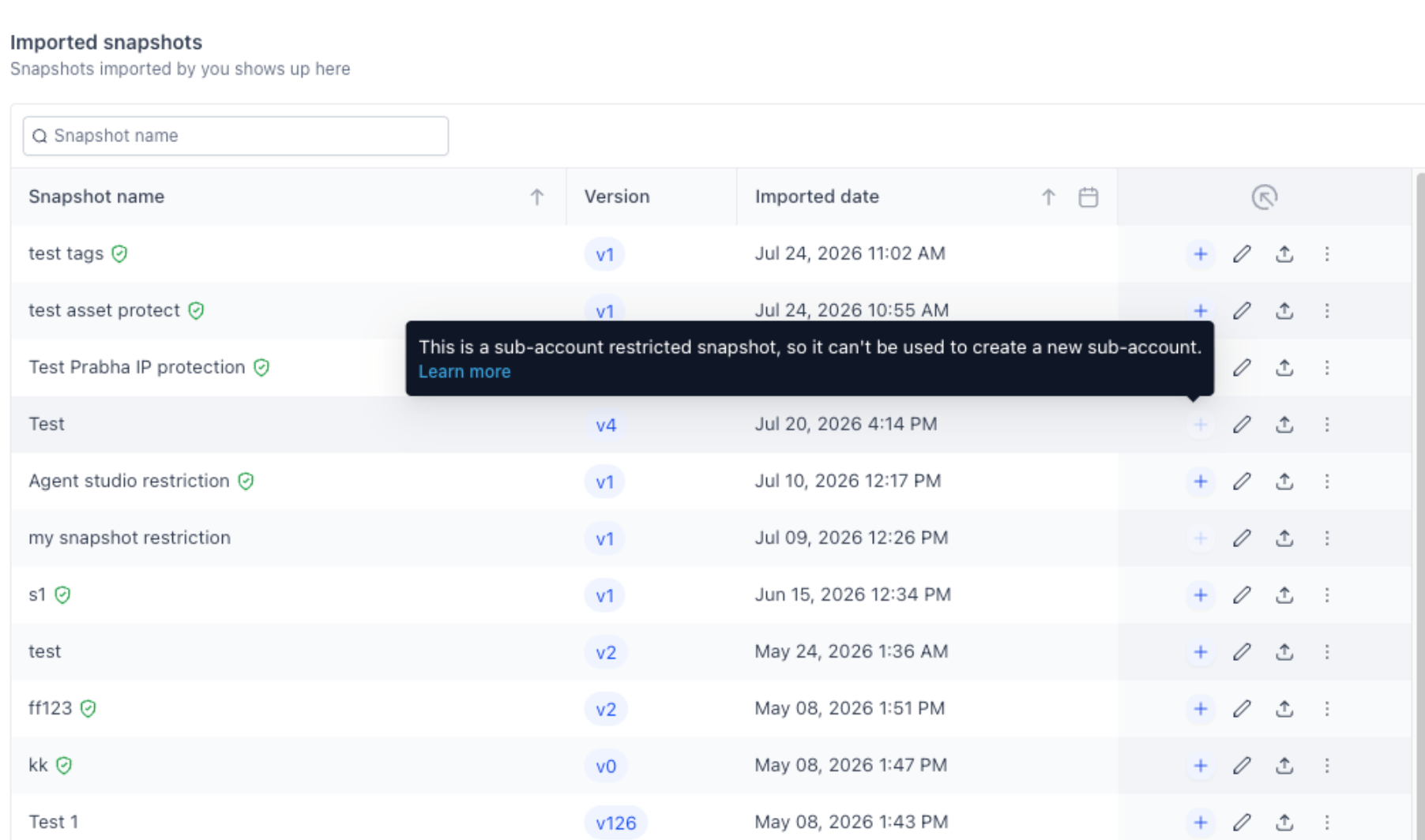
- If a snapshot is restricted, only the subaccounts approved by the sharing agency appear in the Load modal.
- The feature does not change any assets that are already present in a subaccount unless you choose to overwrite them during the load.
- Future updates aim to improve conflict handling for overlapping assets.
08How it connects to the rest of HighLevel
- Create a new snapshot in HighLevel Create snapshot
- Load snapshots into an existing subaccount Load snapshot
- Share snapshots with other agencies Share snapshots
Michael's take

This feature saves agencies a lot of time by eliminating the need to hop into each subaccount to push a shared snapshot, and it gives you a clear audit trail of every deployment.
Don’t forget to check that the snapshot isn’t restricted before you try to load it into a different subaccount.