
01Who this is for
- Agency managers who need a clear audit trail of changes made to client subaccounts.
- Implementation teams that must verify which Snapshot version was applied during a handoff.
- Support staff looking for quick accountability when troubleshooting configuration issues.
02Snapshot load history, explained
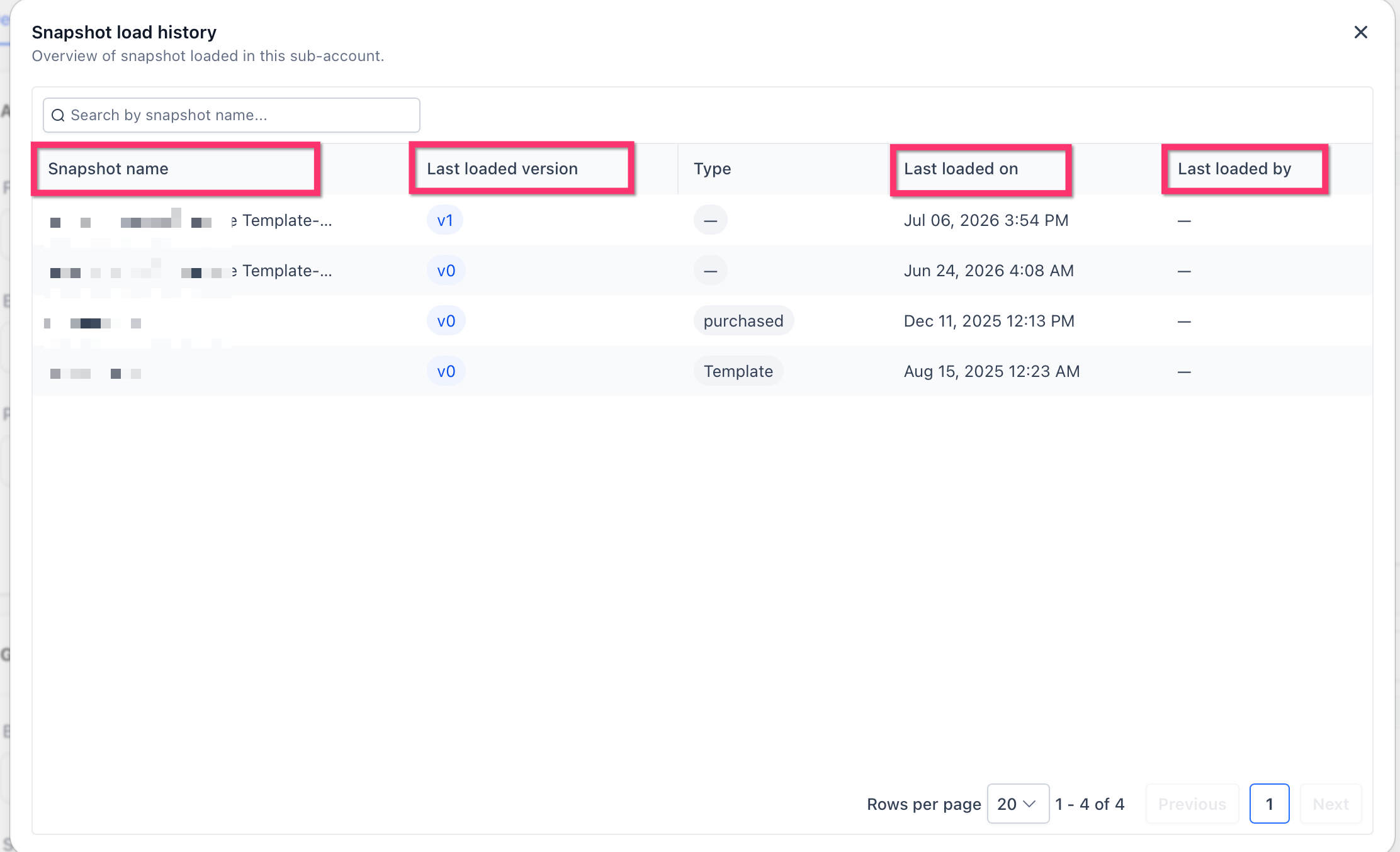
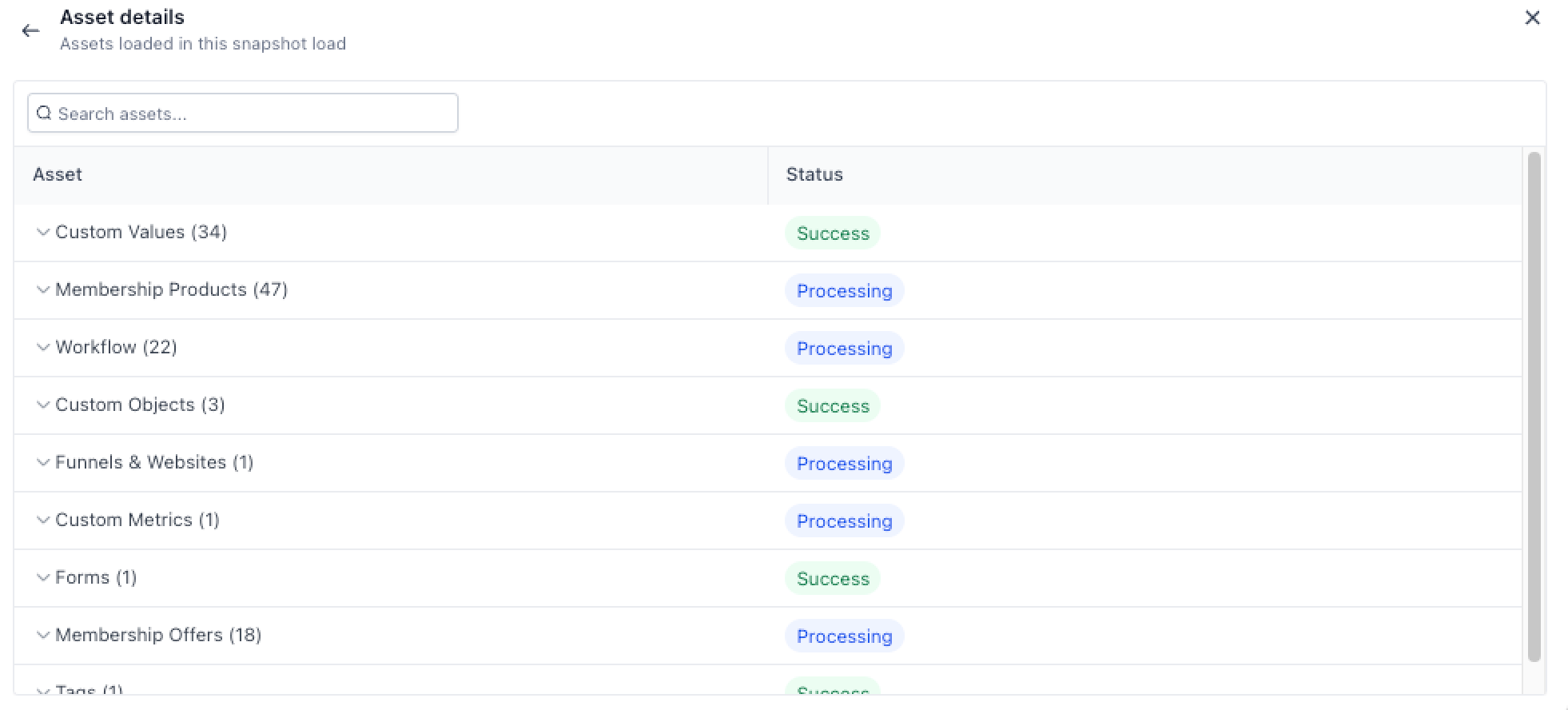
Snapshot Load History is a record view that lives inside a subaccount’s actions menu. It lists each Snapshot that has ever been loaded into the chosen subaccount, showing name, latest version, type, load date and the user who performed the most recent load. Selecting a Snapshot reveals a second level table with every individual load, its version, asset count, status, timestamp and initiating user. From that load view, users can open an Asset Details screen that groups the assets by category and displays the processing status for each category.
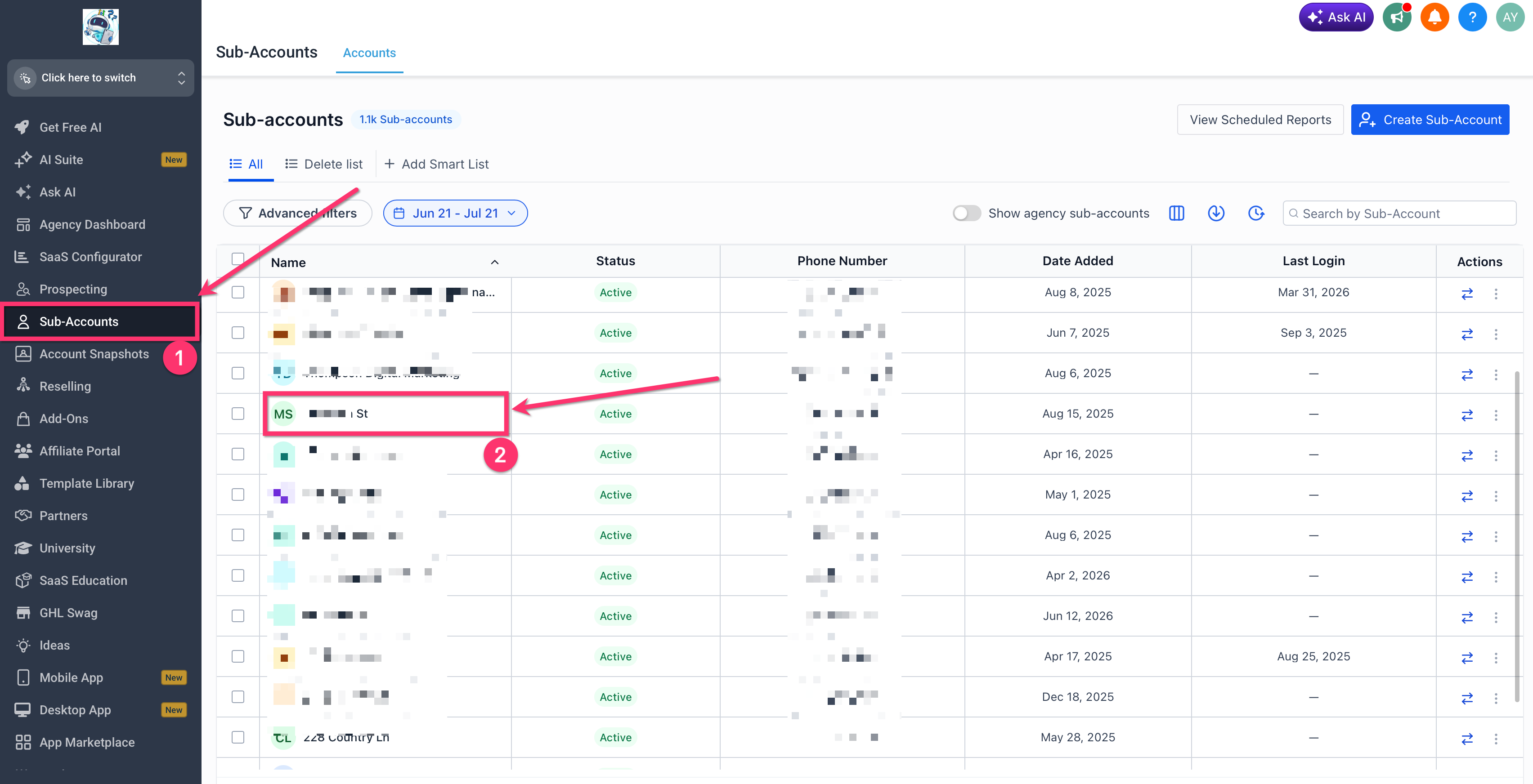
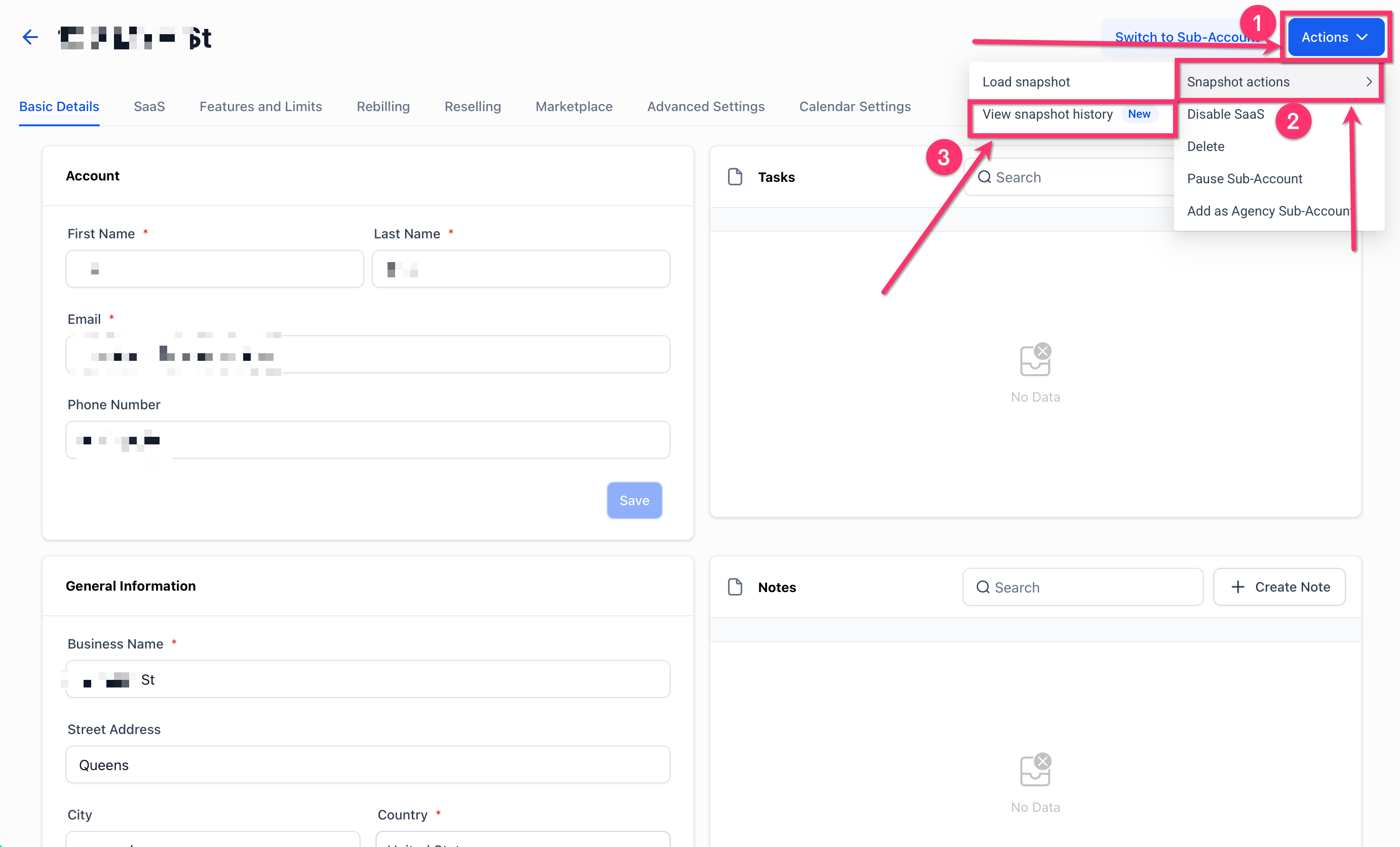
The feature is accessed from Agency View > Subaccounts > Actions > Snapshot actions > View snapshot history. It provides navigation from a summary of all loaded Snapshots to the history of a single Snapshot and finally to the assets that were part of a particular load. This layered approach helps agencies track configuration changes without relying on external notes or tickets.
03How businesses use snapshot load history
- Digital marketing agency. The agency opens a client’s subaccount, selects View snapshot history, and scans the load list to confirm which Snapshot version set up the client’s funnels. It then drills into a specific load to verify that the required workflow assets were included and completed successfully.
- SaaS onboarding team. Team members view the subaccount’s Snapshot Load History to identify the exact load that introduced a new membership product. By opening the Asset Details for that load, they confirm the product category status before handing the account to support.
- Tech support contractor. When a client reports a missing tag, the contractor checks the subaccount’s Snapshot Load History, selects the relevant load, and uses the asset search field in Asset Details to see whether the Tags category was processed successfully during that load.
04The numbers and rules that matter
- Asset categories. Include Custom Values, Membership Products, Workflows, Custom Objects, Funnels & Websites, Custom Metrics, Forms, Membership Offers, Tags.
05How to set up and use snapshot load history in HighLevel
Open Snapshot Load History
- Go to Agency View.
- Open Subaccounts.
- Select the subaccount you want to review.
- Click Actions.
- Open Snapshot actions.
- Click View snapshot history.
Review all snapshots loaded into the subaccount
- Review the Snapshot Load History table.
- Locate the required Snapshot by name.
- Check its last loaded version, type, date, and user.
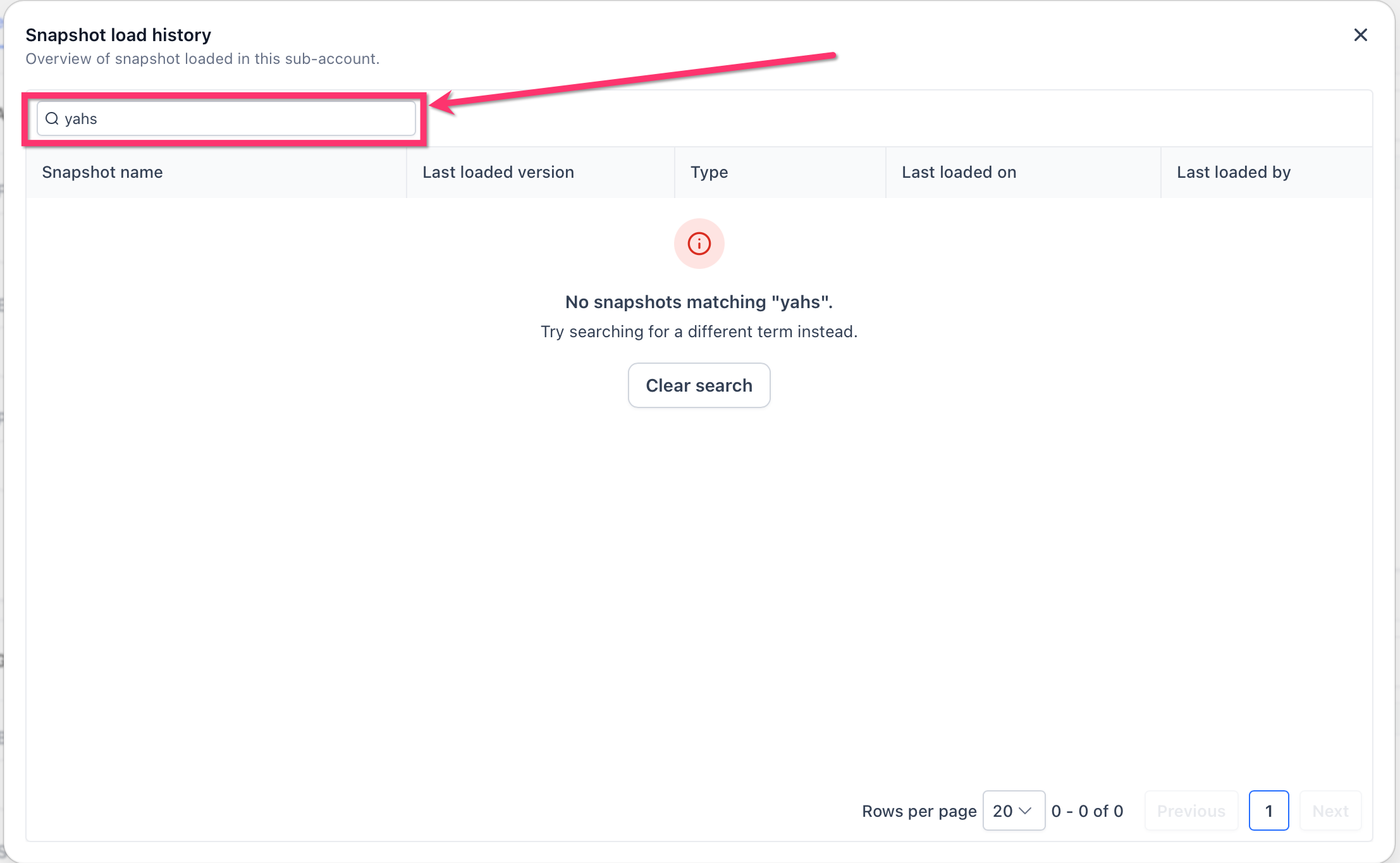
- Use the search field when the list contains many Snapshots.
- Click the Snapshot row to open its detailed history.
Review a specific snapshot’s load history
- Select a Snapshot from the main history table.
- Review every recorded load for that Snapshot.
- Use the Version column to identify the version used.
- Check the asset count and load status.
- Review when the load occurred and who started it.
- Select a load to open its Asset Details.
Review the assets included in a load
- Open the required Snapshot.
- Select the load you want to inspect.
- Review the asset categories on the Asset Details screen.
- Expand a category when additional details are available.
- Check the status shown beside each category.
- Use the asset search field to find a particular asset or category.
06What it looks like in HighLevel

07How it connects to the rest of HighLevel
- Load a Snapshot into an existing subaccount Load snapshots
- Create a new Snapshot in HighLevel Create Snapshot
- All Account Snapshots features overview Snapshots overview
- Refresh or update snapshots across subaccounts Refresh snapshots
Michael's take

Snapshot load history is a useful audit trail for agencies that need clear evidence of what was applied to a client’s account. Teams that rely on notes or support tickets will find it redundant.
If you already track changes in another system, you can skip this view. It’s most valuable when your agency works with multiple subaccounts and needs accountability for each load.