
01Who this is for
- Agency owners who need to audit snapshot contents before deploying to client subaccounts.
- Marketing consultants who want to verify assets to avoid overwriting existing campaigns.
- Compliance officers who require a clear inventory of snapshot assets for audit purposes.
02Snapshot asset viewer, explained
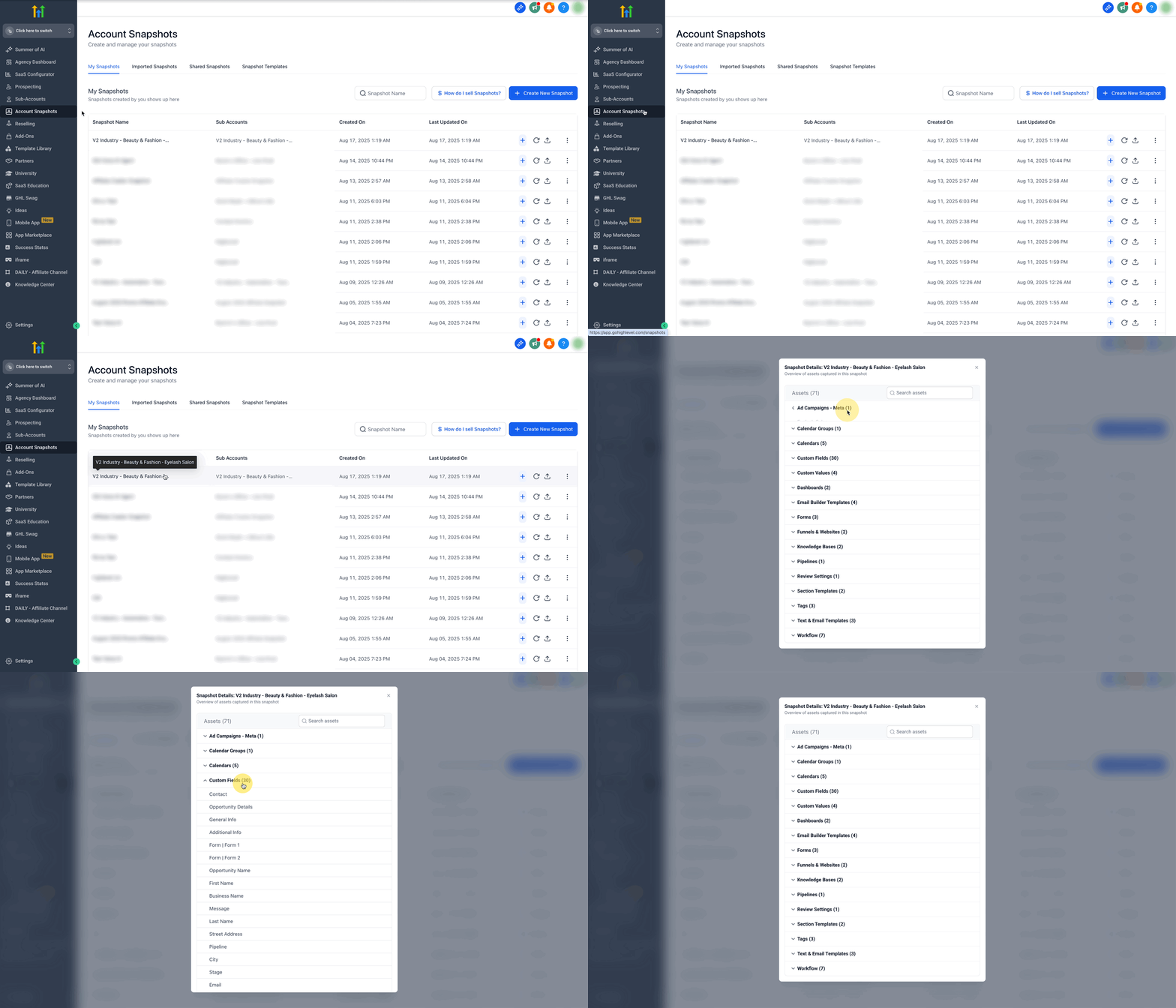
The Snapshot Asset Viewer is a feature on the Account Snapshots page that lists every asset a snapshot contains. By clicking a snapshot name, users see a structured inventory of funnels, emails, workflows, and other supported items without loading the snapshot.
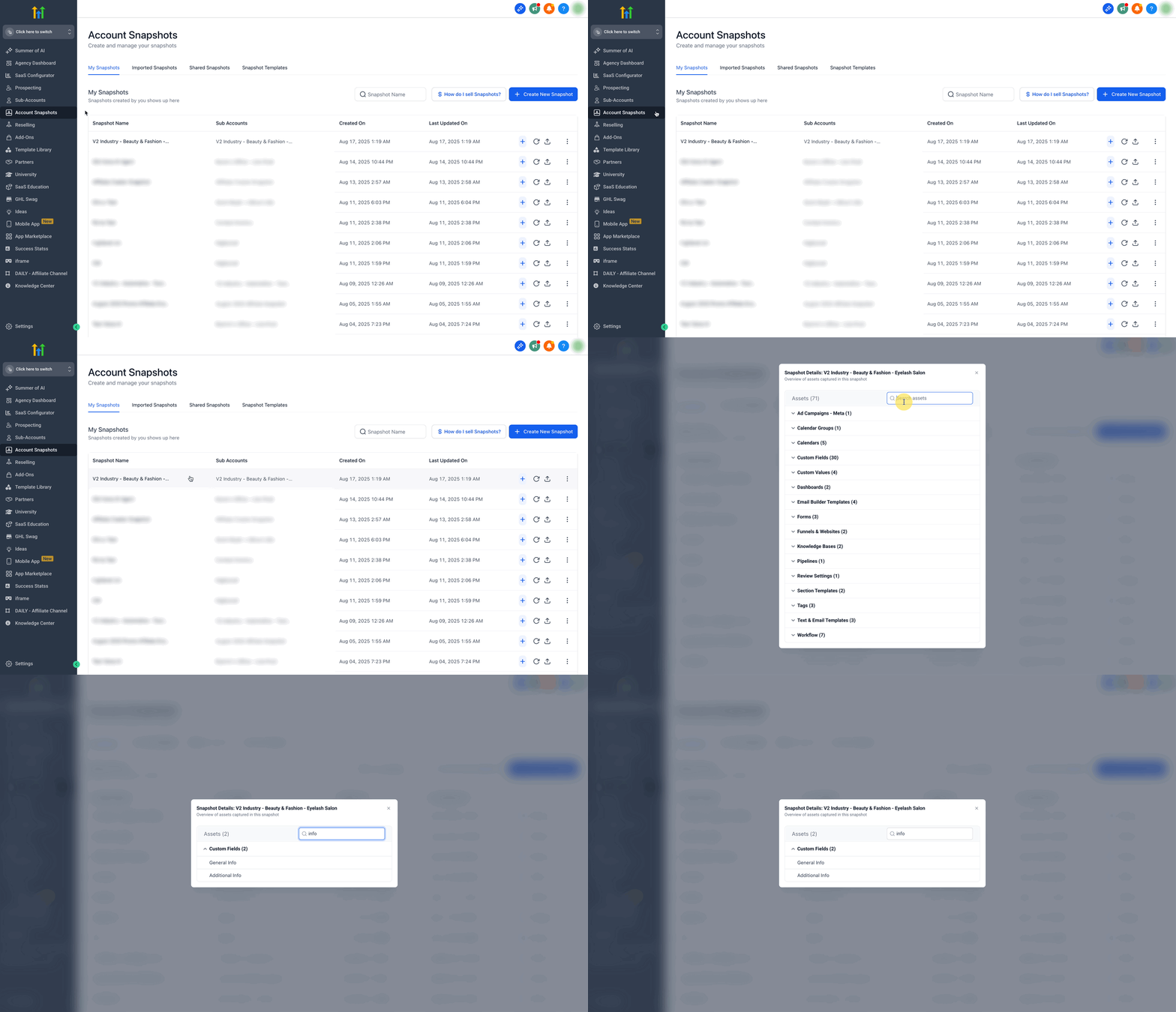
The viewer also includes a live search bar that filters the list as keywords are typed, allowing users to pinpoint a specific asset right away. The asset list updates automatically whenever a new snapshot is created, ensuring the view is always current.
03How businesses use snapshot asset viewer
- Digital marketing agency. The agency can open a client’s snapshot, review the full list of assets, and use the search bar to locate a particular funnel step before importing it into a client subaccount. This prevents accidental overwrites of existing client assets.
- SaaS startup. The startup can examine a snapshot that contains product offers and email templates, confirming all needed components are present before sharing the snapshot with a partner. The live search helps quickly verify specific AI Studio projects are included.
- Real estate brokerage. The brokerage reviews a snapshot holding calendar settings and forms, ensuring the correct lead capture pages are present before refreshing the snapshot on a new branch office. Searching by keyword confirms the right calendar is listed.
04The numbers and rules that matter
- Supported asset types: Funnels & funnel steps, Websites & pages, Workflows, Email templates & campaigns, SMS templates, Calendars & calendar settings, Forms & surveys, Products & offers, Webinars, AI Studio projects.
05How to set up and use snapshot asset viewer in HighLevel
View assets in a snapshot
- Navigate to Settings > Account Snapshots.
- Select My Snapshots, Shared Snapshots, or Imported Snapshots.
- Click a snapshot’s name to display its asset list.
Search for a specific asset
- Click the Search assets field at the top right of the asset list.
- Enter a keyword; the list filters in real time.
- Clear the field to restore the full asset list.
06What it looks like in HighLevel
07How it connects to the rest of HighLevel
- Learn how to create a snapshot for reusable account setups. Snapshot overview
- Step by step guide to creating a new snapshot. Create new snapshot
- Instructions for loading a snapshot into an existing subaccount. Load snapshot
Michael's take

People often think they need to load or download a snapshot just to see what’s inside. That adds time and risks overwriting the wrong assets. Instead, click the snapshot name right from the Account Snapshots page and let the viewer surface the entire inventory.
I’d start by opening a recently shared snapshot and using the live search to confirm a critical workflow is present before I push it to a client’s subaccount.