
01Who this is for
- Agency managers who need a central place to store shared Snapshots before deploying them to client accounts, because it keeps assets organized.
- Marketing teams that receive pre built funnels as Snapshots and want to review or modify them before use, ensuring they match agency standards.
02Import snapshots, explained
Importing a Snapshot brings a shared configuration into the agency level library but does not automatically place any assets in a client subaccount. After import you can inspect the Snapshot, rename it, and see whether it contains protected assets via a shield icon.
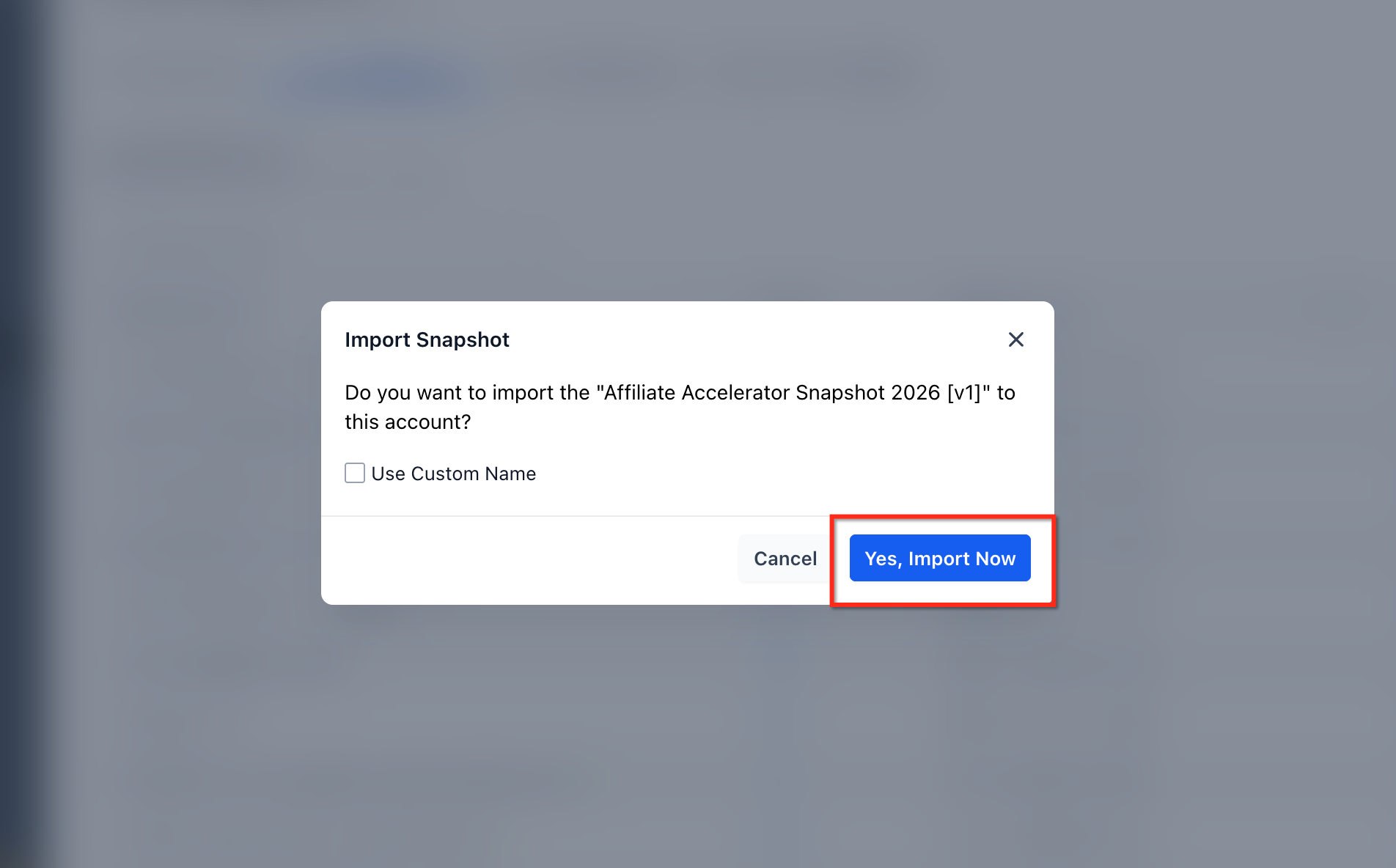
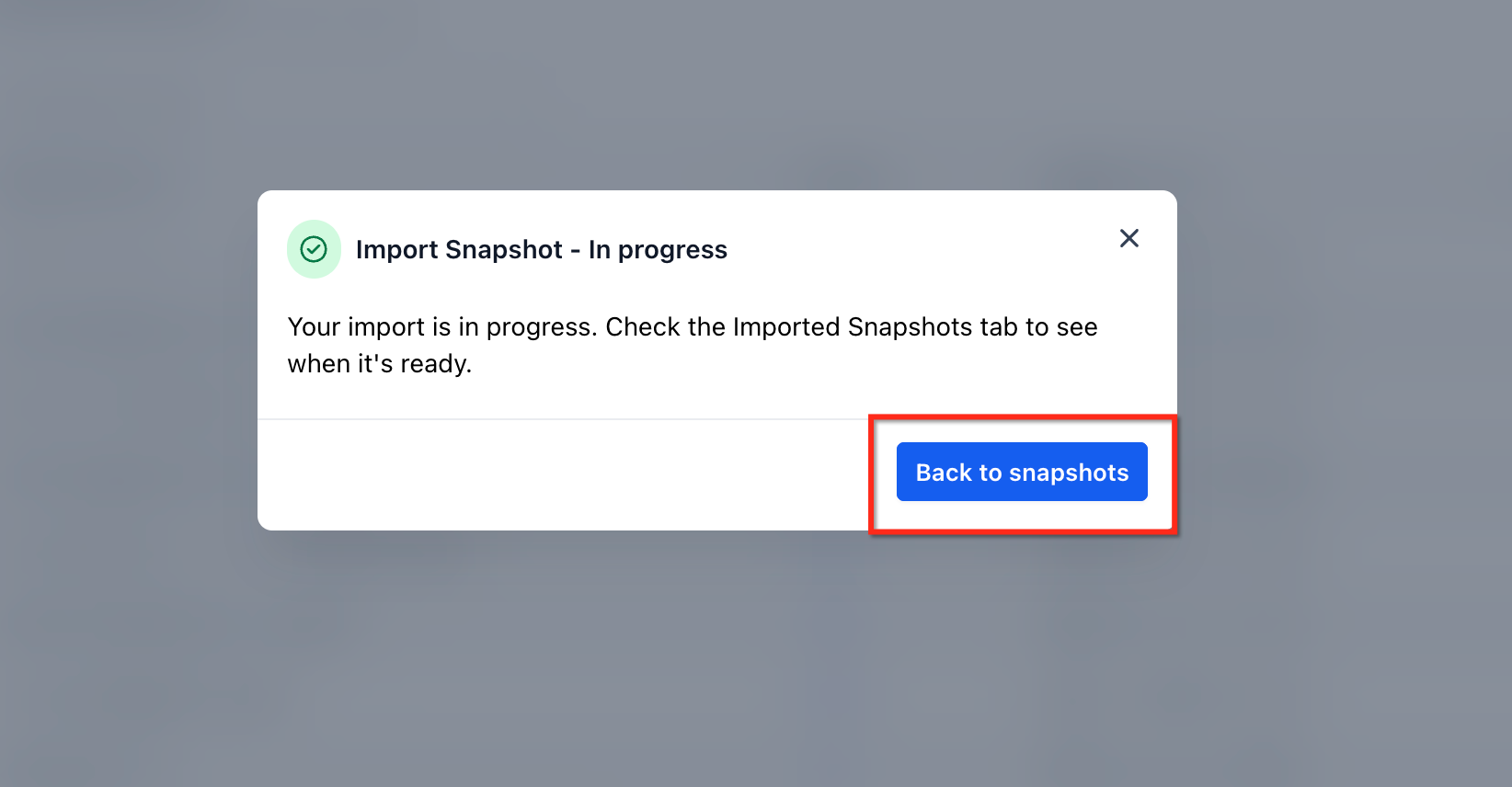
The import flow works from two entry points: a Snapshot Share Link or an email invitation. Both launch the same pop up where you can confirm the import, assign a custom name, and start processing. While the Snapshot is processing it appears greyed out; it becomes active when the status clears.
Loading is a separate step that moves selected assets from the imported Snapshot into a chosen subaccount. Protected assets stay protected during loading and can be reused across other subaccounts inside the same agency, but they cannot be shared outside the agency.
03How businesses use import snapshots
- Digital marketing agency. The agency receives a Share Link for a funnel Snapshot, imports it to the agency library, renames it for internal tracking, waits for processing, then loads the funnel into a client subaccount, selecting only the needed assets.
- Coaching business. A coach gets an email invitation containing a Snapshot of a booking system, imports the Snapshot after signing into the agency, renames it for the specific program, and later loads the booking assets into the program's subaccount.
- Real estate brokerage. The brokerage imports a Snapshot shared by a partner, sees the shield indicating protected assets, and loads the marketing templates into multiple agent subaccounts while preserving the protection status.
04Before you start
- Confirm that your user role includes Snapshot permissions, specifically Share/Import Snapshots.
05How to set up and use import snapshots in HighLevel
Import a Snapshot from a Snapshot Share Link
- Sign in to the HighLevel agency where the Snapshot will be stored.
- Paste the Snapshot Share Link into a new browser tab and open it.
- Review the Snapshot import pop up that appears.
- Enter a custom name for the Snapshot if you wish to rename it.
- Click the Import Now button.
- Watch the Snapshot appear in the imported Snapshots list.
- Wait until the greyed out processing state clears and the Snapshot becomes active.
Import a Snapshot from Email
- Sign in to the HighLevel agency where the Snapshot should be imported.
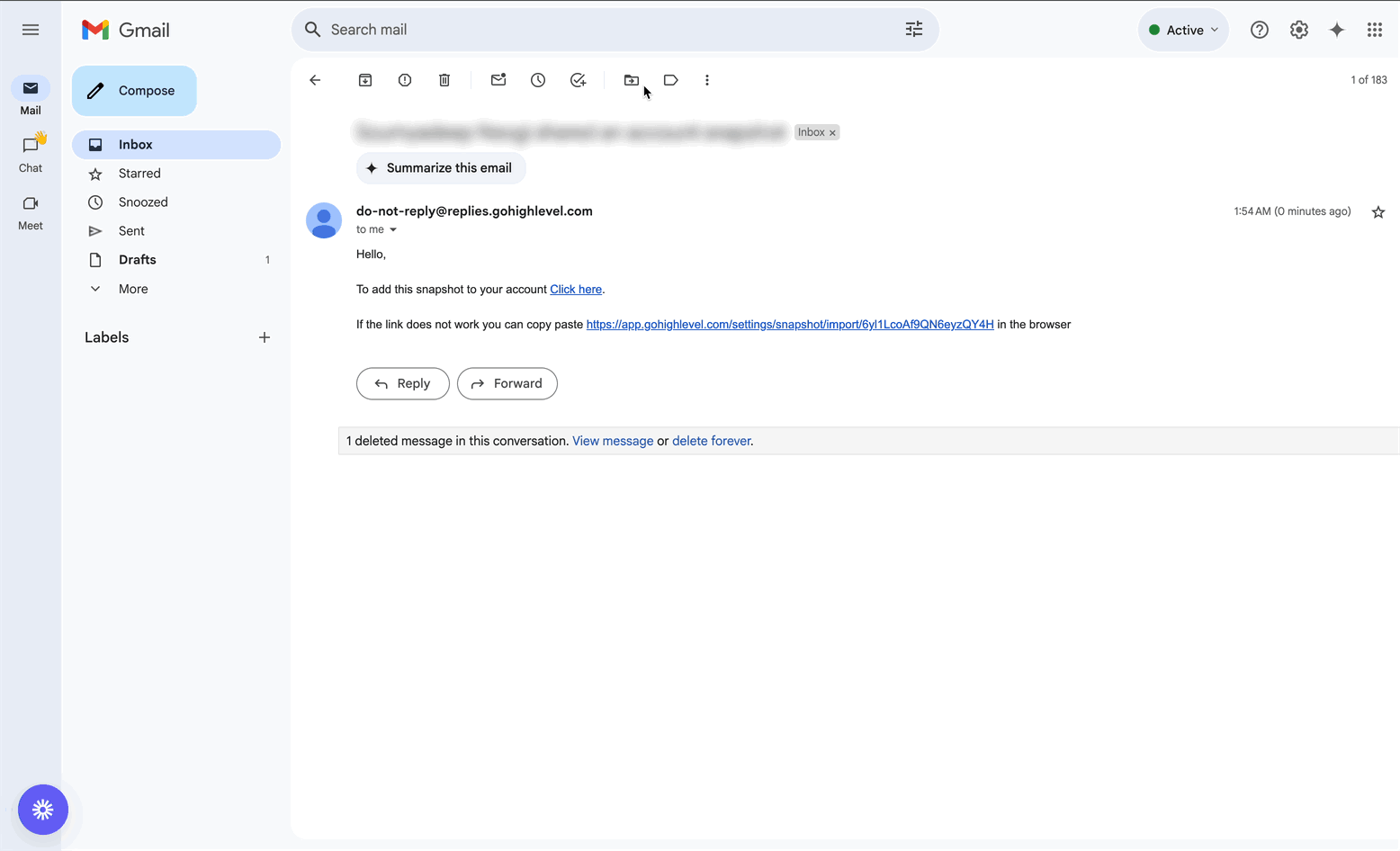
- Open the Snapshot invitation email.
- Click the Snapshot import link provided in the email.
- Review the Snapshot import pop up that opens.
- Rename the Snapshot if desired.
- Click the Import button.
- Wait for processing to finish before attempting to load the Snapshot.
Load the Imported Snapshot Into a Subaccount
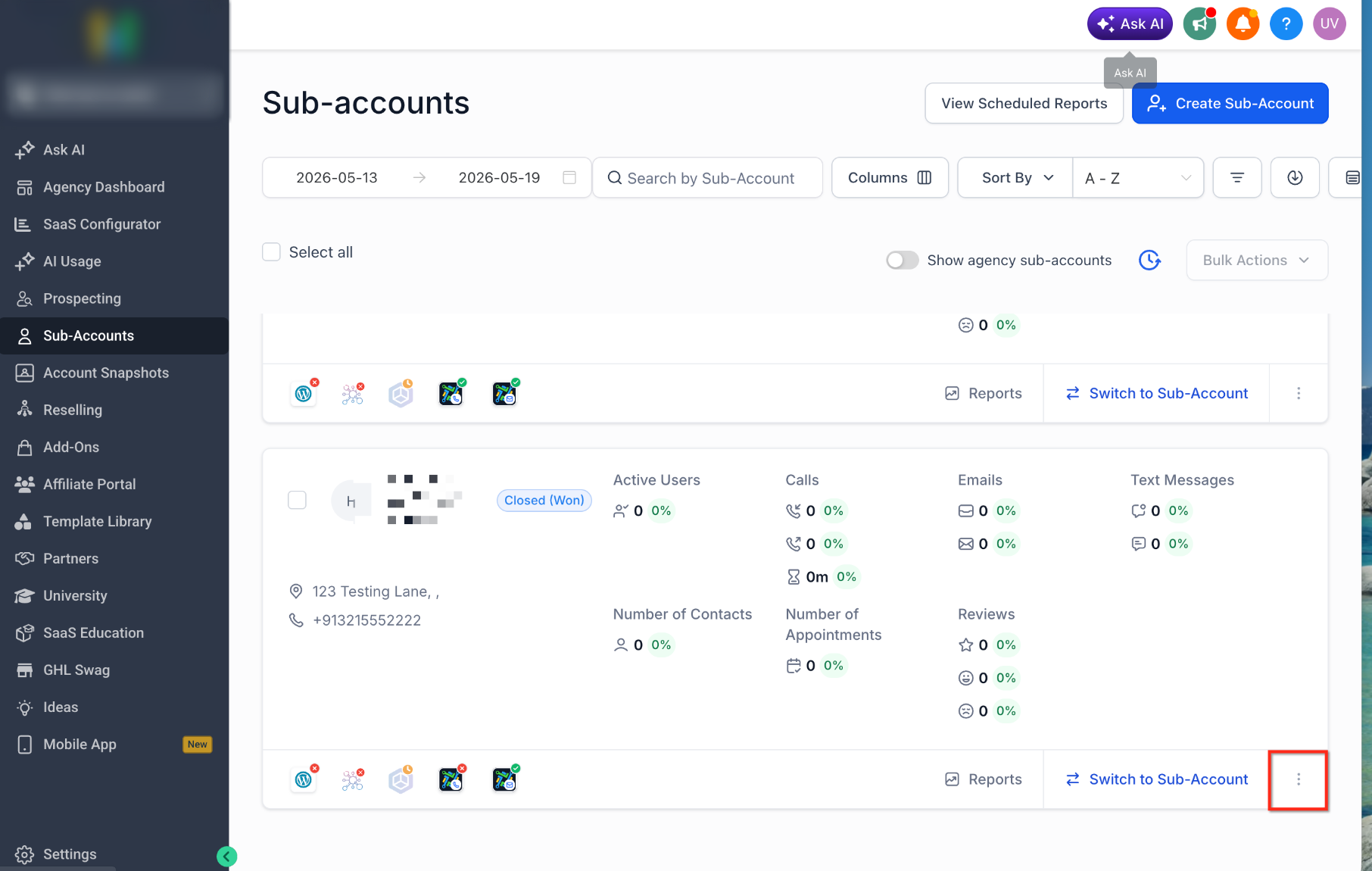
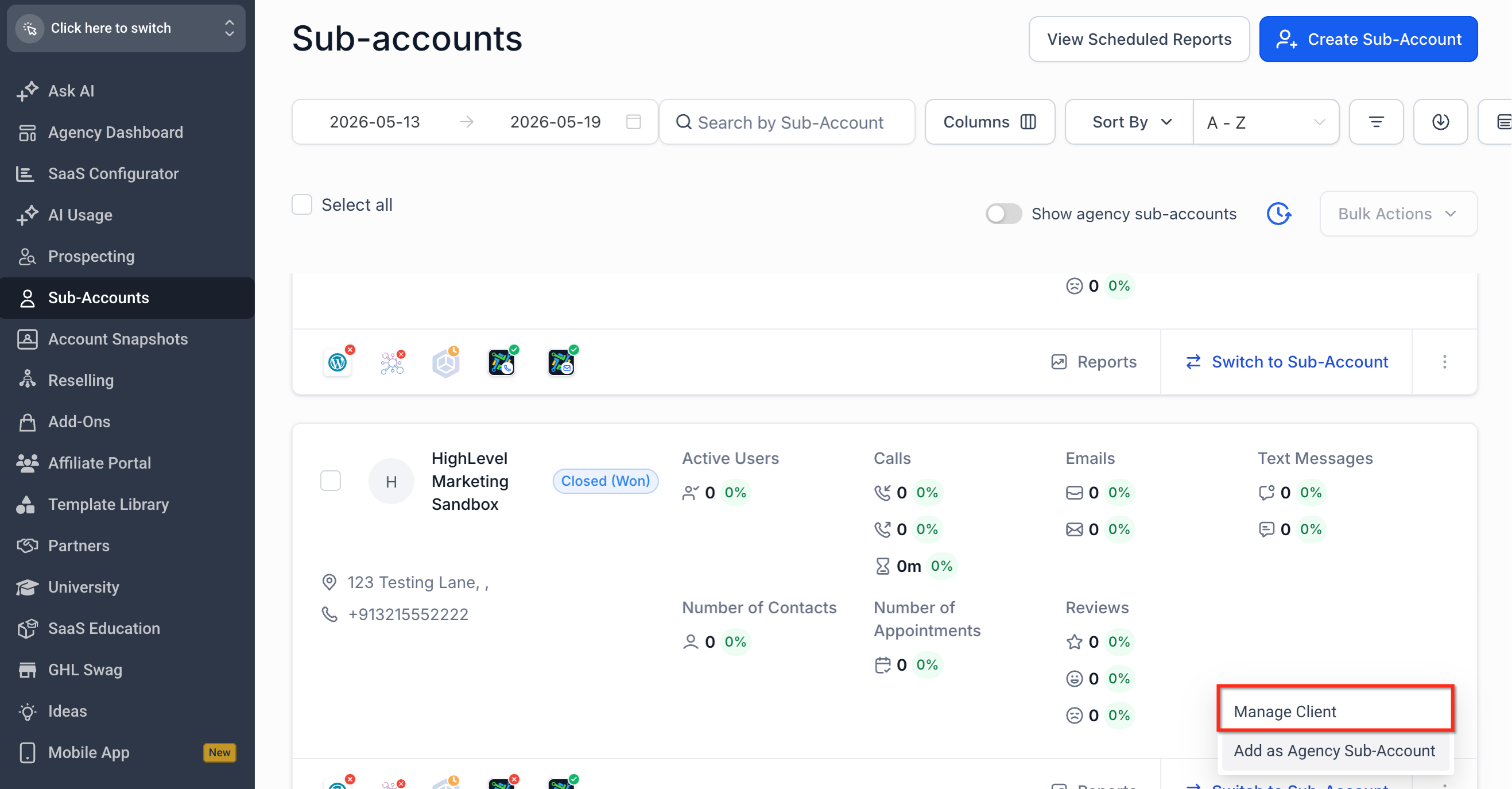
- From Agency View, locate the subaccount, open its action menu, and select Manage Client.
- Click Actions and choose Load Snapshot.
- Select the imported Snapshot from the available list.
- Choose the supported assets you want to apply to the subaccount.
- Review any detected conflicts, resolve them, and confirm the load.
06What it looks like in HighLevel

07Settings that matter
- Snapshot permissions. Controls whether a user can share or import Snapshots within the agency.
08Things to know before you rely on it
- Protected assets remain protected after import; they can be loaded internally but cannot be shared with another agency.
- A Snapshot that is still processing appears greyed out and cannot be loaded until it becomes active.
- Share links may be expired, already used, restricted, or point to an unavailable Snapshot, each preventing import until corrected.
09If something goes wrong
- Expired Snapshot Share Link. Ask the Snapshot owner to generate a new share link.
- Single Use Link Already Used. Request the sender to create another single use link.
- Restricted Link. Confirm you are signed in to the correct agency and that the sender applied the proper restriction.
- Unavailable Snapshot. Have the sender verify the source Snapshot and resend a valid share link.
- General Import Failure. Retry after confirming the share link is still valid; contact support if the issue persists.
10How it connects to the rest of HighLevel
- Learn how to share Snapshots with other agencies Share Snapshots
- Details on loading a Snapshot into an existing subaccount Load Snapshots
- Understanding asset protection for Snapshots Assets Protected Snapshots
Michael's take

I find the import flow useful when I regularly receive Snapshots from partners because it lets me keep a clean library and check protection status before any client work begins.
If I only occasionally need a Snapshot, I sometimes skip the import step and load directly from the share link to keep the process as short as possible.