
01Who this is for
- Agency owners who manage multiple client subaccounts benefit because they can reuse a single contact layout across all accounts.
- Sales managers gain a uniform view of prospect information by deploying the same sales focused contact page to each subaccount.
02Custom contact views, explained
The feature lets admins select custom Contact Detail Page layouts as snapshot assets. When creating or updating a snapshot, the chosen views are stored with the snapshot package.
During snapshot deployment, the stored views are copied into the target subaccount, appearing on the Contact Detail Page without additional configuration.
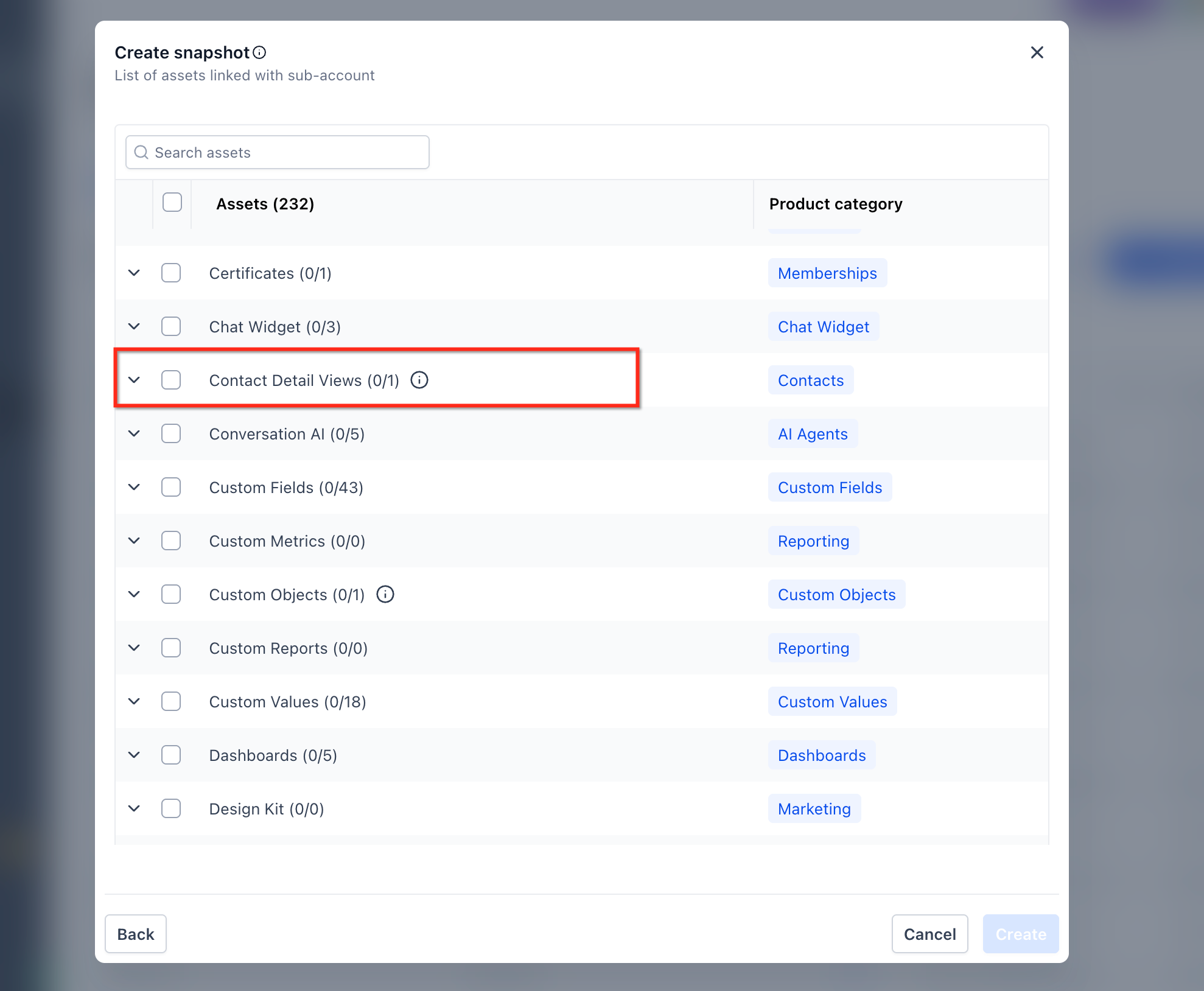
This option is found in the snapshot creation workflow under the asset selection list labeled Contact Detail Views.
03How businesses use custom contact views
- Digital marketing agency. The agency builds a custom sales view in a master subaccount, includes it in a snapshot, and then pushes the snapshot to each client subaccount. The sales view appears automatically on each client’s Contact Detail Page.
- Support team of a SaaS provider. A support lead creates a support focused contact view, adds it to a snapshot, and applies the snapshot to all support subaccounts. Agents see the same support layout across all accounts.
- Onboarding consultancy. The consultancy designs an onboarding contact view, selects it when building a snapshot, and refreshes the snapshot for new consultancy subaccounts. New accounts receive the onboarding view ready for use.
04Before you start
- Confirm the source subaccount already contains the custom contact views you want to reuse.
05How to set up and use custom contact views in HighLevel
Set up custom contact views in snapshots
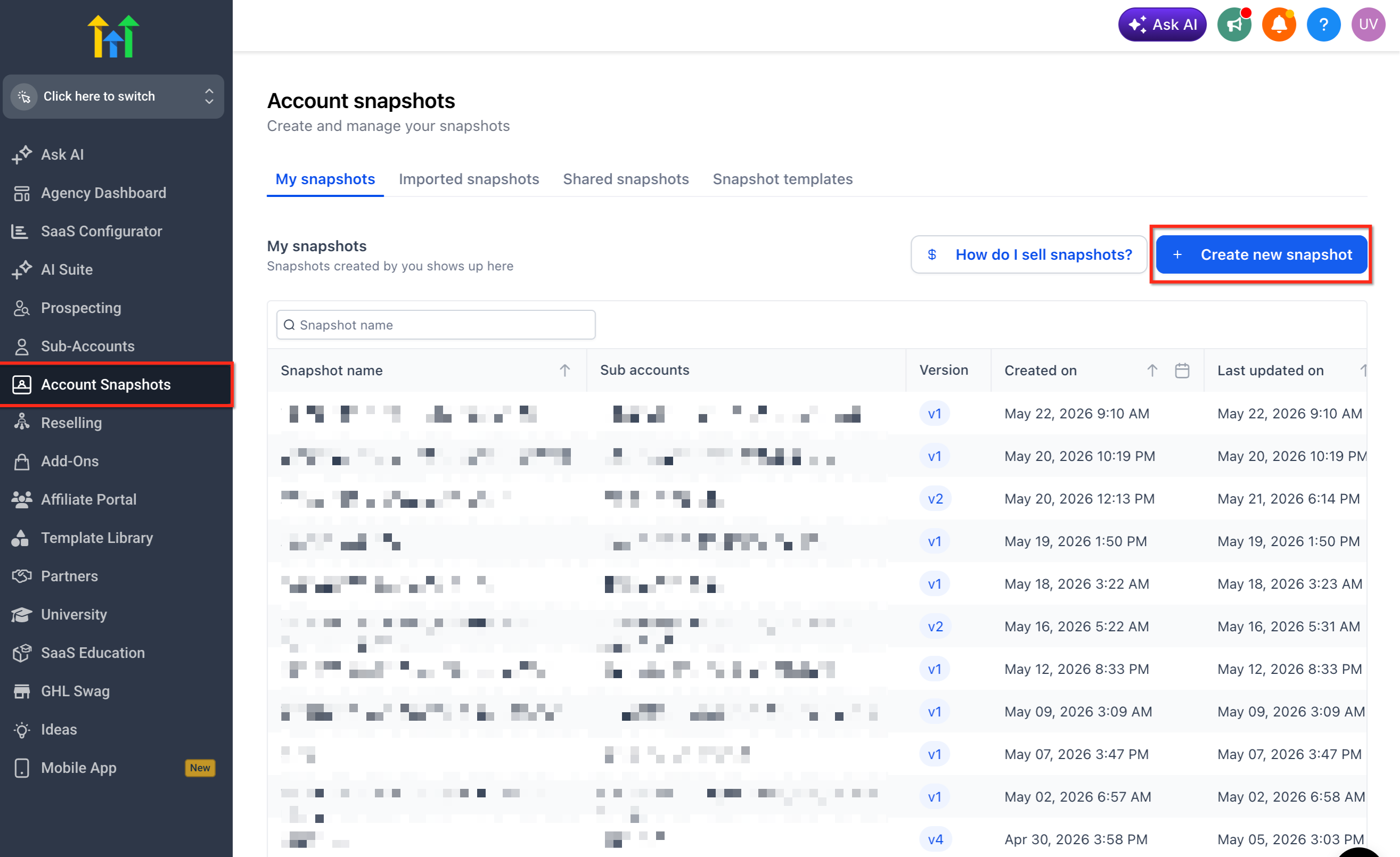
- Open the Agency View.
- Select Account Snapshots.
- Choose Create New Snapshot.
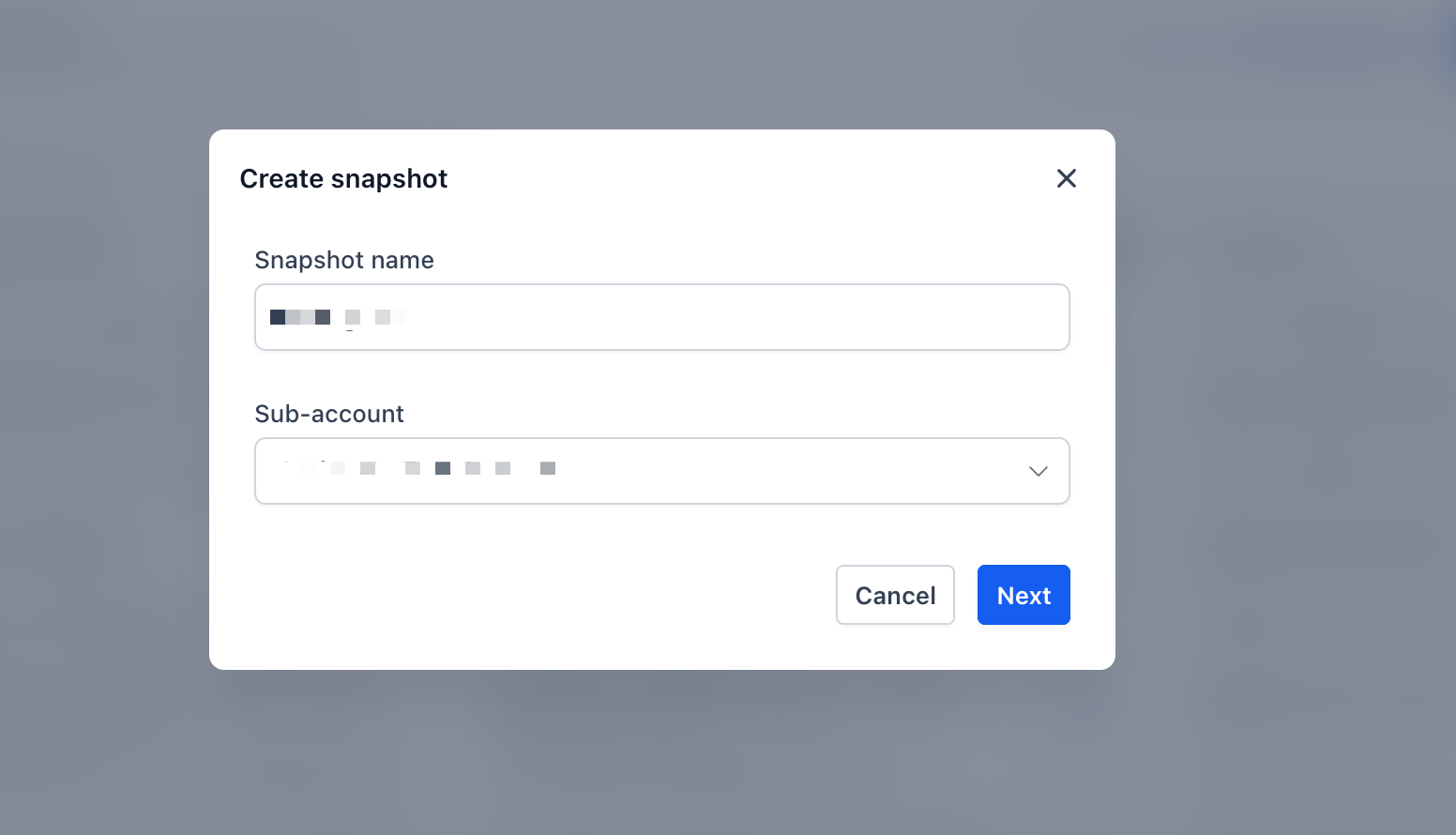
- Enter a name for the snapshot.
- Pick the source subaccount that holds the desired custom contact views.
- Find Contact Detail Views in the asset selection list.
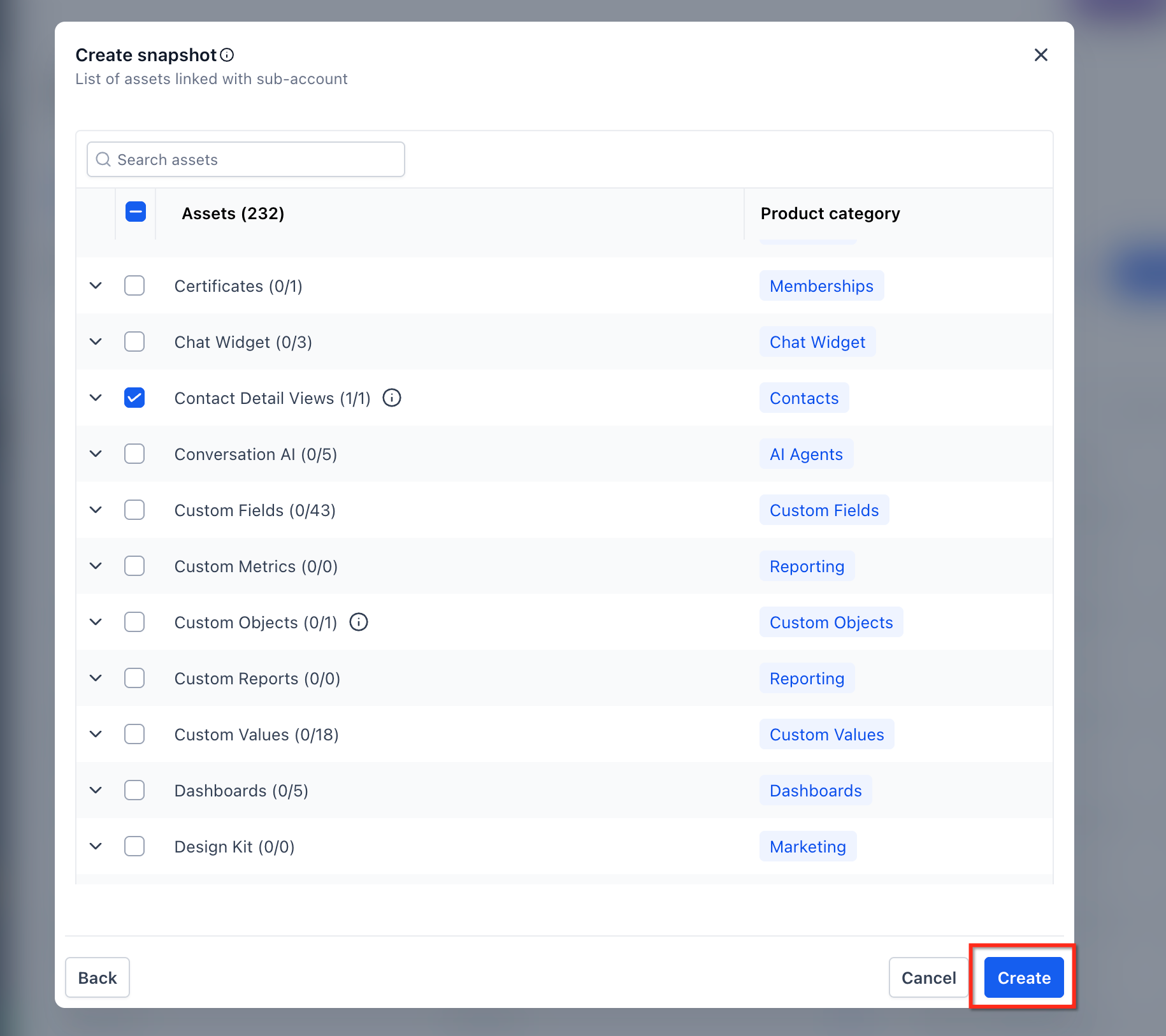
- Mark the custom contact views you wish to include.
- Press Create to save the snapshot.
- Push the snapshot update to the linked subaccount or apply it to a destination subaccount.
- Open the destination subaccount and verify the custom views appear on the Contact Detail Page.
06What it looks like in HighLevel
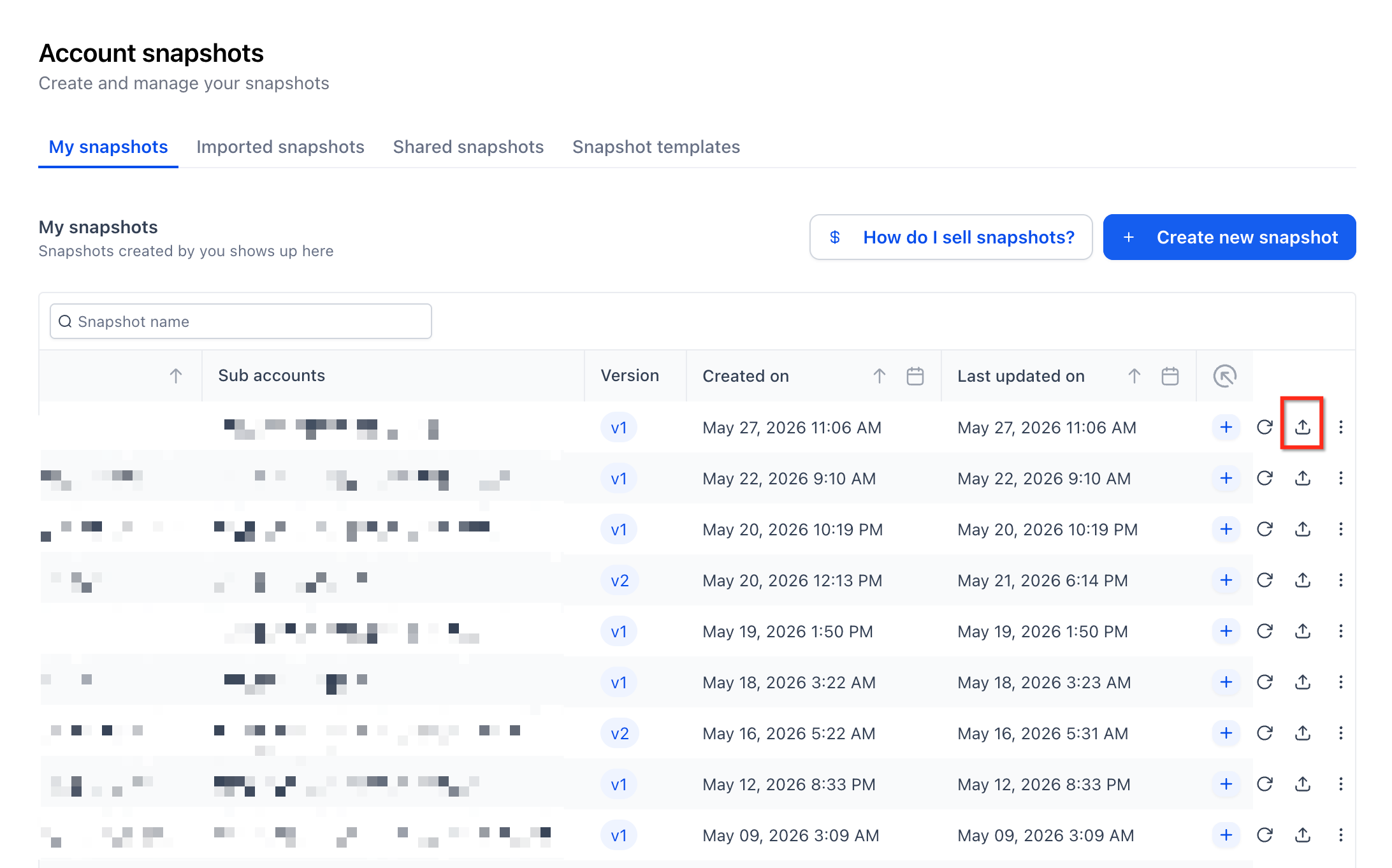
07Settings that matter
- Contact Detail Views. Specifies which custom contact layouts are bundled into the snapshot for later copying.
08Things to know before you rely on it
- Only custom contact views that exist in the selected source subaccount can be chosen.
09If something goes wrong
- Custom contact view does not appear in the destination subaccount. Check that the view was selected under Contact Detail Views during snapshot creation and that the snapshot was pushed or applied to the destination subaccount.
10How it connects to the rest of HighLevel
- Snapshot overview and asset types Snapshot overview
- How to create a new snapshot Create snapshot
- Loading snapshots into an existing subaccount Load snapshot
Michael's take

Wondering if you really need to rebuild every contact page layout for each client? The answer is no. Custom contact views in snapshots let you set up a layout once and reuse it across all your subaccounts. It saves you the repetitive work and helps keep the contact page consistent.
If I were rolling out a new sales process, I’d create a sales focused view in a master account, snap it into a snapshot, and then push that snapshot to every client account. That way the sales team gets a familiar layout and you can focus on the process instead of tweaking page designs.