
01Who this is for
- Agency owners can limit snapshot actions to senior staff, protecting client assets.
- Compliance officers can restrict Delete Snapshot rights to prevent accidental loss.
- Product managers can grant Create Snapshot permission to team members building new templates.
02Granular permissions for snapshots, explained
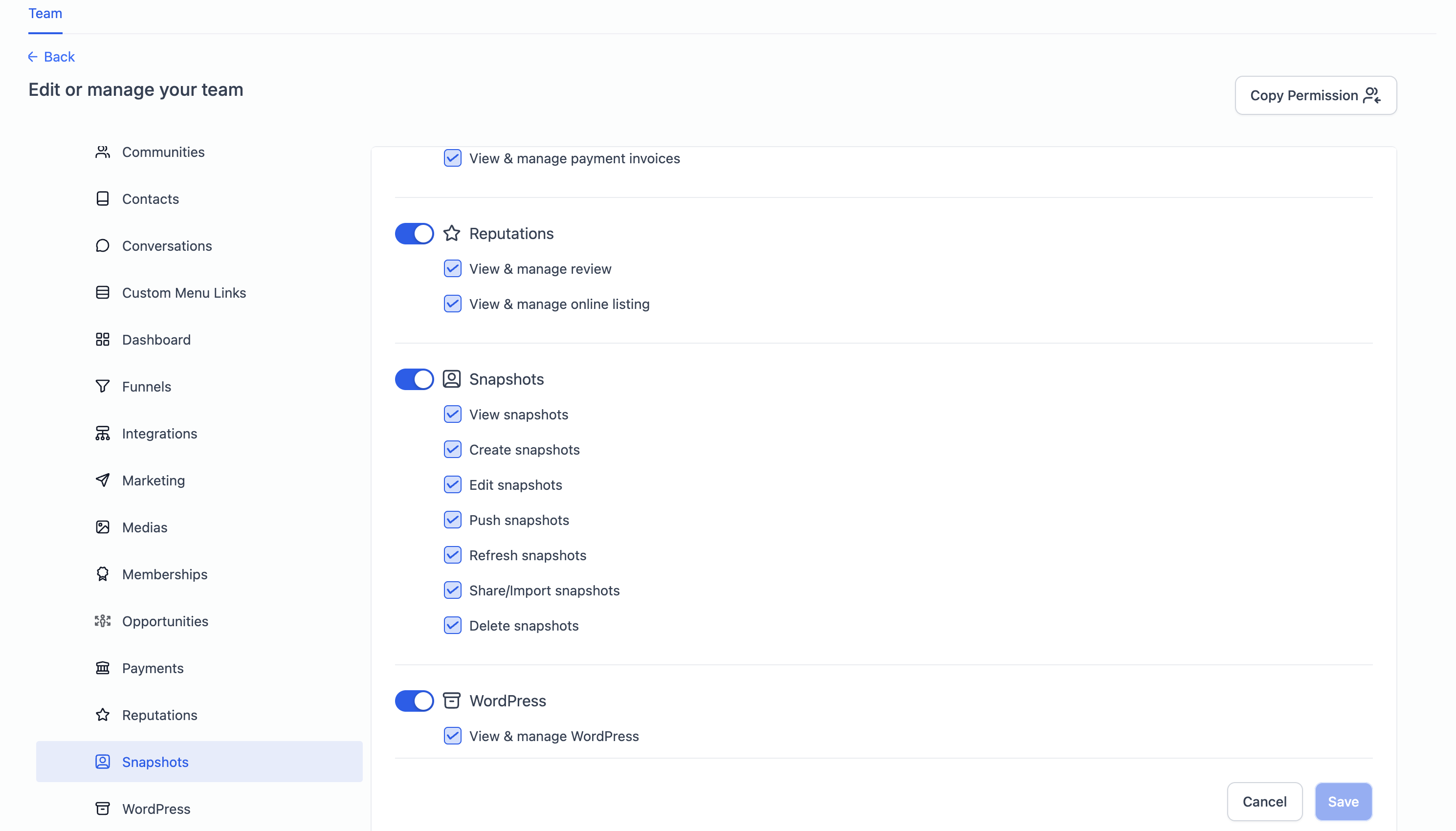
The feature adds permission controls to the Snapshot workflow inside HighLevel. Each snapshot action, view, create, edit, share/import, push, refresh, delete, can be turned on or off for any user. Permissions are managed from the Settings area under the Team section.
When an admin updates a user’s Snapshot Scopes, the platform enforces those choices in real time. A user without the Create Snapshots right cannot generate new snapshots, while a user with only View Snapshots can browse existing ones without making changes.
All changes are saved with a single click, and the new settings apply to every snapshot operation the user attempts thereafter.
03How businesses use granular permissions for snapshots
- Digital marketing agency. The agency admin enables View and Create permissions for junior account managers while reserving Edit, Push, and Delete rights for senior strategists. This keeps client campaign structures safe while allowing assistants to build new snapshots.
- Compliance consulting firm. A compliance lead grants only View and Refresh permissions to analysts, preventing them from accidentally deleting or pushing snapshots that contain regulated data.
- Software as a service startup. The product team assigns Share/Import and Edit permissions to developers who need to move snapshot configurations between staging and production subaccounts, while restricting Push and Delete to the DevOps manager.
04How to set up and use granular permissions for snapshots in HighLevel
Manage snapshot permissions
- Open Settings from the main navigation menu.
- Select Team to list all team members.
- Choose the user whose snapshot rights need adjustment.
- Click the Edit User Option button.
- Scroll to the Snapshot Scopes section.
- Toggle each snapshot permission on or off as required.
- Press Save Changes to store the new settings.
05What it looks like in HighLevel
06Settings that matter
- Snapshot Scopes. Defines which snapshot actions a user can perform, such as view, create, edit, share/import, push, refresh, and delete.
07Things to know before you rely on it
- The article does not list any specific limits or beta annotations for these permissions.
08How it connects to the rest of HighLevel
- Overview of account snapshots and how they are used Snapshot overview
- Step by step guide for creating a new snapshot Create snapshots
- Instructions for loading a snapshot into an existing subaccount Load snapshots
Michael's take

Granular permissions for snapshots feel like a small but useful convenience. They let you tighten who can touch each part of the snapshot workflow without overhauling anything else. That extra control can keep a team from stepping on each other's toes.
A boutique marketing agency that builds client dashboards for each brand will find it handy. The creative lead can create and edit snapshots, while the account manager only needs to view and share them. The agency can lock down Push and Delete actions to senior staff, keeping the data safe.