

This video walks through every part of GoHighLevel field services, which puts booking, dispatch, estimates, invoices and time sheets in the same subaccount as the marketing. Michael Reimer follows the setup guide in order: staff, service areas and services. Then he covers the booking page, the work pipeline, the schedule and route optimization.
Field services sits in the left menu of the subaccount. Click it and a separate app opens inside HighLevel, with its main areas across the top: home, the schedule, requests, estimates, jobs, invoices and time sheets. The first time you open it, the home screen shows a setup guide with the required steps first and a few recommended ones after. Michael follows it in that exact order, because each step builds on the one before.
What do you set up first: staff, service areas or services?
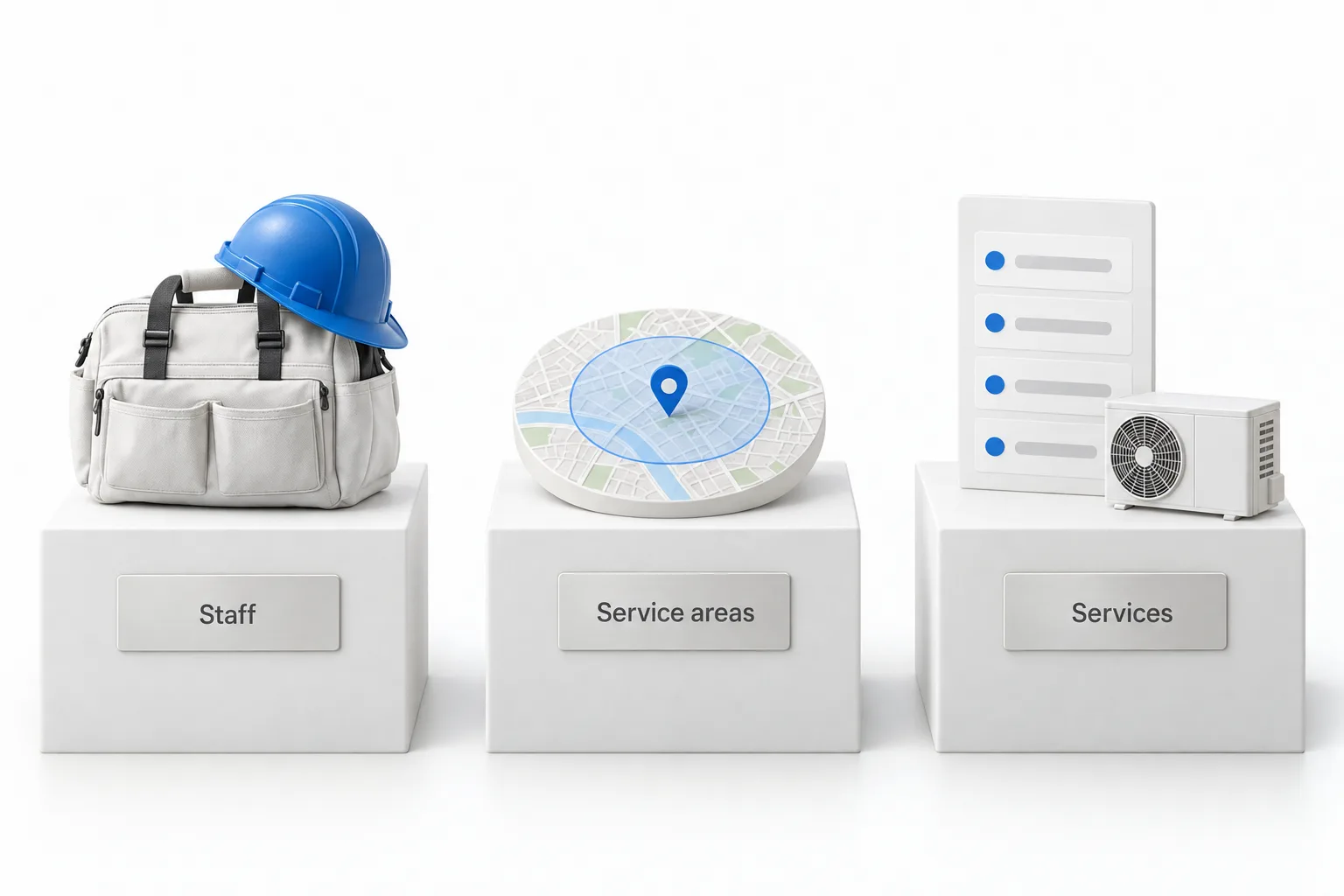
Staff comes first. Go to Services and Staff, open the staff tab and click New Staff. Each person gets basic details, weekly working hours, the services they are allowed to perform and any time off. A junior tech might only do tune ups while a senior tech does installs. Then there is dispatch settings, where you set the route start and route end. For a lot of techs the day starts at their house, not the shop. Michael says most people skip this, and they should not, because route optimization plans the whole day from that spot. The dispatch and route optimization video goes through these settings one by one.
Service areas come second. You define an area as a radius in miles from an address or as a list of zip codes. You pick which staff cover the area, then set two things he likes. A travel fee is charged once per job and shows as its own line on the price. Extra time before visits adds a buffer to the schedule for that area.
Services come third. Each one gets a name, a calendar color, a price, a duration and the staff who can perform it. The Bookable Online switch lets customers book it themselves. Leave it off for jobs that need a quote first, like a full system install. Under a service you can create add ons, such as a filter replacement on top of a tune up.
How do customers book a job through field services?
Field services has its own booking page, built in the settings under the booking page tab. The builder has a live preview for desktop, tablet and mobile.
Booking rules decide how customers pick a time. There are three choices: an exact date and time, a time window such as 8:00 to 11:00 in the morning, or date only, where your team assigns the time later. For most HVAC and plumbing shops Michael would use the time window, since that is how those businesses already work. Bookings can be instant, which puts the visit straight on the schedule, or a booking request that your team schedules.
For payment, you can charge online at booking, offer a deposit or payment in full, accept payment in person or keep a card on file. He recommends a deposit for most clients, because it cuts down on people who book and are not home. A request form covers customers who want to ask first. It collects name, email and address, a description and photos of the problem. There is also an AI receptionist in the settings, set up in five steps, that answers questions about services, prices and the areas you cover by chat, voice or both.
How does work move from a request to a finished job?
Everything starts with a request, the first ask from a customer. From a request you build an estimate with the same builder used in payments. It moves from draft to sent, then to approved or declined. Once approved, you convert it to a job. The job holds every service and product and the pricing summary, including the travel fee on its own line.
Inside the job you add visits. A visit is one trip to the property, and a job can have several. You can attach a checklist to a visit. Checklists are reusable templates with 10 question types, including text, drop downs, checkboxes, numbers, file uploads and a date picker. Michael's favorite is the signature, so the customer signs off before the tech leaves. Each visit moves through statuses: pending, On My Way, Checked In and completed, or no show or canceled. You can add your own statuses. To watch one job go the whole way, see the request to paid invoice video.
What does the schedule do, and where does route optimization fit?
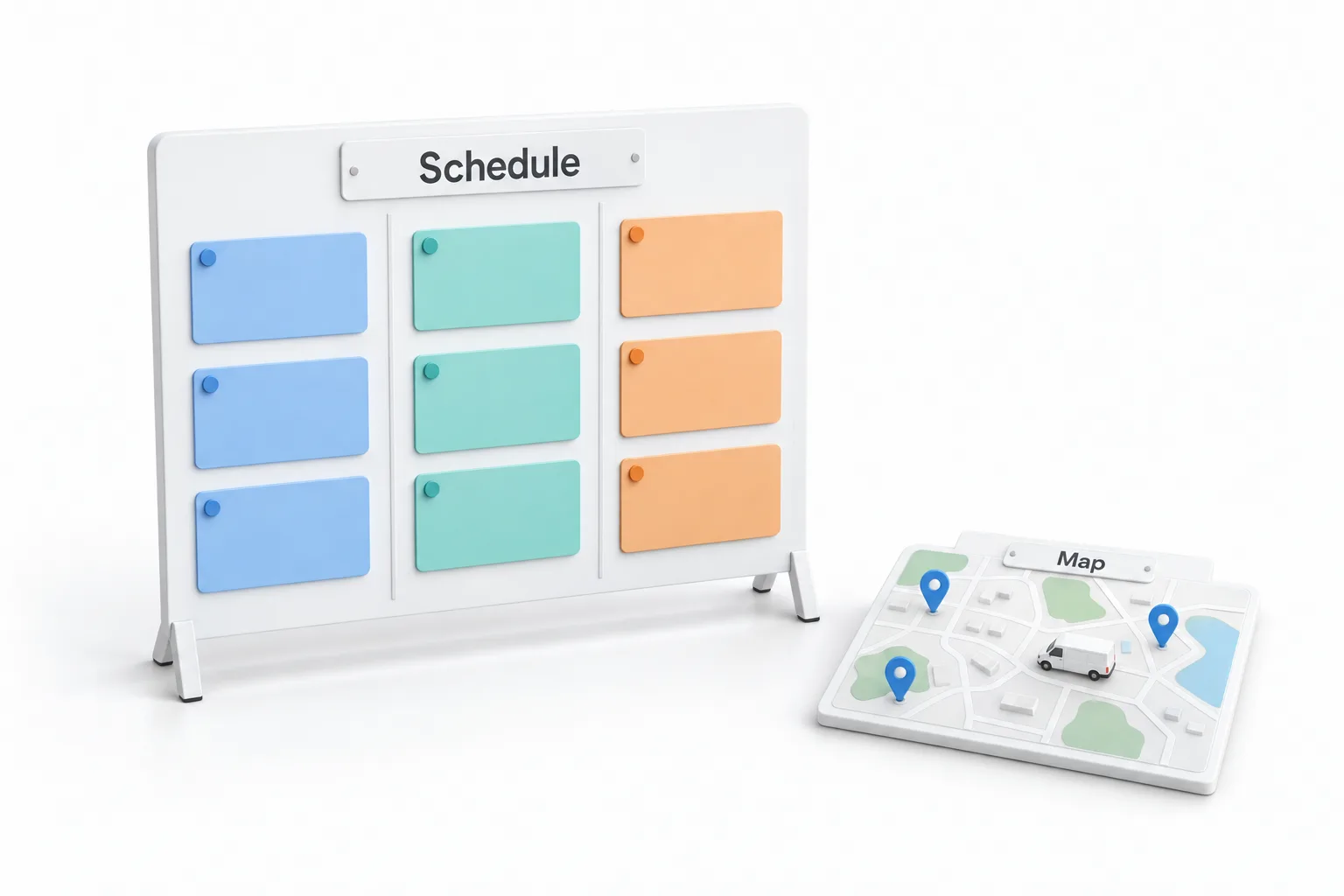
The schedule is the screen a client will live in. It is a dispatch calendar with a column for each staff member, with day, week and month views and a list view. Jobs without a visit wait in the unscheduled list. If someone cannot make the next visit in time, the calendar warns you with the drive time and how many minutes late they will be.
Route optimization works on one staff member and one day. It looks at drive times, working hours, travel buffers and existing bookings, then finds a better order. You can lock any visit first and the rest are planned around it. You review the proposed changes and save them or cancel. Nothing changes until you approve it.
What do techs use in the field, and where do invoices and time sheets live?
Staff run their day from the HighLevel mobile app, linked in the setup guide for iPhone and Android. They see their schedule, get directions, clock in and take payments. Tapping On My Way updates the visit and can send the customer a notification that staff are on the way.
When the work is done, the job turns into an invoice, and all invoices live in one searchable list. Time sheets track hours logged against each job and visit and can be exported for payroll. If invoicing is new to the account, start with send your first invoice.
How do you set up HighLevel field services for a client?
Follow the setup guide in order, then test the flow.
- Open the setup guide. Open field services from the left menu of the subaccount and follow the setup guide in order.
- Add staff. Add each staff member with working hours, services and time off, then set the route start and end.
- Create service areas. Define them by radius or zip codes, assign staff and add a travel fee for far areas.
- Build services. Set price, duration, staff and the bookable online switch, or import existing calendar services.
- Set up booking. Brand the booking page, choose booking rules such as a time window, and turn on a deposit.
- Run the work. Move work from request to estimate to job, add visits and checklists, and track visit statuses.
- Optimize routes. Use route optimization for one staff member and one day, lock fixed visits, then review and save.
What changes for a home service business on GoHighLevel?
Michael's point for agencies is that a home service client was paying for a second app to do all of this. Now it lives in the same account as their marketing and follow up, which makes your offer larger and the client relationship stickier.
For the owner, the home screen gives the big picture: payments collected, money still waiting to be paid and jobs that are finished but not invoiced yet. He says that one view helps a client catch money they would have missed. The HighLevel for HVAC companies guide covers the marketing side that feeds these jobs.
Field services can notify customers that staff are on the way. Before a business texts customers in the United States, its number needs A2P registration, which the A2P On Demand compliance kit walkthrough covers. To follow the setup guide in your own account, start a GoHighLevel 30 day trial through Michael's link, and see HighLevel plans compared for what each plan includes.