

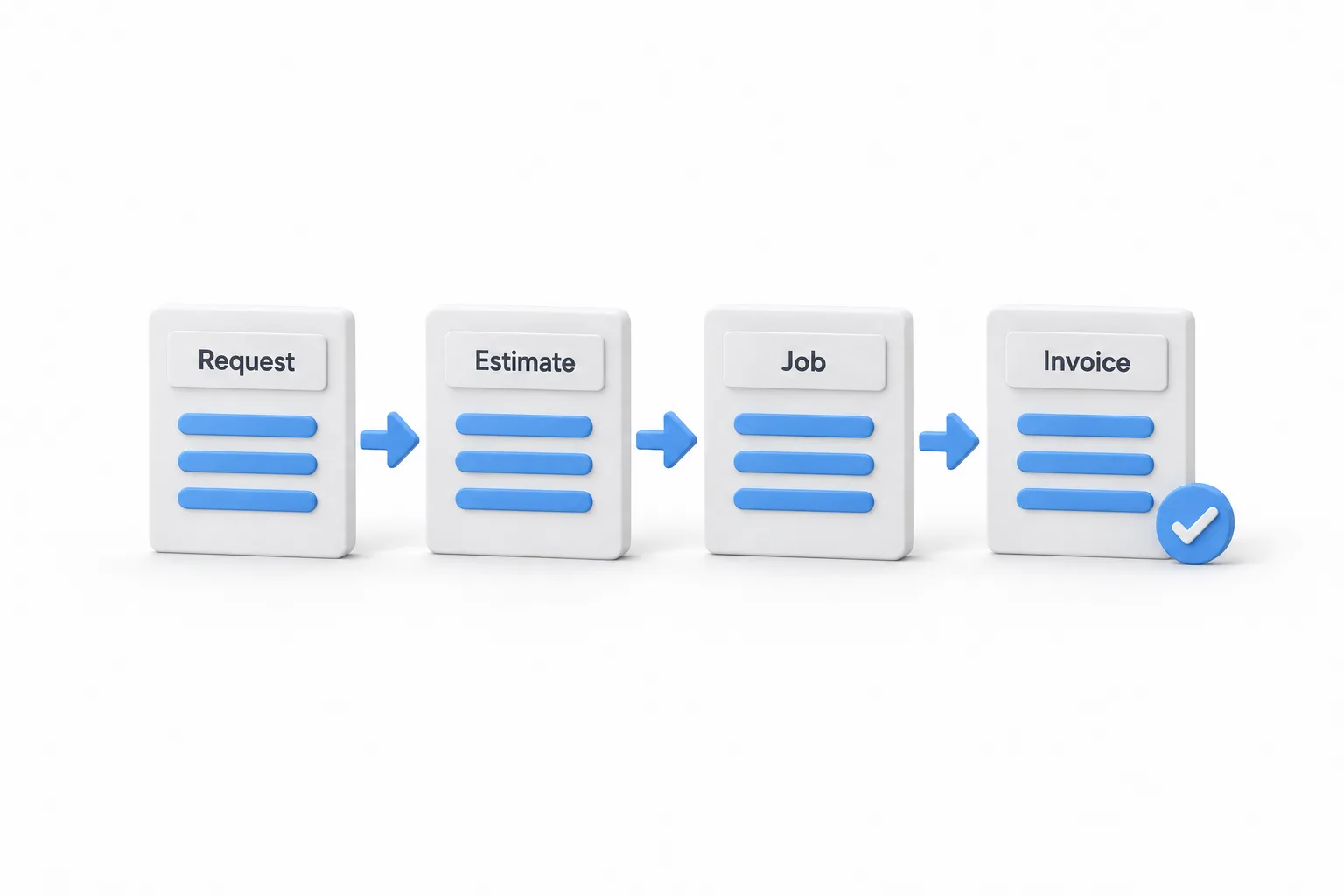
In this video Michael Reimer follows one AC repair call through GoHighLevel field services, from the request to a paid invoice. The same line items move from request to estimate to job to invoice, so nobody types them twice. It is for home service owners and the agencies that set up their accounts.
The job is ordinary on purpose. A customer named Taylor calls. The AC runs but blows warm air, and upstairs is at 84 degrees. Michael takes that one call through every screen the office and the tech would touch, and he stops on the setting behind each step. It is a fair test of whether GoHighLevel can run a service business day to day.
How do you create a request in HighLevel field services?
Open Field Services, go to Requests and click New Request. The first thing it asks for is the contact. Then comes the service address, with a box to save it to the contact so you never type it again.
HighLevel checks the address against your service areas. It tells you the address is serviceable and which area it is served from. If the address sits outside your area, you know before anybody drives out there.
The request title fills in the customer's name with a merge tag. In the description, Michael types exactly what the customer said on the phone. Below that you can add up to 10 supporting photos, so he has the customer text a picture of the unit and drops it in. Request notes sit on the right. They are internal, the customer never sees them, and they show up on every visit scheduled from the request. That is where the gate code or the dog in the backyard goes. One switch at the bottom, Schedule Site Visit, covers the jobs where somebody has to look at the problem before you can quote it.
What happens when no tech is free for the site visit?
A new visit starts unassigned. Open Assigned Staff and the list only shows people who serve that address. At 9:00 in the morning it reports no matching staff, because the tech is in a training class that Friday. Michael moves the visit to 4:00 in the afternoon, the tech shows as available, and the arrival window updates on its own. The dispatch and route optimization video goes deeper on how staff and service areas are set up.
How does a request become an estimate and then a job?
The tech finds a bad capacitor, so the pricing happens right on the request. Michael edits services and products, adds the capacitor replacement and then the AC tune up. When a service has add ons, HighLevel asks if you want them, and he picks the filter replacement.
From the three dot menu, a request converts to an estimate or straight to a job. The estimate opens already filled in: the customer, the address, every line with its price and description, the estimate number, the issue date and an expiry date so the quote does not sit open forever. One tip from the video: the pencil next to business information changes the business details on that one document, which helps if you run more than one brand.
Once the customer says yes, the same menu on the estimate converts it to a job. Everything carries over. The service address now shows the travel fee for that area, and the pricing summary adds services, travel fee and taxes into the real job total. Job scope shows an estimated duration based on the services, one hour and 45 minutes here, and that is how long the visit gets on the calendar.
For the first visit, Michael clicks Find Availability instead of guessing a time. HighLevel suggests times, marks the best match and the earliest option, and shows the drive time from the tech's previous stop.
Where do the automatic job checklists come from?
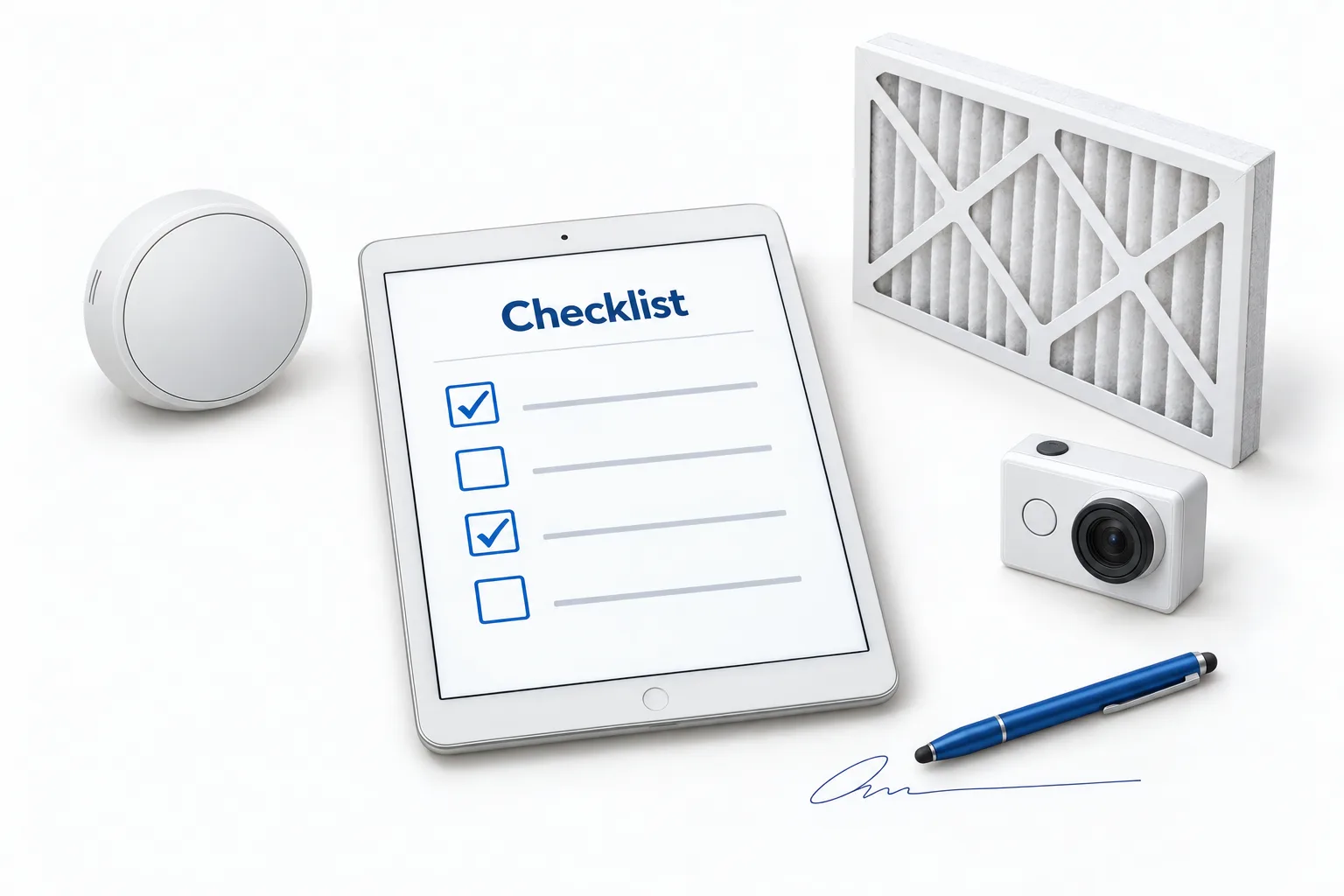
The new job already has a checklist that nobody added by hand. It comes from field services settings, under jobs and visits, in Checklists. These are reusable templates. You attach them to every job or only to the services you pick.
Each line is a question the tech answers on site. The one in the video has a thermostat reading, a checkbox for the filter, an upload for before and after photos and a spot for the customer's signature. Any question can be made required. Michael adds a required number question for supply air temperature, so the tech cannot skip the reading that proves the system is cooling.
What does the tech do on the visit, and how does the invoice get paid?
On the visit, the tech sets the status to On My Way, then Checked In, and works through the checklist while a counter at the top tracks how many items are done. Time entries log the start and end, and HighLevel works out the duration.
When the visit is marked completed, the job status changes to Action Required. It still needs payment. The billing card shows the job total, what has been invoiced, what has been paid and what is outstanding. Create Invoice brings over the customer, every line item and the travel fee, with the invoice number and due date already set and a pay button for the customer.
One detail saves a support ticket. The Collect Payment button on the job only works once an invoice has been sent. If the customer paid on the spot, record it from the invoice: open the three dots, click Record Payment, then charge a card or record it manually for cash or a check. The billing card flips to paid, outstanding goes to zero and you close the job, which you can reopen later. If invoicing is new to your account, send your first invoice and connect Stripe first.
How do you set this up in your own service business?
The order Michael works in doubles as a setup list.
- Take the call as a request. In Field Services, open Requests, click New Request, pick the contact and add the service address.
- Capture what the tech needs. Add the customer's own words, up to 10 photos and internal request notes. Turn on Schedule Site Visit if someone has to look first.
- Assign the visit. Choose a staff member who serves that address and is available, then save.
- Price it once. Add services and products on the request, then convert it to an estimate and, once approved, to a job.
- Book the work. On the job, use Find Availability, pick a suggested time and create the job.
- Build the checklist. In field services settings, create checklist templates, mark key questions required and attach them to services.
- Finish and get paid. Update the visit status, complete the checklist, add time entries, create the invoice, record the payment and close the job.
What changes once every job runs through field services?
The office stops retyping. The line items entered on the request are the ones the customer sees on the estimate and pays on the invoice. The travel fee comes from the service area, so nobody forgets to charge it. An address outside your area gets caught at the first step, not in the truck.
The tech walks in knowing more. He has the photo of the unit, the customer's description and the internal notes on every visit. A required question means the reading that proves the repair gets recorded every time, and time entries give you labor on every job.
The owner sees what is unfinished. A completed visit with no payment shows as Action Required. If you run an HVAC shop, the HighLevel for HVAC companies guide covers the calls and follow up that happen before a request like this one exists.
A paid invoice is a good moment to ask for a review. The guide to build a review request workflow covers that follow up. To run a test job from request to invoice, start a GoHighLevel 30 day trial through Michael's link. For a wider look at the platform, read Michael's GoHighLevel review.