

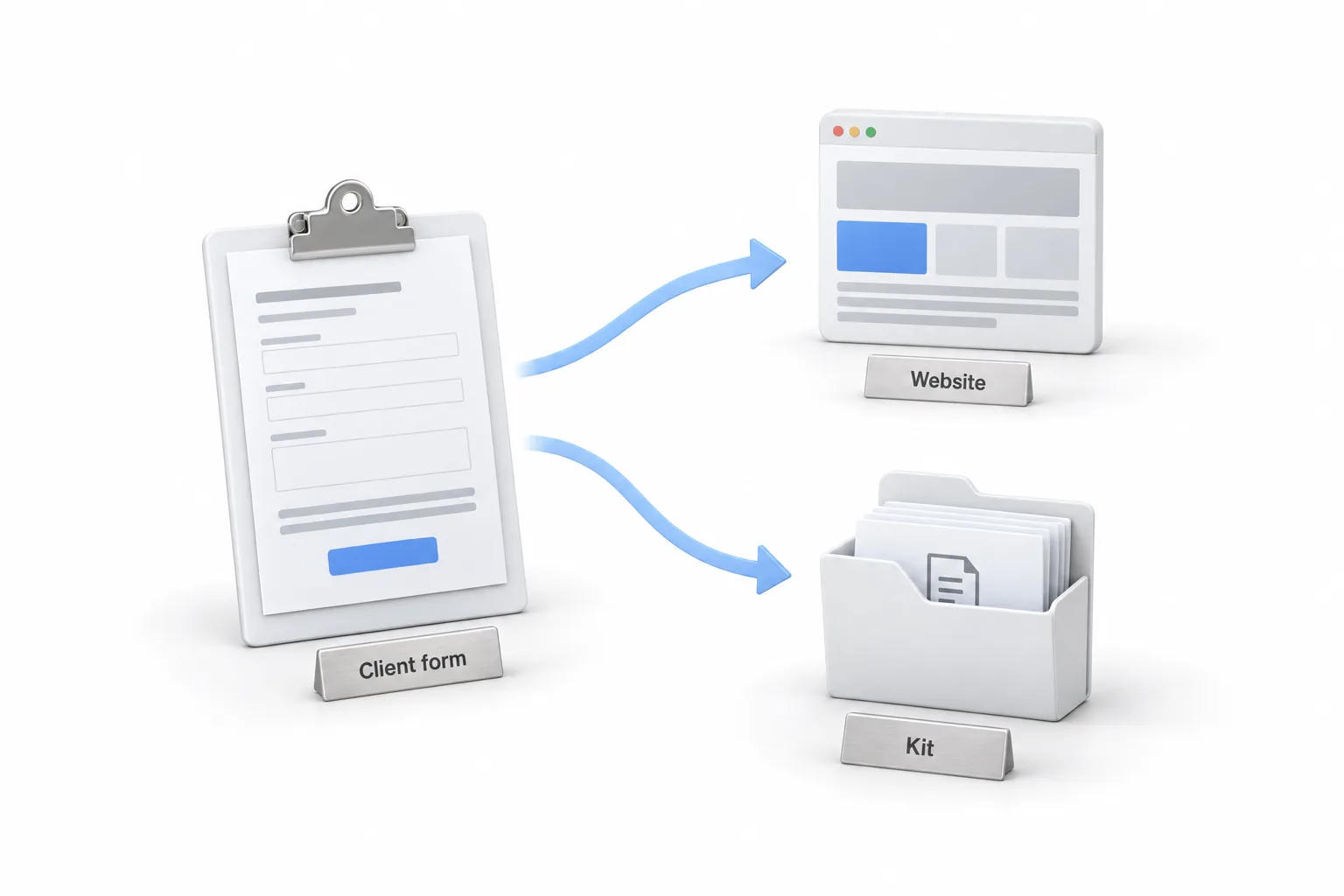
In this video Michael Reimer walks through A2P On Demand, an app from his team at CRM Pros. One client form produces a live compliance website and a compliance kit. You then paste the kit's answers into the GoHighLevel Trust Center to file the A2P registration. It is for agencies and business owners who register texting.
Michael uses his own company as the example, so every screen shows real details. CRM Pros goes into the form, the niche is CRM consulting, and the registration ends in HighLevel's compliance review.
What goes into the A2P On Demand client form?
Everything starts with the blue submit a client button at the top right. The first section is about you, the agency or the business owner. Your own name and email go there. The client's details come later in the form, so Michael says to leave them out for now. Then you pick the country where the business is registered. He picks the United States.
Next is the EIN. You drop it in and click look up and verify. The app checks the IRS record and the legal business name fills in on its own. Nobody types it, so it cannot drift from what the IRS has on file. The street address works the same way. You start typing, then pick the address from the drop down list, and that list is what verifies it as a real address.
After that come the support email, the business phone number and the niche. Then Michael has AI generate the business description. His instruction is to give it one read and fix anything that is not true about the business.
You upload or generate a logo, pick the hosting domain, tick the box confirming the client meets the texting requirements and launch the package. The app builds the website and writes the privacy policy and the terms of service. When it finishes, a note asks you not to change anything. Michael says to take that seriously, because everything already matches.
What do reviewers look for on the compliance website?
Every kit comes with a live website for the business, and the people reviewing a registration go and look at it. The home page shows the logo and the business details from the form.
The part Michael slows down on is the opt in form. It has two separate consent boxes and neither one is checked by default. One covers service messages, like an appointment reminder. The other covers promotions, like a holiday offer. In the video he points to HighLevel's help center, which says marketing consent has to be collected separately like this.
The footer holds the privacy policy and the terms of service. Those are the two links HighLevel asks for when you register the campaign. One more rule from the video: keep the site live for the whole review. If a reviewer clicks the link and gets an error, they cannot check the business. The guide to fixing a rejected A2P registration covers what happens when the website is the weak point.

How is the compliance kit laid out?
The kit is one page, and Michael calls it a cheat sheet built for this one business. One button copies every answer at once. Another saves the whole kit as a PDF.
On the left, the kit splits into two parts. Prepare is what you check before you open HighLevel. Deploy holds the answers you paste in. Michael reads the HighLevel review note first. It warns that HighLevel's own check can flag the opt in even when the page is compliant. If that warning shows up, you review the website yourself and carry on with the submission.
Under the note is an approval checklist to go through before you touch HighLevel. Further down are the answers: the use case description, both sample messages, the opt in details and the website links. Each answer has its own copy button.
How do you paste the kit into the HighLevel Trust Center?
Michael keeps the kit in one tab and HighLevel in the other. Everything in the Trust Center pulls from the business profile, so he sets the profile up once with the same details as the kit. Then he adds the authorized representative, the person who can answer for the business if carriers ask.
From there, go to Settings, then Phone System, and open the Trust Center tab. Click start registration under A2P messaging. Because the profile is saved, the business details fill in on their own. HighLevel sends a one time code to the representative's email, and you enter it. For messaging volume, the low volume card says it is best for small businesses and solo operators. Michael says that is the one he would pick for most clients. Then he switches to manual setup so he controls every answer.
Now the pasting starts. The use case description goes in exactly as the kit wrote it. It says who sends the messages, who receives them, what they are about, how often they go out and how people opt out by replying stop. The privacy policy and terms links are already written into it. Each sample message goes into its own field. If a sample has a placeholder in square brackets, leave it exactly as written.
Next comes the website address, which HighLevel checks before it lets you move on. Choose website form as the opt in method, paste the opt in form link, then paste how contacts opt in and the opt in message. The last two links, the privacy policy and the terms of service, come from the footer of the compliance website. The how to guide on registering for A2P 10DLC covers the same GoHighLevel screens without the app.
How do you run a client through A2P On Demand yourself?
The video follows one order from a blank form to HighLevel's review.
- Start the form. Click submit a client, enter your own name and email, then pick the country where the business is registered.
- Verify the business. Enter the EIN and use look up and verify so the legal business name fills in, then pick the verified address from the list.
- Describe it. Add the support email, business phone and niche, generate the description with AI and correct anything that is not true.
- Launch the package. Leave the generated content unchanged and keep the compliance website live during review.
- Prepare HighLevel. Set up the business profile and the authorized representative, then start A2P registration from the Trust Center tab under Settings and Phone System.
- Paste the answers. Switch to manual setup and paste the use case description, both sample messages, the website, the opt in method and message, and the privacy and terms links from the kit.
- Check the website. Tick each item in the website checklist only after you see it on the live site.
What changes when the answers come from a kit?
You stop typing. Michael's line in the video is that you copy one thing and paste one thing, with no retyping and no typos. The legal name comes from the IRS record and the address comes from a verified list, so the details on the website, in the kit and in the Trust Center are the same details.
The website checklist is the part people rush, and he says to slow down there. When you continue, HighLevel runs its own compliance review of the opt in form, the privacy policy and the terms, and then you click proceed.
The app does not end the wait. From there the registration heads to the carriers for their review. If you want the reasons registrations fail in the first place, Michael covers them in why A2P registrations get rejected.
Not on HighLevel yet? The GoHighLevel 30 day trial through Michael's link gives you 30 days to build and test. What your account includes depends on the plan, so check GoHighLevel plans compared.