

In this video Michael Reimer turns a HighLevel Voice AI test call into a branded demo for one prospect. He downloads the call recording, adds the prospect's logo to a template, cleans the audio and adds sound bars. It is for agencies that want a voice AI demo that looks made for the business watching it.
The prospect in the video is an oil recovery company, the kind a quick lube shop hires to pick up its used oil. The Voice AI agent is already built before the video starts. Michael places a few test calls until one sounds right, and that call becomes the demo. Everything after that is packaging, and he does it in three tools.
Where does the audio for a voice AI demo come from?
It comes from a real call with the agent. Michael opens the subaccount, goes to Conversations and finds his test calls. He picks the one he wants and clicks download. The recording lands in his downloads folder, and that is the audio for the demo.
The agent answers as the prospect's business and Michael plays the caller. If you have not built the agent yet, the guide to building a voice AI agent covers that part, and the voice AI prompt generator gives you a starting prompt.
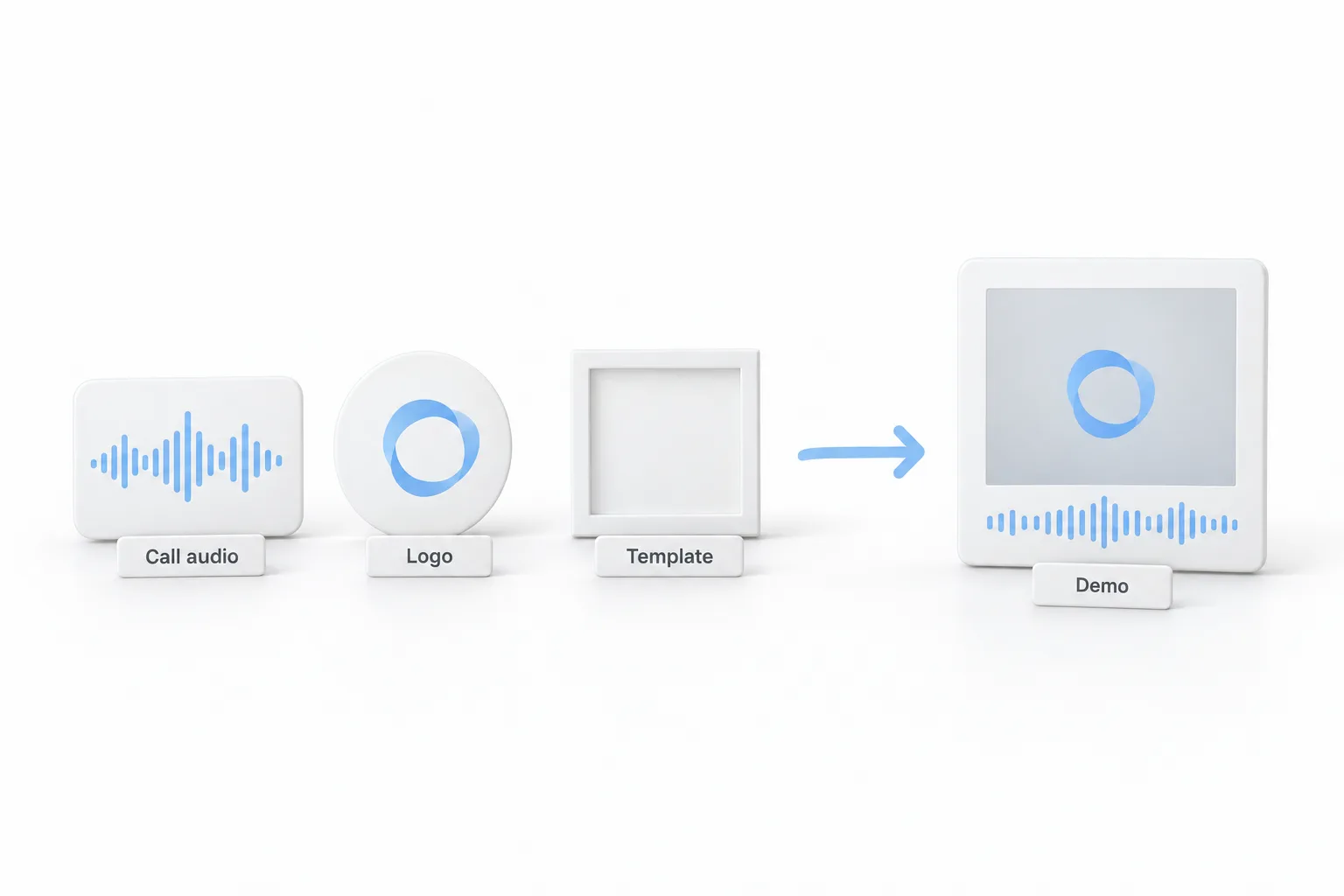
How do you get the prospect's logo ready?
Michael searches for the company name plus the word logo and switches to the image results. He right clicks one, chooses save image as and saves it to his desktop.
The saved logo has white all the way around it. He wants that part transparent before it goes into the demo. For that he uses remove.bg. He says he could do it in Photoshop, but he finds this easier and more reliable. He uploads the image and the white disappears, leaving only the black and red lettering with no background.
How do you add the logo to the demo image?
The visual is a template Michael keeps in Photoshop. It has a lot of layers, because he has used the same file for what he estimates is 50 or 60 demos. Each layer holds a logo and a color scheme, and he turns them on and off as needed. He mentions that a single layer version works too, and that Canva would make this step easy.
He drags the transparent logo on top of the file, shrinks it and positions it. A purple guide line appears when the logo is centered both horizontally and vertically. That is his cue that it sits where it should.
The template shows two people. In this call the agent has a male voice and Michael is the caller, so the image shows a man speaking to a man. If your agent has a female voice, he says to put a woman in the image so the picture matches what the prospect hears.
When the image looks right, he opens the Layer menu and flattens it, which leaves one layer. Then he exports it as a JPEG to the desktop and names it after the prospect.
How do you clean up the call audio in Descript?
The audio and the image come together in Descript, the video editor Michael uses. He starts a new project and chooses a video project, because the demo plays as a video. He drags the call recording in and confirms the language, and Descript transcribes it. What you get is a written transcript of the call you made in HighLevel, which you can edit.
Then he opens the AI tools and runs three of them. Remove filler words finds the ums and the repeated words and takes them out. Remove word gaps shortens long pauses. He has it set so that any gap longer than three seconds is cut to one second, which covers the moments when the agent or the caller takes a while to answer. This call was short and had no gaps, so it changed nothing. Studio Sound is the last one. He applies it to give the voices a fuller tone.
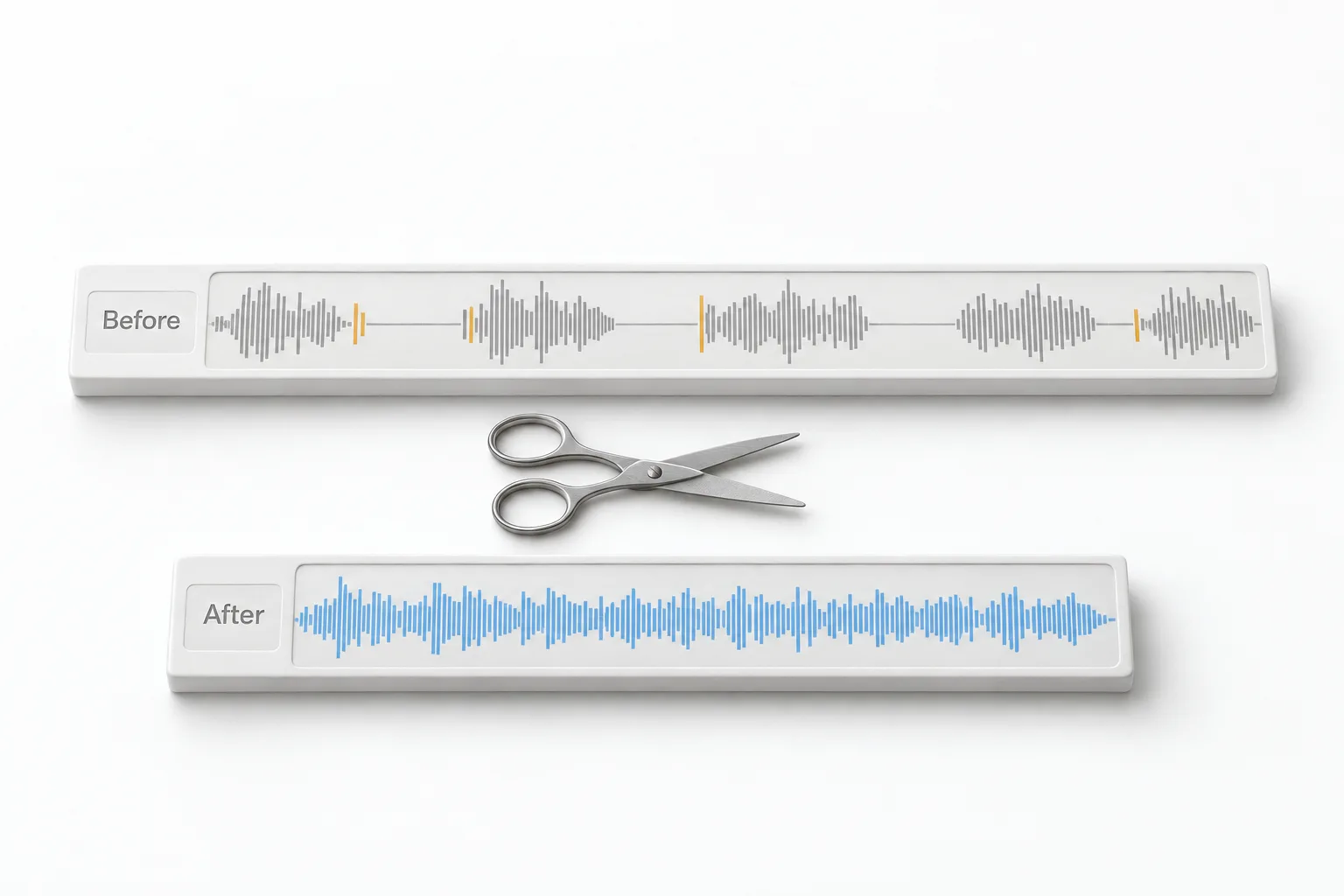
How do you size the image and add sound bars?
Michael drags the JPEG onto the black video frame. The image is a square and the frame is 16 by 9, so black bars show on both sides. He switches the layout to square at the top and drags the image out until it fills the frame.
The sound bars come from Elements. Descript offers waveforms as lines, circles, rings or plain waves. He uses lines, stretches the waveform across the bottom of the image and sets the thickness to nine points. When he plays it back, the bars move with the agent greeting the caller and the caller asking about the service.
To finish, he clicks export and picks a local export, not a web link, then saves the file to his desktop. One quirk he warns about: the export button stays on screen after it finishes. If you keep clicking it, you save the file again and again.
How do you make a branded voice AI demo for your own prospect?
The whole process in the video comes down to seven steps.
- Get a good call. Make a few test calls to your Voice AI agent until one sounds right.
- Download it. In the HighLevel subaccount, open Conversations, find the call and download the recording.
- Prepare the logo. Find the prospect's logo with an image search, save it and remove the white background with remove.bg.
- Build the image. Open your demo template in Photoshop or Canva, drop the logo in, center it, flatten the layers and export a JPEG.
- Clean the audio. In Descript, start a video project, drag in the call, let it transcribe, then remove filler words, shorten long word gaps and apply Studio Sound.
- Add the visuals. Drag the image over the video frame, set the layout to square and add a lines waveform from Elements as sound bars.
- Export once. Choose a local export and save the finished demo file.
What changes when the demo carries the prospect's own logo?
Michael's reason for the extra steps is in his first line: the demo stands out from the crowd. A prospect does not get a generic recording. They see their own logo while an agent answers the phone in their business name and talks about their service.
The template is what keeps it practical. He built the Photoshop file once and reuses it for every prospect, switching the logo and the colors.
The source is a real call from the GoHighLevel account, not a mock up, so what the prospect hears is how the agent responds. Michael also has a video on how to make voice AI demo videos, and the HighLevel Voice AI guide covers what the agent itself can do.
For another demo build, watch the HighLevel MCP server voice agent demo. To see HighLevel in your own account, start with the 30 day GoHighLevel trial through Michael's link. Comparing platforms? See the best HighLevel alternatives.