
01Who this is for
- Founders who need to reduce manual follow up after sales tasks are finished, because the trigger can start an email automatically.
- Operations managers who want to ensure task completion updates are recorded without extra clicks, using the optional user filter.
- Marketing teams that require a consistent workflow once a campaign task is done, leveraging custom field filters for segmentation.
02Task completed triggers, explained
The Task Completed trigger monitors tasks in the platform. When a user marks a task as completed, the trigger can launch the next steps in a workflow. You can limit the trigger to specific users or to tasks that contain particular values in custom fields.
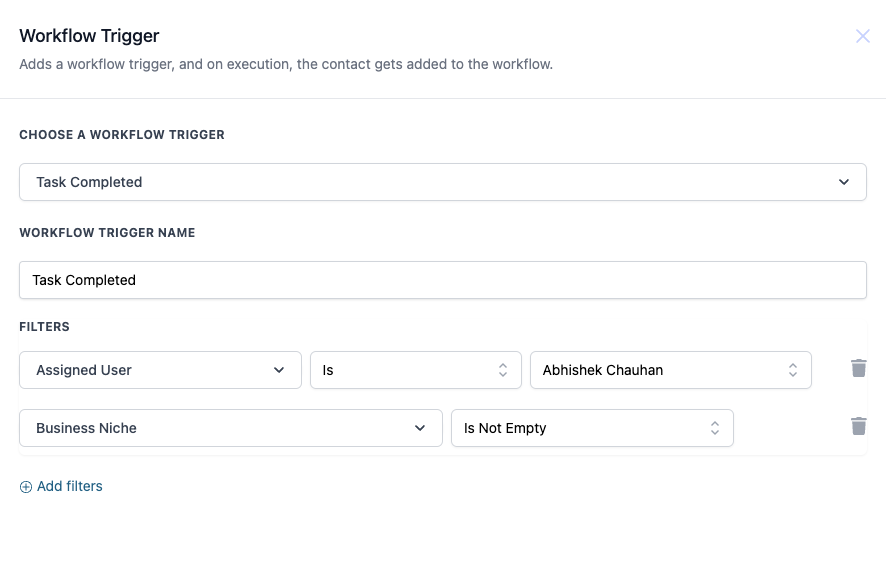
The trigger lives inside the workflow builder under the trigger selection menu. After you choose it, you name the trigger, optionally add filters for Assigned User, Business Niche, or Description, and then save it. Once saved, any matching task completion will move the workflow forward to the actions you have defined.
03How businesses use task completed trigger
- Real estate agency. The agency creates a workflow that sends a thank you email after a listing appointment task is completed. It selects the Task Completed trigger, filters for the Assigned User who handled the appointment, and saves the configuration. When the task is marked complete, the email action runs automatically.
- Dental practice. The practice uses the trigger to update a patient’s record status after a follow up call task is finished. It adds a filter on the Business Niche custom field to target dental contacts, saves the trigger, and then adds an update status action in the workflow.
- Software startup. The startup sets the trigger to notify the product team when a development task is completed. It leaves the Assigned User filter blank to fire for any user, saves the trigger, and adds a Slack message action that alerts the team in real time.
04How to set up and use task completed trigger in HighLevel
Configure task completed trigger
- Choose the workflow trigger option in the builder.
- Select the “Task Completed” entry from the list of triggers.
- Enter a descriptive name for the trigger, for example Task Completed Follow up.
- Optionally add filters such as Assigned User or custom fields to control when the trigger fires.
- Save the trigger configuration.
05What it looks like in HighLevel
06Settings that matter
- Assigned User. Specifies which user must complete the task for the trigger to fire, or leaves it blank to accept any user.
- Business Niche. A custom field that can restrict the trigger to tasks linked to a particular business niche value.
- Description. A custom field that allows the trigger to fire only when the task description contains specific content.
07How it connects to the rest of HighLevel
- Overview of all workflow triggers Triggers overview
- Step by step guide to creating workflows Workflow creation
- HighLevel pricing and plan details Pricing
Michael's take

Michael ReimerFounder of CRM Pros, HighLevel Commander and Certified Admin
I often use this trigger when I need an automatic action right after a task is completed.
Get More InformationOpens on HighLevelPublished November 2, 2026 · Updated November 17, 2026