
01Who this is for
- Marketing managers can target only contacts who have agreed to the terms, keeping campaigns compliant.
- Compliance officers gain a simple way to enforce agreement before users enter regulated processes.
- Founders of subscription services can block access to premium features for users who have not accepted the terms.
02T&C filter, explained
The T&C Filter is added inside a workflow and checks a contact’s agreement status after a Form Submitted, Quiz Submitted or Survey Submitted trigger. It offers two condition choices, ‘Users who have agreed to the T&C’ or ‘Users who have not agreed to the T&C’, which you attach to a specific step.
You find the filter option by opening a workflow, selecting a trigger, clicking Add Filters and choosing T&C Filter. After setting the condition, you save the workflow and run a test to confirm the filter behaves as expected. This keeps only the desired group of contacts moving forward in the automation.
03How businesses use the T&C filter
- Ecommerce store. Add the T&C filter to a workflow that runs after a checkout form is submitted. Choose the condition for users who have agreed to the terms so only those customers receive post purchase upsell emails. Users without agreement are excluded from the upsell path.
- SaaS subscription service. Create a workflow that triggers on a trial sign up form. Apply the T&C filter with the ‘not agreed’ condition to route those contacts to a reminder email asking them to accept the terms before accessing premium features.
- Healthcare clinic. Use a survey submission trigger for patient intake forms. Attach the T&C filter set to ‘agreed’ so only patients who consent to the clinic’s privacy policy proceed to appointment scheduling steps.
04Before you start
- A workflow that uses a Form Submitted, Quiz Submitted, or Survey Submitted trigger must be created before adding the T&C filter.
05How to set up and use the T&C filter in HighLevel
Add T&C filter to your workflow
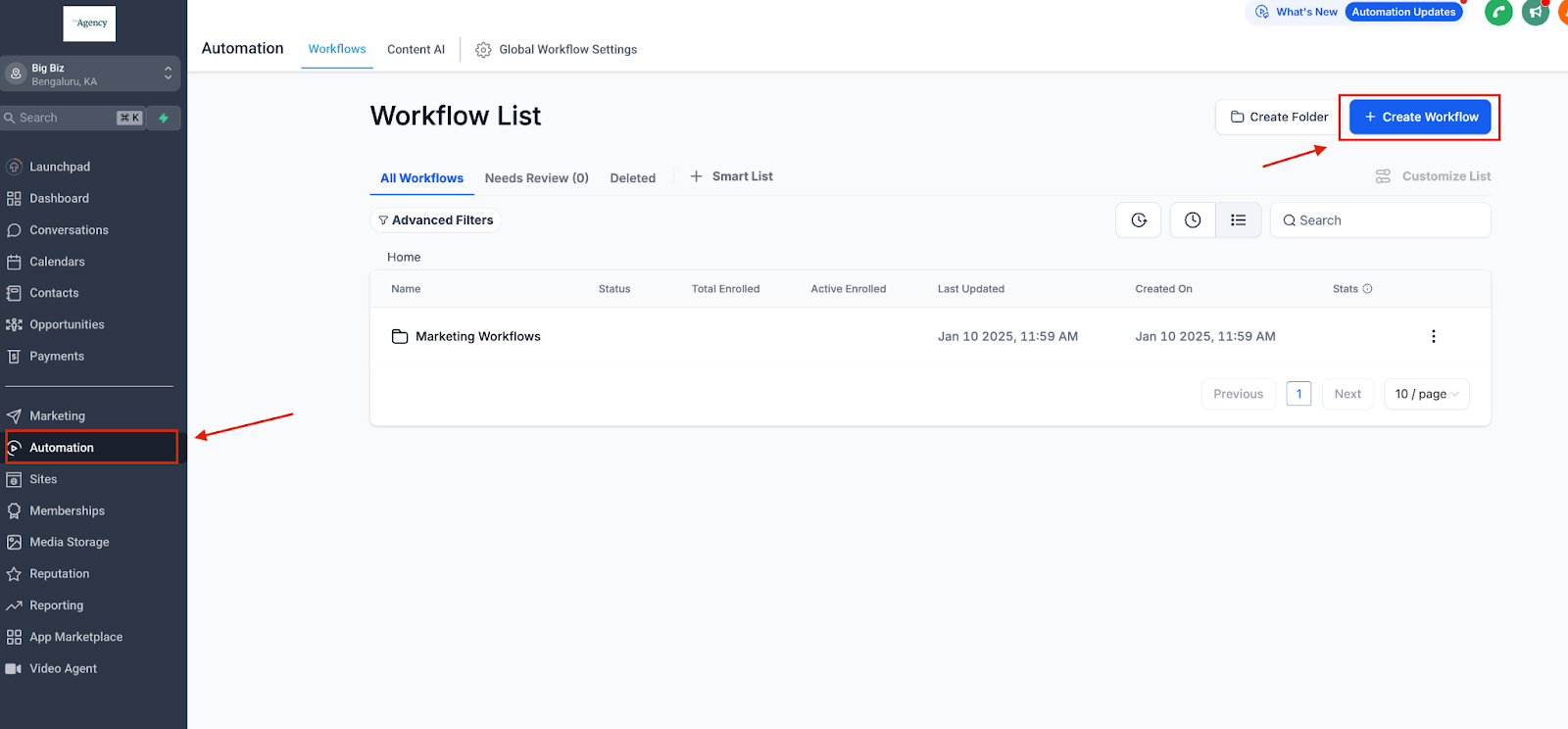
- Open the Workflows section.
- Select an existing workflow or start a new one.
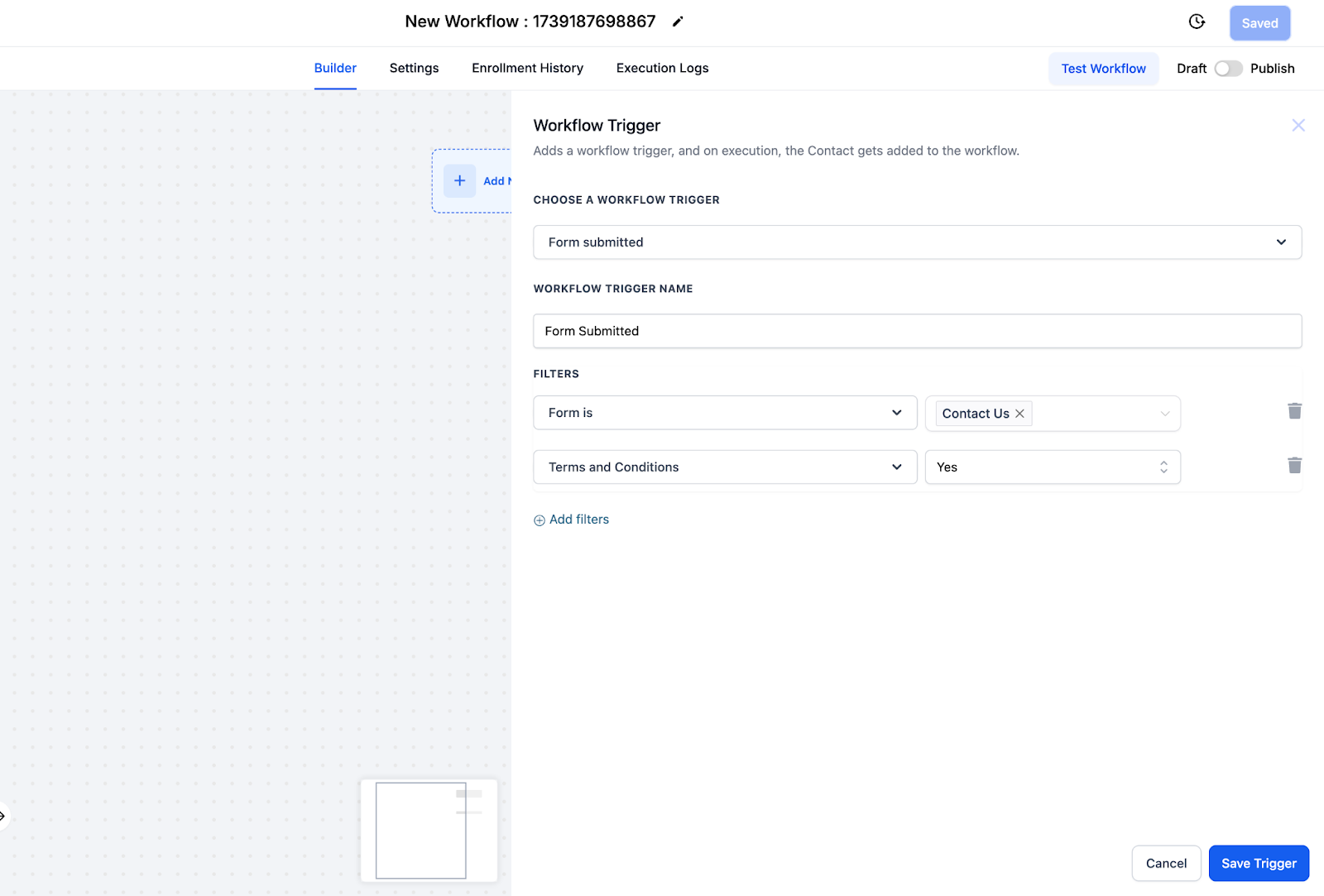
- Choose a trigger of type Form Submitted, Quiz Submitted, or Survey Submitted.
- Click the Add Filters button.
- Select the T&C Filter option.
Configure the T&C filter
- Select the condition Users who have agreed to the T&C.
- Select the condition Users who have not agreed to the T&C.
- Apply the filter to the relevant step in the workflow.
- Save the workflow changes.
- Run a test to verify that the filter behaves as expected.
06What it looks like in HighLevel
07Settings that matter
- T&C Filter. Enables the workflow to evaluate a contact’s agreement status and act accordingly.
- Condition Options. Provides the choices ‘Users who have agreed to the T&C’ or ‘Users who have not agreed to the T&C’ for the filter.
08Things to know before you rely on it
- The filter works only with Form Submitted, Quiz Submitted, or Survey Submitted triggers.
- Only the two listed condition options are available for filtering.
09How it connects to the rest of HighLevel
- Triggers overview explains the start points for workflows, including the triggers compatible with the T&C filter. Triggers overview
- The workflow creation guide shows how to add filters and actions like the T&C filter within a workflow. Workflow creation guide
Michael's take

When a business runs a promotion or opens a new feature, not everyone has signed the latest Terms and Conditions. That gap can cause compliance headaches or unwanted messaging. The T&C filter solves that by letting you automatically separate the two groups inside a workflow.
The first setting I would lock in is the condition option. Making sure the filter is set to “Users who have agreed to the T&C” for any step that must stay compliant. Once that’s solid, the rest of the flow can be built around it.